In today’s professional landscape, leveraging Pandoc can significantly streamline the creation of a robust and user-friendly publication pipeline. Pandoc, a remarkably straightforward yet powerful tool, empowers users to transform documents into a variety of formats tailored to their specific needs.
This versatility can dramatically simplify documentation and publication workflows, even unlocking new automation opportunities. A key advantage of Pandoc is its reliance on Git-friendly Markdown, enabling seamless version control for your documentation without any extra effort.
Speaking of effort reduction, we’ll utilize a Docker image to effortlessly install Pandoc and LaTeX with a simple pull command. Software installation can be incredibly time-consuming, and configuring a functional software environment from the ground up for each new project is far from productive. Docker addresses these pain points by enabling users to set up everything in mere minutes, irrespective of the platform.
Furthermore, it’s increasingly common for employers to request that employees provide their own computer hardware, a practice known as Bring Your Own Device (BYOD). This, coupled with the rise of remote work due to the COVID-19 pandemic, underscores the importance of solutions like Docker. Without them, supporting applications across diverse hardware and operating systems like Windows, macOS, and Linux would be a significant challenge.
Before we delve into Pandoc, let’s take a closer look at Docker containers and images.
Docker: A Solution for Efficient Workflows
Docker containers eliminate the need to install numerous software applications on a new machine. Pre-built Docker images, readily available on Docker Hub for a wide range of applications, streamline the process. Major cloud providers such as AWS, Azure, and Google offer their own container registries, and numerous third-party registries like GitLab and Red Hat OpenShift further expand the options.
With a high probability of finding an image for most, if not all, applications, installing applications and their dependencies is often unnecessary. Simply running the application within a Docker container circumvents compatibility issues that can arise from team members using different hardware and operating systems. The same image can power containers on any compatible system, and Docker experts can optimize this process for exceptional speed and efficiency.
Pandoc in Action: Streamlining Documentation
Documentation is often required in multiple formats. For instance, the same document might need to be available as HTML for presentations and PDF for handouts. Manually converting between formats is tedious and time-consuming. A more efficient solution is to establish a publication chain with a single source of truth, where all documents are written in a consistent, text-based language for easy versioning and storage in Git repositories.
Markdown is an excellent choice for this purpose. Numerous reliable software tools can convert Markdown documents into various other formats.
Introducing Pandoc
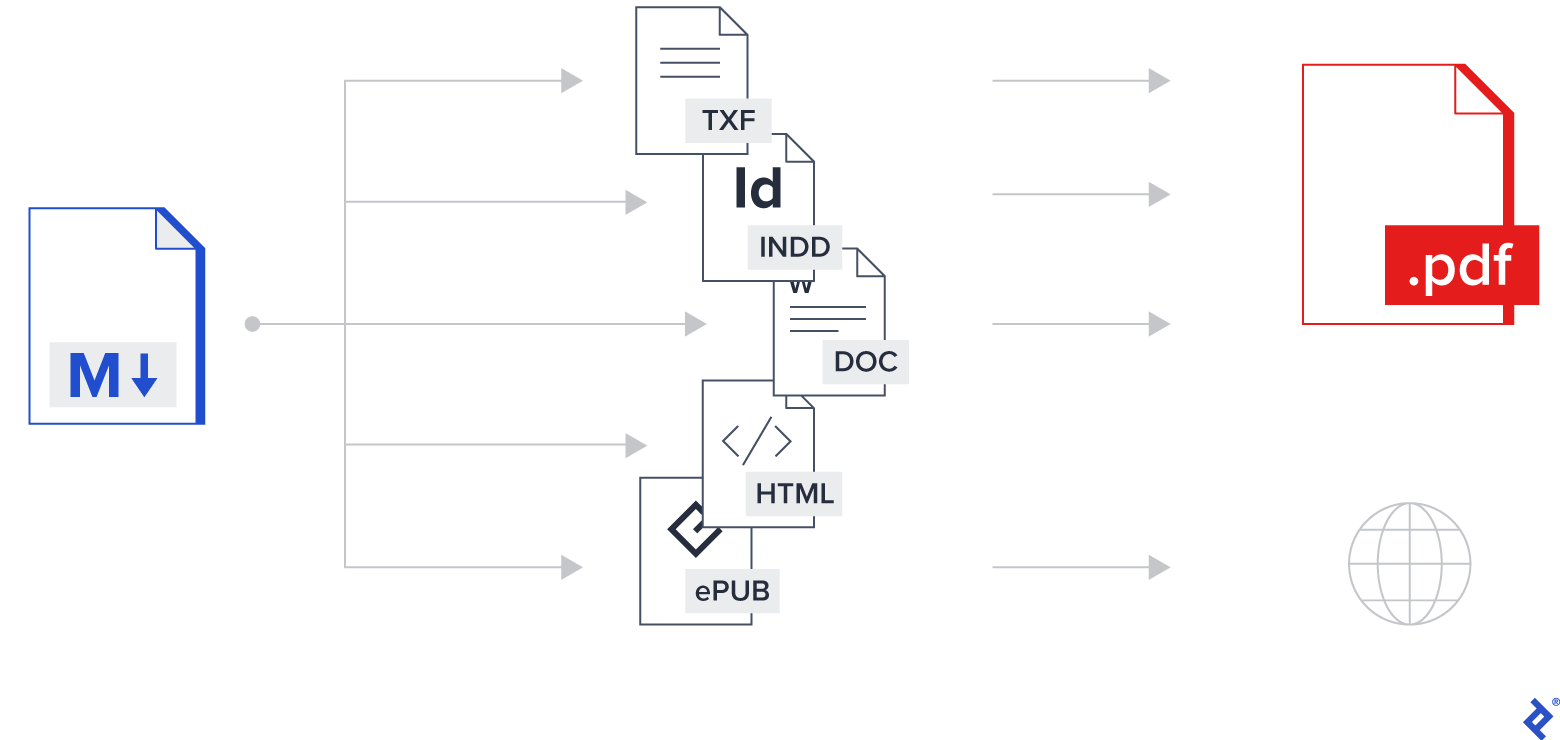
Pandoc is a versatile software package that facilitates document conversion between various formats. Notably, it excels at converting Markdown into HTML, PDF, and other popular formats. This conversion process can be customized using templates and metadata embedded within the Markdown source.
Pandoc relies on a LaTeX installation for PDF file creation. While installing Pandoc and LaTeX can be time-consuming, a convenient Docker image called pandoc/latex eliminates the need for anything beyond Docker itself.
Exploring Docker Commands
The first step is to locate or create a suitable Docker image containing the required software. Pulling the image to the local registry is recommended, as the initial download may take some time.
| |
Running a command within a Docker container requires a wrapper to launch the container and execute the command. A practical solution is to define a shell function on macOS or UNIX/Linux systems. This function can reside within login scripts or a separate file like $HOME/.functions. Alternatively, a script or alias with the same functionality can be created.
| |
This function performs the following actions:
- Prints the command to the console.
- Launches a Docker container from the
pandoc/lateximage. - Utilizes the
-itoption to create an interactive terminal session and display the command’s output. - Employs the
--rmoption to remove the container after command execution. - Uses the
-v $PWD:/workoption to mount the current host directory to the/workdirectory inside the container. - Sets the
/workdirectory as the working directory within the container using-w /work. - Executes the
pandoc "$@"command inside the container, passing all command-line options provided to the function.
A shell or script is needed to load the function into memory.
| |
The function now acts as a standalone command, behaving as if the pandoc binary were installed locally. This approach extends to any command available within a Docker image.
Converting Markdown to HTML
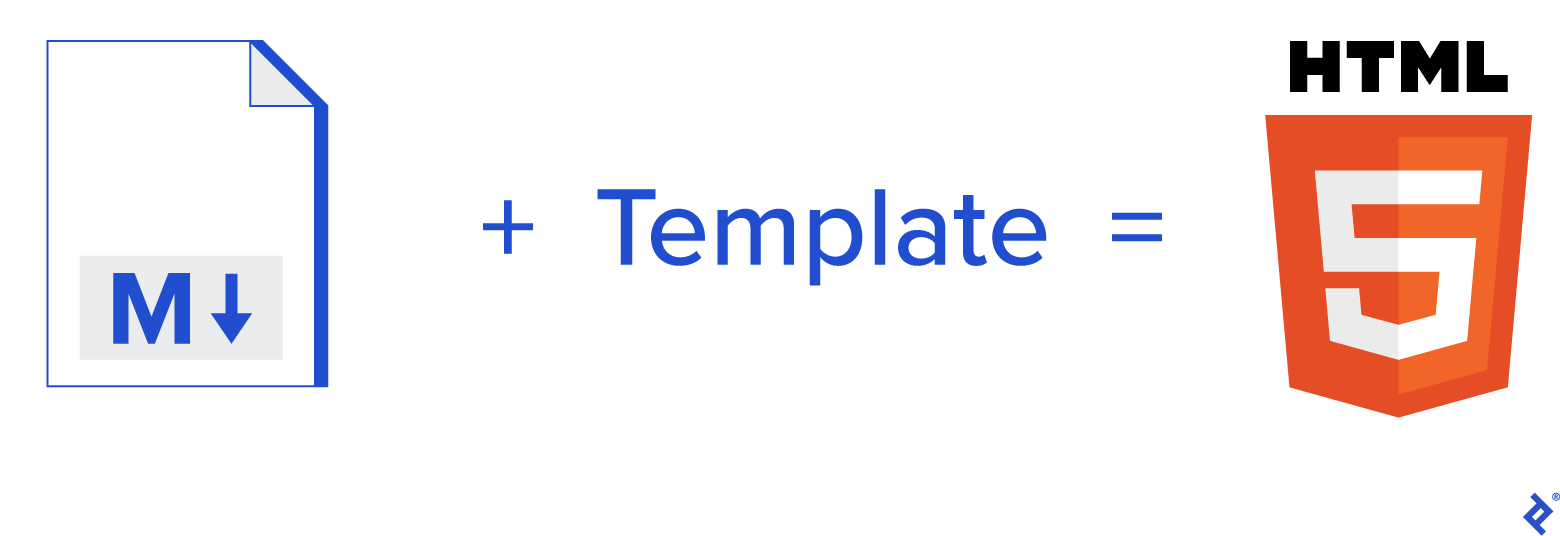
When converting Markdown to HTML, it’s best to employ a template and metadata within the Markdown source.
Markdown Metadata
The Markdown source can include a header section containing arbitrary metadata in the form of key-value pairs. These values can be substituted within the HTML template.
| |
The header begins with a line containing only three dashes --- and ends with a line containing only three dots .... Keys are single words followed by a colon and their corresponding value. Nested keys are supported. The example demonstrates the definition of keys named title, links.prev, and links.next.
This approach utilizes a separate file for each page. In the example, the previous page is index.md, the current page is page001.md, and the next page is page002.md. In practice, more descriptive filenames would be used for easier reordering and insertion of pages.
HTML Template
An HTML template is simply an HTML file with metadata substitution and basic control structures enclosed within dollar signs. Here’s a simple example of an HTML template for Pandoc:
| |
This example showcases a template. The $body$ placeholder is replaced with the converted Markdown text. Conditional statements generate the HTML link only if the corresponding metadata is defined in the Markdown header.
Generating HTML from Markdown
Pandoc needs to know the input and output file names, along with any template files. The default input format is Markdown, and it can infer the output format from the specified file extension.
The commands for generating output can be orchestrated through a script or a makefile.
| |
For each .md file in the Project directory, a corresponding .html file is created in the HTML/Project directory. This generation occurs only if the output file is older than the input file or doesn’t exist.
Generating Beamer PDF from Markdown
Beamer, a LaTeX package for creating presentations, produces PDF slideshows.
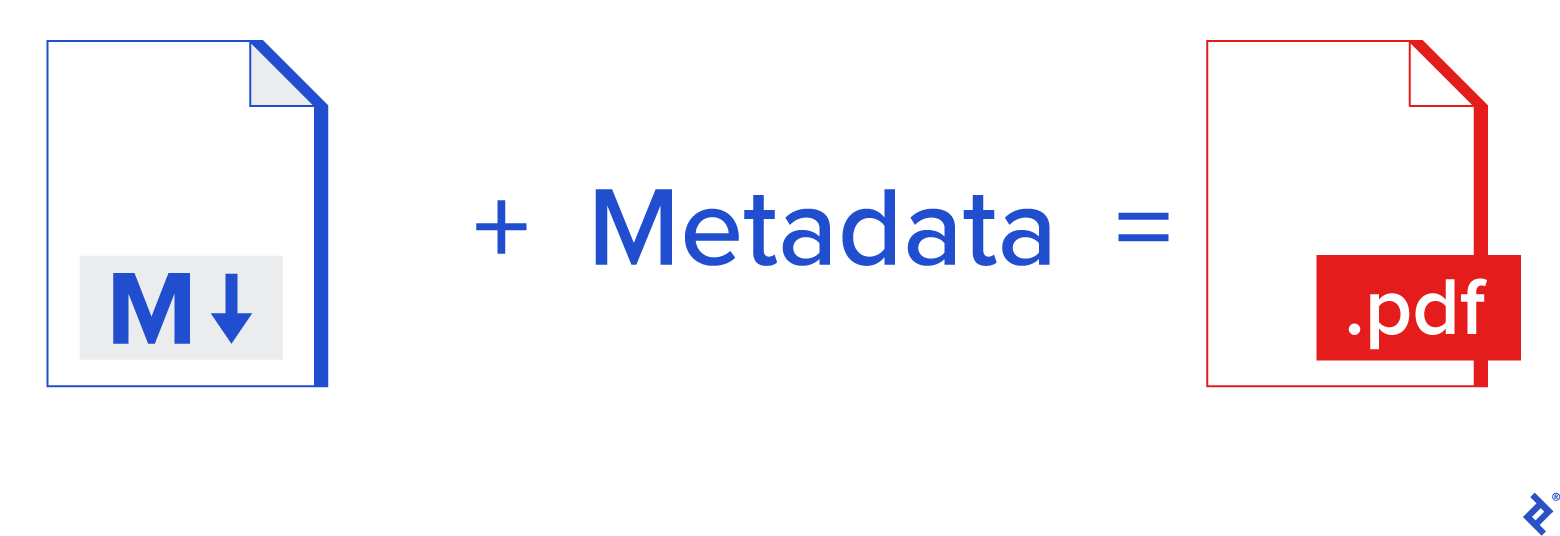
The same Markdown source files can be utilized to generate the Beamer PDF.
| |
Command details:
-t beamer: Instructs Pandoc to use LaTeX and Beamer for PDF generation.-o: Specifies the output file name.-V: Sets the Beamer theme and color theme.- The trailing list of Markdown files: These files are concatenated in the specified order.
All processing takes place within a Docker container.
Converting Markdown to PDF
Converting Markdown to PDF is also straightforward. This process involves first converting Markdown to LaTeX. Metadata in the Markdown header can customize the output, such as setting the paper size and margins.
| |
Generating PDF from Markdown
The command for Markdown to PDF conversion is simple:
| |
The -s option creates a standalone PDF document.
Conclusion
Gone are the days of lengthy software installations. Running commands within Docker containers eliminates this overhead. With a wealth of Docker images available on Docker Hub, most applications can be run with ease. Updates are as simple as pulling the latest image.
Setting up a new computer boils down to installing Docker, pulling the necessary images, and creating a few scripts.
Creating documents in multiple formats is no longer a necessity. Markdown can serve as a single source of truth, with tools like Pandoc handling the conversion to various output formats.
Markdown’s text-based nature ensures comprehensive version history when stored in a Git repository. Git repositories also provide built-in Markdown rendering and allow for streamlined commenting on changes, eliminating the need for messy change tracking within the document itself.