Swift has been around for a while, and over time, it has introduced features found in contemporary object-oriented programming languages. These include optionals, generics, tuples, structs that can have methods, extensions and protocols, and many others. However, if your application depends on a C++ library, you won’t be able to rely solely on Swift. Fortunately, Objective-C++ can help us bridge this gap.
Since its inception, Swift has seamlessly interacted with Objective-C, and we’ll utilize Objective-C as a bridge between Swift and C++. Essentially, Objective-C++ is Objective-C with the ability to link with C++ code. Using this, we’ll develop a basic application that uses OpenCV to identify the Toptal logo within an image. Upon detecting the logo, the application will open the Toptal homepage.
As stated on the OpenCV web page:
“OpenCV was designed for computational efficiency and with a strong focus on real-time applications. Written in optimized C/C++, the library can take advantage of multi-core processing.”
This makes it an excellent choice for building fast and dependable computer vision applications.
Building the OpenCV Objective-C++ Wrapper
This tutorial will guide you through designing an application that identifies the Toptal logo within an image and opens the Toptal web page. Start by creating a new Xcode project and set up CocoaPods by running pod init. Add OpenCV to your Podfile using pod 'OpenCV' and then run pod install in Terminal. Remember to uncomment the use_frameworks! line in your Podfile.
Now that OpenCV is integrated into your Xcode project, the next step is to connect it with Swift. Here’s a concise outline of the process:
Step 1: Create a new Objective-C class named OpenCVWrapper. When Xcode prompts you with “Would you like to configure an Objective-C bridging header?”, select “Create bridging header.” This bridging header acts as a link, allowing you to import Objective-C classes and make them accessible within your Swift code.
Step 2: To enable C++ usage within Objective-C, change the file extension from OpenCVWrapper.m to OpenCVWrapper.mm. You can do this directly within Xcode’s project navigator. The .mm extension signifies a change from Objective-C to Objective-C++.
Step 3: Import OpenCV into OpenCVWrapper.mm using the import statement provided below. It’s crucial to place this import above #import "OpenCVWrapper.h" to avoid a known BOOL conflict. OpenCV includes an enum with a value NO, which clashes with Objective-C’s BOOL NO value. As long as you don’t require classes that utilize this enum, this is the most straightforward solution. If you do, you’ll need to undefine BOOL before importing OpenCV.
| |
Step 4: Add #import "OpenCVWrapper.h" to your bridging header.
Open OpenCVWrapper.mm and define a private interface to declare private properties:
| |
To instantiate CvVideoCamera, you need to pass a UIImageView to it. This will be done through a designated initializer.
| |
Within the initializer, configure CvVideoCamera to render video inside the provided parentView and utilize a delegate to receive the cv::Mat image for analysis.
The processImage: method originates from the CvVideoCameraDelegate protocol and will house the template matching logic.
| |
The provided image is first converted to grayscale to match the format of the Toptal logo template image, which was converted to grayscale during initialization. Next, we check for matches using a specific threshold to accommodate variations in scaling and angles. Considering angles is essential as the logo might be captured from different perspectives. When the set threshold is met, a delegate is triggered to open the Toptal webpage.
Ensure to include NSCameraUsageDescription in your Info.plist file to prevent the application from crashing when [self.videoCamera start]; is called.
Integrating with Swift
Up to this point, the focus has been on Objective-C++ as it handles the core logic. The Swift code is quite simple:
- In
ViewController.swift, create aUIImageViewforCvVideoCamerato render its content. - Instantiate
OpenCVWrapper, passing in theUIImageViewinstance. - Implement the
OpenCVWrapperDelegateprotocol to open Toptal’s webpage upon logo detection.
| |
OpenCV Swift in Action
This article illustrated how to integrate C++ code with Swift by creating wrapper classes that bridge the gap between them. Now, when the Toptal Logo is detected through the camera, the application will open the Toptal homepage.
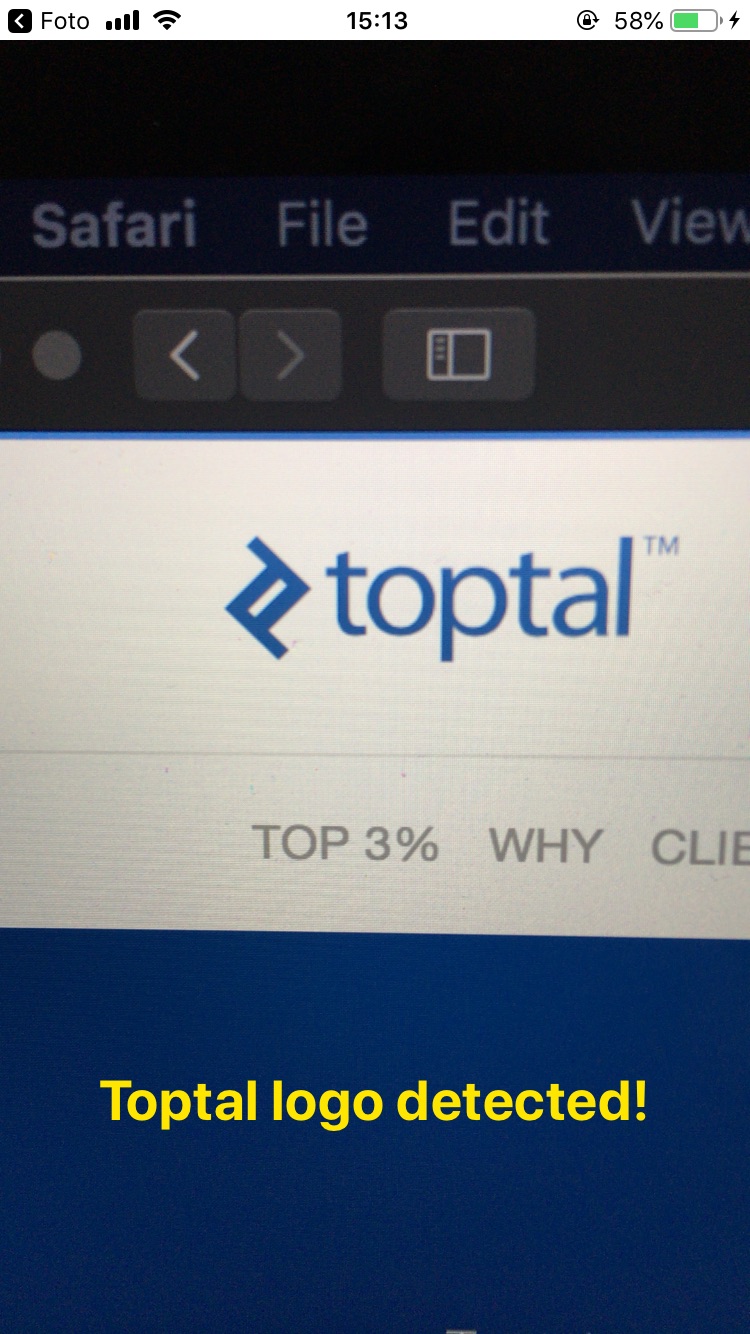
For future enhancements, consider executing the CV template matching in a background thread. This approach prevents the main thread from being blocked, ensuring a responsive UI. Keep in mind that this is a basic OpenCV example, and template matching might not always yield perfect results. The primary goal was to demonstrate how to start utilizing OpenCV.
If you’d like to delve deeper into OpenCV and its advanced applications within iOS, check out Real-time Object Detection Using MSER in iOS. This resource provides a comprehensive guide on image detection using the iPhone’s rear camera.