State management is a crucial aspect of web app architecture.
This tutorial presents a straightforward method for state management in Angular applications using Firebase as the back end. We will explore concepts like state, stores, and services. This knowledge should provide a clearer understanding of these terms and other state management libraries like NgRx and NgXs. To demonstrate different state management scenarios and their solutions, we’ll create an employee admin page.
Angular Components, Services, Firestore, and State Management
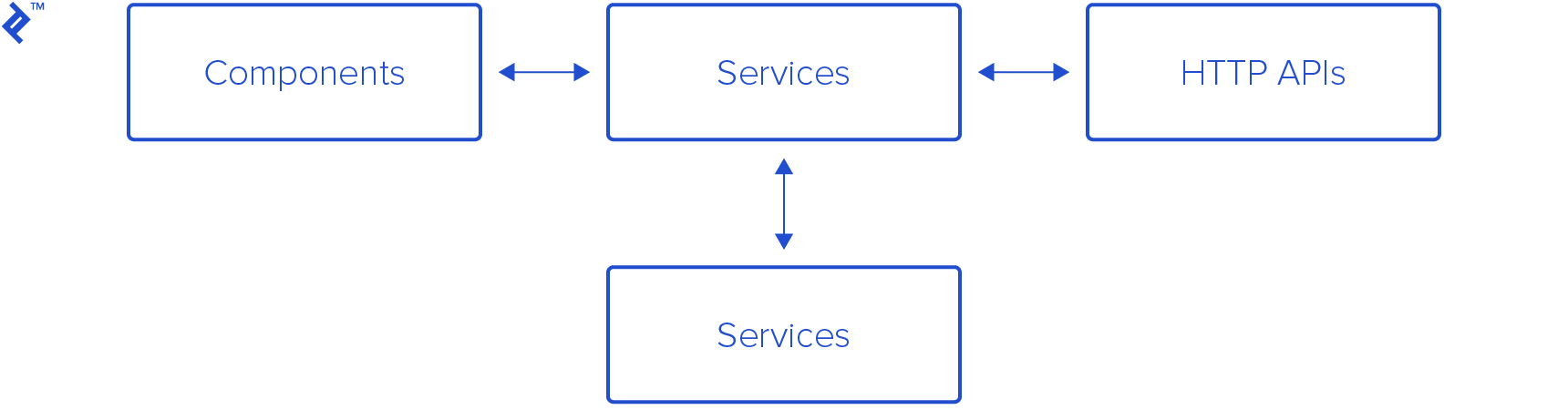
Angular applications typically consist of components and services. Components usually serve as view templates, while services contain business logic or interact with external APIs/services for actions or data retrieval.
Components usually display data and enable user interaction to execute actions. This may lead to data changes, and the app reflects these changes by updating the view.
Angular’s change detection engine automatically detects and updates the view when a component value bound to it changes.
As the app grows, managing numerous components and services becomes complex, making it difficult to understand and track data changes.
Angular and Firebase
Using Firebase as our back end provides a convenient API with most operations and functionalities needed for building real-time applications.
@angular/fire, the official Angular Firebase library, acts as a layer over the Firebase JavaScript SDK, simplifying its use in Angular apps. It aligns well with Angular best practices, like using Observables for fetching and displaying data from Firebase in components.
Stores and State
“State” refers to the values displayed in the app at any given time. The store simply acts as the container for this application state.
We can represent state as a single or multiple plain objects reflecting the application’s values.
Sample Angular/Firebase App
Let’s get started by creating a basic app structure using Angular CLI and connecting it to a Firebase project.
1
2
3
4
5
6
7
8
| $ npm install -g @angular/cli
$ ng new employees-admin`
Would you like to add Angular routing? Yes
Which stylesheet format would you like to use? SCSS
$ cd employees-admin/
$ npm install bootstrap # We'll add Bootstrap for the UI
|
And, in styles.scss:
1
2
| // ...
@import "~bootstrap/scss/bootstrap";
|
Next, we install @angular/fire:
1
| npm install firebase @angular/fire
|
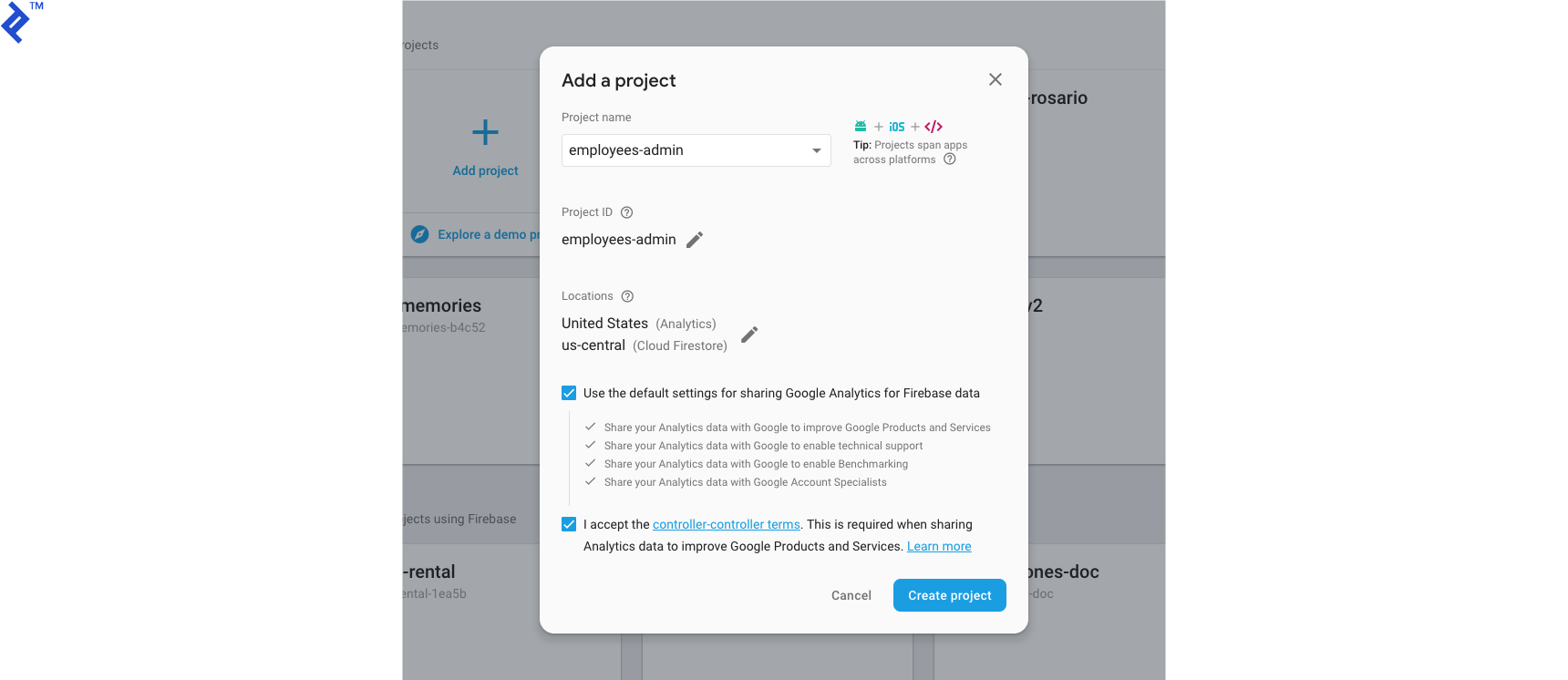
Now, let’s create a Firebase project at the Firebase console.
Next, we create a Firestore database.
For this tutorial, I’ll begin in test mode. Enforce rules to restrict unauthorized access if you’re planning a production release.
Navigate to Project Overview → Project Settings and copy the Firebase web configuration into your local environments/environment.ts file.
 1
 2
 3
 4
 5
 6
 7
 8
 9
10
11
| export const environment = {
production: false,
firebase: {
apiKey: "<api-key>",
authDomain: "<auth-domain>",
databaseURL: "<database-url>",
projectId: "<project-id>",
storageBucket: "<storage-bucket>",
messagingSenderId: "<messaging-sender-id>"
}
};
|
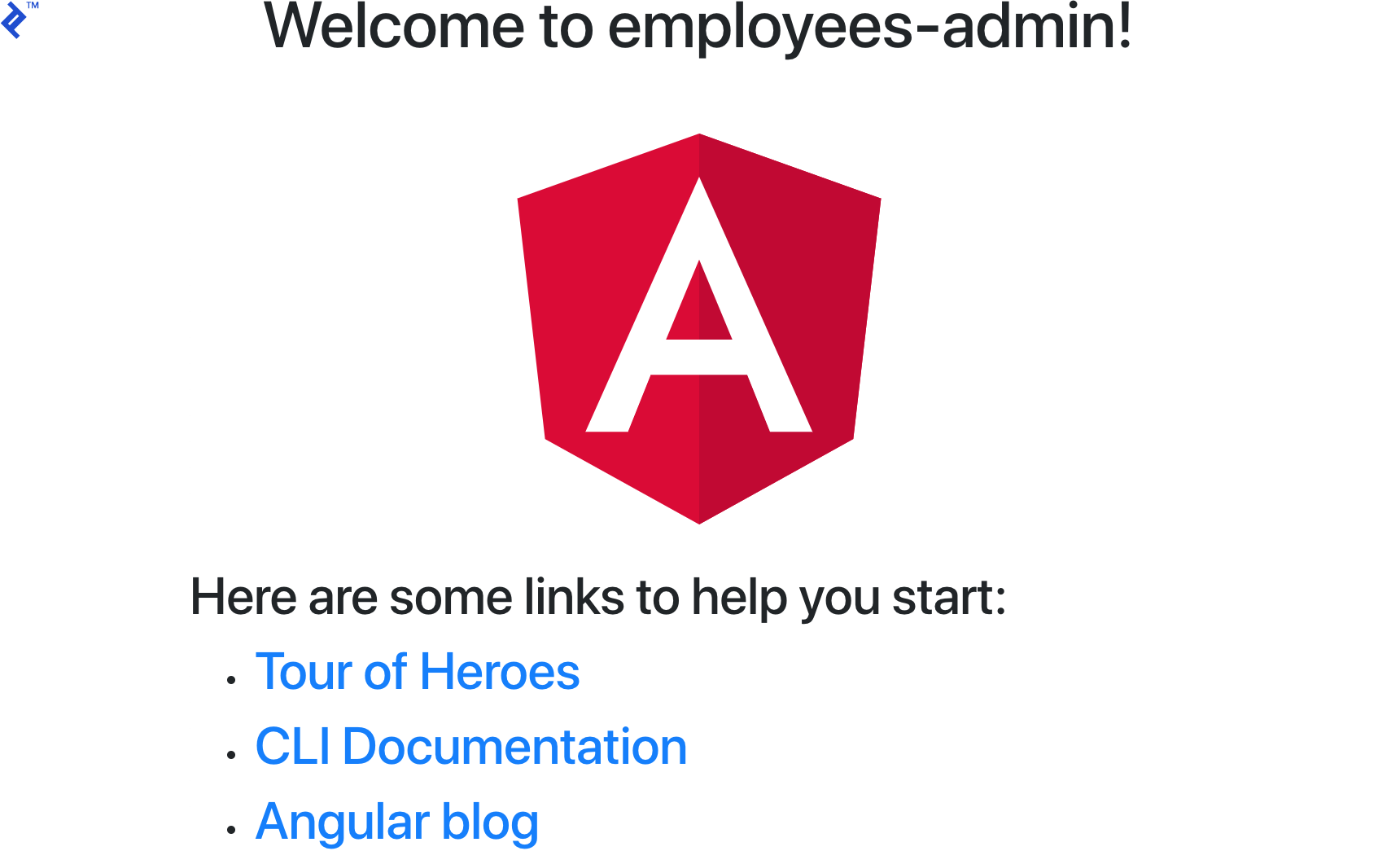
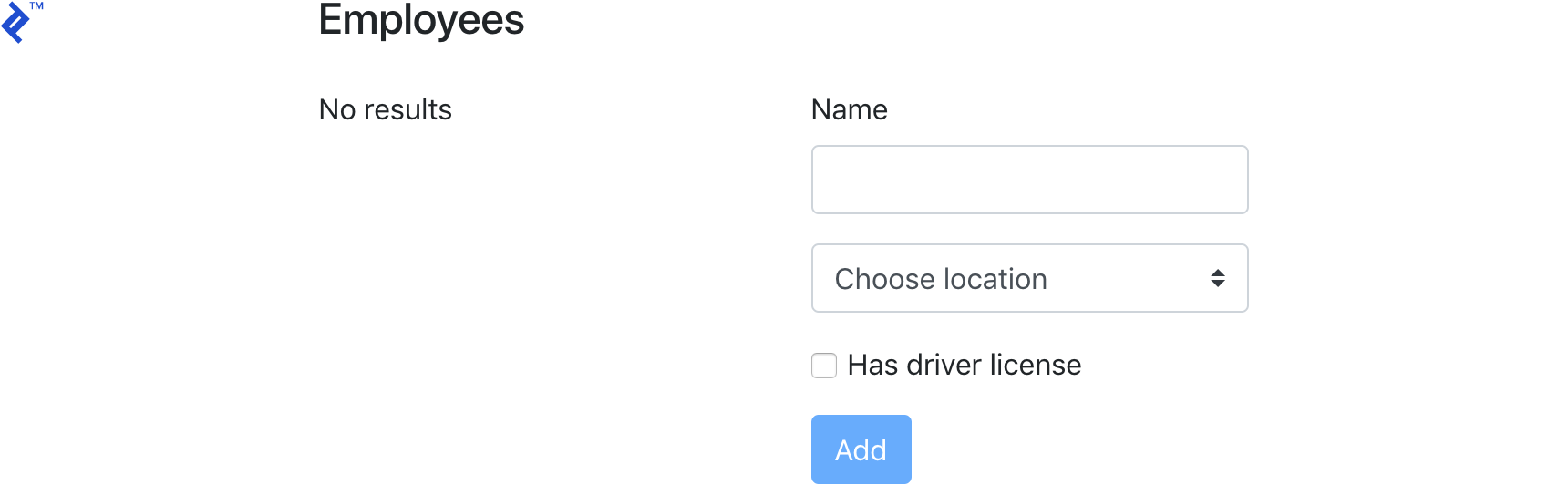
We now have the basic app structure set up. Running ng serve should display:
Base Classes for Firestore and Store
We’ll create two generic abstract classes as the foundation for our services, which we will then extend and specify types for.
Generics allow you to define behavior without specifying a concrete type. This brings adds reusability and flexibility to your code.
Generic Firestore Service
To utilize TypeScript generics, we’ll create a generic base wrapper for the @angular/fire firestore service.
Let’s create a file named app/core/services/firestore.service.ts.
Here’s the code:
 1
 2
 3
 4
 5
 6
 7
 8
 9
10
11
12
13
14
15
16
17
18
19
20
21
22
23
24
25
26
27
28
29
30
31
32
33
34
35
36
37
38
39
40
41
42
43
44
45
46
47
48
49
50
51
52
53
54
55
56
57
58
59
60
61
62
63
64
65
| import { Inject } from "@angular/core";
import { AngularFirestore, QueryFn } from "@angular/fire/firestore";
import { Observable } from "rxjs";
import { tap } from "rxjs/operators";
import { environment } from "src/environments/environment";
export abstract class FirestoreService<T> {
protected abstract basePath: string;
constructor(
@Inject(AngularFirestore) protected firestore: AngularFirestore,
) {
}
doc$(id: string): Observable<T> {
return this.firestore.doc<T>(`${this.basePath}/${id}`).valueChanges().pipe(
tap(r => {
if (!environment.production) {
console.groupCollapsed(`Firestore Streaming [${this.basePath}] [doc$] ${id}`)
console.log(r)
console.groupEnd()
}
}),
);
}
collection$(queryFn?: QueryFn): Observable<T[]> {
return this.firestore.collection<T>(`${this.basePath}`, queryFn).valueChanges().pipe(
tap(r => {
if (!environment.production) {
console.groupCollapsed(`Firestore Streaming [${this.basePath}] [collection$]`)
console.table(r)
console.groupEnd()
}
}),
);
}
create(value: T) {
const id = this.firestore.createId();
return this.collection.doc(id).set(Object.assign({}, { id }, value)).then(_ => {
if (!environment.production) {
console.groupCollapsed(`Firestore Service [${this.basePath}] [create]`)
console.log('[Id]', id, value)
console.groupEnd()
}
})
}
delete(id: string) {
return this.collection.doc(id).delete().then(_ => {
if (!environment.production) {
console.groupCollapsed(`Firestore Service [${this.basePath}] [delete]`)
console.log('[Id]', id)
console.groupEnd()
}
})
}
private get collection() {
return this.firestore.collection(`${this.basePath}`);
}
}
|
This abstract class will function as a generic wrapper for our Firestore services.
This should be the only location where we inject AngularFirestore to minimize the impact of updates to the @angular/fire library. Additionally, if we decide to switch libraries later, we only need to modify this class.
I’ve added doc$, collection$, create, and delete methods. These methods wrap the corresponding @angular/fire methods and provide logging for Firebase data streams (useful for debugging) and after object creation or deletion.
Generic Store Service
Our generic store service will be built upon RxJS’ BehaviorSubject. BehaviorSubject enables subscribers to obtain the last emitted value as soon as they subscribe. This is beneficial in our case because it allows us to initialize the store with an initial value for all subscribing components.
The store will include two methods: patch and set. (We’ll create get methods later.)
Let’s create app/core/services/store.service.ts:
 1
 2
 3
 4
 5
 6
 7
 8
 9
10
11
12
13
14
15
16
17
18
19
20
21
22
23
24
25
26
27
28
29
30
31
32
33
34
35
36
37
38
39
40
41
42
43
44
45
46
47
48
| import { BehaviorSubject, Observable } from 'rxjs';
import { environment } from 'src/environments/environment';
export abstract class StoreService<T> {
protected bs: BehaviorSubject<T>;
state$: Observable<T>;
state: T;
previous: T;
protected abstract store: string;
constructor(initialValue: Partial<T>) {
this.bs = new BehaviorSubject<T>(initialValue as T);
this.state$ = this.bs.asObservable();
this.state = initialValue as T;
this.state$.subscribe(s => {
this.state = s
})
}
patch(newValue: Partial<T>, event: string = "Not specified") {
this.previous = this.state
const newState = Object.assign({}, this.state, newValue);
if (!environment.production) {
console.groupCollapsed(`[${this.store} store] [patch] [event: ${event}]`)
console.log("change", newValue)
console.log("prev", this.previous)
console.log("next", newState)
console.groupEnd()
}
this.bs.next(newState)
}
set(newValue: Partial<T>, event: string = "Not specified") {
this.previous = this.state
const newState = Object.assign({}, newValue) as T;
if (!environment.production) {
console.groupCollapsed(`[${this.store} store] [set] [event: ${event}]`)
console.log("change", newValue)
console.log("prev", this.previous)
console.log("next", newState)
console.groupEnd()
}
this.bs.next(newState)
}
}
|
As a generic class, we’ll defer typing until it’s properly extended.
The constructor will accept the initial value of type Partial<T>, allowing us to apply values to specific properties of the state. It also subscribes to internal BehaviorSubject emissions, keeping the internal state updated with every change.
The patch() method receives the newValue of type Partial<T> and merges it with the current this.state value of the store. Finally, it calls next() on the newState, emitting the updated state to all store subscribers.
The set() method works similarly, except instead of patching the state value, it replaces it with the received newValue.
To aid debugging and track state changes, we’ll log the previous and next values of the state whenever it’s modified.
Combining Everything
Now, let’s see everything in action. We will create an employees page displaying a list of employees and a form for adding new ones.
Let’s update app.component.html by adding a basic navigation bar:
1
2
3
4
5
6
7
8
9
| <nav class="navbar navbar-expand-lg navbar-light bg-light mb-3">
<span class="navbar-brand mb-0 h1">Angular + Firebase + State Management</span>
<ul class="navbar-nav mr-auto">
<li class="nav-item" [routerLink]="['/employees']" routerLinkActive="active">
<a class="nav-link">Employees</a>
</li>
</ul>
</nav>
<router-outlet></router-outlet>
|
Next, we’ll create a Core module:
Inside core/core.module.ts, we’ll add the necessary modules for our application:
 1
 2
 3
 4
 5
 6
 7
 8
 9
10
11
12
13
14
15
16
17
18
19
20
21
22
| // ...
import { AngularFireModule } from '@angular/fire'
import { AngularFirestoreModule } from '@angular/fire/firestore'
import { environment } from 'src/environments/environment';
import { ReactiveFormsModule } from '@angular/forms'
@NgModule({
// ...
imports: [
// ...
AngularFireModule.initializeApp(environment.firebase),
AngularFirestoreModule,
ReactiveFormsModule,
],
exports: [
CommonModule,
AngularFireModule,
AngularFirestoreModule,
ReactiveFormsModule
]
})
export class CoreModule { }
|
Now, let’s create the employees page, starting with the Employees module:
1
| ng g m Employees --routing
|
In employees-routing.module.ts, add the employees route:
1
2
3
4
5
6
7
8
| // ...
import { EmployeesPageComponent } from './components/employees-page/employees-page.component';
// ...
const routes: Routes = [
{ path: 'employees', component: EmployeesPageComponent }
];
// ...
|
And in employees.module.ts, import ReactiveFormsModule:
 1
 2
 3
 4
 5
 6
 7
 8
 9
10
11
12
| // ...
import { ReactiveFormsModule } from '@angular/forms';
// ...
@NgModule({
// ...
imports: [
// ...
ReactiveFormsModule
]
})
export class EmployeesModule { }
|
Now, include these two modules in the app.module.ts file:
1
2
3
4
5
6
7
8
9
| // ...
import { EmployeesModule } from './employees/employees.module';
import { CoreModule } from './core/core.module';
imports: [
// ...
CoreModule,
EmployeesModule
],
|
Finally, let’s create the components for our employees page, along with their corresponding model, service, store, and state.
1
2
3
| ng g c employees/components/EmployeesPage
ng g c employees/components/EmployeesList
ng g c employees/components/EmployeesForm
|
For our model, we need a file named models/employee.ts:
1
2
3
4
5
6
| export interface Employee {
id: string;
name: string;
location: string;
hasDriverLicense: boolean;
}
|
Our service will reside in a file called employees/services/employee.firestore.ts. This service will extend the generic FirestoreService<T> we created earlier, and we’ll only need to set the basePath for the Firestore collection:
 1
 2
 3
 4
 5
 6
 7
 8
 9
10
11
12
| import { Injectable } from '@angular/core';
import { FirestoreService } from 'src/app/core/services/firestore.service';
import { Employee } from '../models/employee';
@Injectable({
providedIn: 'root'
})
export class EmployeeFirestore extends FirestoreService<Employee> {
protected basePath: string = 'employees';
}
|
Next, create the file employees/states/employees-page.ts, which will represent the state of the employees page:
1
2
3
4
5
6
7
8
| import { Employee } from '../models/employee';
export interface EmployeesPage {
loading: boolean;
employees: Employee[];
formStatus: string;
}
|
The state will include a loading value to control the display of a loading message on the page, the employees array itself, and a formStatus variable to handle the form’s status (e.g., Saving or Saved).
We also need a file at employees/services/employees-page.store.ts. This is where we extend the previously created StoreService<T>. We’ll set the store name, used for identification during debugging.
This service will initialize and manage the employees page’s state. The constructor calls super() with the initial state, which in this case has loading=true and an empty array of employees.
 1
 2
 3
 4
 5
 6
 7
 8
 9
10
11
12
13
14
15
16
17
| import { EmployeesPage } from '../states/employees-page';
import { StoreService } from 'src/app/core/services/store.service';
import { Injectable } from '@angular/core';
@Injectable({
providedIn: 'root'
})
export class EmployeesPageStore extends StoreService<EmployeesPage> {
protected store: string = 'employees-page';
constructor() {
super({
loading: true,
employees: [],
})
}
}
|
Now, let’s create EmployeesService to integrate EmployeeFirestore and EmployeesPageStore:
1
| ng g s employees/services/Employees
|
Notice that we inject EmployeeFirestore and EmployeesPageStore into this service. This means EmployeesService manages communication with both Firestore and the store for updating the state, providing a unified API for components to use.
 1
 2
 3
 4
 5
 6
 7
 8
 9
10
11
12
13
14
15
16
17
18
19
20
21
22
23
24
25
26
27
28
29
30
31
32
33
34
35
36
37
38
39
40
41
42
43
44
45
46
47
48
49
50
51
52
53
54
55
56
57
58
59
60
61
62
63
64
65
66
67
68
69
70
71
72
73
74
75
76
77
78
79
80
81
| import { EmployeesPageStore } from './employees-page.store';
import { EmployeeFirestore } from './employee.firestore';
import { Injectable } from '@angular/core';
import { Observable } from 'rxjs';
import { Employee } from '../models/employee';
import { tap, map } from 'rxjs/operators';
@Injectable({
providedIn: 'root'
})
export class EmployeesService {
constructor(
private firestore: EmployeeFirestore,
private store: EmployeesPageStore
) {
this.firestore.collection$().pipe(
tap(employees => {
this.store.patch({
loading: false,
employees,
}, `employees collection subscription`)
})
).subscribe()
}
get employees$(): Observable<Employee[]> {
return this.store.state$.pipe(map(state => state.loading
? []
: state.employees))
}
get loading$(): Observable<boolean> {
return this.store.state$.pipe(map(state => state.loading))
}
get noResults$(): Observable<boolean> {
return this.store.state$.pipe(
map(state => {
return !state.loading
&& state.employees
&& state.employees.length === 0
})
)
}
get formStatus$(): Observable<string> {
return this.store.state$.pipe(map(state => state.formStatus))
}
create(employee: Employee) {
this.store.patch({
loading: true,
employees: [],
formStatus: 'Saving...'
}, "employee create")
return this.firestore.create(employee).then(_ => {
this.store.patch({
formStatus: 'Saved!'
}, "employee create SUCCESS")
setTimeout(() => this.store.patch({
formStatus: ''
}, "employee create timeout reset formStatus"), 2000)
}).catch(err => {
this.store.patch({
loading: false,
formStatus: 'An error ocurred'
}, "employee create ERROR")
})
}
delete(id: string): any {
this.store.patch({ loading: true, employees: [] }, "employee delete")
return this.firestore.delete(id).catch(err => {
this.store.patch({
loading: false,
formStatus: 'An error ocurred'
}, "employee delete ERROR")
})
}
}
|
Let’s examine how the service functions.
The constructor subscribes to the Firestore employees collection. Whenever Firestore emits data from the collection, it updates the store by setting loading=false and populating employees with the received collection. Thanks to injecting EmployeeFirestore, the objects returned from Firestore have the Employee type, enabling more IntelliSense features.
This subscription remains active while the app is running, listening for changes and updating the store whenever Firestore streams data.
1
2
3
4
5
6
7
8
| this.firestore.collection$().pipe(
tap(employees => {
this.store.patch({
loading: false,
employees,
}, `employees collection subscription`)
})
).subscribe()
|
The employees$() and loading$() functions select specific parts of the state for later use in the component. employees$() returns an empty array during loading, allowing us to display appropriate messages in the view.
1
2
3
4
5
6
7
| get employees$(): Observable<Employee[]> {
return this.store.state$.pipe(map(state => state.loading ? [] : state.employees))
}
get loading$(): Observable<boolean> {
return this.store.state$.pipe(map(state => state.loading))
}
|
With all our services in place, we can now build the view components. But first, a quick recap might be helpful…
RxJS Observables and the async Pipe
Observables enable subscribers to receive data emissions as a stream. This, combined with the async pipe, becomes incredibly powerful.
The async pipe handles subscribing to an Observable and updating the view with new emissions. Importantly, it also automatically unsubscribes when the component is destroyed, preventing memory leaks.
For more information on Observables and the RxJS library, refer to the official docs.
Creating View Components
In employees/components/employees-page/employees-page.component.html, add the following code:
 1
 2
 3
 4
 5
 6
 7
 8
 9
10
11
12
13
14
15
16
17
| <div class="container">
<div class="row">
<div class="col-12 mb-3">
<h4>
Employees
</h4>
</div>
</div>
<div class="row">
<div class="col-6">
<app-employees-list></app-employees-list>
</div>
<div class="col-6">
<app-employees-form></app-employees-form>
</div>
</div>
</div>
|
Similarly, employees/components/employees-list/employees-list.component.html will have the following, utilizing the async pipe technique discussed earlier:
 1
 2
 3
 4
 5
 6
 7
 8
 9
10
11
12
13
14
| <div *ngIf="loading$ | async">
Loading...
</div>
<div *ngIf="noResults$ | async">
No results
</div>
<div class="card bg-light mb-3" style="max-width: 18rem;" *ngFor="let employee of employees$ | async">
<div class="card-header">{{employee.location}}</div>
<div class="card-body">
<h5 class="card-title">{{employee.name}}</h5>
<p class="card-text">{{employee.hasDriverLicense ? 'Can drive': ''}}</p>
<button (click)="delete(employee)" class="btn btn-danger">Delete</button>
</div>
</div>
|
We also need some TypeScript code for this component. Add the following to employees/components/employees-list/employees-list.component.ts:
 1
 2
 3
 4
 5
 6
 7
 8
 9
10
11
12
13
14
15
16
17
18
19
20
21
22
23
24
25
26
27
28
29
30
| import { Employee } from '../../models/employee';
import { Component, OnInit } from '@angular/core';
import { Observable } from 'rxjs';
import { EmployeesService } from '../../services/employees.service';
@Component({
selector: 'app-employees-list',
templateUrl: './employees-list.component.html',
styleUrls: ['./employees-list.component.scss']
})
export class EmployeesListComponent implements OnInit {
loading$: Observable<boolean>;
employees$: Observable<Employee[]>;
noResults$: Observable<boolean>;
constructor(
private employees: EmployeesService
) {}
ngOnInit() {
this.loading$ = this.employees.loading$;
this.noResults$ = this.employees.noResults$;
this.employees$ = this.employees.employees$;
}
delete(employee: Employee) {
this.employees.delete(employee.id);
}
}
|
Now, if we go to the browser, we should see:
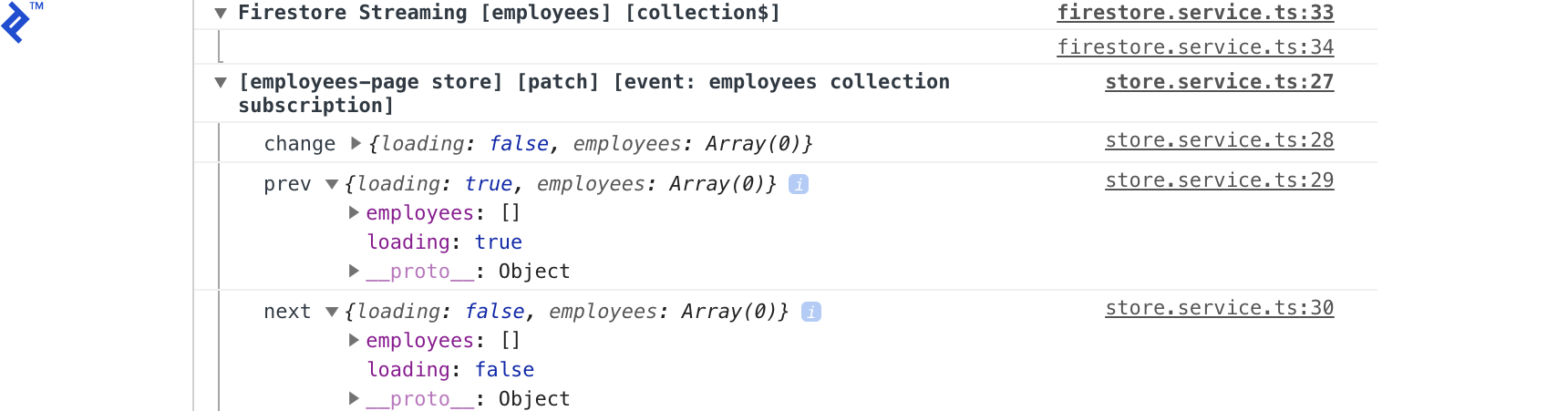
And the console will display the following output:
This shows that Firestore streamed the employees collection with empty values, and the employees-page store was patched, changing loading from true to false.
Let’s proceed by building the form for adding new employees to Firestore.
Add the following code to employees/components/employees-form/employees-form.component.html:
 1
 2
 3
 4
 5
 6
 7
 8
 9
10
11
12
13
14
15
16
17
18
19
20
21
22
23
24
25
26
27
| <form [formGroup]="form" (ngSubmit)="submit()">
<div class="form-group">
<label for="name">Name</label>
<input type="string" class="form-control" id="name"
formControlName="name" [class.is-invalid]="isInvalid('name')">
<div class="invalid-feedback">
Please enter a Name.
</div>
</div>
<div class="form-group">
<select class="custom-select" formControlName="location"
[class.is-invalid]="isInvalid('location')">
<option value="" selected>Choose location</option>
<option *ngFor="let loc of locations" [ngValue]="loc">{{loc}}</option>
</select>
<div class="invalid-feedback">
Please select a Location.
</div>
</div>
<div class="form-group form-check">
<input type="checkbox" class="form-check-input" id="hasDriverLicense"
formControlName="hasDriverLicense">
<label class="form-check-label" for="hasDriverLicense">Has driver license</label>
</div>
<button [disabled]="form.invalid" type="submit" class="btn btn-primary d-inline">Add</button>
<span class="ml-2">{{ status$ | async }}</span>
</form>
|
The corresponding TypeScript code will reside in employees/components/employees-form/employees-form.component.ts:
 1
 2
 3
 4
 5
 6
 7
 8
 9
10
11
12
13
14
15
16
17
18
19
20
21
22
23
24
25
26
27
28
29
30
31
32
33
34
35
36
37
38
39
40
41
42
43
44
45
46
47
48
49
| import { EmployeesService } from './../../services/employees.service';
import { AngularFirestore } from '@angular/fire/firestore';
import { Component, OnInit } from '@angular/core';
import { FormGroup, FormControl, Validators } from '@angular/forms';
import { Observable } from 'rxjs';
@Component({
selector: 'app-employees-form',
templateUrl: './employees-form.component.html',
styleUrls: ['./employees-form.component.scss']
})
export class EmployeesFormComponent implements OnInit {
form: FormGroup = new FormGroup({
name: new FormControl('', Validators.required),
location: new FormControl('', Validators.required),
hasDriverLicense: new FormControl(false)
});
locations = [
'Rosario',
'Buenos Aires',
'Bariloche'
]
status$: Observable < string > ;
constructor(
private employees: EmployeesService
) {}
ngOnInit() {
this.status$ = this.employees.formStatus$;
}
isInvalid(name) {
return this.form.controls[name].invalid
&& (this.form.controls[name].dirty || this.form.controls[name].touched)
}
async submit() {
this.form.disable()
await this.employees.create({ ...this.form.value
})
this.form.reset()
this.form.enable()
}
}
|
The form will call the create() method of EmployeesService. Currently, the page looks like this:
Let’s examine what happens when we add a new employee.
Adding a New Employee
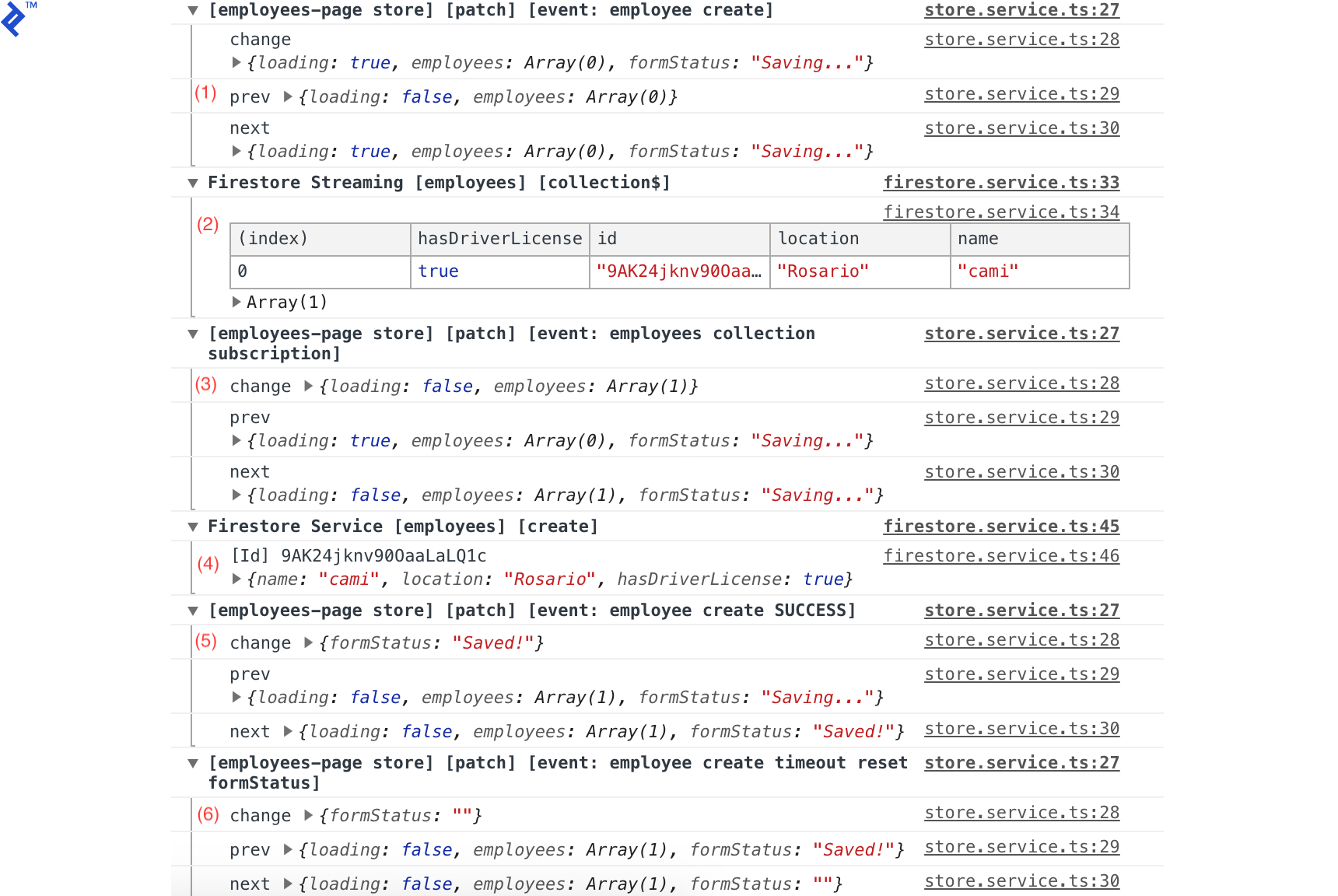
After adding a new employee, the console will display the following output:
These are all the events triggered when adding a new employee. Let’s break them down.
Calling create() executes the following code, setting loading=true, formStatus='Saving...' and clearing the employees array ((1) in the image above).
 1
 2
 3
 4
 5
 6
 7
 8
 9
10
11
12
13
14
15
16
17
18
| this.store.patch({
loading: true,
employees: [],
formStatus: 'Saving...'
}, "employee create")
return this.firestore.create(employee).then(_ => {
this.store.patch({
formStatus: 'Saved!'
}, "employee create SUCCESS")
setTimeout(() => this.store.patch({
formStatus: ''
}, "employee create timeout reset formStatus"), 2000)
}).catch(err => {
this.store.patch({
loading: false,
formStatus: 'An error ocurred'
}, "employee create ERROR")
})
|
Next, we call the base Firestore service to create the employee, which is logged as (4). In the promise callback, we set formStatus='Saved!' and log it as (5). Finally, we use a timeout to reset formStatus to an empty string, logged as (6).
Log events (2) and (3) are triggered by the Firestore subscription to the employees collection. When EmployeesService is instantiated, it subscribes to the collection and receives updates whenever changes occur.
This updates the store’s state by setting loading=false and populating the employees array with data from Firestore.
Expanding the log groups reveals detailed information for each event and store update, including previous and next values, which is helpful for debugging.
Here’s how the page looks after adding a new employee:
Adding a Summary Component
Let’s now display some summary data on our page. We’ll show the total number of employees, how many are drivers, and how many are from Rosario.
Start by adding the new state properties to the page state model in employees/states/employees-page.ts:
 1
 2
 3
 4
 5
 6
 7
 8
 9
10
11
12
| // ...
export interface EmployeesPage {
loading: boolean;
employees: Employee[];
formStatus: string;
totalEmployees: number;
totalDrivers: number;
totalRosarioEmployees: number;
}
|
Initialize them in the store within employees/services/emplyees-page.store.ts:
 1
 2
 3
 4
 5
 6
 7
 8
 9
10
11
| // ...
constructor() {
super({
loading: true,
employees: [],
totalDrivers: 0,
totalEmployees: 0,
totalRosarioEmployees: 0
})
}
// ...
|
Next, calculate the values for these new properties and add their respective selectors in EmployeesService:
 1
 2
 3
 4
 5
 6
 7
 8
 9
10
11
12
13
14
15
16
17
18
19
20
21
22
23
24
25
26
27
28
29
| // ...
this.firestore.collection$().pipe(
tap(employees => {
this.store.patch({
loading: false,
employees,
totalEmployees: employees.length,
totalDrivers: employees.filter(employee => employee.hasDriverLicense).length,
totalRosarioEmployees: employees.filter(employee => employee.location === 'Rosario').length,
}, `employees collection subscription`)
})
).subscribe()
// ...
get totalEmployees$(): Observable < number > {
return this.store.state$.pipe(map(state => state.totalEmployees))
}
get totalDrivers$(): Observable < number > {
return this.store.state$.pipe(map(state => state.totalDrivers))
}
get totalRosarioEmployees$(): Observable < number > {
return this.store.state$.pipe(map(state => state.totalRosarioEmployees))
}
// ...
|
Now, let’s create the summary component:
1
| ng g c employees/components/EmployeesSummary
|
Add the following to employees/components/employees-summary/employees-summary.html:
1
2
3
4
5
| <p>
<span class="font-weight-bold">Total:</span> {{total$ | async}} <br>
<span class="font-weight-bold">Drivers:</span> {{drivers$ | async}} <br>
<span class="font-weight-bold">Rosario:</span> {{rosario$ | async}} <br>
</p>
|
And in employees/components/employees-summary/employees-summary.ts:
 1
 2
 3
 4
 5
 6
 7
 8
 9
10
11
12
13
14
15
16
17
18
19
20
21
22
23
24
25
26
| import { Component, OnInit } from '@angular/core';
import { EmployeesService } from '../../services/employees.service';
import { Observable } from 'rxjs';
@Component({
selector: 'app-employees-summary',
templateUrl: './employees-summary.component.html',
styleUrls: ['./employees-summary.component.scss']
})
export class EmployeesSummaryComponent implements OnInit {
total$: Observable < number > ;
drivers$: Observable < number > ;
rosario$: Observable < number > ;
constructor(
private employees: EmployeesService
) {}
ngOnInit() {
this.total$ = this.employees.totalEmployees$;
this.drivers$ = this.employees.totalDrivers$;
this.rosario$ = this.employees.totalRosarioEmployees$;
}
}
|
Finally, include the component in employees/employees-page/employees-page.component.html:
1
2
3
4
5
6
7
8
| // ...
<div class="col-12 mb-3">
<h4>
Employees
</h4>
<app-employees-summary></app-employees-summary>
</div>
// ...
|
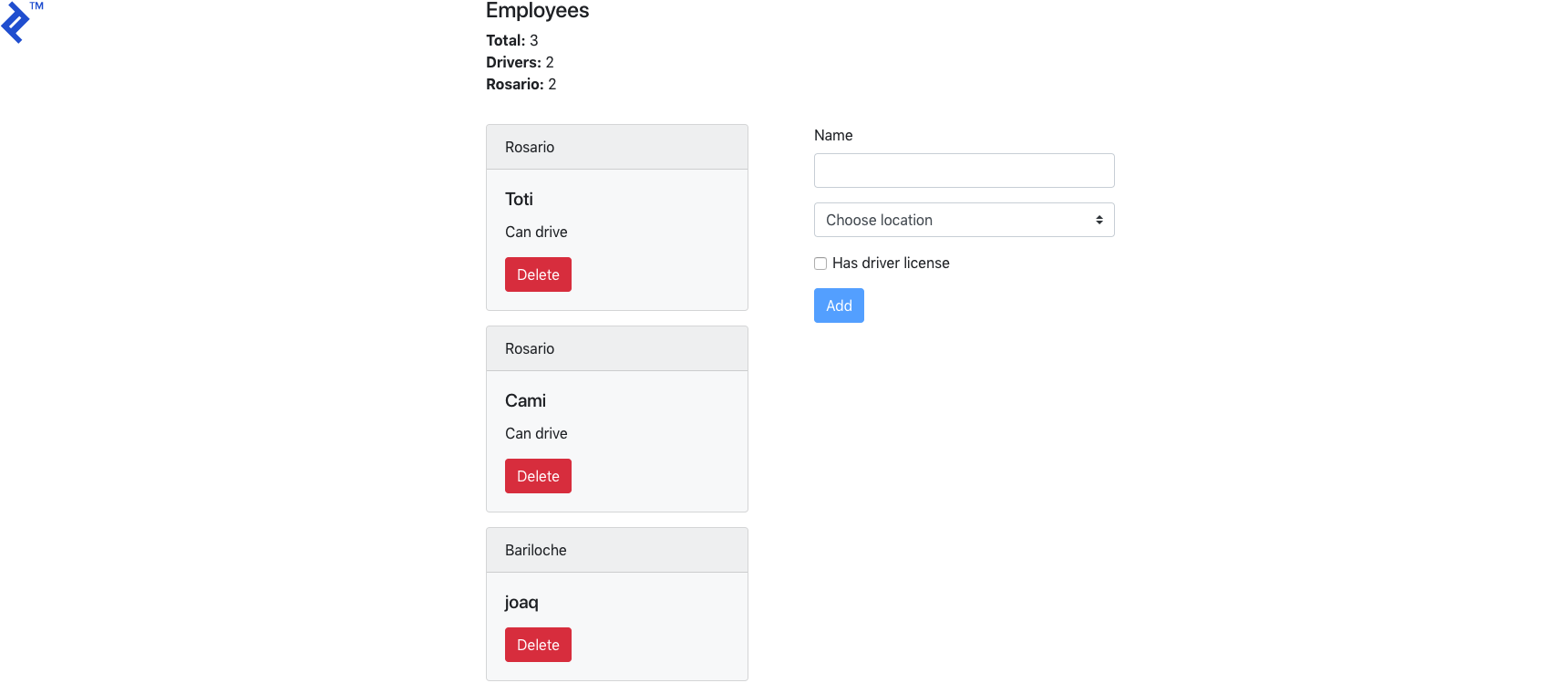
The result should look like this:
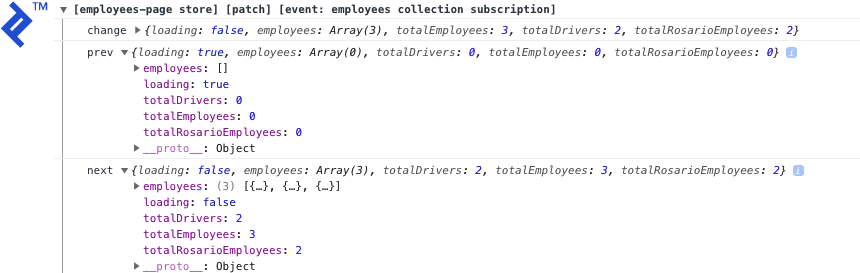
The console output will be:
The employees service calculates totalEmployees, totalDrivers, and totalRosarioEmployees on each emission and updates the state accordingly.
The full code of this tutorial is available on GitHub, and there’s also a live demo.
Success! Angular App State Management with Observables
This tutorial demonstrated a simple approach to managing state in Angular applications utilizing a Firebase back end.
This approach aligns well with Angular’s recommendation of using Observables. It also simplifies debugging by providing tracking for all app state updates.
The generic store service can also be used to manage the state of apps that don’t use Firebase, either for handling only the app’s data or data fetched from other APIs.
However, consider that EmployeesService subscribes to Firestore in the constructor and keeps listening while the app is active. This can be advantageous for using the employees list across multiple pages, avoiding repeated data fetching from Firestore.
However, it might not be optimal in other situations, such as when you only need to retrieve initial values once and trigger data reloads manually. Ultimately, understanding your application’s requirements is crucial for choosing the most suitable implementation methods.