Three search options are available in iOS: Siri, Spotlight Search, and Safari search. While most iPhone users are familiar with Siri, many might not be aware of Spotlight search, a feature that predates Siri. You can access Spotlight Search by swiping down on the home screen or, new in iOS 9, by swiping right from your personal home screen, which reveals a search bar at the top.
In iOS 8 and previous versions, this tool primarily focused on searching the phone itself. Its results page displayed installed apps, emails, messages, and other data from Apple apps. It could also show Wikipedia definitions and offered a Safari web search option.
Conversely, Safari search focuses on external content. iOS 8 allows users to select their preferred search engine from Google, Yahoo, Bing, and DuckDuckGo, with Google being the most popular choice. Safari presents pre-filled search terms, sometimes including Wikipedia matches.
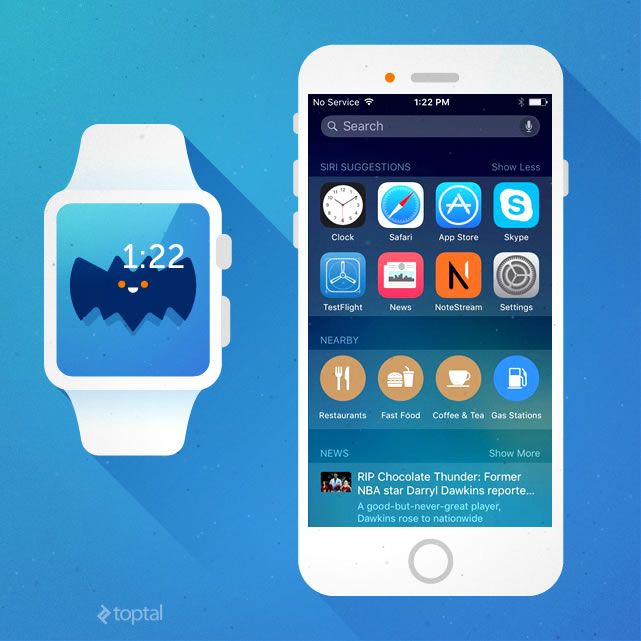
iOS 9 elevates Spotlight Search with wider scope and prominence. “Siri Suggestions,” based on usage patterns, are now the first results. For instance, if you frequently use Safari in the afternoon, Siri might suggest it around that time.
While still useful for finding content on the device, Spotlight is becoming a gateway to external content. It displays nearby locations, news headlines from Apple’s search engine, and other web-based results, with more on the horizon.
Significantly, Apple has introduced its own web search engine for iOS 9: Applebot.
Mirroring Spotlight’s evolution, Apple aims for Safari to prioritize results and suggestions from its search index before offering web searches via Google or another selected provider. However, as of iOS 9.1, Safari seems to be lagging behind Spotlight in this regard, continuing to prioritize results from the user’s chosen search engine. This might indicate a phased rollout of Apple’s search features, allowing more time for algorithm refinement.
The most exciting aspect of iOS 9 is the ability for developers to integrate their app content into these search functions, with the promise of including results from beyond the user’s device. This is groundbreaking.
To illustrate, Google’s search dominance led to the rise of SEO, optimizing content for Google’s algorithms. With Apple’s search engine poised to capture a significant portion of the mobile search market, “Apple Mobile Search Optimization” (AMSO) is set to become equally crucial.
Optimizing for Apple’s mobile search will have a greater impact on app discoverability than traditional SEO.
Welcome to the nascent AMSO era.
However, implementing these features involves understanding various new and existing Apple technologies, which can be challenging. This series aims to guide you through these components and their implementation, starting with the basics and gradually building upon them.

This series is accompanied by a simple reference app, the project for which can be found on GitHub. It will be updated as the series explores other aspects of the search toolkit.
CoreSpotlight Framework: The Foundation
New in iOS 9, this framework allows developers to integrate app content into the iPhone’s local search index. Previously, only content from Apple’s apps, like Calendar, was searchable through Spotlight. Now, any app utilizing CoreSpotlight to publish calendar events can be discoverable via Spotlight and Siri.
It’s crucial to note that this focuses on personal data. Apple emphasizes that CoreSpotlight interacts exclusively with the private index on each device, ensuring the confidentiality of personal information.
However, this doesn’t prevent indexing publicly available information. CoreSpotlight can pull information from the cloud into the device’s search index. It simply guarantees that data indexed using this framework remains private.
The framework comprises two components: CSSearchableItemAttributeSet, allowing detailed descriptions of each item, and CSSearchableItem, used for unique item identification. Each Spotlight entry consists of a pair of these objects. This separation facilitates another type of search interaction, which we’ll discuss later.
Implementing the basics is straightforward.
In the sample code, CoreSpotlight setup is done in AppDelegate.
| |
These two modules are required for the new functionality.
In the demo app, the application:didFinishLaunchingWithOptions: method calls a dedicated method, setUpCoreSpotlight, for simplicity:
| |
Within setUpCoreSpotlight, we begin by creating a CSSearchableItemAttributeSet object:
| |
The Content Type plays a vital, albeit poorly documented, role in how the search algorithms handle the item. While there are numerous options for image, video, audio, and contact types, trial and error is necessary to understand their impact on the user experience. Some types might display more text or thumbnails in search results. It’s best to start with kUTTypeItem.
Let’s elaborate on the object’s description:
| |
Numerous properties cater to specific media types, and while providing detailed information is recommended, experimentation is crucial to determine what’s actually utilized and displayed in search results. For instance, star ratings don’t seem to be displayed at the time of writing, even if the attributeSet includes that data.
Most text properties are searchable. Even if the title property isn’t displayed, its text is searchable. Therefore, the distinction between the keywords and title properties remains unclear.
For more details, refer to Apple’s documentation: developer.apple.com
Finally, we package the CSSearchableItemAttributeSet with CSSearchableItem and register it with the index:
| |
Two points to highlight: the domainIdentifier property enables grouping items for batch operations (e.g., deleting all “meetingItem” entries while preserving “reminderItem” entries in a calendar app), and the uniqueIdentifier property, crucial for identifying clicked items and recommended for consistency across the search infrastructure. Currently, we’re using a unique URL string, though any unique string would suffice.
Lastly, we push the created items into the index:
| |
Note that:
- This method accepts an array of objects, with other methods available for batch processing large datasets.
- The completion handler signifies only that the items have been queued for indexing, not that the process is complete. The CSSearchableIndexDelegate handles scenarios where indexing fails, requiring app-level handling.
You’ve successfully added items to the CoreSpotlight search index!
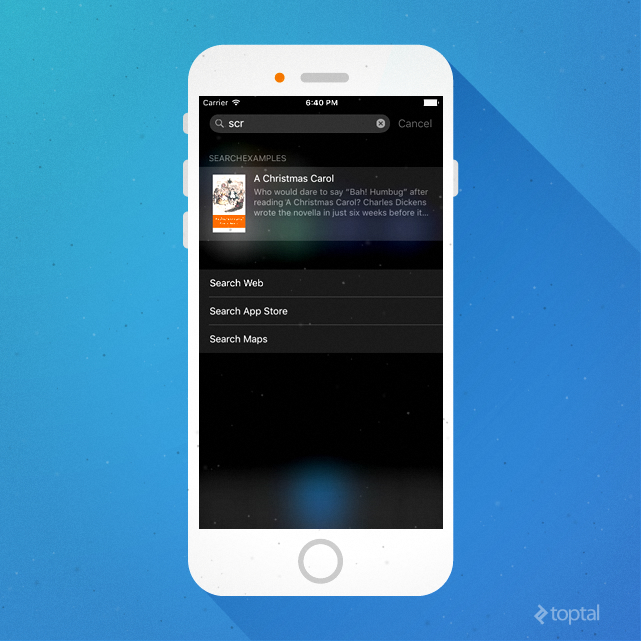
iOS 9 Search Mechanics
While Apple’s search algorithms remain undisclosed, experimenting with the sample app reveals insights. For instance, Apple seems to prioritize results by delivering varied outputs with each typed letter:

The system appears to present the most relevant results with just a few letters typed. As the user continues typing, initially deemed less likely results replace the previous ones.
Apple offers limited guidance on ranking optimization. Their recommendations are outlined here: Enhance Your Search Results
One key takeaway is that using multiple search technologies for indexing improves ranking. We’ll delve into another such technology in the next article. But first, let’s address handling user clicks on search results.
Handling User Clicks
We’ve covered populating the search index, but what happens when a user clicks a result? CoreSpotlight utilizes the UIApplicationDelegate protocol’s application:continueUserActivity:restorationHandler: method, originally introduced in iOS 8 for Handoff. This feature enabled transferring user activities between devices (e.g., clicking a web URL on an Apple Watch, continuing in Safari on an iPhone, and finally viewing it on a Mac).
The initial hurdle is differentiating between Handoff and Spotlight Search triggers. While the activityType property of the activity parameter provides this information, compatibility with iOS 8 requires caution.
Here’s an example of how the code might look:
| |
Note the following line:
| |
This extracts the unique identifier assigned during CSSearchableItem object creation. Your app should use this identifier to display the corresponding content from the search index. For simplicity, we’re logging the identifier here.
Recap
We’ve examined CoreSpotlight, a part of iOS 9’s search functionality, enabling the inclusion of app-specific content in the Spotlight search index. When a user searches and clicks a relevant result, your app can respond and display the appropriate item.
We haven’t yet touched upon technologies related to Apple’s public search index, which aims to make app content discoverable even without the app installed. That’s for the next post.