In this tutorial, we’ll enhance the AI system from our previous “Unity AI Development: A Finite-state Machine Tutorial” by creating a graphical user interface (GUI). This GUI will enable us to develop the core finite-state machine (FSM) components more efficiently and with a smoother developer experience.
Revisiting Our FSM
In the previous tutorial, our FSM was built using C# scripts as architectural blocks. We created custom ScriptableObject actions and decisions as classes. Using ScriptableObjects, we achieved an easily maintainable and customizable FSM. This time, we’ll replace the drag-and-drop ScriptableObjects with a visual graph representation.
Tip: If you wish to make the game easier, you can swap the existing player detection script with this updated script, which reduces the enemy’s field of view.
Introducing xNode
To build our graphical editor, we’ll utilize xNode, a framework designed for visually representing node-based behavior trees. While Unity’s GraphView could be used, its API is still experimental and lacks comprehensive documentation. xNode offers a superior developer experience, making FSM prototyping and expansion more efficient.
Add xNode to our project as a Git dependency through the Unity Package Manager:
- Open the Package Manager window: Window > Package Manager.
- Click the + button in the top-left corner and choose Add package from git URL.
- Enter or paste
https://github.com/siccity/xNode.gitin the text field and click Add.
Now we’re ready to delve into the key elements of xNode:
Node class | Represents a node, a graph's most fundamental unit. In this xNode tutorial, we derive from the Node class new classes that declare nodes equipped with custom functionality and roles. |
NodeGraph class | Represents a collection of nodes (Node class instances) and the edges that connect them. In this xNode tutorial, we derive from NodeGraph a new class that manipulates and evaluates the nodes. |
NodePort class | Represents a communication gate, a port of type input or type output, located between Node instances in a NodeGraph. The NodePort class is unique to xNode. |
[Input] attribute | The addition of the [Input] attribute to a port designates it as an input, enabling the port to pass values to the node it is part of. Think of the [Input] attribute as a function parameter. |
[Output] attribute | The addition of the [Output] attribute to a port designates it as an output, enabling the port to pass values from the node it is part of. Think of the [Output] attribute as the return value of a function. |
Understanding the xNode Visual Editor
xNode uses graphs where each State and Transition is represented as a node. These nodes connect using input and output connections, forming relationships within our graph.
Imagine a node that takes three inputs: two of any type and one boolean. This node outputs one of the arbitrary-type inputs based on the boolean input’s value.

Branch NodeTo transition our FSM into a graph, we’ll modify the State and Transition classes. Instead of inheriting from ScriptableObject, they will now inherit from the Node class. Additionally, we’ll create a graph object of type NodeGraph to hold all our State and Transition objects.
Modifying BaseStateMachine for Inheritance
To build our GUI, we’ll add two new virtual methods to our existing BaseStateMachine class:
Init | Assigns the initial state to the CurrentState property |
Execute | Executes the current state |
Declaring these methods as virtual enables us to override them in classes inheriting from BaseStateMachine. This allows us to define custom initialization and execution behaviors:
| |
Now, within our FSM folder, let’s create these two files:
FSMGraph | A folder |
BaseStateMachineGraph | A C# class within FSMGraph |
For now, BaseStateMachineGraph will only inherit from the BaseStateMachine class:
| |
We can’t add functionality to BaseStateMachineGraph until we create our base node type, which we’ll do next.
Implementing NodeGraph and Base Node Type
Let’s create the following two files under our new FSMGraph folder:
FSMGraph | A class |
Currently, FSMGraph will solely inherit from the NodeGraph class without any added functionality:
| |
Before creating classes for our nodes, let’s add a new C# Script:
FSMNodeBase | A class to be used as a base class by all of our nodes |
This FSMNodeBase class will have an input named Entry of type FSMNodeBase. This allows us to connect nodes together.
We’ll also include two helper functions:
GetFirst | Retrieves the first node connected to the requested output |
GetAllOnPort | Retrieves all remaining nodes that connect to the requested output |
| |
Eventually, we’ll have two types of state nodes. Let’s add a class to accommodate these:
BaseStateNode | A base class to support both StateNode and RemainInStateNode |
| |
Next, modify the BaseStateMachineGraph class:
| |
We’ve hidden the inherited CurrentState property and changed its type from BaseState to BaseStateNode.
Building Blocks of Our FSM Graph
Let’s create three new classes within our FSMGraph folder to represent the core elements of our FSM:
StateNode | Represents the state of an agent. On execute, StateNode iterates over the TransitionNodes connected to the output port of the StateNode (retrieved by a helper method). StateNode queries each one whether to transition the node to a different state or leave the node's state as is. |
RemainInStateNode | Indicates a node should remain in the current state. |
TransitionNode | Makes the decision to transition to a different state or stay in the same state. |
In our previous FSM, the State class iterated through the list of transitions. Here, StateNode serves a similar purpose, iterating through nodes retrieved via the GetAllOnPort helper method.
Add an [Output] attribute to outgoing connections (transition nodes) to signify their inclusion in the GUI. By design, xNode sources the attribute’s value from the source node (the one containing the field marked with [Output]).
Since [Output] and [Input] attributes describe relationships and connections managed by the xNode GUI, we can’t use them conventionally. Note the difference in how we handle Actions versus Transitions:
| |
Transitions output can have multiple connected nodes. We use the GetAllOnPort helper method to obtain a list of those [Output] connections.
RemainInStateNode is straightforward. It doesn’t execute any logic and simply instructs the agent (the enemy) to stay in its current state:
| |
The TransitionNode class is currently incomplete and won’t compile. These errors will resolve as we update the class.
To build TransitionNode, we need to work around xNode’s output value origin rule, similar to what we did with StateNode. Unlike StateNode, TransitionsNode’s output can only connect to a single node. We use GetFirst to fetch the one node attached to each port (one for the true state and one for the false state):
| |
Let’s visualize the outcome of our code.
Creating the Visual Graph
With our FSM classes set up, we can create our FSM Graph for the enemy agent.
- In the Unity Project window, right-click the
EnemyAIfolder and select: Create > FSM > FSM Graph. - Rename the graph to
EnemyGraphfor clarity. - In the xNode Graph editor window (double-click
EnemyGraphif it’s not visible), right-click to access the drop-down menu with State, Transition, and RemainInState options. - Create the
ChaseandPatrolstates:- Right-click and choose State, then name the node
Chase. - Repeat for the
Patrolstate. - Drag and drop the existing
ChaseandPatrolactions onto their corresponding state nodes.
- Right-click and choose State, then name the node
- Create the transition:
- Right-click and choose Transition.
- Assign the
LineOfSightDecisionobject to the transition’sDecisionfield.
- Create the
RemainInStatenode:- Right-click and choose RemainInState.
- Connect the graph:
- Connect
Patrol’sTransitionsoutput to theTransitionnode’sEntryinput. - Connect
Transition’sTrue Stateoutput toChase’sEntryinput. - Connect
Transition’sFalse Stateoutput toRemain In State’sEntryinput.
- Connect
The graph should resemble this:

Currently, nothing indicates which state (Patrol or Chase) is our initial state. The BaseStateMachineGraph class doesn’t know which state to begin with.
To address this, let’s create:
FSMInitialNode | A class whose single output of type StateNode is named InitialNode |
The InitialNode output will designate the starting state. Now, inside FSMInitialNode, add:
NextNode | A property to enable us to fetch the node connected to the InitialNode output |
| |
With the FSMInitialNode class created, we can connect it to the initial state’s Entry input and return that state via the NextNode property.
Back in our graph, add the initial node:
- Right-click in the xNode editor window and select Initial Node.
- Connect the FSM Node’s output to the
Patrolnode’sEntryinput.
The graph should now look like this:

For convenience, let’s add the following to FSMGraph:
InitialState | A property |
When we first access the InitialState property, the getter will search for the FSMInitialNode within our graph. Once found, it utilizes the NextNode property to determine our initial state node:
| |
In our BaseStateMachineGraph, we’ll reference FSMGraph and override the Init and Execute methods inherited from BaseStateMachine.
- Overriding
Initsets theCurrentStateto the graph’s initial state. - Overriding
Executecalls theExecutemethod on theCurrentState:
| |
Finally, let’s apply our graph to our Enemy object and observe it in action.
Testing the FSM Graph
In the Unity Editor’s Project window:
- Open the
SampleSceneasset. - Locate the
Enemygame object in the Hierarchy window. - Replace the
BaseStateMachinecomponent with theBaseStateMachineGraphcomponent:- Click Add Component and select the
BaseStateMachineGraphscript. - Assign our FSM graph (
EnemyGraph) to theGraphfield. - Remove the
BaseStateMachinecomponent (right-click and select Remove Component).
- Click Add Component and select the
The Enemy game object should now appear as follows:
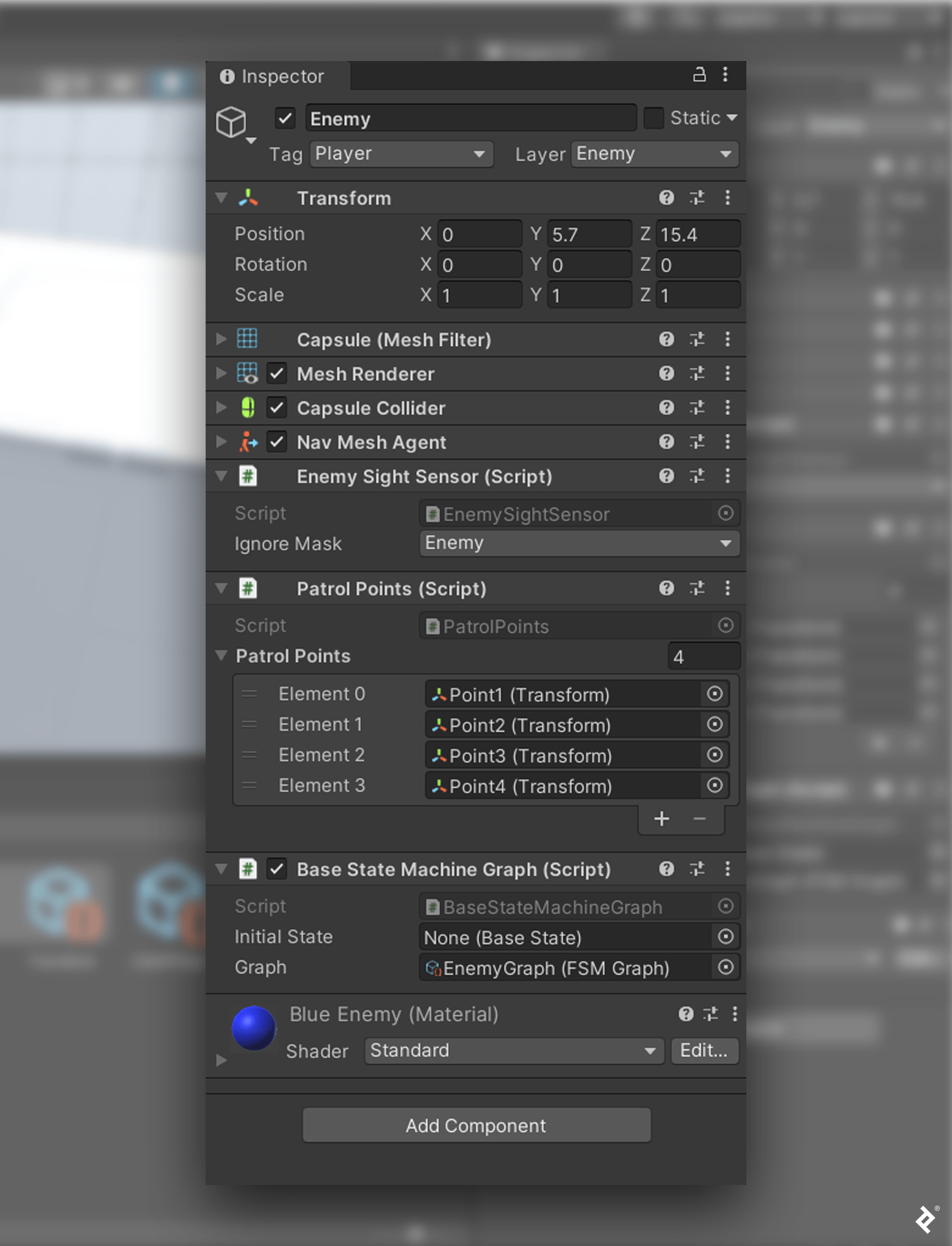
Enemy Game ObjectThat’s it! We have successfully implemented a modular FSM with a graphic editor. Pressing the Play button will demonstrate that our graphical enemy AI functions identically to the previous ScriptableObject-based version.
Looking Ahead: FSM Optimization
The advantages of a graphical editor are clear, but a word of caution: As your game’s AI becomes more complex with numerous states and transitions, the FSM can become visually cluttered and difficult to interpret. The graphical editor might turn into a web of lines, making debugging a challenge.
As in the previous tutorial, we encourage you to experiment with the code and optimize the stealth game further. Consider color-coding state nodes to indicate active/inactive states or resizing the RemainInState and Initial nodes to manage screen space.
Such improvements aren’t merely aesthetic. Visual cues like color and size can greatly aid debugging. A visually organized graph is easier to understand and analyze. With the graphical editor foundation established, the possibilities for enhancing the developer experience are endless.
The editorial team of the Toptal Engineering Blog thanks Goran Lalić and Maddie Douglas for reviewing the code samples and technical content presented in this article.