The AWS Serverless Application Model (SAM) is a robust tool for creating serverless applications, and it often goes hand in hand with JavaScript. 62% of developers in medium-sized and large companies opt for JavaScript when writing code for serverless environments. However, TypeScript is rapidly gaining traction and has surpassed JavaScript as the third among developers.
While finding JavaScript boilerplate code is relatively easy, initiating AWS SAM projects using TypeScript can be more intricate. This tutorial provides a step-by-step guide on building an AWS SAM project with TypeScript from scratch, explaining how the different components work together. A basic understanding of AWS Lambda functions is all you need to follow along.
Building Our AWS SAM TypeScript Project from the Ground Up
Our serverless application relies on several components. We’ll begin by configuring the AWS environment, setting up our npm package, and integrating Webpack functionality. Once that’s done, we can create, invoke, and test our Lambda function to see our application in action.
Getting Your Environment Ready
Setting up the AWS environment involves installing the following:
Remember that this tutorial requires installing Docker during step 2 to enable local testing of our application.
Setting Up an Empty Project
Let’s create a project directory named aws-sam-typescript-boilerplate and a subfolder called src to store our code. From the project directory, we’ll initialize a new npm package using the following command:
| |
This will generate a package.json file within our project.
Adding the Webpack Configuration
Webpack, primarily used for JavaScript applications, bundles modules. Since TypeScript compiles down to JavaScript, Webpack will prepare our code for the web browser. We’ll install two libraries and a custom loader:
- webpack: This is the core library.
- webpack-cli: These are command-line utilities for Webpack.
- ts-loader: This is a TypeScript loader specifically designed for Webpack.
| |
The sam build command, used by the AWS SAM CLI for building, can slow down development. This is because it attempts to run npm install for each function, leading to redundancy. To speed things up, we’ll use an alternative build command provided by the aws-sam-webpack-plugin library.
| |
Webpack doesn’t come with a default configuration file. Let’s create a custom config file named webpack.config.js in the root folder:
| |
Let’s break down the different parts:
entry: This section specifies where Webpack should begin building the bundle by loading the entry object from theAWS::Serverless::Functionresource.output: This points to the destination where the build output should be placed (in this case,.aws-sam/build). We also define the target library ascommonjs2, which assigns the return value of the entry point tomodule.exports, the default entry point for Node.js environments.devtool: This generates a source map file namedapp.js.mapwithin our build output destination. This map connects our original code to the code executed in the web browser, aiding in debugging when theNODE_OPTIONSenvironment variable is set to--enable-source-mapsfor our Lambda function.resolve: This instructs Webpack to prioritize processing TypeScript files over JavaScript files.target: This tells Webpack to treat Node.js as our target environment, meaning it will utilize Node.js’srequirefunction for loading chunks during compilation.module: This applies the TypeScript loader to all files matching the specifiedtestcondition, ensuring that any file with a.tsor.tsxextension is handled by the loader.plugins: This section helps Webpack identify and utilize ouraws-sam-webpack-plugin.
In the first line, we’ve temporarily disabled a specific ESLint rule for this file. While our ESLint configuration, which we’ll set up later, generally advises against using the require statement, we prefer it over import in Webpack and will make an exception for this file.
Incorporating TypeScript Support
Integrating TypeScript brings several benefits to the development process:
- It prevents warning messages related to missing type declarations.
- It provides valuable type validation.
- It offers helpful autocompletion suggestions within your IDE.
Let’s start by installing TypeScript locally for our project (you can skip this step if you have TypeScript installed globally):
| |
Next, we’ll include type definitions for the libraries we’re using:
| |
Now, let’s create a TypeScript configuration file named tsconfig.json in the project’s root directory:
| |
Here, we’re adhering to the default configuration recommended by the TypeScript community. We’ve added the include property to incorporate files within the src folder into our program. Additionally, we’ve included the exclude property to prevent TypeScript compilation for the node_modules folder, as we won’t be directly modifying code within that directory.
Creating a Lambda Function
Up until now, we haven’t written any actual Lambda code for our serverless application. Let’s change that. Inside the src folder we created earlier, create a subfolder named test-lambda. Within test-lambda, create a file named app.ts and add the following Lambda function:
| |
This function serves as a simple placeholder. When executed, it returns a 200 response with a basic message body. We’ll be able to run this code after one more step.
Adding the AWS Template File
AWS SAM relies on a template file to transpile our code and deploy it to the cloud. Create a file named template.yaml in your project’s root folder and add the following content:
| |
This template file defines a Lambda function that can be accessed through an HTTP GET API. Note that the version specified in the Runtime: line might need to be adjusted based on your requirements.
Running the Application
To run our application, we need to include a new script within the package.json file. This script will handle building the project using Webpack. Your package.json file might already contain some scripts, such as an empty test script. Add the build script as follows:
| |
Executing npm run build from your project’s root directory should create a build folder named .aws-sam. If you’re using a Mac and don’t see this folder, you might need to reveal hidden files by pressing Command + Shift + ..
Next, we’ll initiate a local HTTP server to test our function:
| |
Visiting the test endpoint in a web browser should display a success message.

The console output should indicate that the function is being mounted within a Docker container before execution. This is why we installed Docker earlier.
| |
Elevating Our Development Workflow for Professional Environments
Our project is now up and running. However, adding a few finishing touches will create an outstanding developer experience, enhancing productivity and fostering better collaboration.
Optimizing the Build Process with Hot Reloading
Manually running the build command after every code change can become tiresome. Hot reloading addresses this issue. We can introduce another script to our package.json file to monitor for file modifications:
| |
Open a separate terminal window and execute npm run watch. With this command running, your project will automatically recompile whenever you make changes to your code. Try modifying the message within your code, refresh your webpage, and observe the updated result.
Enhancing Code Quality Using ESLint and Prettier
No TypeScript or JavaScript project is truly complete without incorporating ESLint and Prettier. These tools are essential for upholding consistent code quality and style within your project.
First, let’s install the core dependencies:
| |
To ensure ESLint and Prettier work seamlessly together in our TypeScript project, we’ll also install some helper dependencies:
| |
Now, let’s set up our linter by creating an ESLint configuration file named .eslintrc in the project’s root directory:
| |
It’s important to note that in the extends section of this file, the configuration for the Prettier plugin must be placed as the last item. This ensures that Prettier errors are displayed as ESLint errors within your editor. We’re adhering to the ESLint recommended settings specifically designed for TypeScript and have added some custom preferences within the rules section. Feel free to explore the available available rules and tailor the settings to your liking. We’ve chosen to include the following rules:
- An error will be raised if we don’t use single quotes for strings.
- A warning will be triggered when a
switchstatement lacks adefaultcase. - A warning will be issued if we attempt to reassign a function parameter.
- A warning will be displayed if an
awaitstatement is used within a loop. - An error will be raised for unused variables, as these can make code harder to read and more prone to errors over time.
Our ESLint configuration is already set up to seamlessly integrate with Prettier formatting. (You can find more details in the eslint-config-prettier GitHub project.) Now, let’s create a configuration file for Prettier named .prettierrc:
| |
These settings are derived from Prettier’s official documentation, and you’re welcome to modify them to your preferences. We’ve made adjustments to the following properties:
trailingComma: We’ve changed this fromes5tononeto prevent trailing commas.semi: We’ve changed this fromfalsetotruebecause we prefer semicolons at the end of each line.
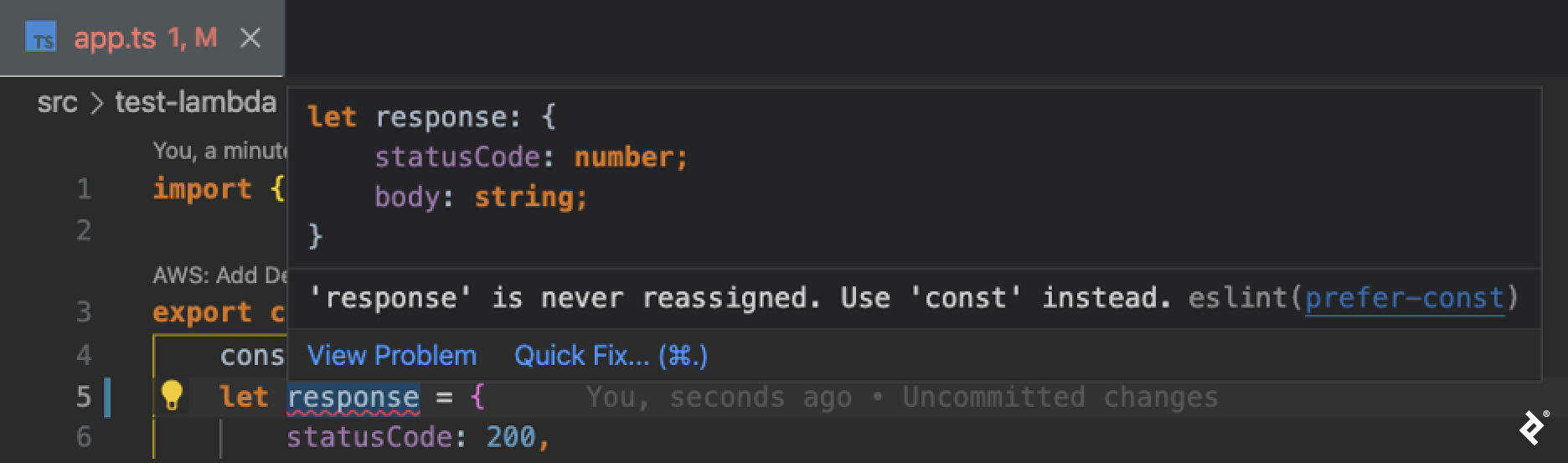
It’s time to see ESLint and Prettier in action. In your app.ts file, change the declaration of the response variable from const to let. Using let in this scenario is not ideal, as we don’t intend to modify the value of response. Your editor should now display an error, highlighting the violated rule and providing suggestions for fixing the code. Make sure to enable ESLint and Prettier within your editor’s settings if you haven’t already.
Maintaining Code Integrity with Jest Testing
There’s a wide range of libraries available for testing, such as Jest, Mocha, and Storybook. In our project, we’ll utilize Jest for several reasons:
- It’s incredibly easy to learn.
- Setting it up requires minimal effort.
- It offers a convenient way to perform snapshot testing.
Let’s install the necessary dependencies:
| |
Next, create a Jest configuration file named jest.config.js within your project’s root directory:
| |
Now, let’s revisit our package.json file and add the test script:
| |
Navigating to your terminal and running npm run test should now present you with a passing test:

Managing Source Control with .gitignore
It’s generally good practice to configure Git to exclude specific files and directories from source control. Create a .gitignore file using gitignore.io to prevent unnecessary files from being tracked:
| |
Poised for Success: Your Blueprint Awaits
You’ve now successfully set up a comprehensive AWS SAM boilerplate project project using TypeScript. We’ve focused on establishing a solid foundation and emphasized the importance of maintaining high code quality through the integration of ESLint, Prettier, and Jest. This example from our AWS SAM tutorial serves as a robust blueprint, equipping you to kickstart your next significant project on the right foot.
The Toptal Engineering Blog extends its sincere gratitude to Christian Loef for his invaluable review of the code samples presented in this article.

: ’ts-jest' } };
| |
Now, let’s revisit our package.json file and add the test script:
| |
Navigating to your terminal and running npm run test should now present you with a passing test:
Managing Source Control with .gitignore
It’s generally good practice to configure Git to exclude specific files and directories from source control. Create a .gitignore file using gitignore.io to prevent unnecessary files from being tracked:
| |
Poised for Success: Your Blueprint Awaits
You’ve now successfully set up a comprehensive AWS SAM boilerplate project project using TypeScript. We’ve focused on establishing a solid foundation and emphasized the importance of maintaining high code quality through the integration of ESLint, Prettier, and Jest. This example from our AWS SAM tutorial serves as a robust blueprint, equipping you to kickstart your next significant project on the right foot.
The Toptal Engineering Blog extends its sincere gratitude to Christian Loef for his invaluable review of the code samples presented in this article.