What defines a great software developer?
First and foremost, it’s having a deep understanding of your chosen tech stack. For instance, a LAMP developer needs to be proficient in PHP and MySQL, familiar with modern frameworks, and have solid Linux administration skills.
Secondly, and equally important, is a practical understanding of the tools that shape your daily workflow.
Version control systems, continuous integration tools, virtual machine management services (like Vagrant), and your integrated development environment (IDE) should all be within your grasp.
This article focuses on the widely used and robust IntelliJ IDEA IDE, PhpStorm, and explains how, with a little effort, you can significantly boost your efficiency and even prevent bugs during coding.
Master the Keyboard Shortcuts
Let’s begin with the most fundamental and arguably the most crucial skill for any IDE: efficient keyboard usage.
Observe a seasoned programmer and a typical PC user, and the first difference you’ll notice is the programmer’s reliance on the keyboard, rarely reaching for the mouse. The reason? It’s simply more efficient.
Start by Becoming a Proficient Typist
While typing might not seem directly related to IDE skills, shortcuts lose their value if you need to hunt and peck for each key.
If your typing speed is below 50 words per minute (WPM), find a touch typing website like TypingClub.com to improve your speed.
Competitive typing websites such as TypingRaces.com offer a fun way to challenge yourself. Try engaging in a typing race each morning as a warm-up exercise.
Familiarize Yourself with PhpStorm’s Shortcuts
The fastest way to learn is by removing any alternative to keyboard shortcuts.
To learn shortcuts effectively, I disabled all menus, tabs, navigation bars, and so on. You can do the same by going to the View menu and unchecking all options (consider leaving the ‘Status Bar’ enabled):

My IDE now looks like this:
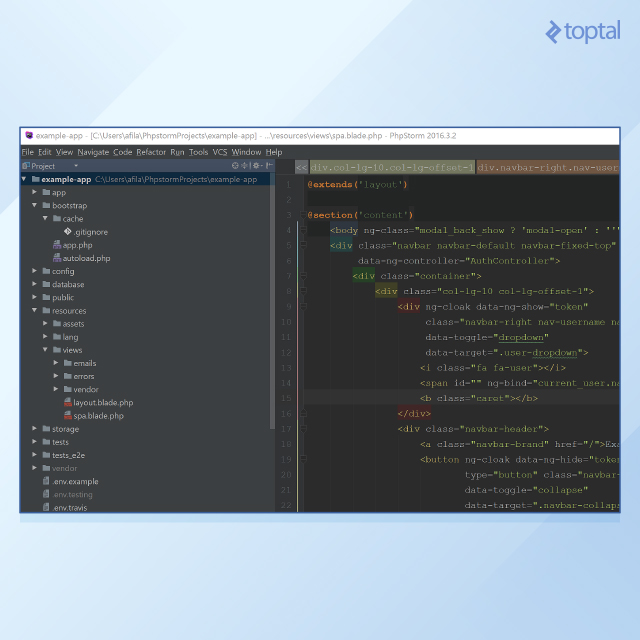
As you can see, using shortcuts becomes unavoidable.
It took me approximately three to four days of initial struggle to get past the frustration and fully adapt.
PhpStorm offers a built-in productivity guide to keep your motivation high. It provides a list of features and tracks their usage statistics. Simply click ‘Help,’ then ‘Productivity Guide,’ and you’ll see something like this:
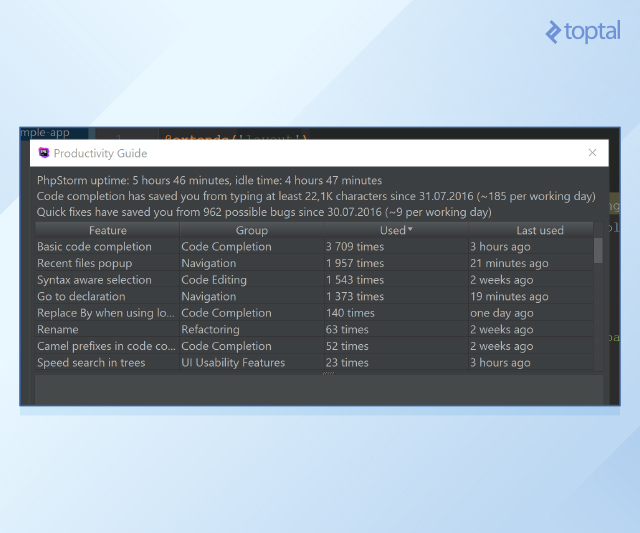
As shown, shortcuts saved me from typing over 20,000 extra characters (over six months) and helped me prevent around 1,000 potential bugs. Quite motivating, right?
It also reveals infrequently used features, pinpointing areas where I can further enhance my shortcut skills. Regularly review your statistics and utilize this knowledge wisely.
Essential Keyboard Shortcuts
Jetbrains provides a comprehensive PDF listing all available shortcuts in its official documentation, along with a dedicated list of ‘Keyboard Shortcuts You Cannot Miss ‘. Start mastering these immediately until they become second nature.
My absolute favorite shortcuts include:
Ctrl+ E- Switch between recently opened filesCtrl + /- Comment or uncomment a block of codeCtrl + B- Navigate to the class declarationCtrl + N- Go to a specific classCtrl + R- Search and replaceCtrl +Alt + L- Reformat codeAlt + Enter- Display intention actions and quick-fixesCtrl + Shift + Enter- Complete the current statement
While some are self-explanatory, others deserve further explanation.
Effortlessly Switch Between Files Using Ctrl + E and Enter
Imagine frequently switching between two files, like a PHP class containing business logic and a template for rendering and outputting it.
Many developers would switch from keyboard to mouse, navigate to the file’s tab, click on it, and scroll to find the desired section. However, this approach is incredibly slow.
Why not simply press Ctrl+E followed by Enter?
Ctrl+E presents a list of recently used files. Pressing Enter immediately switches to the file used just before the current one.
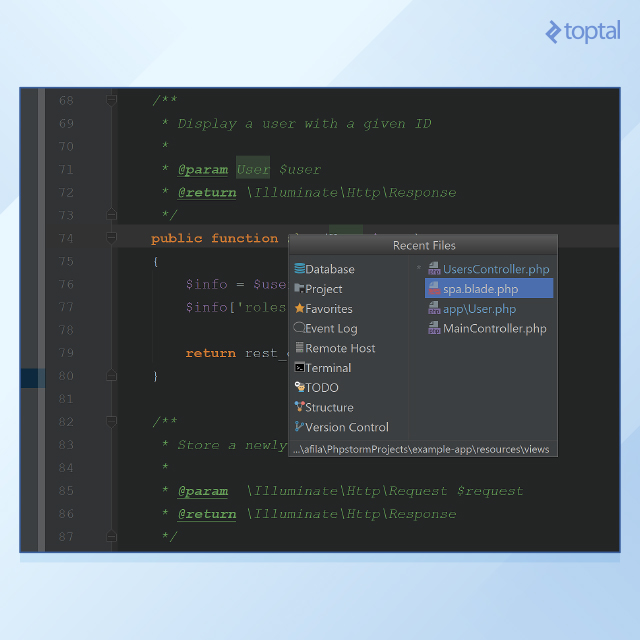
To switch back, repeat the same key combination.
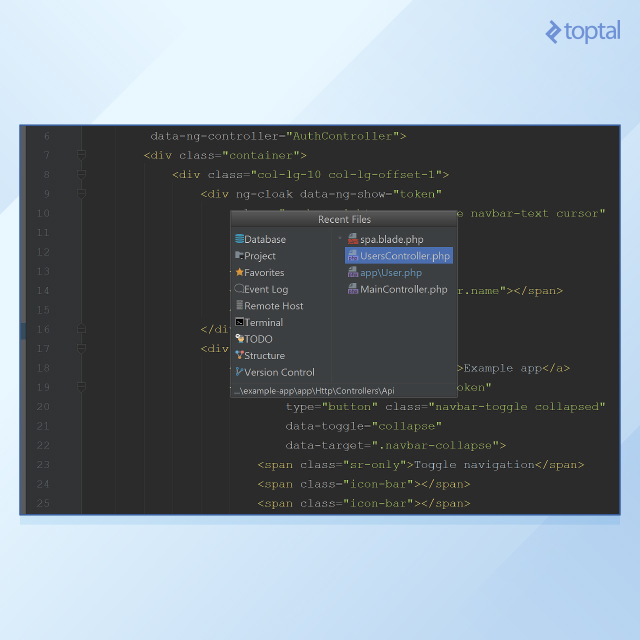
This technique allows toggling between two files in just three keystrokes! The time saved by this method, especially when repeated hundreds of times daily, is substantial.
Explore Intention Actions and Quick-Fixes with Alt+Enter
Modern IDEs highlight errors and offer code improvement suggestions. When the cursor is placed on an incomplete or undocumented code section, a light bulb icon appears. Clicking it reveals a popup menu of potential actions.
The same outcome can be achieved by pressing Alt+Enter, offering greater convenience.
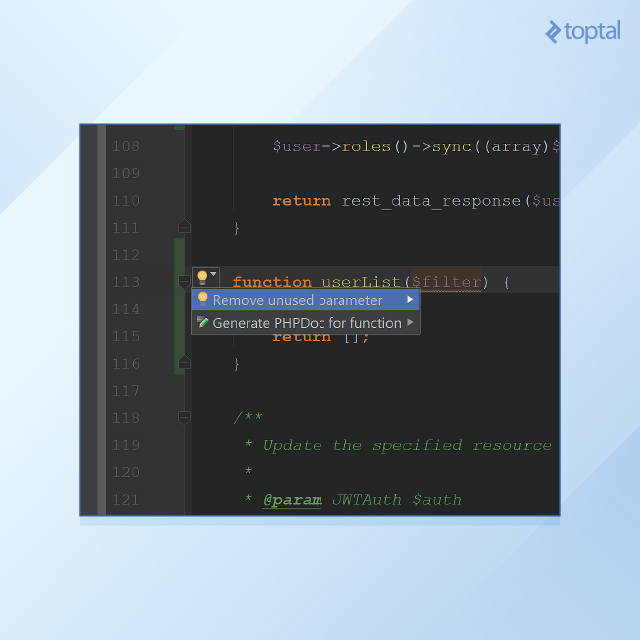
In the screenshot above, PhpStorm suggests two options: Adding PHPDoc documentation to the function (a highly recommended practice) and removing an unused parameter.
This shortcut proves useful for various other common actions like creating getters and setters for class properties, initializing fields in constructors, adding undefined methods and properties, and more.
Complete Statements Effortlessly with Ctrl+Shift+Enter
This shortcut is both simple and incredibly helpful, performing exactly as its name implies.
For example, typing $i = 0 and pressing Ctrl+Shift+Enter immediately afterwards adds a semicolon to the expression. Similarly, typing if followed by the shortcut adds brackets, and so on.
Use this shortcut generously. As code primarily consists of standard structures, expediting their creation significantly speeds up overall coding!
The Power of the IdeaVim Plugin
While shortcuts dramatically enhance productivity, the IdeaVim plugin takes it to the next level.
Vim is a console text editor popular among Linux enthusiasts and DevOps engineers for managing remote servers via the command line.
Vim is known for two key traits.
Firstly, it has a steep learning curve. Secondly, mastering it reaps significant rewards. Your text editing proficiency surpasses that of any GUI editor. Moreover, there will be situations in your career where using a console editor like Vim becomes essential (for instance, when fixing issues on a remote web server with only console access).
How does Vim relate to PhpStorm, you ask?
Many developers seek to combine Vim’s efficiency with the features of a modern IDE (like code completion, class search, advanced search and navigation). The IdeaVim plugin bridges this gap.
Important: This section assumes basic Vim knowledge. If unfamiliar, you can start learning Vim with vimtutor, available in most Linux distributions or through openvim.
Installing the Plugin
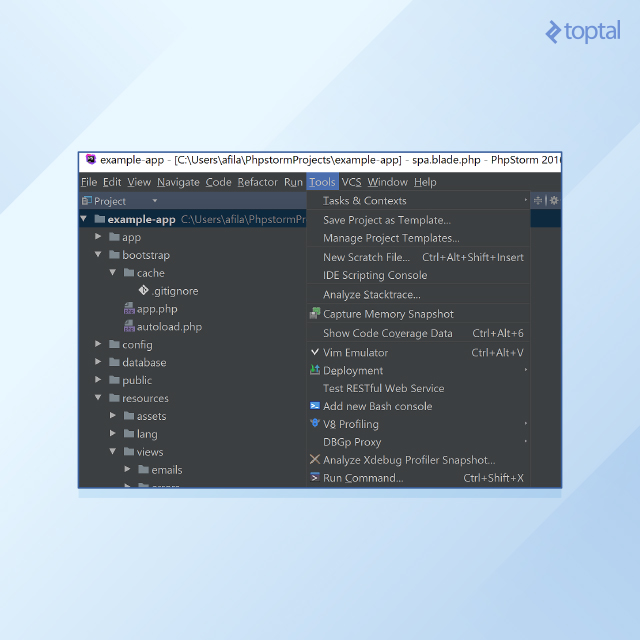
1. Navigate to ‘File,’ then ‘Settings,’ then ‘Plugins,’ and type IdeaVim in the search box. Check the box next to the plugin name and click “Apply.” 2. Restart PhpStorm. 3. Enable the plugin by going to ‘Tools’ and then selecting ‘Vim Emulator’.
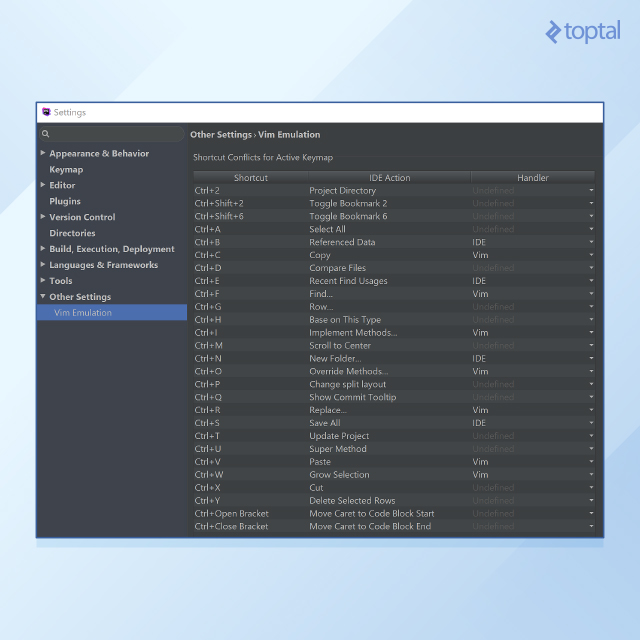
4. Conflicts may arise between original PhpStorm shortcuts and those enabled by the IdeaVim plugin. Resolve these manually by navigating to ‘File,’ ‘Settings,’ ‘Other Settings,’ and then ‘Vim Emulation.’ The list displays conflicting shortcuts. Choose whether to prioritize PhpStorm’s or Vim’s shortcut for each key sequence. My choices are illustrated in the screenshot below. If unsure, leave a shortcut undefined; PhpStorm will prompt for selection upon first use.
Using the Plugin
Enabling the plugin transforms the editing area to resemble Vim:
- The cursor becomes rectangular, mirroring Vim.
- Attempting to type in the editor yields no immediate results.
From here, edit files just like in Vim, using the h, j, k, l keys for navigation, the i key to switch between normal and insert modes, and so on.
The plugin supports nearly all Vim shortcuts.
Simultaneously, all IDE features remain accessible, enabling rapid text editing using only the keyboard (Vim-style) while retaining the ability to jump between classes, files, usages, and definitions (modern PhpStorm workflow).
Advanced Search: Unveiling Hidden Treasures in Your Code
One of the most significant advantages of IDEs over simple text editors is their robust search capabilities.
This might seem unnecessary when working on small projects. However, when dealing with a large codebase with complex OOP relationships, its importance becomes undeniable.
Finding a specific string in a file is straightforward with common search (Ctrl + F) or search-and-replace (Ctrl + R). However, challenges arise when you need to locate a specific class definition within thousands of files, a particular method within a massive class, or when you want to exclude comments from search results. This is where a modern IDE like PhpStorm shines.
This section highlights the most practical search functionalities within PhpStorm.
Find in Path: Navigate Your Project with Precision
After the basic search, finding a specific string within all files of a project subfolder is the most common task. Its ease of implementation in PhpStorm makes it my go-to search option.
For instance, let’s search for usages of the User class in our example application.
1. Press Ctrl + Shift + F. A popup window with search options appears. Type ‘User’ in the query string. The Preview tab displays the number of matches:
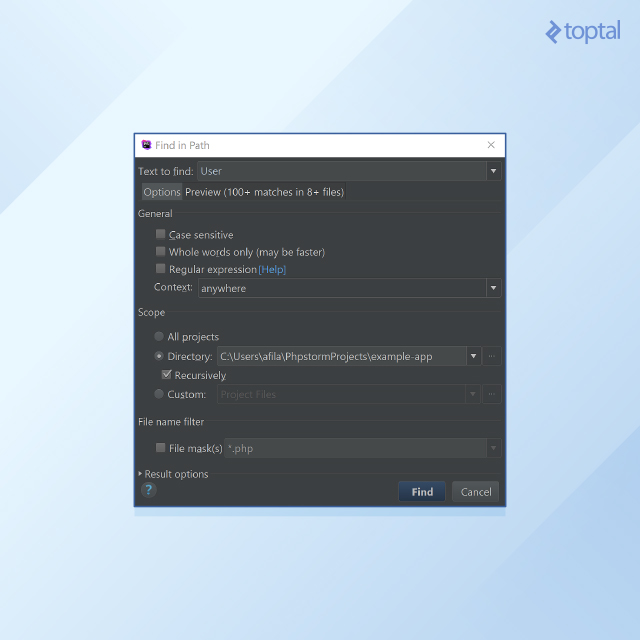
2. Manually sifting through the Preview tab’s results, especially with over 100 matches, can be tedious. Let’s refine our search.
Since we are looking for class usages, enable the “whole words only” option. This helps eliminate irrelevant results like E_USER_ERROR.
Next, exclude comments and string literals from the search, limiting the results to .php files only.
Specifying a more specific project subfolder often proves beneficial. In this case, all project-specific code resides within the app folder.
Therefore, change the scope directory to example-app/app.
Our search window now looks like this:
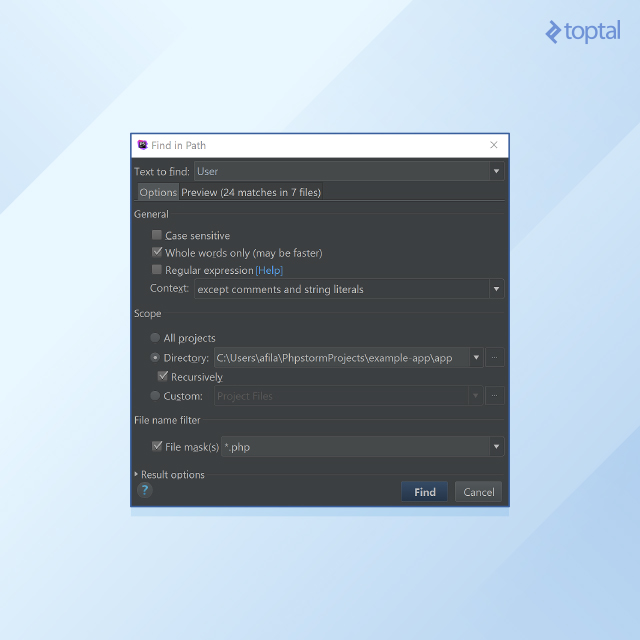
By refining the search parameters, we reduced the number of results from hundreds to a manageable 24!
Examining each result manually becomes significantly easier. Furthermore, there’s no need to open each file individually thanks to the convenient preview tab:
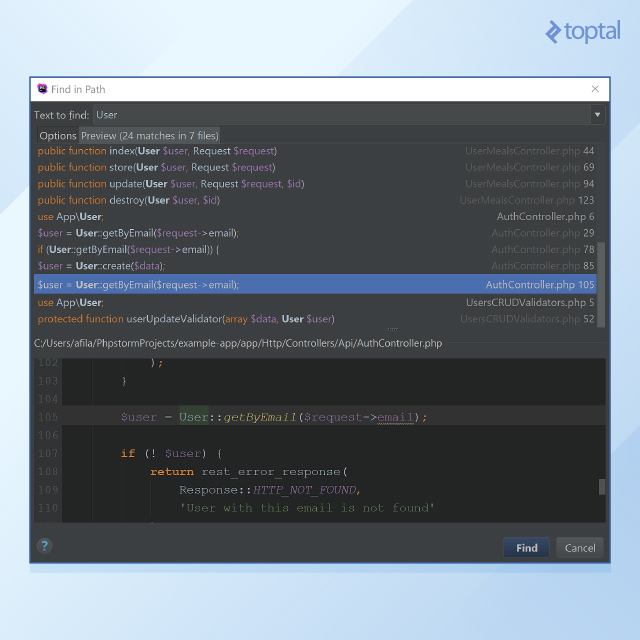
In my daily routine, the “find in path” search caters to approximately 80 percent of my search requirements. Its utility is such that even relying solely on it can significantly boost your efficiency.
Go to Declaration: Instantly Jump to the Source
Modern IDEs like PhpStorm excel at swiftly navigating between usages and declarations of classes and functions.
Let’s assume we have a function that creates a new User. Naturally, we might not recall all methods and properties of the User class, requiring us to examine its declaration. There are several ways to achieve this.
First, open the class declaration as a quick read-only popup.
Simply position your cursor on any class usage and press Ctrl + Shift + I. The read-only window appears:
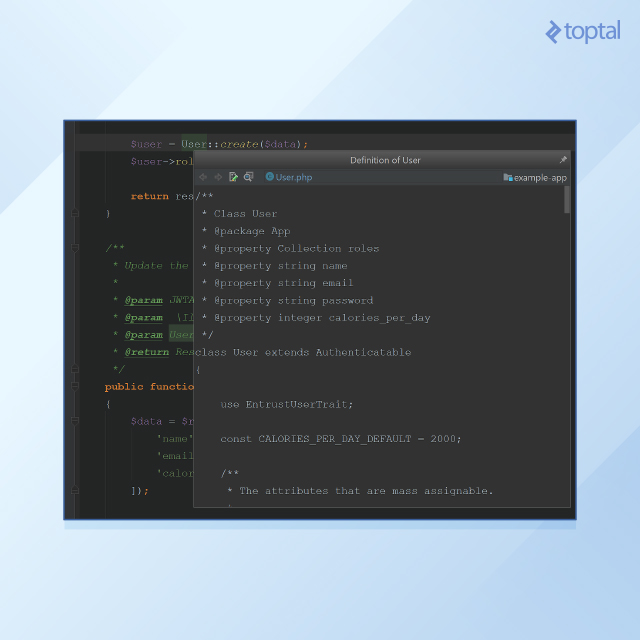
Examine the necessary data and seamlessly return to the original file. This process is remarkably fast, eliminating the need to switch between files.
However, the popup window’s read-only nature necessitates another shortcut (Ctrl + Shift + B) for making changes within the User class during examination.
This navigates directly to the class definition. After making changes, effortlessly return to the initial file using the Ctrl + E, Enter sequence discussed earlier.
List All Methods of the Current Class: Navigate Large Classes with Ease
Another invaluable search function I use daily involves searching by class structure. Navigating lengthy PHP classes to locate a specific property or method can be challenging.
Pressing Ctrl + F12 while the class file is open reveals a popup displaying the class structure:
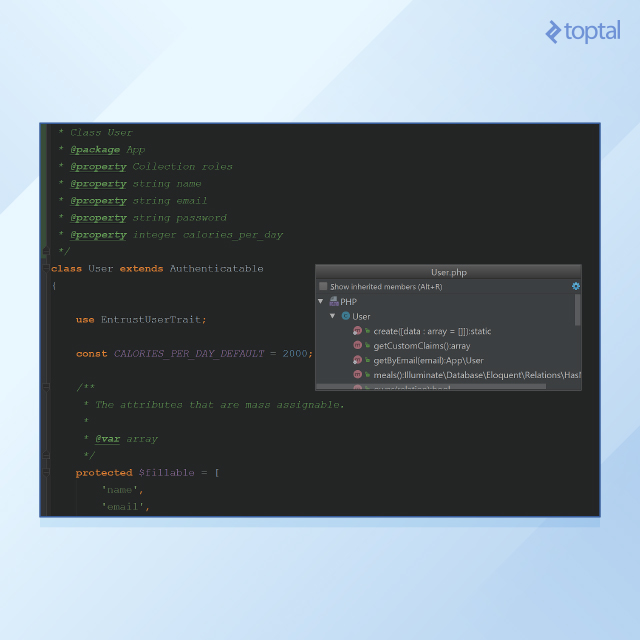
Start typing the method name, and the list dynamically filters to show only matching methods:
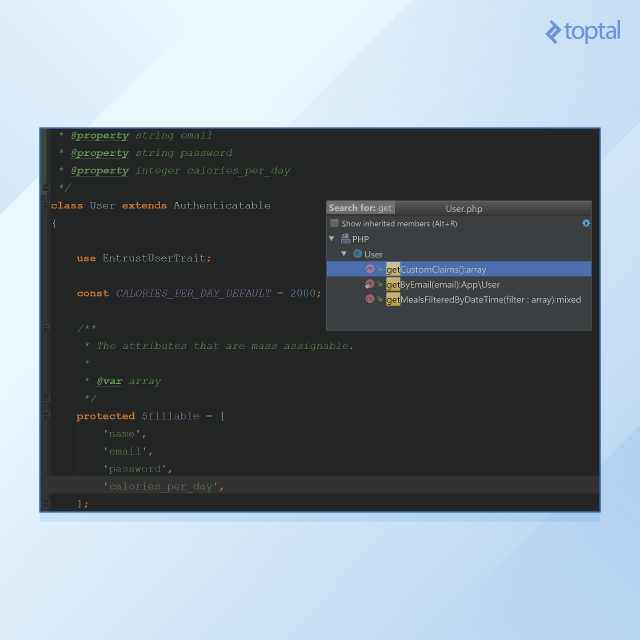
Imagine dealing with a class containing around 100 methods (not ideal, but it happens). Frequently switching between two specific methods using a standard search could be frustrating.
The file structure search simplifies this process, requiring only about five keystrokes per switch. Simply press Ctrl + F12, start typing the desired method’s name, hit Enter, and you’re instantly taken to its declaration.
The default Ctrl + F12 shortcut might feel cumbersome, so consider changing it to something more convenient. I personally use Alt + R.
While PhpStorm offers numerous other search methods, these three effectively address almost all daily search tasks.
Recap of Essential Search Functionalities
- For searching across multiple files, leverage the “find in path” search (
Ctrl + Shift + F) and refine your search using specific filtering options. - To quickly view the source of a class or method, use
Ctrl + Shift + Iand examine it in the quick popup (useCtrl + Shift + Bto navigate to the declaration for editing). - When working with large classes, utilize the file structure shortcut (
Ctrl + F12by default) to inspect its structure or swiftly switch between methods.
Supercharge Your Coding with Live Templates
Shortcuts expedite code writing and navigation. However, autocompletion and live templates offer even more efficiency.
Basic autocompletion is fairly straightforward.
As you type a class, method, or variable name, a good IDE suggests possible completions. Choose the desired option to avoid typing the entire name.
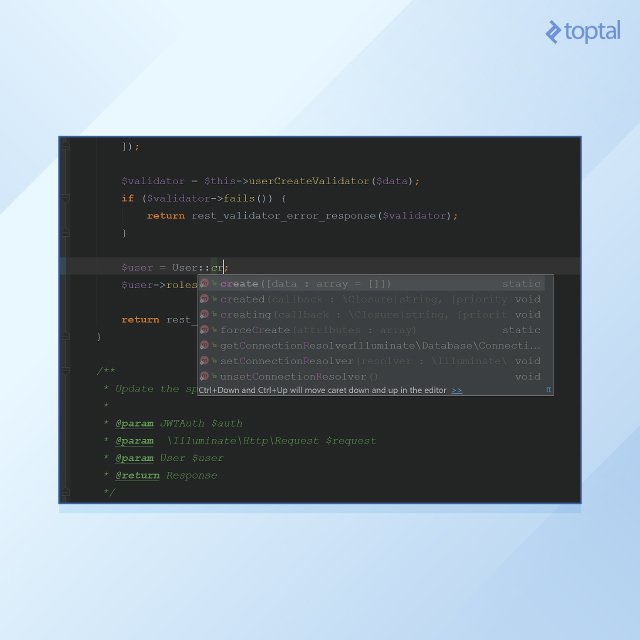
Live templates take this concept further.
This section explores the live templates I use regularly, categorized into three groups: basic language constructs, functions with lengthy names, and HTML chunks.
Basic Language Constructs: Streamline Your Code
Developers frequently use standard language constructs like while, for, foreach, and if. Typing these from scratch repeatedly is inefficient. PhpStorm provides built-in live templates for this purpose.
To witness the magic of live templates, type forek in the PhpStorm editor and press Enter. Observe the transformation:
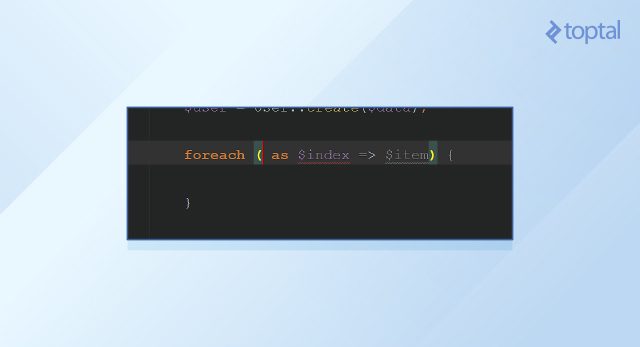
PhpStorm replaces the template with a complete foreach loop, including stubs for necessary variables. You only need to fill in the correct variable names.
Pressing Ctrl + J reveals a list of currently supported live templates applicable to your current code context. Choose the desired template from the list.
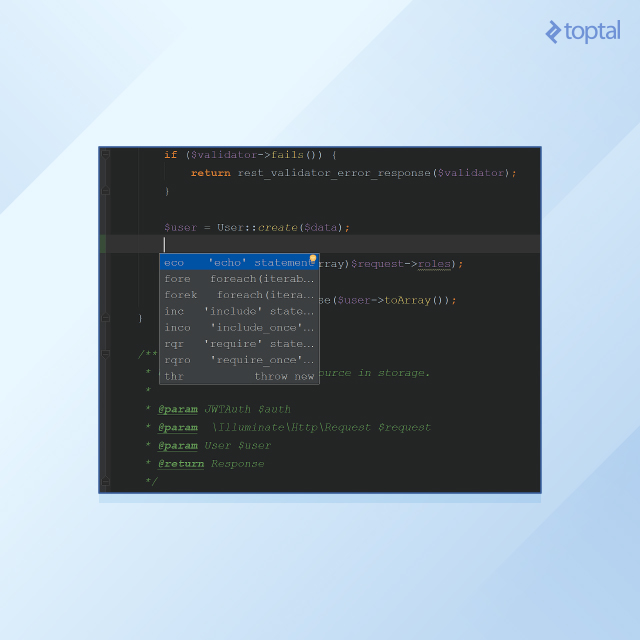
You might notice some frequently used constructs missing from this list. For instance, I often miss a live template for the while loop. Let’s create one!
Navigate to ‘Settings,’ then ‘Editor,’ then ‘Live Templates.’ Choose ‘PHP’ and click the green ‘+’ button at the top right of the window:
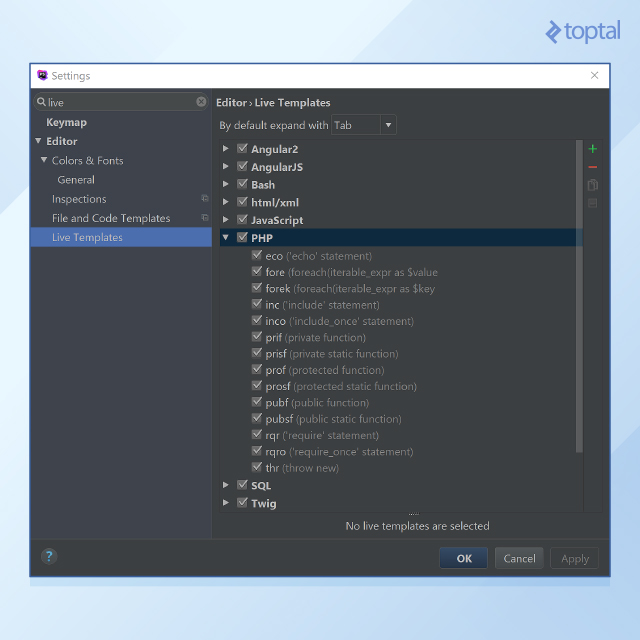
Fill the ‘abbreviation’ field with ‘wh’ and the ‘description’ field with ‘while(bool_expr){…}’. The ’template text’ field should contain the following:
| |
Click the ‘define’ link below the ’template text’ textarea and select ‘PHP’ from the list to specify the template’s context.
Let’s break down how it works.
Typing wh, Enter in the editor replaces it with the template text.
The cursor moves to the first template variable, $EXPR$ in this case. Type any expression (e.g., $i > 0) and press Enter.
The cursor then jumps to the next variable (only one in this example), and so on. $END$ represents the final cursor position after all variables are filled.
Since we have only one variable, the cursor moves to $END$ after filling $EXPR$, ready for you to input the loop body.
Create custom live templates for all frequently used language constructs. Investing a little time upfront saves you from repeatedly typing these constructs from scratch.
PHP Functions: Taming Long Names
PHP is infamous for its long and inconsistent function names.
Live templates provide a solution by allowing you to substitute them with shorter abbreviations. For example, the function array_key_exists($my_key, $my_array) checks if a key exists in an array.
Typing this repeatedly, even with standard autocompletion, can be tedious. Creating a live template simplifies this task.
I prefer using ‘ake’ for array_key_exists, but feel free to choose your own abbreviation. Here’s how to create the ‘ake’ live template:
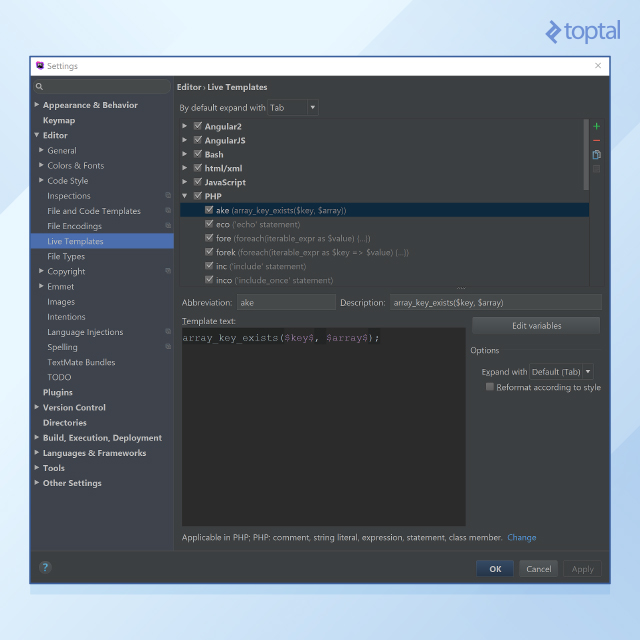
HTML Chunks: Boost Your Markup Efficiency
Live templates are incredibly useful for handling HTML chunks.
If you’re not already using them, you’ve likely spent countless hours creating standard HTML markup elements. Live templates automate this process by using the same principles as before, with the ’template text’ field containing your HTML.
Prevent Bugs with PHPDocs: Write Cleaner Code
Beyond boosting efficiency, PhpStorm can also help you prevent bugs before your code even runs, especially when combined with PHPDocs.
PhpStorm can detect obvious errors out of the box.
For example, a missing semicolon after a statement is marked in red. However, this functionality is quite basic.
What’s truly impressive is PhpStorm’s ability to identify more complex bugs when provided with the necessary information through PHPDocs.
Ideally, your team should enforce comprehensive PHPDoc specifications for all methods. Consider our User class example. Suppose we have a function that returns an array of User objects:
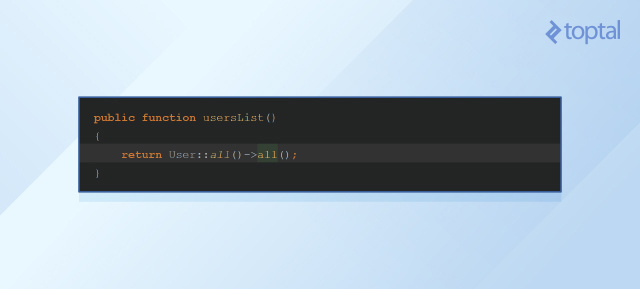
Without documentation, other developers may misunderstand the returned value’s type, leading to improper usage.
For instance, another developer wants to retrieve a list of usernames. They mistakenly assume that the User object has a getName() method. Since it doesn’t, the developer introduces an error:
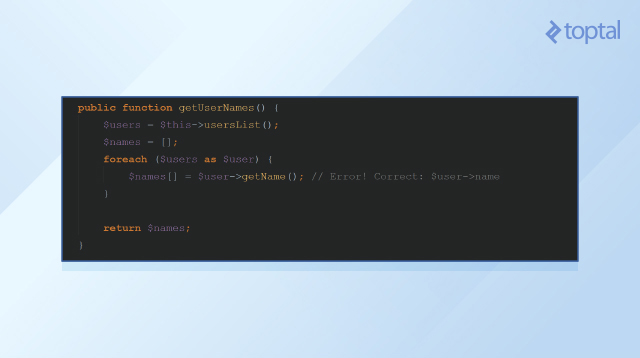
Without information about the $user variable, PhpStorm doesn’t flag this as an error, potentially resulting in a nasty runtime issue.
One option is to enable strict typing (introduced in PHP7). However, this might not be feasible when working with legacy code. Fortunately, PhpStorm can still assist us.
Generate PHPDocs for all your functions. This good practice helps prevent bugs, improves collaboration, and even impresses potential employers during code reviews.
To generate a PHPDoc, move the cursor to the function name, press Alt + Enter, select “Generate PHPDoc for function” from the popup menu, and press Enter again.
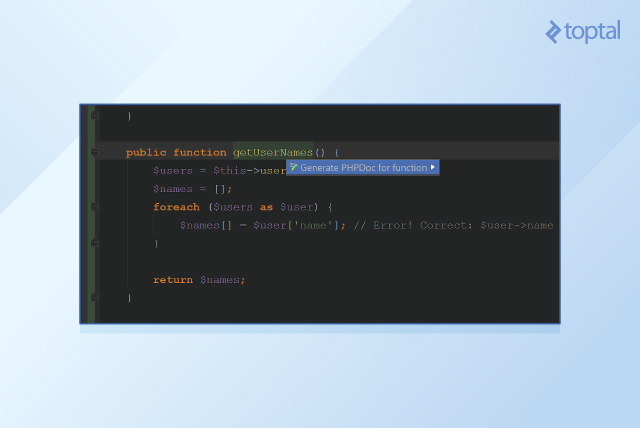
A basic PHPDoc template appears:
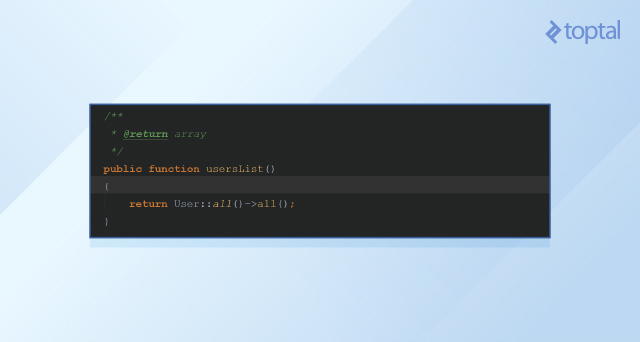
PhpStorm correctly infers that the return value is an array. However, it can’t determine that it’s an array of User objects. Let’s explicitly specify this by replacing ‘array’ with ‘User[]’:
![Updated PHPDoc to offer User[] as the return value.](https://assets.toptal.io/images?url=https%3A%2F%2Fuploads.toptal.io%2Fblog%2Fimage%2F122120%2Ftoptal-blog-image-1486241040514-90677ac345626ba269dea3b3268798b6.jpg)
Now that PhpStorm understands the method’s return type, let’s revisit the getUserNames() method call:
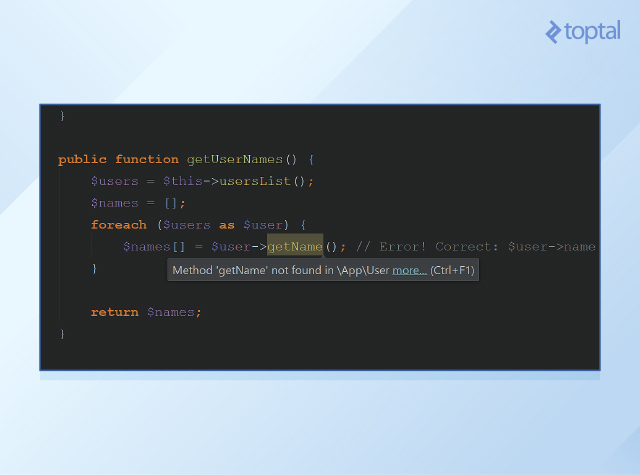
PhpStorm, empowered by the PHPDoc’s return type declaration, now identifies the error and even provides a hint explaining the issue. This combination transforms PHP into a much more rigorous language! A fantastic outcome!
PhpStorm: Beyond PHP Development
While we’ve focused on PHP development, PhpStorm, built upon the powerful IntelliJ Platform, extends its capabilities to various languages, frameworks, and tech stacks beyond the PHP world.
Front-end Development: A Single Tool for All Your Needs
Even as a back-end developer, occasional front-end tasks are inevitable, be it fixing HTML markup or adding a parameter to an AngularJS-based REST client. The good news is that PhpStorm can handle these tasks as well.
The rule of thumb: If it’s not supported out of the box, look for a plugin.
For instance, Javascript, CSS, and popular CSS preprocessors like LESS and SASS are supported natively. AngularJS support is easily added via a plugin (installation process similar to the IdeaVim plugin). This approach equips you to tackle nearly any front-end task.
Database Management: Streamline Your Workflow
Database management typically involves command-line tools or specialized applications like MySQL Workbench. However, PhpStorm offers built-in tools to simplify this process.
Click on “Database” on the right margin to view a list of available databases (initially empty) and a query window with autocompletion similar to the code editor, enhancing convenience.
PhpStorm boasts extensive database support. MySQL, PostgreSQL, Oracle Database, and SQLite are supported out of the box, while MongoDB support is available through a plugin.
MEAN Stack Development: Embrace Modern Web Development
Perhaps the most compelling non-PHP example is MEAN stack development.
MEAN stands for MongoDB, ExpressJS, AngularJS, and Node.js.
This popular tech stack is favored for its speed and suitability for lightweight, fast web services.
Even as a PHP developer, I sometimes create Node.js services to complement PHP projects (e.g., websocket services, simple chatbot backends, etc.).
As you might have guessed, PhpStorm supports all components of the MEAN stack, eliminating the need for a separate IDE when working on MEAN stack projects.
Unlock Your Potential with PhpStorm
By harnessing the power of PhpStorm and the techniques described in this article, you can significantly boost your productivity and preemptively address bugs even before finishing your code.