Making your software globally accessible can be quite a challenge during development, particularly if internationalization isn’t considered from the outset or if a haphazard approach is taken.
This challenge is amplified with modern apps that decouple the front-end and back-end. Traditional tools for internationalizing server-side rendered web apps become less effective.

Consequently, an AngularJS app needs i18n and l10n data delivered directly to the client for proper locale rendering. Unlike server-side rendered apps, you can’t rely on pre-localized pages from the server. For insights on building multilingual PHP applications, refer to this resource.
This article guides you through internationalizing your AngularJS app, introducing tools to streamline the process. While going multilingual with AngularJS presents unique hurdles, strategic approaches can mitigate most of these.
Building a Multilingual AngularJS App
To empower users to switch languages and locales seamlessly, several key design decisions need to be addressed:
- How to design your app from the ground up to be language and locale-agnostic?
- How to structure i18n and l10n data effectively?
- How to deliver this data to clients efficiently?
- How to abstract low-level implementation details for a simplified developer experience?
Answering these early on prevents development roadblocks down the line. This article tackles each of these, some through robust AngularJS libraries and others through strategic approaches.
Internationalization Libraries for AngularJS
Various JavaScript libraries are purpose-built for internationalizing AngularJS apps.
angular-translate is one such AngularJS module, offering filters, directives, and asynchronous i18n data loading. It supports pluralization through MessageFormat and boasts high extensibility and configurability.
When using angular-translate, these packages can prove beneficial:
angular-sanitize: Safeguards against XSS attacks in translations.angular-translate-interpolation-messageformat: Enables pluralization with gender-aware text formatting.angular-translate-loader-partial: Facilitates the delivery of translated strings to clients.
For a truly dynamic experience, incorporate angular-dynamic-locale. This library allows dynamic locale switching, impacting the formatting of dates, numbers, currencies, and more.
Getting Started: Installing Necessary Packages
Assuming you have your AngularJS boilerplate ready, install the internationalization packages using NPM:
| |
After installation, remember to add these modules as dependencies in your app:
| |
Note the distinction between the module name and the package name.
Translating Your First String
Imagine your app has a toolbar with some text and a search field with placeholder text:
| |
This view has two translatable text elements: “Hello” and “Search.” In HTML terms, one is within an anchor tag, while the other is an attribute value.
Internationalization requires replacing these literals with tokens that AngularJS can dynamically replace with the appropriate translations based on user preference during rendering.
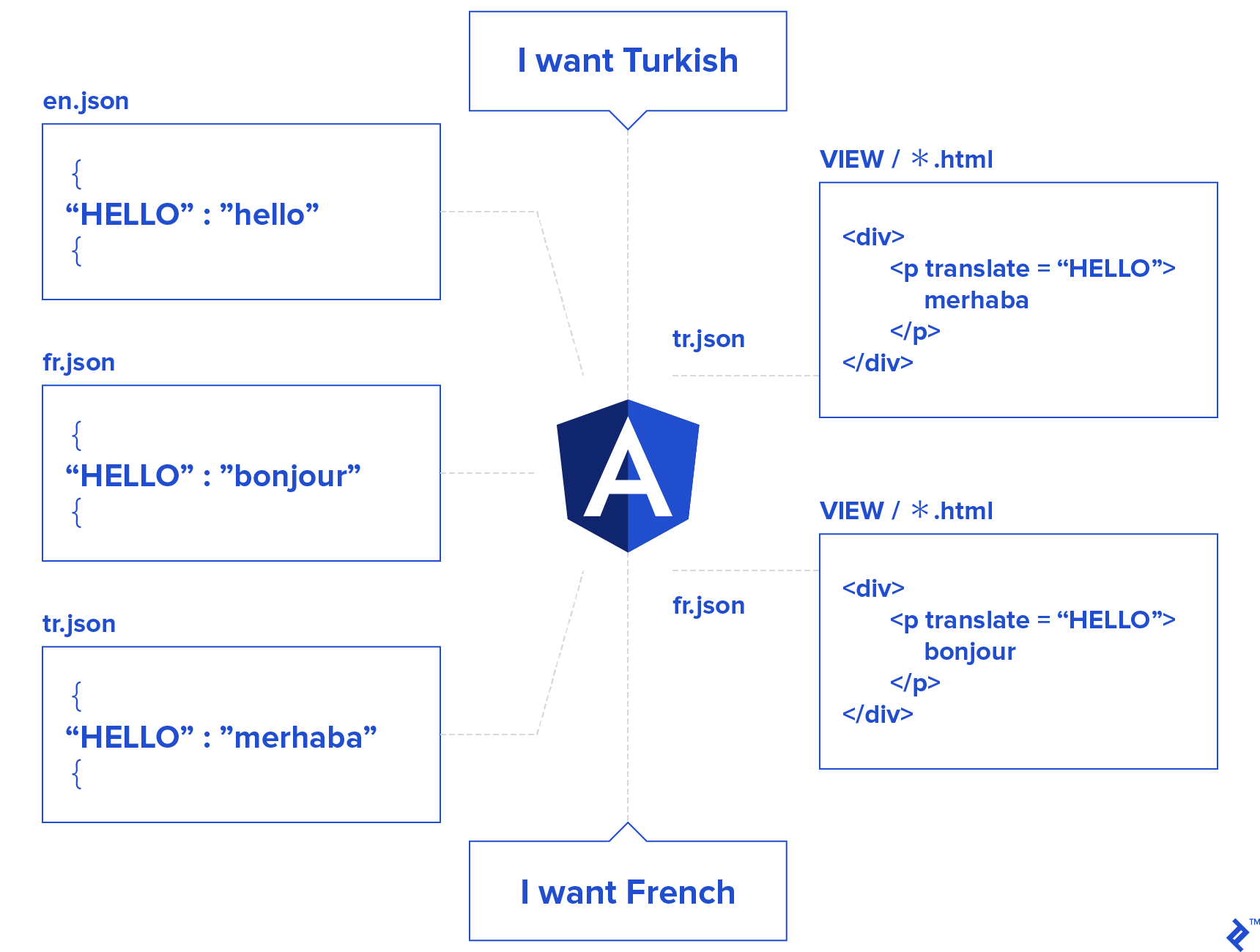
AngularJS achieves this by using tokens to look up translations in provided tables. The angular-translate module expects these tables as plain JavaScript objects or JSON objects (for remote loading).
A typical translation table structure:
| |
To internationalize the toolbar, replace literals with AngularJS-interpretable tokens:
| |
Observe how the translate directive or filter can be used for inner text. (Explore more about the translate directive here and translate filters here.)
With these changes, angular-translate dynamically inserts the appropriate TOOLBAR.HELLO translation based on the current language.
For tokenizing literals within attribute values:
| |
Now, how about tokenized strings with variables?
For instances like “Hello, {{name}}.”, use AngularJS’s interpolator syntax for variable replacement:
Translation table:
| |
Define the variable in various ways, such as:
| |
Handling Pluralization and Gender
Pluralization is a complex aspect of i18n and l10n. Different languages have distinct pluralization rules across contexts.
Often, developers might overlook this (or not address it comprehensively), leading to awkward sentences like:
| |
Fortunately, there’s a standard to address this, with a JavaScript implementation available as MessageFormat.
Using MessageFormat, restructure the previous sentences:
| |
MessageFormat accepts expressions like:
| |
Build a formatter with such an array and generate strings:
| |
To leverage the full potential of MessageFormat within your apps in conjunction with angular-translate:
In your app config, inform angular-translate about message format interpolation:
| |
A translation table entry might then look like:
| |
And in the view:
| |
Explicitly specifying the message format interpolator is necessary due to slight syntax variations with the default AngularJS interpolator. More details can be found here.
Providing Translation Tables
Now that AngularJS knows how to look up translations, how does it know about the tables themselves? And how do you set the default language?
This is where $translateProvider comes in.
Provide translation tables for each supported locale directly in your app’s core.config.js:
| |
Here, English (en) and Turkish (tr) tables are provided as JavaScript objects, with English set as the default. To switch languages based on user preference, use $translate service:
| |
For dynamic default language selection without hardcoding, use $translateProvider:
| |
determinePreferredLanguage analyzes window.navigator for an intelligent default until a clear user preference is available.
Lazy-Loading Translation Tables
The previous section demonstrated embedding translation tables directly in the source code. While feasible for small applications, this lacks scalability. Often, translation tables are fetched as JSON files from a server.
This reduces the initial payload but adds complexity to delivering i18n data, potentially impacting performance if not handled carefully.
The challenge stems from the modular structure of AngularJS applications. A large application might have numerous modules, each with its own i18n data. Avoid loading all i18n data upfront.
The solution lies in organizing i18n data by module. This allows loading only what’s necessary, caching previously loaded data to prevent redundant requests (until cache invalidation).
This is where partialLoader proves useful.
Suppose your application’s translation tables follow this structure:
| |
Configure $translateProvider to use partialLoader with a matching URL pattern:
| |
“lang” is dynamically replaced with the language code (e.g., “en” or “tr”). But how about “part”? How does $translateProvider determine which “part” to load?
Provide this context within controllers using $translatePartialLoader:
| |
The pattern is now complete, loading the relevant i18n data only when its controller is first executed.
Caching for Faster Loading
Enable caching in the app config using $translateProvider:
| |
To clear the cache for a specific language, use $translate:
| |
With these in place, your application is fully internationalized with multilingual support.
Localizing Numbers, Currencies, and Dates
This section explores using angular-dynamic-locale to format UI elements like numbers, currencies, and dates in an AngularJS app.
Install two additional packages:
| |
After installation, add the module to your app’s dependencies:
| |
Locale Rules
Locale rules are JavaScript files specifying formatting rules for dates, numbers, currencies, etc., for components relying on the $locale service.
A list of supported locales is available here.
Here’s a snippet from angular-locale_en-us.js showing month and date formatting:
| |
Unlike i18n data, locale rules are application-global, requiring the entire rule set for a locale to be loaded at once.
By default, angular-dynamic-locale expects rule files at angular/i18n/angular-locale_{{locale}}.js. Override this using tmhDynamicLocaleProvider:
| |
The tmhDynamicLocaleCache service handles caching automatically.
Cache invalidation is less critical for locale rules as they change less frequently than string translations.
Switch between locales using the tmhDynamicLocale service:
| |
Generating Translation Tables: Automatic Translation
While locale rules come bundled with angular-i18n, generating JSON files for translation tables requires a different approach. There isn’t a readily available package for this.
One option is leveraging programmatic translation APIs, particularly for simple literal strings without variables or pluralization.
With Gulp and a few extra packages, request programmatic translations effortlessly:
| |
This script reads all English translation tables, fetches translations for their strings asynchronously, and replaces the English strings with the translated counterparts, creating a new language table.
The new table is saved alongside the English one, resulting in:
| |
Implementing getTranslation is straightforward:
| |
This example uses Microsoft Translate, but other providers like Google Translate or Yandex Translate can be used interchangeably.
While convenient, programmatic translations have limitations:
- Robot translations work well for short strings but can stumble with context-dependent words (e.g., “pool” for swimming or grouping).
- APIs might struggle with variables or message format strings.
Human translation becomes necessary in such cases, but that’s a topic for another discussion.
Internationalizing Front-ends: Less Daunting Than It Seems
This article explored using various packages for internationalizing and localizing AngularJS applications.
angular-translate, angular-dynamic-locale, and gulp are powerful tools that abstract away the complexities of internationalization.
A demo showcasing these concepts can be found GitHub repository.