Boost Your Efficiency: Become a Visual Studio Power User
Staying ahead in the development world often involves continuous learning and skill enhancement. Developers frequently discuss staying at the top of their game and constantly seeking new knowledge, a topic that often arises in interviews as employers value candidates dedicated to expanding their skillsets. Mastering your IDE, especially Visual Studio, can be a significant investment in your professional growth.
A plethora of online resources exist for developers to improve their skills, and regardless of your preferred IDE, it probably has a blog: Subscribe!
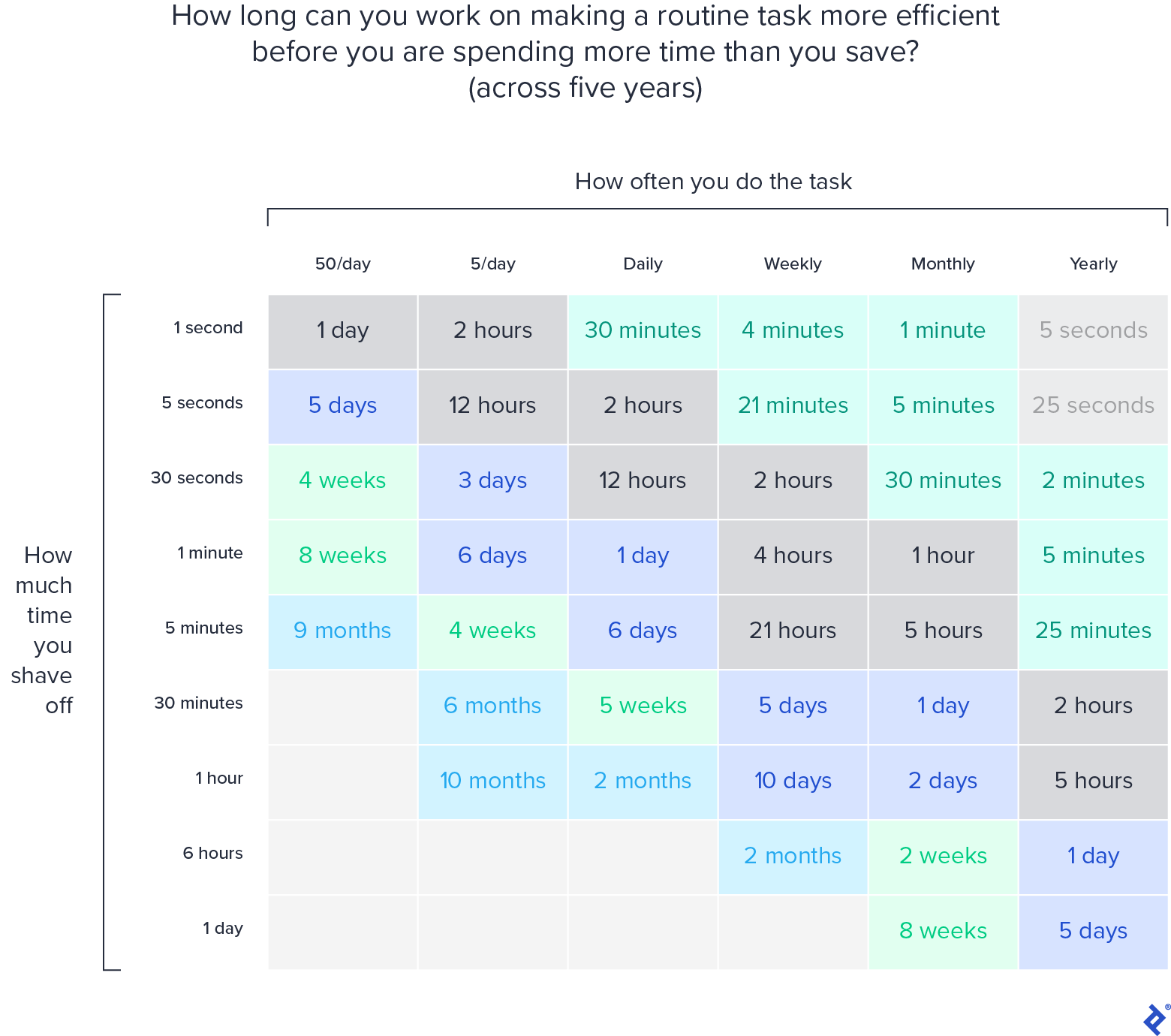
Enhanced efficiency and time savings are additional benefits. Investing in workflow optimization can result in increased productivity and free up time for other pursuits. This article delves into Visual Studio and VSCode, exploring strategies to elevate your proficiency and become a true power user.
Level Up Your Game: Becoming a VSCode Power User
What sets a power user apart? Here are the key differentiators:
- Mastery of the IDE: A deep understanding of VSCode is essential, excellent documentation, read it!
- Personalized Workflow: Power users tailor their workspace to align with their unique needs.
- Automation: Eliminate tedious, repetitive tasks through automation.
- Continuous Improvement: Constantly seek ways to refine your workflow and stay abreast of your IDE’s evolution.
This article outlines my personal journey in addressing these points, providing you with the knowledge to embark on your own. While my approach may not be a perfect fit for everyone, as work environments and projects vary (my focus is primarily React.js and TypeScript on Windows), the core principles are universally applicable.
Streamlining Jest Testing
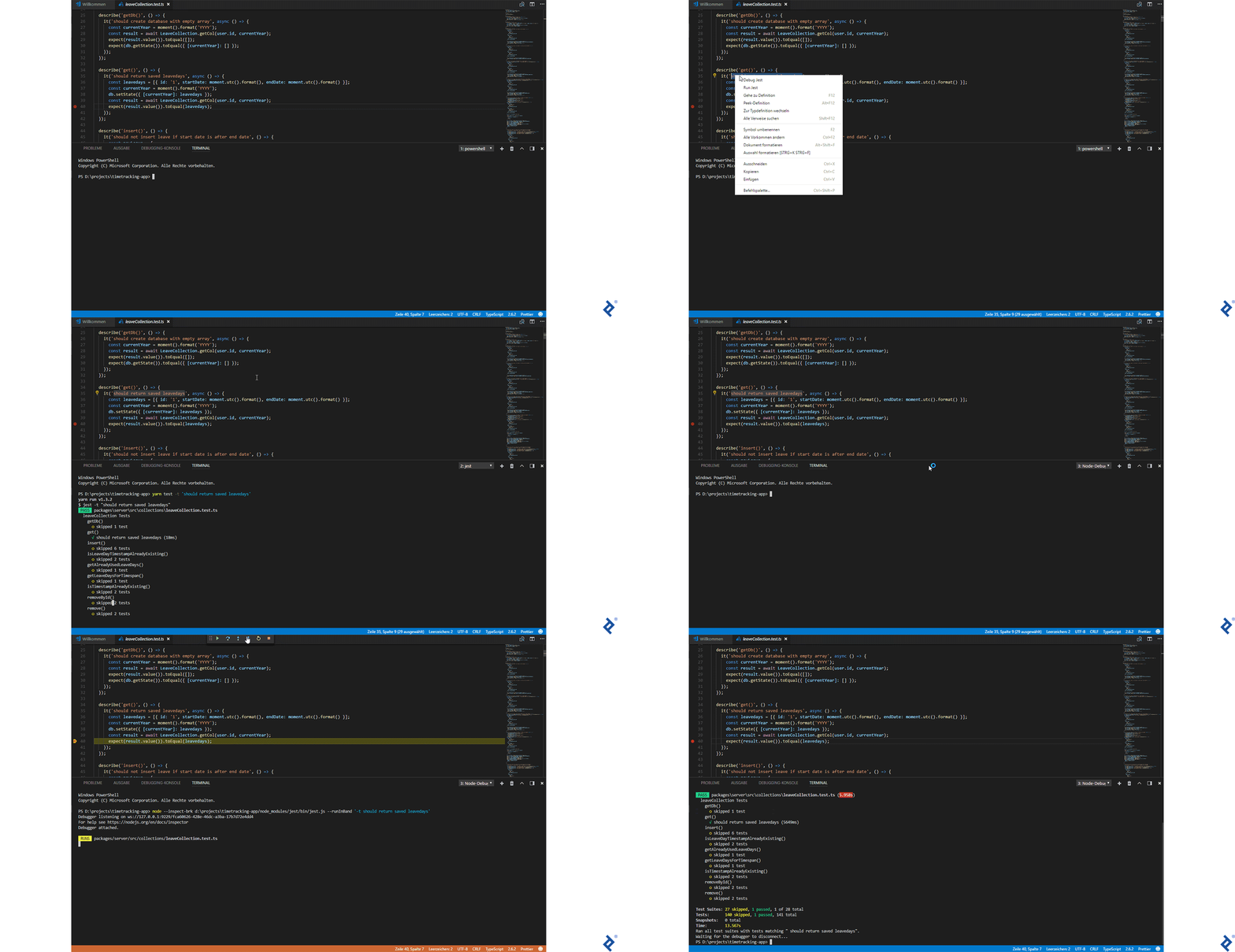
Writing tests individually necessitates a method for running them one by one. However, the native regex solution proves cumbersome for this purpose, leading me to utilize Jest Runner. This invaluable extension empowers you to execute or debug specific test suites or individual tests.
The following video illustrates how simple it is: just right-click on the test name and choose the desired action from the context menu.
Efficient Pact Testing
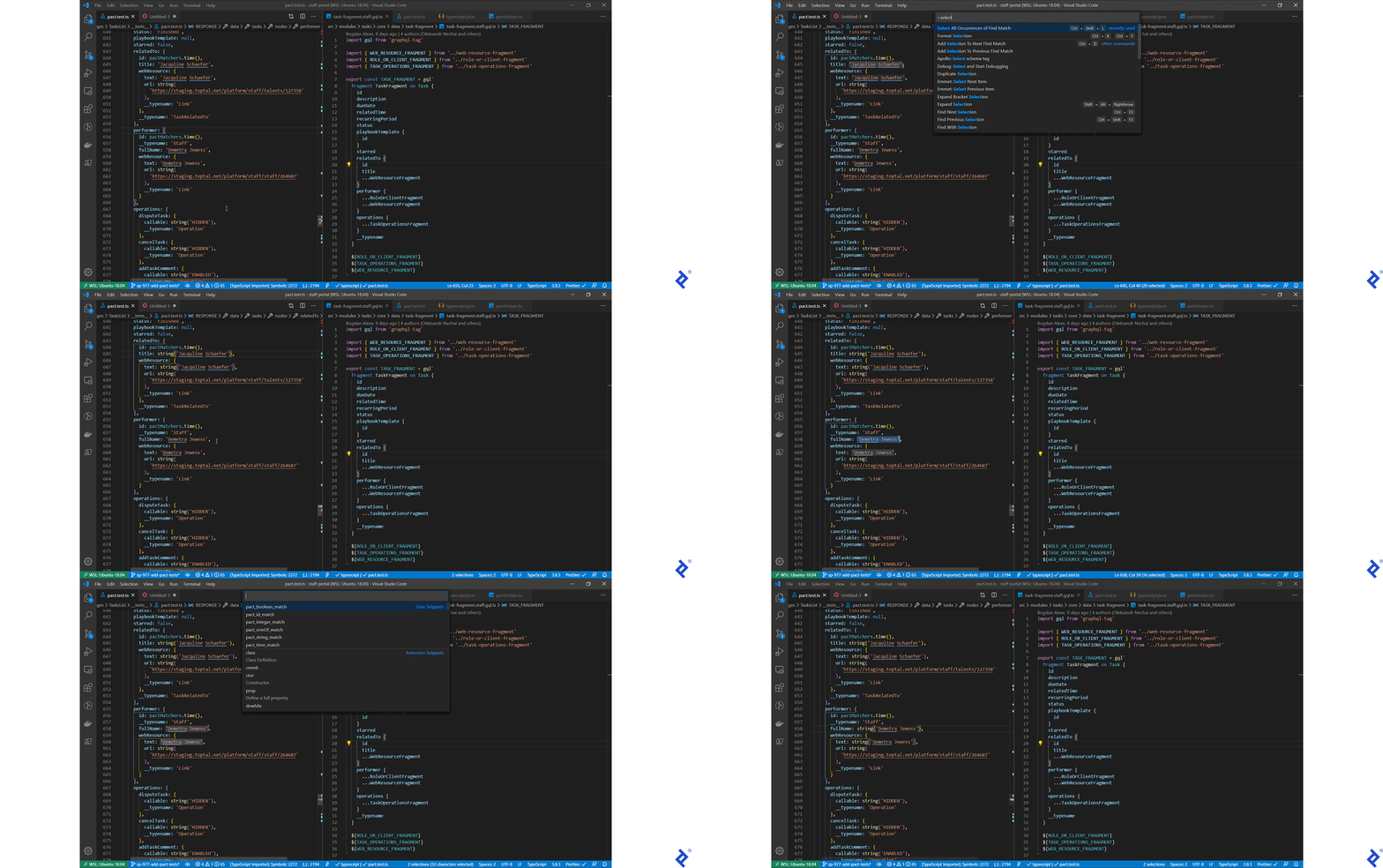
The most time-intensive aspect of contract testing is often matching. To tackle this, I turned to creating helpful snippets to eliminate repetitive actions by creating custom shortcuts. I’ve shared some of these shortcuts, These, which you can easily incorporate into VSCode’s /snippets/typescript.json file.
The video below demonstrates how to utilize these snippets:
- Select all instances of a particular data type, such as strings, times, or other values.
- Employ predefined keybinding or access Insert Snippet and choose the desired snippet. Alternatively, start typing the snippet’s prefix.
Seamless Git Integration
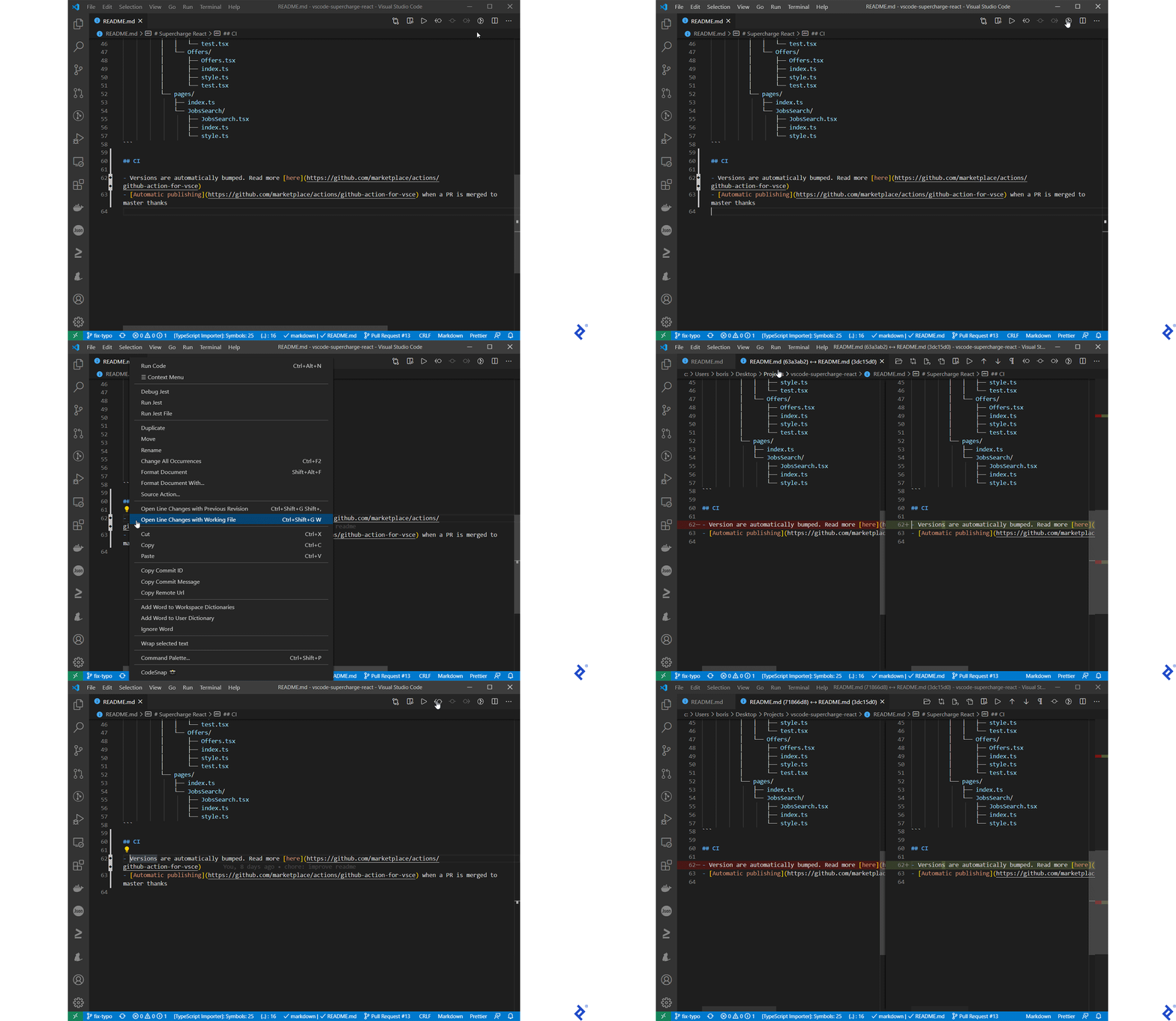
Like many developers, I heavily rely on Git and GitHub. However, I strive to minimize the use of the terminal or github.com.
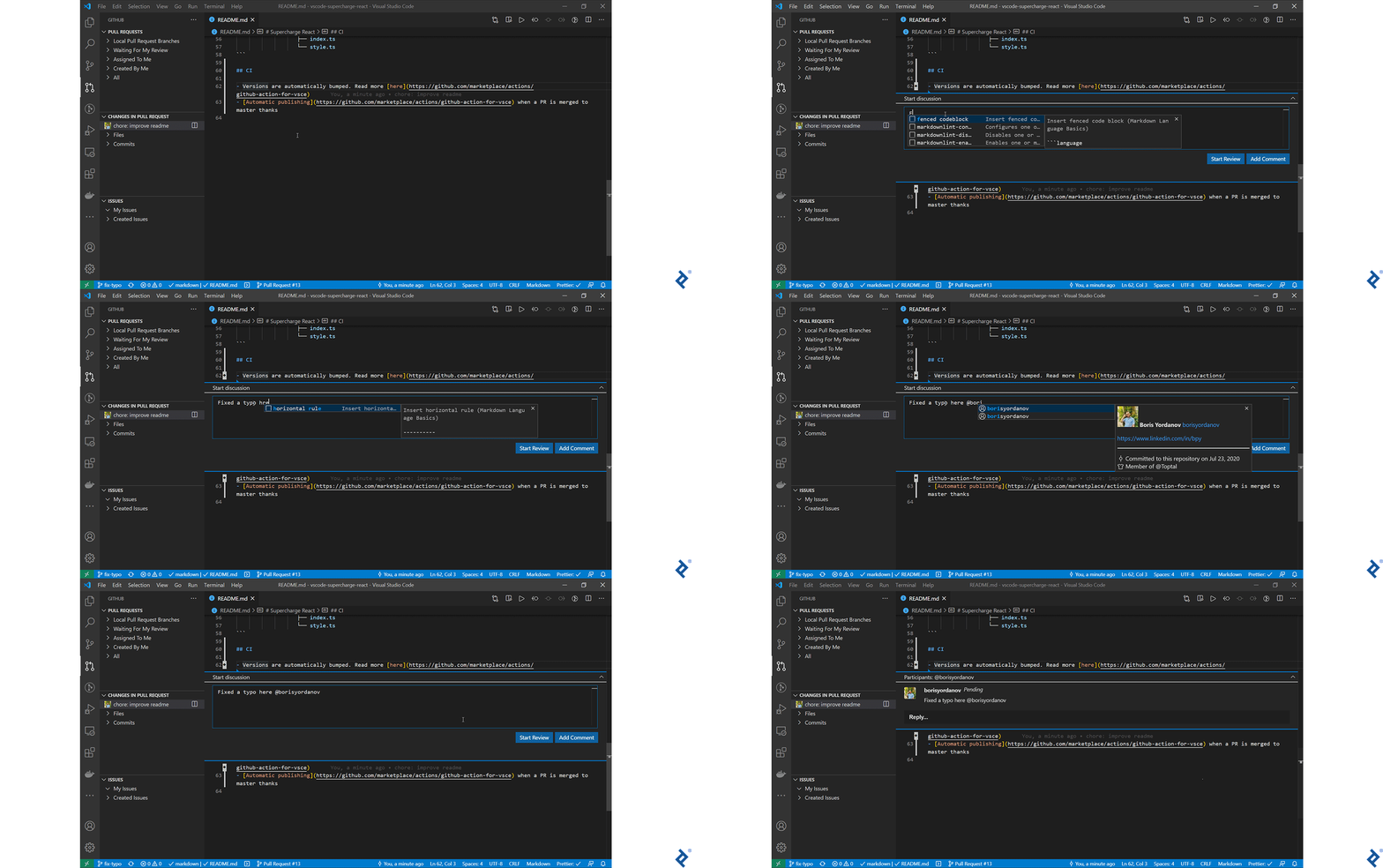
GitHub Pull Requests and Issues enables me to manage pull requests—opening, editing, and reviewing them—without leaving the comfort of VSCode. In my view, the IDE offers a superior environment for code review compared to GitHub’s web or desktop applications. While opinions may vary, I value the consistency and comfort of performing these tasks within my IDE.
Git offers a wealth of functionality, yet memorizing its numerous commands can be daunting. Why clutter your mind with such details? Instead of memorizing countless commands, focus on efficient practices.
GitLens puts a vast array of features at your fingertips, significantly reducing the need to resort to the terminal for Git operations.
Personalized Terminal Experience
Elevating your terminal experience beyond the default settings is crucial, regardless of your OS. My preferred setup is Windows Terminal combined with cmder. For Unix users, I recommend exploring iTerm (macOS) or Oh My Zsh (Linux and macOS). I’ve further enhanced my workflow by integrated them with VSCode and defining aliases—shortcuts—that save precious time.
Here are a few examples:
ys = yarn start: Launch an application with just two keystrokes.del=RMDIR /S/Q $* && echo "Deleted Successfully!!!": Remove a specified directory and display a confirmation message upon completion.gdab = git branch | grep -v "master" | xargs git branch -D: Delete all local branches except formaster.
While these shortcuts may seem trivial, their cumulative effect over time is substantial. Additionally, reducing typing time minimizes distractions, allowing me to maintain focus and avoid losing my train of thought.
Effortless Code Generation
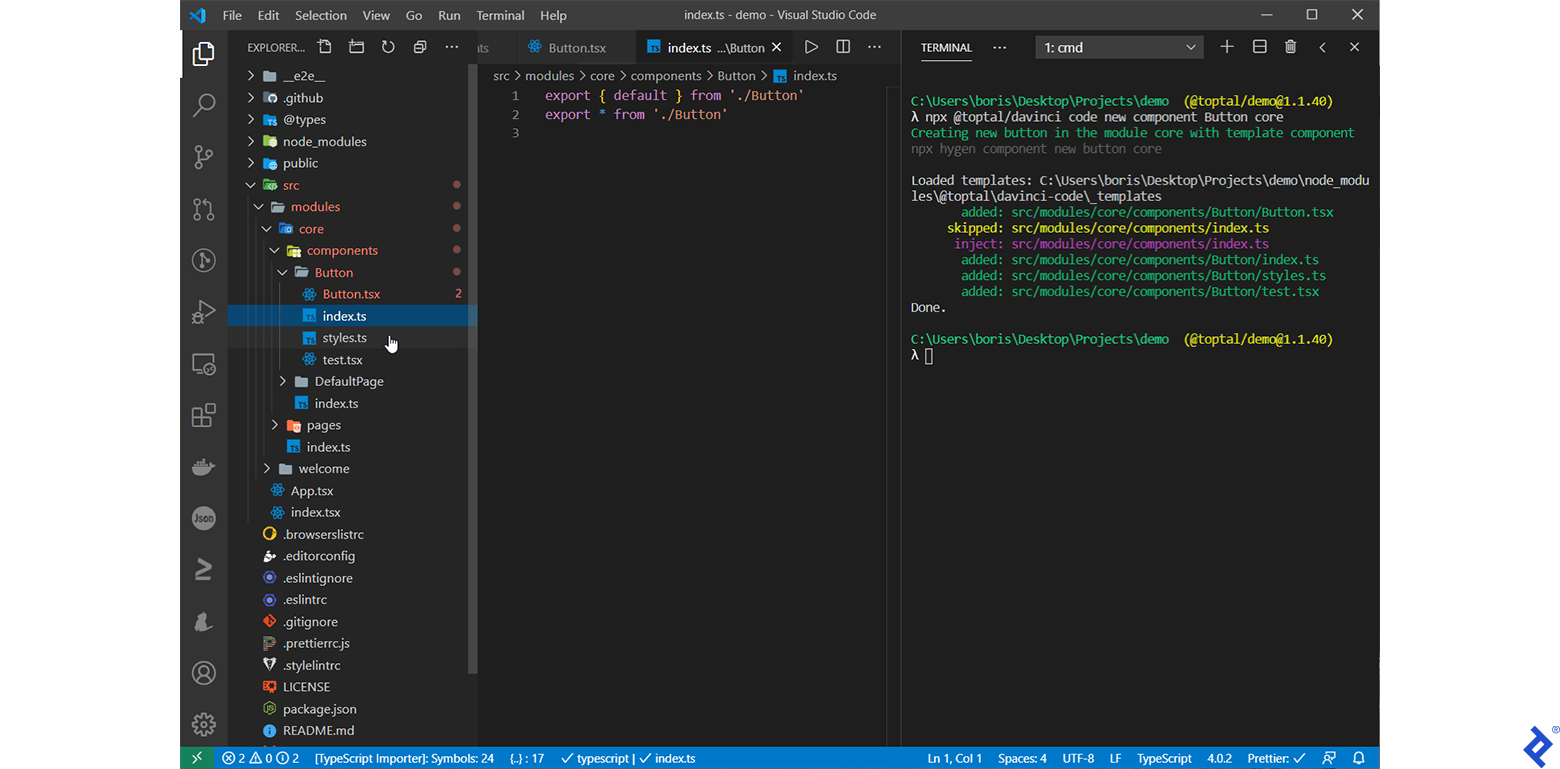
Creating components, pages, and other elements is a frequent task in my workflow. While generally straightforward, generating new folders and initializing files within them can be tedious. To address this, I’ve automated the process.
The video below showcases Supercharge React in action. By utilizing the “New Component” command, I can define the name and location of the new component. The extension then executes a script to create a folder and initialize the component.
Enhanced Code Assistance with IntelliSense
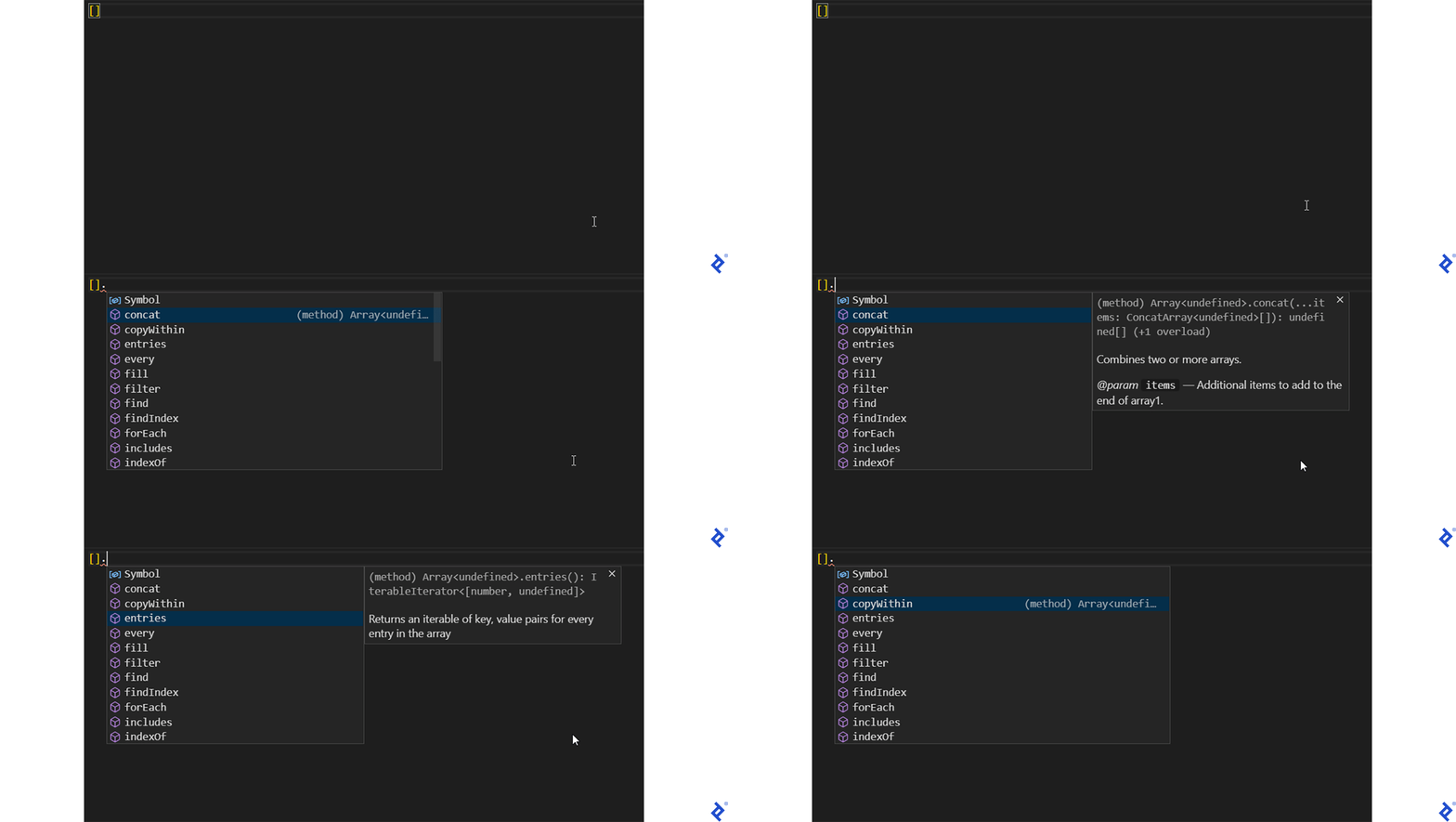
VSCode’s robust IntelliSense often works seamlessly in the background. When reviewing suggestions, pressing Ctrl+Space reveals documentation for each option, providing valuable context.
Furthermore, IntelliSense can be additionally customized to align with your specific needs and preferences.
Mastering Keyboard Shortcuts for Efficiency
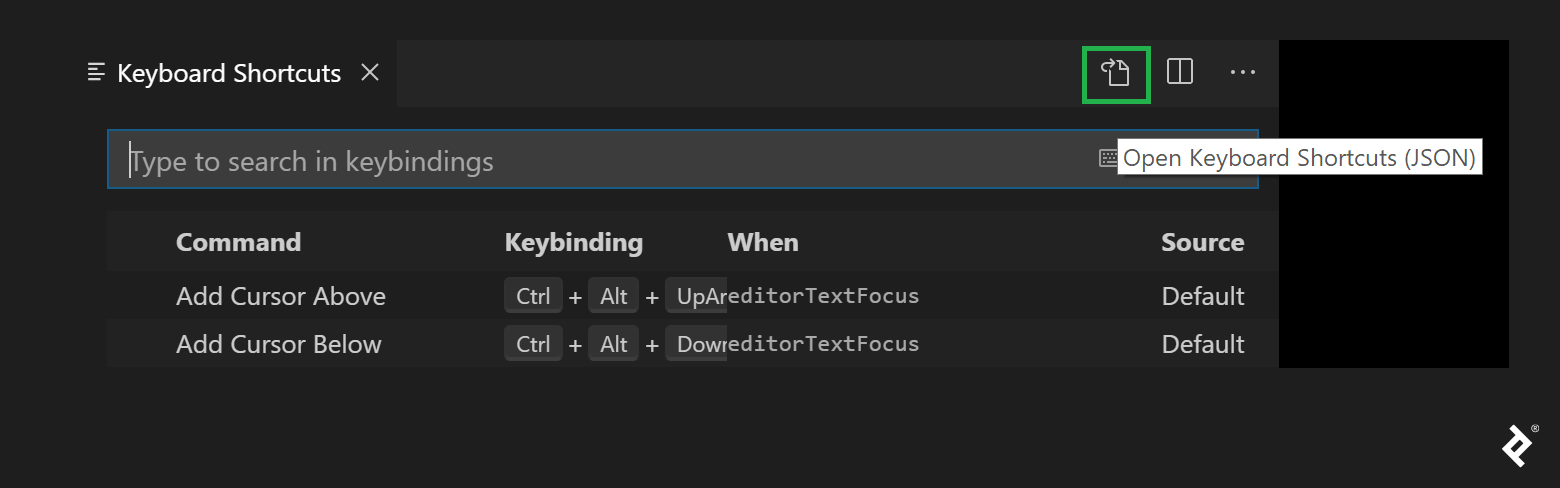
Shortcuts like Ctrl+S and Ctrl+F are likely second nature to you. However, VSCode offers a comprehensive set of shortcuts, well documented, and familiarizing yourself with them can drastically improve your workflow. Encounter a cumbersome keybinding or a frequently used command with a lengthy input sequence? Utilize VSCode’s keyboard editor to create shortcuts.
To discover whether a key combination is already mapped to a command, simply click the keyboard button in the search bar and input the keystrokes. VSCode will reveal any associated commands.
Optimizing Workflow with Mouse Shortcuts
The mantra “learn to hate your mouse and love your keyboard” often echoes among developers as a productivity tip. While this holds true when working with compact, dense files, it’s less relevant in the era of automatic code formatting and lengthy files spanning hundreds of lines.
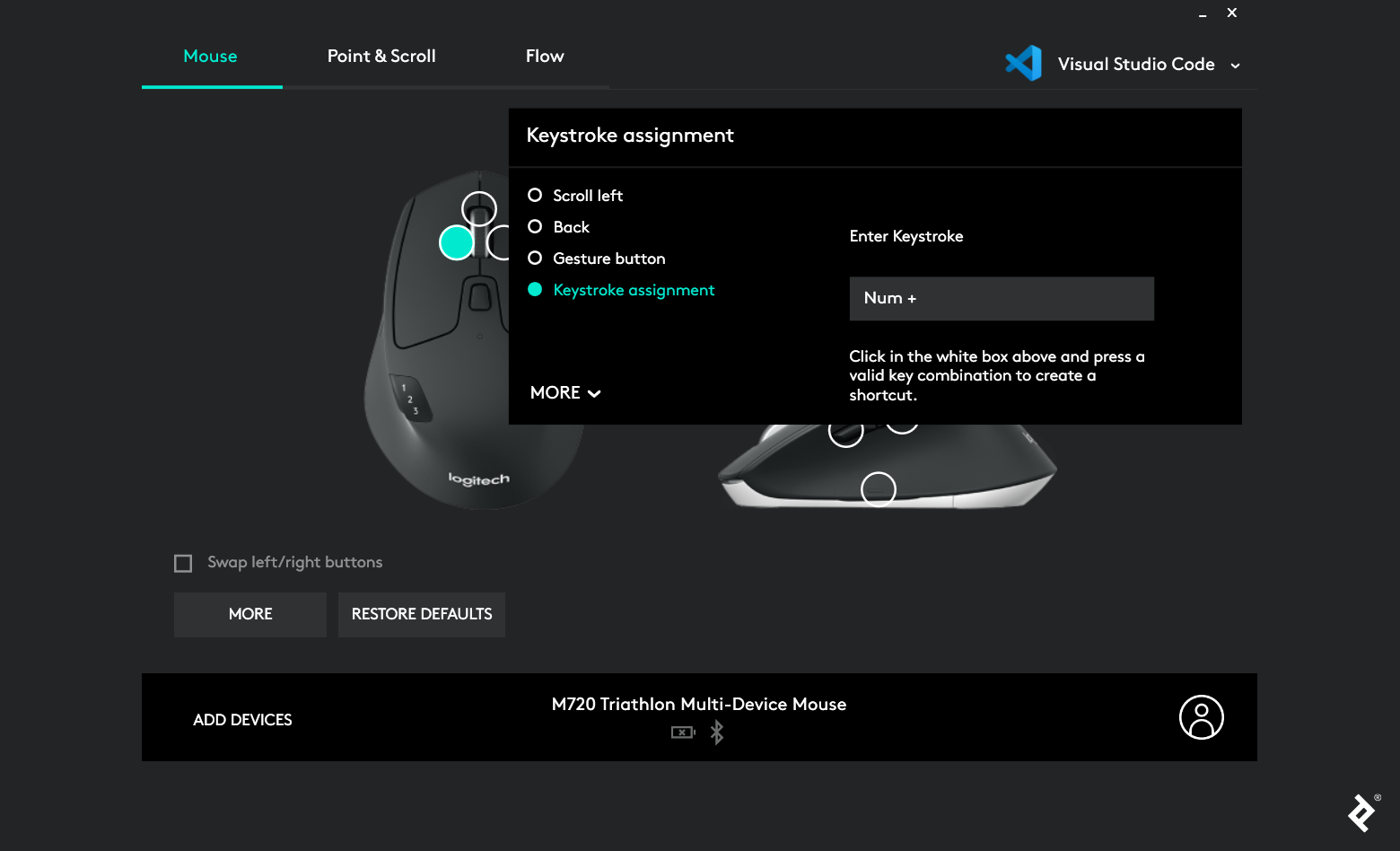
Not only do I actively utilize my mouse, but I’ve also personalized it to fit my workflow using Logitech Options. My mouse’s special keys are programmed to execute specific commands within VSCode.
Here’s how to empower your mouse:
- Choose VSCode from the top right menu.
- Click on the button you wish to customize.
- Select “Keystroke assignment” from the actions listed on the left.
- Input a predefined VSCode shortcut.
Safeguarding Your Setup: Backup and Sync Settings
Customized settings are invaluable, but their utility diminishes without proper backup and synchronization across different machines.
Currently, the native solution feature is exclusively available to insiders. However, Settings Sync provides a solution by enabling you to save your code settings as a Gist, facilitating synchronization across multiple devices. While configure it requires a GitHub token, subsequent synchronization, including upload and download your settings, can be initiated with a single command.
Essential VSCode Extensions
I’ve highlighted several extensions and their roles in my workflow. Here are a few more noteworthy additions:
- Surround: Effortlessly wrap selected code within arrow functions, try-catch blocks, and more.
- Search node_modules: Navigating the often-excluded
node_modulesfolder can be challenging due to its sheer size. This extension provides efficient searching capabilities, eliminating endless scrolling. - Glean and React Refactor: Enhance your JSX file refactoring capabilities with a suite of useful tools.
- Auto Close Tag: Streamline your HTML/JSX/TSX coding by automatically adding closing tags.
- File Utils: Simplify file and directory management with this customizable extension for creating, duplicating, moving, renaming, and deleting.
- JavaScript Booster: Automate common refactoring actions to boost your efficiency.
Embrace the Power User Mindset
Don’t settle for being a regular user; strive for power user status. Always seek to go beyond the norm and explore new possibilities. Continuously identify inefficiencies and seek solutions.
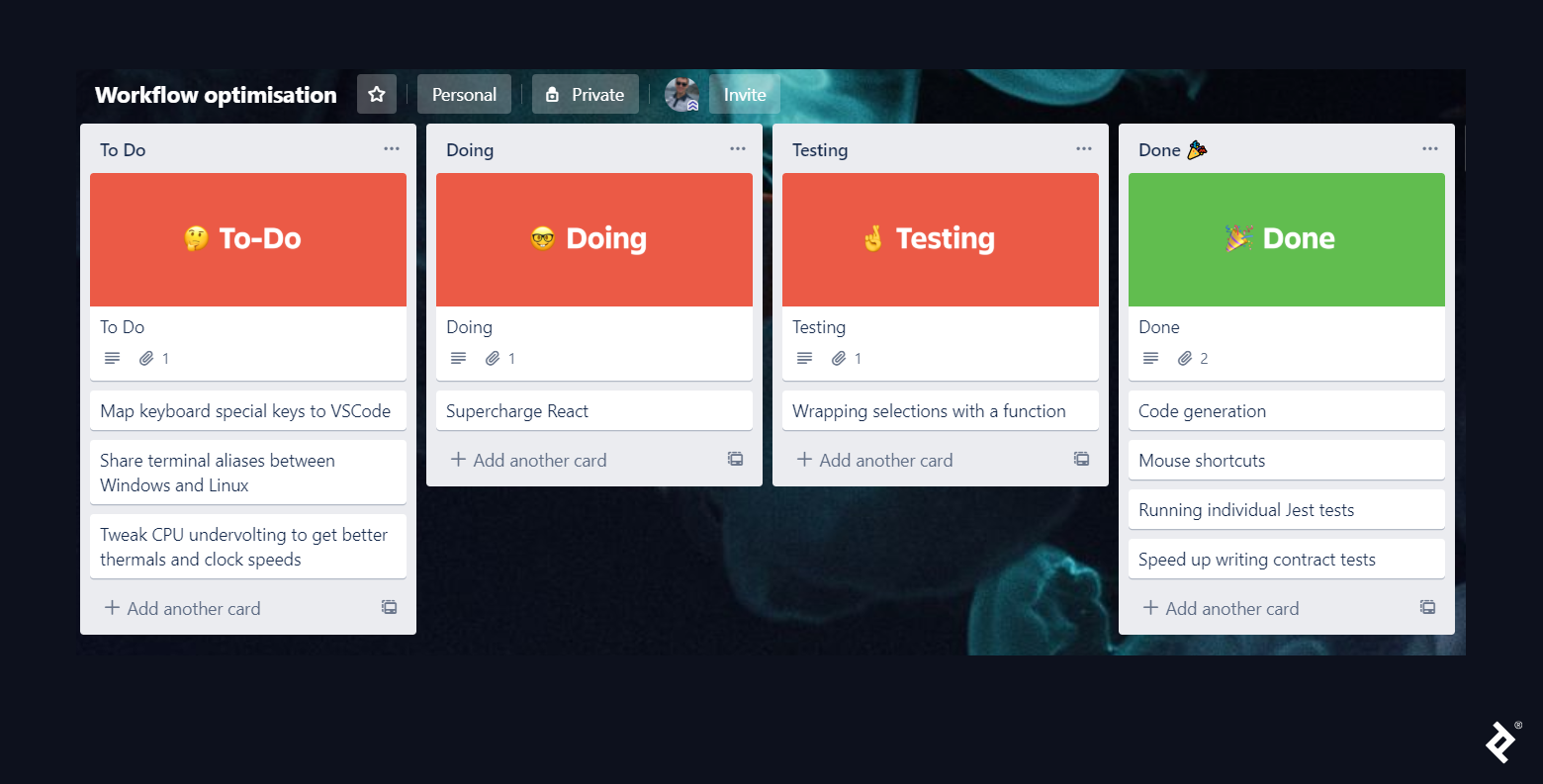
My approach, familiar to many developers, involves a Kanban board. I jot down any workflow bottlenecks as “To-Dos” and dedicate any available time to finding solutions.
If this seems overwhelming and you’re unsure where to begin, start with the documentation – it offers the highest return on investment. While it may seem tedious, reading official documentation provides long-term benefits. Not only will you gain valuable productivity tips, but you’ll also learn effective documentation practices.
To guide you, here’s a list of essential documentation sections:
- Tips and Tricks: Familiarize yourself with the basics, and you’re sure to uncover hidden gems.
- Editing Hacks: Master these powerful editing techniques to enhance your daily coding.
- Shrink/Expand Code: Impress your peers during pair programming sessions with this handy shortcut.
- Keybindings: Keybindings are fundamental for mastering your IDE; learn how they work and how to customize them.
- Hundreds of programming languages supported: Explore the language-specific features VSCode offers for your chosen language.