Working with dates is unavoidable for software developers. Nearly every application requires obtaining date/time information from users, storing it in databases, and presenting it back to them.
Ask any programmer, and they’ll likely recount challenging experiences managing dates and time zones. While not incredibly complex, handling date and time fields can be tedious and prone to errors.
Numerous articles address this topic, but many are either overly technical, delving into minute details, or fragmented, offering code snippets with minimal explanation. This comprehensive guide to JavaScript DateTime manipulation aims to clarify programming concepts and best practices related to time and date, sparing you from sifting through vast amounts of information.
This article will help you approach date and time fields with clarity and provides best practices to avoid common pitfalls. We’ll explore key concepts for accurate manipulation of date and time values, suitable formats for storage and API transfer, and more.
For production code, utilizing a robust library is almost always preferable to creating custom solutions. The challenges discussed here represent only a fraction of potential issues, but understanding them is beneficial even when employing a library.
DateTime Libraries: Helpful When Understood
Date libraries significantly simplify various tasks, including date parsing, arithmetic and logical operations, and formatting. Reliable libraries exist for both front-end and back-end development, handling most of the complexities for you.
However, we often use these libraries without fully grasping how date/time functions. Date/time is a complex concept, and issues stemming from misunderstandings can be incredibly difficult to diagnose and resolve, even with libraries. Programmers need a fundamental understanding of these concepts and the problems libraries solve to utilize them effectively.
Moreover, date/time libraries have limitations. They provide convenient data structures to represent DateTime, but when exchanging data through REST APIs, conversion to and from strings becomes necessary, as JSON lacks native DateTime support. The concepts outlined here will help you navigate common issues during these transformations.
Note: While this article uses JavaScript, the concepts generally apply to most programming languages and their date libraries. Even without prior JavaScript experience, you can still benefit from this discussion.
Time Standardization
A DateTime represents a precise point in time. As I write this, my laptop displays July 21, 1:29 PM, which is my “local time.” It’s the time I see on nearby clocks and my watch.
If I arrange to meet a friend at 3:00 PM, we both understand this refers to our shared local time. However, if I tell a friend in Uppsala, Sweden, that I want to talk at 5 PM, confusion arises due to different time zones.
Uppsala follows Central European Time (UTC+01:00), while I’m in UTC+05:45. When it’s 5 PM for me, it’s 12:15 PM in Uppsala.
Note the distinction between time zone (e.g., Central European Time) and time zone offset (e.g., UTC+05:45). Countries may adjust their offsets for Daylight Saving Time, often with annual changes. Code relying on these rules needs regular updates; consider the dependencies within your codebase for each application tier.
This highlights why handling time zones primarily on the front end is recommended. Inconsistencies between database engine rules and front-end or back-end rules can lead to complications.
Managing two time versions (user-relative and universally standardized) is challenging, especially in programming where precision is crucial. Storing DateTime in UTC is the first step toward addressing these issues.
Format Standardization
Storing time in UTC simplifies matters, as we can convert between UTC and local time using the user’s time zone. However, dates and times can be expressed in numerous formats.
To address this, a standardized format for describing time, known as “ISO date format,” was established. It’s a simplified version of the ISO-8601 extended format and looks like this:
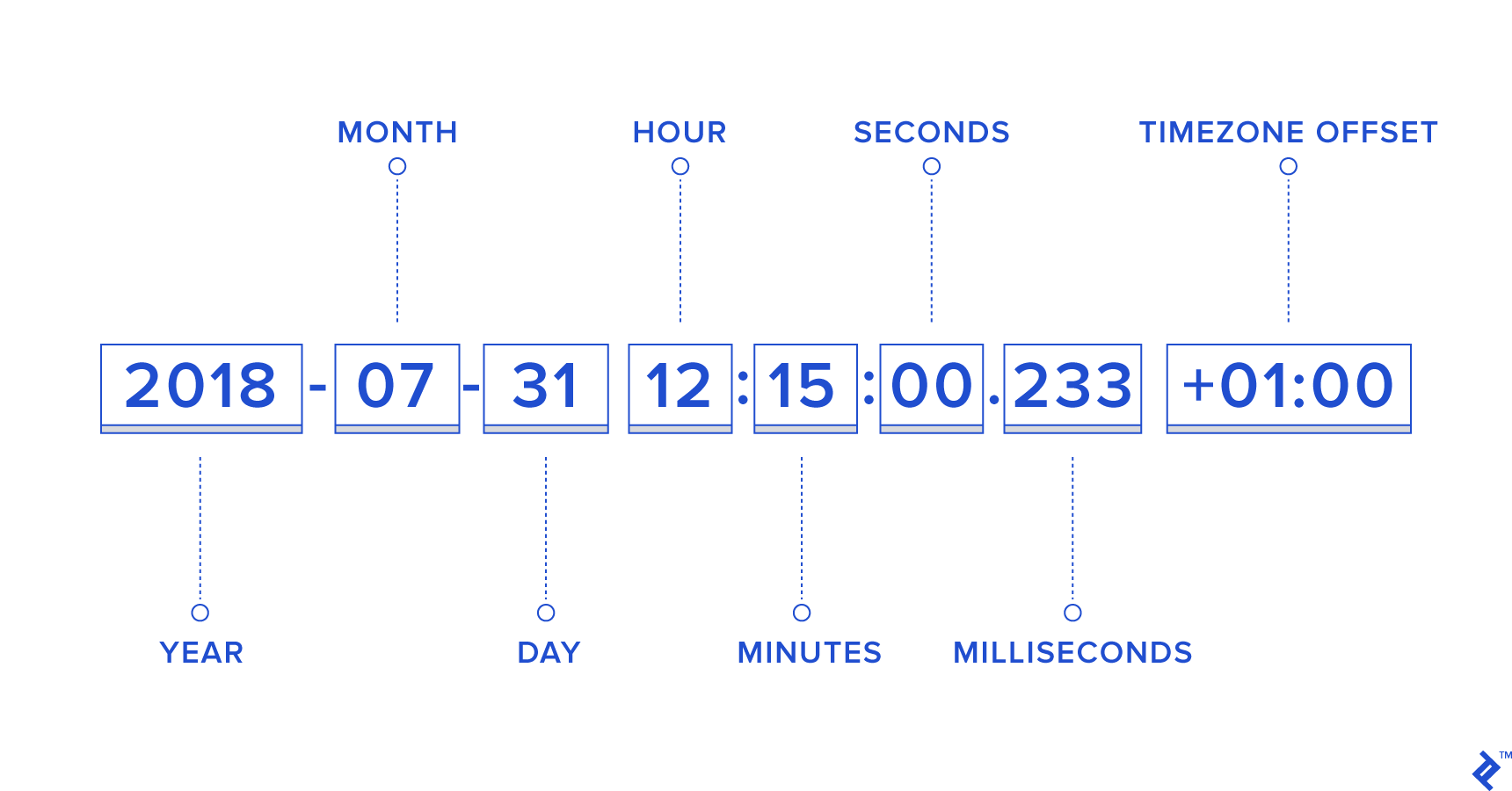
For 00:00 or UTC, we use “Z,” representing Zulu time, another name for UTC.
JS Date Manipulation and Arithmetic
Before delving into best practices, we’ll explore date manipulation using JavaScript to understand the syntax and general concepts. Although we’ll be using JavaScript’s DateTime format, the information is adaptable to other languages.
We’ll use date arithmetic to solve common problems encountered by developers.
The goal is to familiarize you with creating date objects from strings and extracting their components. While date libraries can assist with this, understanding the underlying mechanisms is beneficial.
Once we’ve explored date/time manipulation, we can better appreciate the challenges, extract best practices, and move forward. Feel free to skip to the best practices section, but skimming through the date arithmetic section is highly recommended.
The JavaScript Date Object
The Date object is a valuable tool in programming, providing methods for:
- Getting the current time in JavaScript
- Storing a date in a variable
- Performing date arithmetic
- Formatting dates based on user locale
Relying solely on the Date object for critical applications is discouraged due to inconsistencies between browser implementations and Daylight Saving Time (DST) handling. Libraries like Luxon, date-fns, or dayjs are recommended. (Avoid the deprecated Moment.js.)
For learning purposes, we’ll utilize the Date() object’s methods to understand how JavaScript handles DateTime.
Getting Current Date
| |
Without arguments, the Date constructor returns an object containing the current date and time.
To extract the date portion:
| |
Note: While common, the “January is 0” convention isn’t universal. Consult language documentation (e.g., cron uses 1-based indexing) before use.
Getting the JavaScript Timestamp
To get the current timestamp in milliseconds since January 1, 1970:
| |
In JavaScript, this timestamp simplifies conversions between dates and timestamps when using UTC.
For browsers supporting IE9 and above, use Date.now() to directly retrieve the timestamp.
Parsing a Date
There are several ways to convert a string to a JavaScript date object.
The Date object’s constructor accepts various formats:
| |
The day of the week is optional, as JavaScript can determine it.
Alternatively, provide year, month, day, hours, minutes, and seconds as arguments:
| |
Using ISO date format is also possible:
| |
However, omitting the time zone can lead to issues:
| |
These will result in July 25, 2016, 00:00:00 local time.
With the ISO format, even without time and time zone, UTC is assumed:
| |
Formatting a Date
Modern JavaScript offers convenient internationalization functions within the Intl namespace for date formatting.
We need two objects: a Date and an Intl.DateTimeFormat initialized with formatting preferences. For the American format (M/D/YYYY):
| |
For the Dutch format (D/M/YYYY), provide a different culture code:
| |
For a longer American format with the month name:
| |
To achieve proper ordinal formatting (e.g., “14th”), we need a workaround. Currently, only "numeric" and "2-digit" values are supported for day. Borrowing Flavio Copes’ version of Mathias Bynens’ code and leveraging Intl.PluralRules, we can customize the day output:
| |
Unfortunately, IE lacks support for formatToParts. Other environments, including desktop, mobile, and Node.js, do have support. For IE support with ordinals, the sidenote below or a date library can be used.
If you need to support older browsers like IE before version 11, date formatting in JavaScript is tougher because there were no standard date-formatting functions like strftime in Python or PHP.
In PHP for example, the function strftime("Today is %b %d %Y %X", mktime(5,10,0,12,30,99)) gives you Today is Dec 30 1999 05:10:00.
You can use a different combination of letters preceded by % to get the date in different formats. (Careful, not every language assigns the same meaning to each letter—particularly, 'M' and 'm' may be swapped for minutes and months.)
If you are sure of the format you want to use, it is best to extract individual bits using the JavaScript functions we covered above and create a string yourself.
var currentDate = new Date();
var date = currentDate.getDate();
var month = currentDate.getMonth();
var year = currentDate.getFullYear();
We can get the date in MM/DD/YYYY format as
var monthDateYear = (month+1) + "/" + date + "/" + year;
The problem with this solution is that it can give an inconsistent length to the dates because some months and days of the month are single-digit and others double-digit. This can be problematic, for example, if you are displaying the date in a table column, because the dates don’t line up.
We can address this by using a “pad” function that adds a leading 0.
function pad(n) {
    return n<10 ? '0'+n : n;
}
Now, we get the correct date in MM/DD/YYYY format using:
var mmddyyyy = pad(month + 1) + "/" + pad(date) + "/" + year;
If we want DD-MM-YYYY instead, the process is similar:
var ddmmyyyy = pad(date) + "-" + pad(month + 1) + "-" + year;
Let’s up the ante and try to print the date in “Month Date, Year” format. We will need a mapping of month indexes to names:
var monthNames = [
    "January", "February", "March", "April", "May", "June", "July", "August", "September", "October", "November", "December"
];

var dateWithFullMonthName = monthNames[month] + " " + pad(date) + ", " + year;
Some people like to display the date as 1st January, 2013. No problem, all we need is a helper function ordinal that returns 1st for 1, 12th for 12, and 103rd for 103, etc., and the rest is simple:
var ordinalDate = ordinal(date) + " " + monthNames[month] + ", " + year;
It is easy to determine the day of week from the date object, so let’s add that in:
var daysOfWeek = ["Sun", "Mon", "Tue", "Wed", "Thu", "Fri", "Sat"];


ordinalDateWithDayOfWeek = daysOfWeek[currentDate.getDay()] + ", " + ordinalDate;
The bigger point here is, once you’ve got the numbers extracted from the date, the formatting is mostly related to strings.
Changing the Date Format
Changing a date from one format to another involves parsing and formatting.
For instance, to convert “Jul 21, 2013” to “21-07-2013”:
| |
Using JavaScript Date Object’s Localization Functions
For localized date formatting, the Date object’s toLocaleDateString() method is recommended:
| |
This might output something like 26 Jul 2016.
Changing the locale to ’en-US’ yields “Jul 26, 2016”. The formatting adapts while preserving display options. The newer Intl.DateTimeFormat approach is similar but allows reusing a formatter object.
Always pass formatting options to toLocaleDateString(), even if the output seems correct. This prevents unexpected issues in locales with varying month name lengths.
To display the full month name (“July”):
| |
For en-US, the output is “July 26, 2016”.
Note: To use the user’s locale automatically, pass “undefined” as the first parameter.
For a numeric date without dealing with locale-specific separators:
| |
This outputs 7/26/2016. To ensure two-digit month and day:
| |
This gives us 07/26/2016.
Other functions can be used for localized time and date display:
| Code | Output | Description |
|---|---|---|
| "4:21:38 AM" | Display localized version of only time |
| "04:21:38 AM" | Display localized time based on options provided |
| "7/22/2016, 4:21:38 AM" | Display date and time for user's locale |
| "7/22/2016, 04:21 AM" | Display localized date and time based on options provided |
Calculating Relative Dates and Times
To add 20 days to a JavaScript Date (finding the date 20 days after a known date):
| |
The original date object now represents 20 days after July 20, and newDate holds the localized string representation. In my browser, newDate is “8/9/2016, 3:00:00 PM.”
For precise time stamp calculations, use Date.getTime() and Date.setTime() to work with milliseconds since January 1, 1970. To determine the time 17 hours from now:
| |
Comparing Dates
Comparing dates also presents challenges.
Creating date objects is straightforward, and comparison operators (<, >, <=, >=) work as expected. Comparing July 19, 2014, and July 18, 2014:
| |
Checking for equality is trickier. Two date objects representing the same date are distinct objects and won’t be equal. Comparing date strings is unreliable due to different representations for the same date. For example:
| |
This will output not equal.
One solution is to compare timestamps:
| |
However, this assumes both objects refer to the exact same second. You might only need to compare the day, hour, or minute.
Let’s consider a more practical scenario: comparing a user-entered birthday with a lucky date from an API.
| |
Both represent the same date, but the comparison fails because JavaScript assumes the browser’s time zone unless specified otherwise.
For me, new Date("12/20/1989") creates 1989-12-20T00:00:00+5:45 or 1989-12-19T18:15:00Z, which differs from 1989-12-20T00:00:00Z in terms of timestamp.
We can’t change the time zone of an existing date object, so we’ll create a new one using UTC. Two approaches:
- Create an ISO date string from the user input and use it to create a
Dateobject. This explicitly sets the time zone to UTC.
| |
This also works without specifying the time, defaulting to midnight (00:00:00Z):
| |
Remember: When passed a valid ISO date string (YYYY-MM-DD), the Date constructor assumes UTC.
- Use JavaScript’s
Date.UTC()function to get the UTC timestamp, extract date components, and pass them to the function.
| |
Finding the Difference Between Two Dates
Two common use cases:
Finding the Number of Days Between Two Dates
- Convert both dates to UTC timestamps.
- Calculate the difference in milliseconds.
- Convert the difference to days.
| |
Finding User’s Age from Their Date of Birth
| |
Note: Clarify the API documentation to determine whether the non-standard format means 12 Oct or 10 Dec. Convert to ISO format accordingly.
| |
This code prioritizes clarity over conciseness.
Suggestions to Avoid Date Hell
With a grasp of date arithmetic, let’s explore best practices and the reasoning behind them.
Getting DateTime from User
When obtaining date and time from users, aim for their local DateTime. While the Date constructor accepts various formats, using new Date(year, month, day, hours, minutes, seconds, milliseconds) is recommended for clarity and consistency.
Omit trailing parameters if they are zero. For example, new Date(2012, 10, 12) is equivalent to new Date(2012, 10, 12, 0, 0, 0, 0).
If a date and time picker provides 2012-10-12 and 12:30:
| |
Avoid creating dates from strings unless in ISO format. Use Date(year, month, date, hours, minutes, seconds, microseconds) instead.
Getting Only the Date
For dates only (e.g., birthdate), convert to ISO format (YYYY-MM-DD) to eliminate time zone information that can cause shifts during UTC conversion. For example:
| |
Creating a Date object with a valid ISO date string defaults to UTC.
Storing the Date
Always store DateTime in UTC. Send ISO date strings or timestamps to the back end.
Storing local time on the back end is problematic. Let the front end handle conversions to local time.
Avoid sending DateTime strings like “July 20, 1989 12:10 PM” to the back end. Even with the time zone, it increases parsing effort.
Use toISOString() or toJSON() to convert local DateTime to UTC:
| |
Displaying the Date and Time
- Retrieve the timestamp or ISO formatted date from the API.
- Create a
Dateobject. - Use
toLocaleString(),toLocaleDateString(),toLocaleTimeString(), or a date library to display the local time.
| |
When to Store Local Time
There are cases where storing local time is necessary:
“Sometimes it’s important to know the time zone in which an event occurred, and converting to a single time zone irrevocably obliterates that information.
“If you’re doing a marketing promotion and want to know which customers placed orders around lunchtime, an order that appears to have been placed at noon GMT isn’t very helpful when it was actually placed over breakfast in New York.”
In such situations, store both UTC and local times. To create an ISO string representing local DateTime, determine the time zone offset using getTimeZoneOffset(). It returns the minutes to add to local time to get UTC.
| |
For my time zone (+05:45), it returns -345. Convert this to +05:45:
| |
Now, create the ISO string:
| |
Optionally, wrap UTC and local dates in an object:
| |
On the back end, you can parse the date and use getHours() to determine if an event occurred before noon local time:
| |
While not used here, storing tzOffset can be helpful for debugging. Sending the offset and UTC time is sufficient, but storing local time separately allows direct database queries without calculations.
Even with local time stored, displaying dates in a specific time zone might be necessary. For events, using the user’s time zone for virtual events or the event’s location for physical events can be more meaningful. Consider using established solutions for formatting with explicit time zone names.
Server and Database Configuration
Configure servers and databases to use UTC. Note that UTC and GMT are not the same thing. GMT might imply switching to BST in summer, while UTC remains constant.
Sending UTC DateTime and configuring servers for UTC simplifies back-end code by eliminating conversions. Comparing and sorting DateTime data from different sources becomes effortless.
Back-end code should assume UTC server time (with a check in place). A simple configuration check saves effort compared to handling conversions throughout the codebase.
Conclusion
Date manipulation is challenging. The concepts discussed here extend beyond JavaScript and are just the beginning of proper DateTime handling. Additionally, every helper library has its its own set—even the eventual official standard support for such operations.
In essence: Use ISO on the back end, and let the front end handle formatting for users. Experienced programmers understand these nuances and rely on well-supported DateTime libraries for both front-end and back-end development. Database functions are another aspect, but this article provides a foundation for making informed decisions in that context as well.