Getting the most out of your Google Ads budget means paying attention to many factors, like your ad copy, targeting, and scheduling. However, many advertisers fail to recognize that the key to an effective and efficient Google Ads strategy lies in a well-structured account.
Given the many layers, features, and settings of Google Ads, getting a handle on its structure (let alone understanding it) is no easy feat.
Until now!
Introducing the comprehensive visual guide to Google Ads account structure! This guide will provide a detailed breakdown of a Google Ads account, exploring its key elements, clarifying the functionalities at each level, and offering practical tips to help you:
- Manage your campaigns and budget more effectively
- Ensure ad relevance and maintain a high Quality Score
- Minimize your advertising costs
Think of it as the shortcut to effortless Google Ads account management! Let’s get started.
Contents
A Bird’s-Eye View of Your Google Ads Account
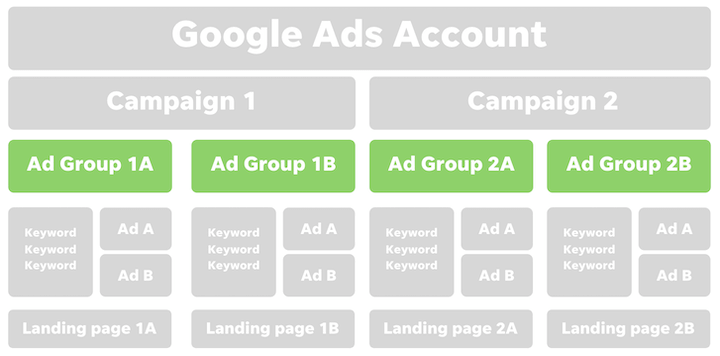
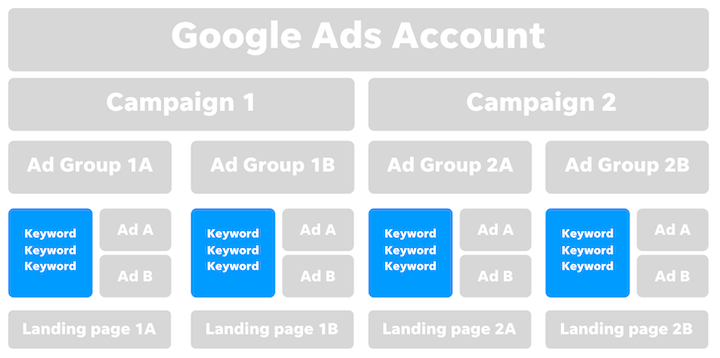
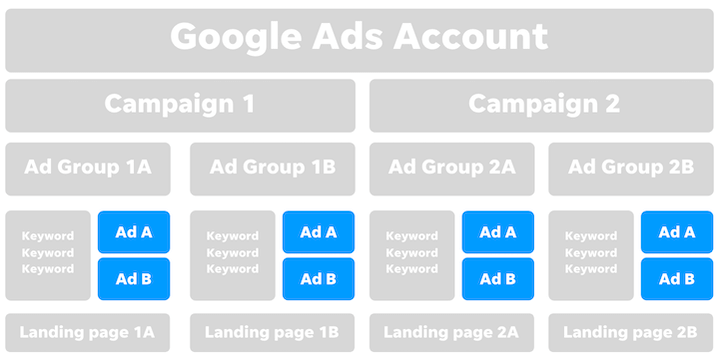
A Google Ads account is more than just a single entity containing a collection of ads. Let’s begin by understanding the big picture and outlining its crucial components:
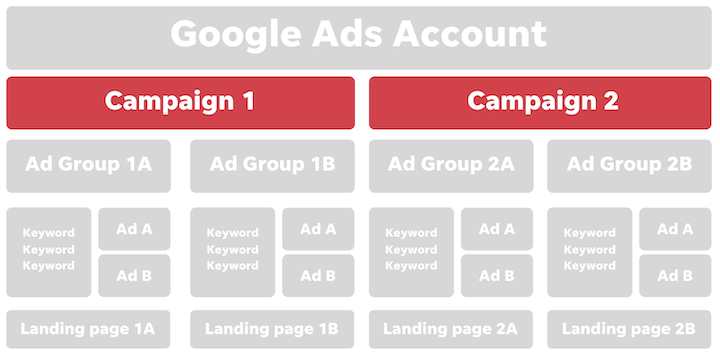
- Account: The overarching container housing everything, including your business details and payment information.
- Campaigns: These hold your ad groups. Each campaign can only have one ad type (like Search or Display), but you can (and should) have multiple ad groups within a single campaign and multiple campaigns within your account.
- Ad groups: These contain your ads and keywords, organized by themes.
- Keywords: The specific terms that trigger your ads to appear on the search engine results page (SERP).
- Ads: The creative elements and copy that users see on the SERP.
- Landing page: The page users are directed to after clicking your ad. Each ad group has only one dedicated landing page. This highlights how ad groups are structured based on landing page best practices, such as relevance to the ad and its specific offer.
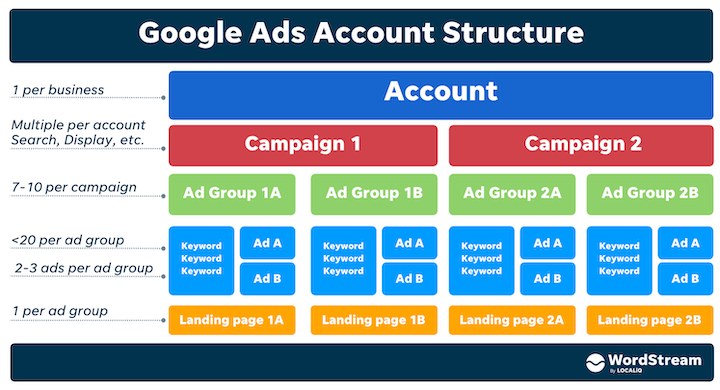 The structure involves different groupings and levels, and certain functionalities and settings are only accessible at specific levels within your account.
While this might seem a bit complicated initially, it’s designed to simplify management and allow for customization.
Let’s delve into each layer within your account to see how this works in practice.
The Account Level
The outermost layer of your Google Ads account is the ‘account level.’ This is where you manage high-level aspects like billing, user permissions, and more.
Setting Up Your Google Ads Account
To create a Google Ads account, navigate to ads.google.com and have an email address ready. Keep in mind that it doesn’t have to be a Gmail account.
Understanding and Using Google Ads Manager Accounts
Google Ads Manager accounts (previously known as My Client Center, or MCC) are primarily designed for agencies managing multiple clients using PPC. These accounts act as a central hub for managing multiple accounts.
However, you don’t have to be an agency to use a Manager account. You might be an independent consultant, own various businesses or brands, or have diverse PPC needs requiring separate setups.
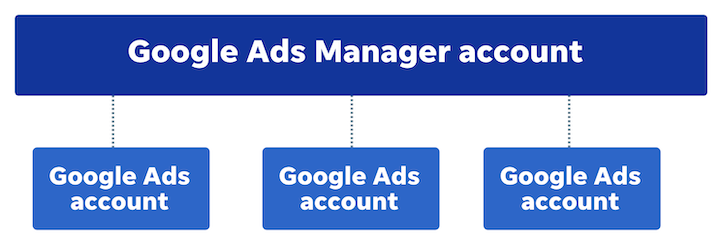 In essence, if you’re handling more than one account, creating a Manager account is recommended. But if you’re only working with a single account, a Manager account isn’t necessary.
 Are you making mistakes in Google Ads?
Find out with the Free Google Ads Performance Grader!
Exploring Account-Level Settings
Below is a rundown of the settings found at the account level. Any changes made here will apply universally to all campaigns, ad groups, and ads within your account.
- Account name: How you choose to label your account—this has no impact on performance. It’s recommended to keep it concise and easy to remember, especially for potential interactions with technical support.
- Billing info: Your chosen method of payment to Google.
- Time zone: The default time zone for your account. Note that your ad scheduling will automatically default to the time zone selected here.
- Auto-tagging: An essential setup for conversion tracking, adding a GCLID (Google click identifier) parameter to your URLs.
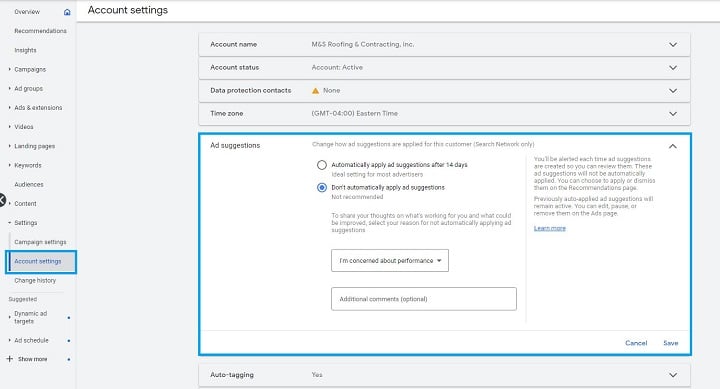
- Ad suggestions: Toggle whether or not to have Google’s ad recommendations automatically applied (this can be modified at any time).
- Accounts status: The current state of your account, indicating whether it’s enabled, disabled, or facing limitations.
- Account-level tracking template: Allows for additional information, such as UTM parameters, to be included in your URLs to identify the source of an ad click.
- Conversions: Specifies the actions you want to track to measure your PPC performance.
- Attribution model: Defines how conversions are credited to different touchpoints in the customer journey. You can learn more about attribution modeling here.
- Message reporting: Determines how messages are tracked (if you utilize message extensions).
- Call reporting: Specifies how calls are tracked (if you use call extensions, location extensions, or call ads).
- Linked accounts: Connects additional products, like Google Analytics or Zapier, to your Google Ads for data integration.
- Settings available at other account levels: This includes negative keywords (terms you don’t want your ads to appear for), shared budgets, account-level ad extensions, inventory type, excluded content, excluded types and labels, automated rules, and scripts.
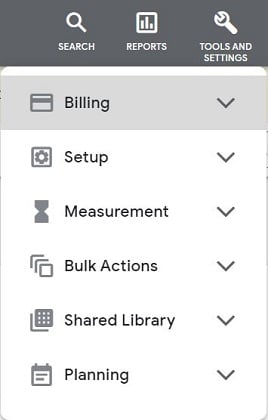 An example of the account-level settings menu.
Account-Level Best Practices
As you navigate the account level, keep these three general Google Ads tips in mind:
- Switch to Expert Mode: When setting up a new account, Google automatically defaults to Smart Mode. Your first action should be to switch to Expert Mode at the bottom of the screen. This provides greater manual control over your account setup.
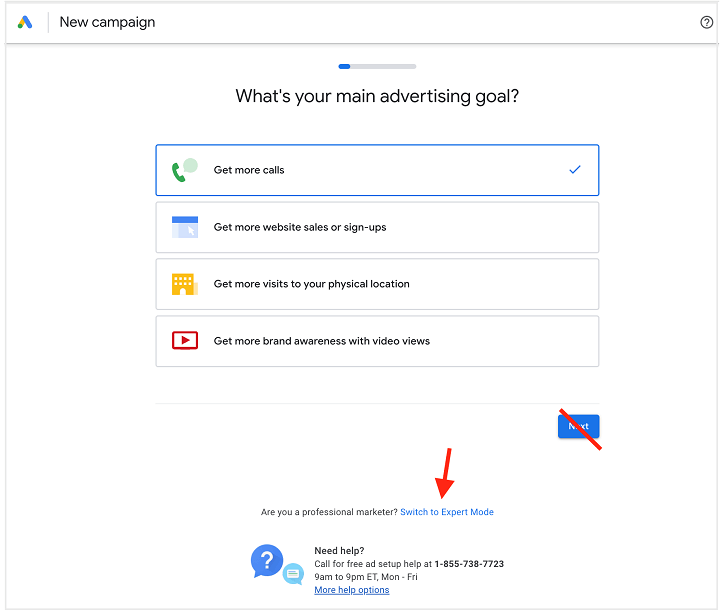 This image shows how to switch to Expert Mode during a fresh setup. The option is also available in established accounts.
- Schedule regular account audits: Regularly reviewing your Google Ads performance is crucial. Scheduled audits help you identify and address areas for optimization before they become major issues.
- Exercise caution with auto-applied recommendations: Approach Google Ads advice with a critical eye. While auto-applied ads and optimization recommendations can be useful when you’re short on ideas, ultimately, you know what works best for your account.
The Campaign Level
In the context of Google Ads, a “campaign” refers to the container that houses your ad groups. At the campaign level, you set your budget, targeting parameters, the type of ads you want to run, and more. As previously mentioned, each campaign can only have one ad type but can accommodate multiple ad groups and you can have multiple campaigns within your account.
 Google Ads offers nine distinct campaign types:
- Search: Text-based ads displayed on Google Search results pages.
- Display: Image-focused ads that appear on websites within the Google Display Network.
- Shopping: Product-based ads showcased on Google Search and the Shopping tab.
- Video: Video advertisements played on YouTube and across the Display Network.
- Discovery: Immersive ads displayed across various Google networks.
- App: Advertisements specifically promoting your app across multiple Google networks.
- Smart: Fully automated ads generated and placed by Google across different networks.
- Performance Max: Ads created using your chosen assets and displayed across all eligible Google networks. (You can find Performance Max tips here).
- Hotel: Utilizes information from your hotel listings to craft ads for Google Search and Maps.
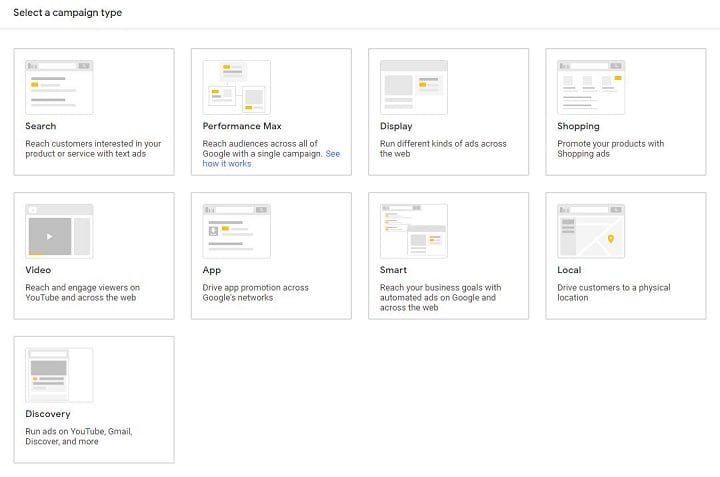 Note: The Local campaign option seen in this example was replaced by Performance Max in August 2022.
Another note: This guide will primarily focus on the anatomy of Search, Display, and Video campaigns. Some elements may vary based on the campaign type, and this will be highlighted throughout. If you need help with Google Shopping campaign structure, we have a dedicated post on the Google Shopping priority bidding structure.
Note: The Local campaign option seen in this example was replaced by Performance Max in August 2022.
Another note: This guide will primarily focus on the anatomy of Search, Display, and Video campaigns. Some elements may vary based on the campaign type, and this will be highlighted throughout. If you need help with Google Shopping campaign structure, we have a dedicated post on the Google Shopping priority bidding structure.
Choosing the Right Campaign Type
Utilizing a mix of campaign types within your Google Ads account is a best practice for maximizing performance across Google’s advertising networks. Different campaign types help you achieve different PPC goals, so it’s beneficial to experiment with at least a couple when you’re getting started.
For instance, you might run a Search campaign to target users actively searching on Google and complement it with a Display campaign to reach them while they’re browsing other websites. Some campaign types, like Shopping (for e-commerce), App, or Hotel campaigns, are industry-specific and may not be relevant to all businesses.
Determining the Ideal Campaign Count
The optimal number of campaigns depends on factors like your business size, business model, budget, and more. While there’s no definitive answer, it’s generally advisable to keep things manageable.
For instance, if you’re a smaller business new to Google Ads with limited budget and bandwidth, starting with one or two campaigns is more effective than trying to manage ten or twenty.
Remember that you don’t need to run all campaigns simultaneously. You might have seasonal promotions or campaigns activated only when you have sufficient budget or inventory.
Building an Effective Google Ads Campaign Structure
The best campaign structure hinges on your business size, type, model, and other specific factors. While there’s no one-size-fits-all approach, here are a few options:
- Mirror Your Website Structure: Analyze how you categorize offerings on your website. Do you have dedicated pages for certain products or services? Which pages are the most popular or generate the most value? If your website has a well-defined structure, consider adopting the same framework for your ad account.
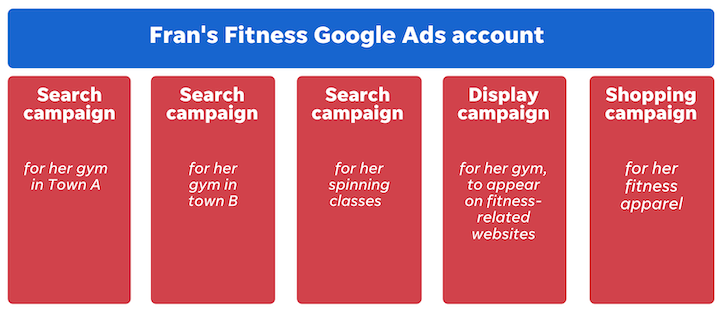
- Structure by Product or Service: This might align with your website structure if it’s already well-organized. For example, a gym might have a Search campaign for their spinning classes, a Display campaign promoting the gym as a whole, and a Shopping campaign for their fitness apparel.
- Segment by Location: If you have a multi-location business, structuring campaigns geographically can be effective. Using the gym example again, you might have separate Search campaigns for gyms located in different towns or cities.
 Is your Google Ads account set up for success? Download now » The Last Guide to Google Ads Account Structure You’ll Ever Need
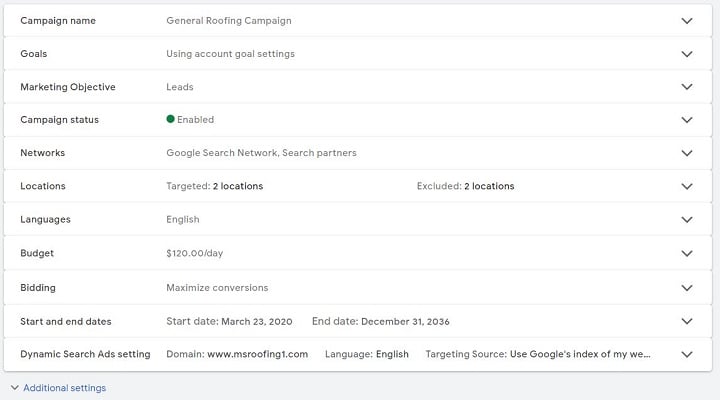
Campaign-Level Settings Overview
The campaign level offers a range of settings for customization:
- Campaign name: Similar to the account name, this label is for your reference and doesn’t impact performance.
- Status: Control whether your campaign is paused, actively running (enabled), or removed.
- Goal: Define the desired outcome of your campaign in relation to your chosen conversion actions.
- Budget: Set a daily spending limit for your campaign.
- Bid strategy: Determine how aggressively or conservatively your budget is used for each ad display. Explore our comprehensive list of pros and cons for different bidding strategies.
- Locations: Define where geographically your ads are displayed, also known as geotargeting.
- Languages: This setting doesn’t change the language of your ad copy. It specifies the languages of the users you want to target.
- Networks: Certain campaign types, like Google Search, allow you to display your ads exclusively on the Google SERP or expand to Google’s Search Partner Network, which includes other search engines.
- Start & end dates: If you prefer not to manually enable or pause your campaigns, setting start and end dates can be useful.
- Devices: Specify the device types where your campaign ads are displayed, such as desktops, mobile devices, etc.
- Frequency cap: Control how often your ads are shown to the same user.
- Conversions: Define the conversion actions your campaign tracks. Modifying conversions at the campaign level is less common. If left unchanged, it defaults to all conversions defined at the account level.
- IP exclusions: Specify particular IP addresses that you want to exclude from seeing your ads.
- Ad schedule: Control the specific days and times when your ads are displayed. Ad scheduling can be a valuable tool for managing budgets effectively.
- Experiments: Conduct A/B tests within your campaigns.
- Settings available at other levels: This includes ad extensions, audiences, contextual targeting, negatives, ad rotation, campaign URL options, inventory type, excluded content, excluded types and labels, dynamic search ad settings, labels, and automated rules.
Campaign-Level Dos and Don’ts
Here are some important dos and don’ts to consider when managing your Google Ads campaigns:
- Don’t opt for a Smart campaign by default without exploring other campaign types first. While Google presents Smart campaigns as a convenient option for advertisers looking to save time and effort, investing the effort to create customized campaigns can often yield better results.
- Do select a combination of campaign types that align with your specific PPC goals. Finding the optimal PPC campaign mix requires experimentation and might take some time to perfect.
- Do pay attention to the settings of each campaign individually. Different campaign types serve different purposes and may require distinct setups and structures. Certain campaigns might demand more time for development than others.
- Don’t be overly fixated on getting your settings perfect right away. You can always go back and adjust them later.
- Do step outside your comfort zone. The best way to discover more effective campaign strategies is to try new things.
- Don’t experiment without relying on reliable PPC reporting! Use data from your campaigns to guide your tests and confidently determine what works best.
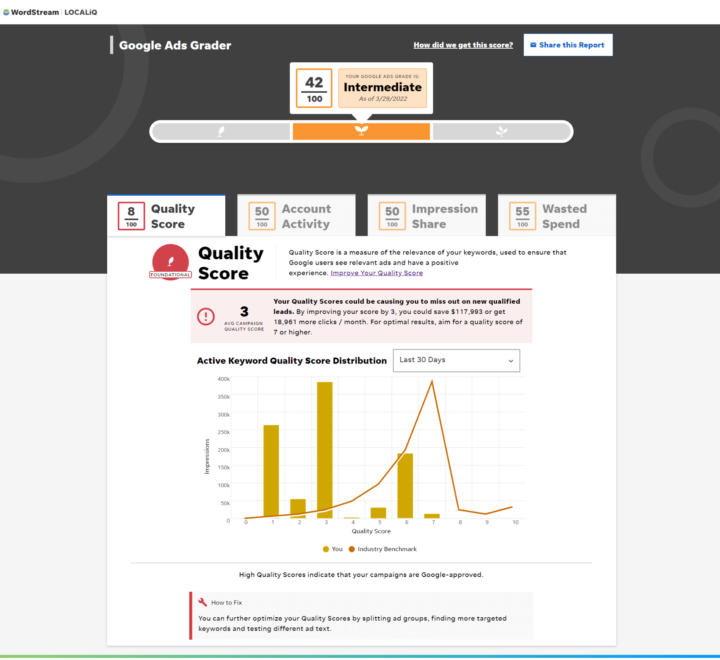 This is an example of a clear performance report from our free Google Ads Grader tool.
Ad Group Level: Getting More Granular
Moving one level down from campaigns, we arrive at ad groups. Each ad group functions as a container for a set of related keywords, their corresponding ads, and a designated landing page.
 Note: In Shopping campaigns, these are referred to as product groups. Smart and Performance Max campaigns don’t utilize ad groups.
Why Ad Groups Matter Even for a Single Ad
When creating an ad, you’ll be prompted to create an ad group—it’s a mandatory step, even if you’re only running one ad. However, it’s generally recommended to have at least two versions of your ad for testing and optimization purposes.
In most cases, you won’t be limited to a single ad in your Google Ads account. Here’s a scenario to illustrate why:
Let’s say I’m marketing my home services business and I want to advertise two main services: installations and repairs. Since installations hold higher value than repairs for my business, I’ll separate these into distinct campaigns. This allows me to allocate a larger budget towards installations (as we discussed, budget is determined at the campaign level, not the ad level).
However, let’s assume I offer various types of installations, such as windows, gutters, and more. While I might maintain the same location, network, and device targeting for these services, my target keywords and ad copy for window installations will need to differ significantly from those for gutter installations. The same logic applies to the different types of repairs I offer. This separation is not only crucial for campaign success but also for cost efficiency.
How Ad Groups Keep Costs in Check
Google Ads relies on your Quality Score to determine your Ad Rank, which, in turn, influences your cost per click. A higher Quality Score generally results in a higher Ad Rank and a lower CPC. You can achieve a high Quality Score by ensuring that your ads and landing pages are highly relevant to the targeted keywords. Given that you can only have one landing page per ad group, organizing your ad groups by theme becomes essential for maintaining landing page relevance.
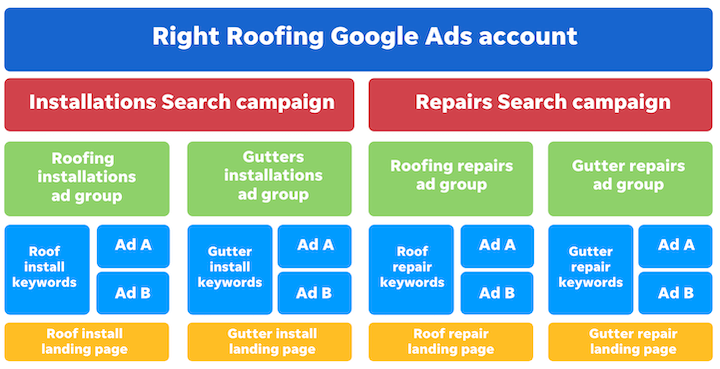 Imagine a scenario where a roofing installation ad appears for a gutter installation search query. Not only is this irrelevant to the user’s intent (and unlikely to yield clicks), but it would also struggle to win ad auctions due to low relevance. This highlights the importance of grouping your ads into thematic ad groups based on keywords and targeting settings.
Strategies for Effective Ad Group Organization
The exciting part is that you have complete control over how you structure and categorize your ad groups. You can group them based on the services you offer, customer intent, different promotions, or any other system that aligns with your business. The key is to be systematic and adopt a structure that makes management straightforward and logical.
Finding the Right Number of Ad Groups and Keywords
Limit each campaign to a maximum of 7-10 ad groups. In many cases, you’ll need even fewer. The more focused your ad groups are on your core goals and offerings, the better. If you find yourself needing more than 7-10 ad groups, it’s usually a sign that you need to create a separate campaign.
Determining the Right Ad Group Size
Keep the number of keywords per ad group to a maximum of 20. With the recent keyword matching updates in Google Ads, you don’t need as many variations as you once did. Stick to your core keywords and avoid diluting your targeting with too many variations. For Display campaigns, this number might be lower, around 3-5 keywords, or even none at all, as Display campaigns rely more heavily on audience targeting.
Brought to you by

Ready to grow your business?
Unlock the results you’re looking for with technology-backed solutions designed for small businesses and agencies.
Finding the Right Ad-to-Ad Group Ratio
Aim for 2-3 ads per ad group. With responsive search ads being the only available format for Search campaigns, you can achieve greater efficiency with fewer ads. As previously mentioned, it’s always best to avoid having only one ad per keyword group. Test different ad variations to determine what resonates best with your audience. For instance, you might have two ads targeting a set of keywords related to “tax preparation software” – one with a negative sentiment and one with a positive sentiment.
Ad Group-Level Settings
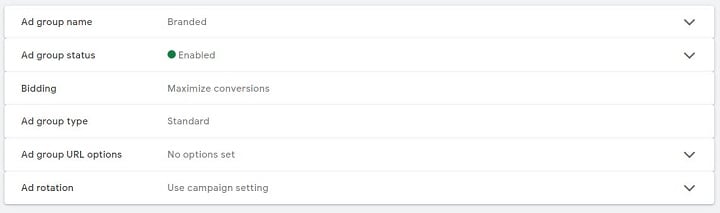
At the ad group level, you can adjust the following settings:
- Ad group name: Similar to campaign and account naming, choose a label that makes sense to you. Remember that the names of your assets don’t directly impact performance.
- Ads: The visual and textual elements that your audience sees.
- Ad group bid: Depending on your chosen bidding strategy and campaign type, you may have the option to set a maximum cost-per-click (Max CPC) bid at the ad group level.
- Keywords: Applicable to Search, Display, or Video campaigns, keywords signal to Google either the search queries you want your ads to trigger for (Search) or the content categories you want your ads to appear alongside (Display and Video).
- Ad group status: Determine whether an ad group is paused, actively running, or removed.
- Settings available at other levels: This includes ad extensions, audiences, contextual targeting, negatives, ad group type, ad rotation, ad group URL options, labels, and automated rules.
Ad Group Best Practices
Here are some recommended best practices for managing your ad groups:
- Organize systematically. Adhere to distinct ad group themes and adopt a structure that aligns with your workflow. Themed ad groups contribute to higher ad relevance, which is crucial for effectively competing in Google Ads auctions without inflating your bids.
- Avoid extremes in ad group count. While cramming everything into a single ad group isn’t ideal, over-segmenting into a granular SKAG (single keyword ad group) structure can also create management challenges.
- Be prepared to make adjustments. A significant part of optimizing Google Ads involves pausing, modifying, and reorganizing ad groups and their components.
- Don’t force components to reach recommended numbers. Treat the guidelines provided as just that—guidelines. Avoid adding unnecessary keywords or ad groups just to hit a specific number.
Keywords: Guiding Your Google Ads Strategy
Keywords are the compass of your Google Ads account. For Search campaigns, they indicate the search queries that should trigger your ads.
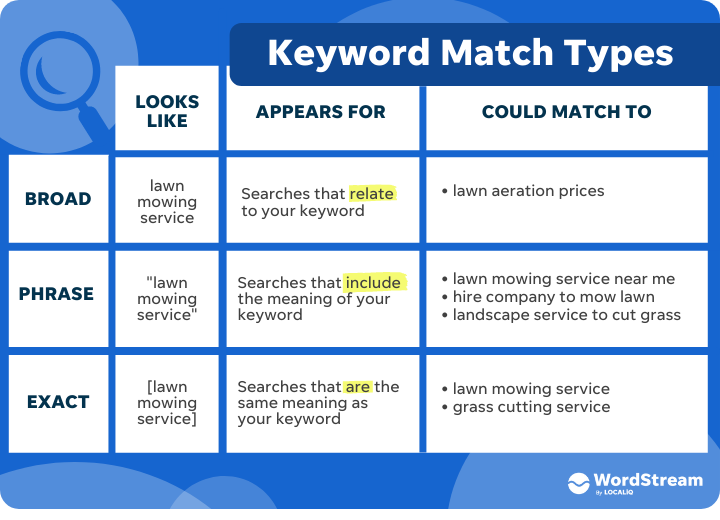
 When selecting or modifying keywords, you’ll also need to assign them a match type. There are three primary match types:
- Broad match: The least restrictive match type, displaying your ads for any queries deemed relevant to your keyword.
- Phrase match: Offers a middle ground in terms of restriction, matching your ads to search queries similar to your target keyword.
- Exact match: The most restrictive type, matching your ads only to searches that are synonymous with your chosen keyword.
It’s important to note that keyword matching behavior has evolved in recent years. To stay up-to-date, refer to our latest article on keyword matching updates in Google Ads.
 When applying match types, you can use annotations:
- Broad match: Requires no annotation, as it’s the default match type. For example, “coffee shop.”
- “Phrase match”: Enclose your keyword in quotations to signify phrase match. For example, “coffee shop.”
- [Exact match]: Use brackets to indicate an exact match keyword. For example, [coffee shop].
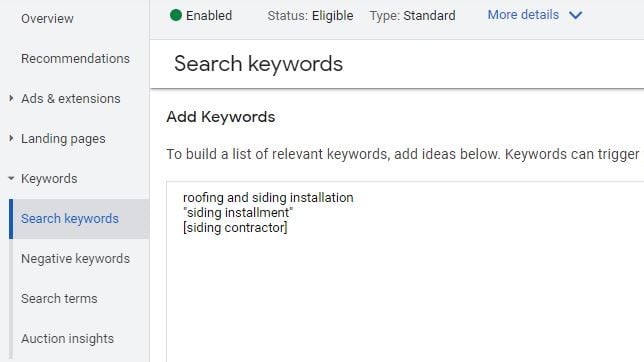 However, annotations are no longer strictly necessary. Google provides a convenient drop-down menu to select your desired match type for each keyword. The choice of how to set up your keywords is entirely yours.
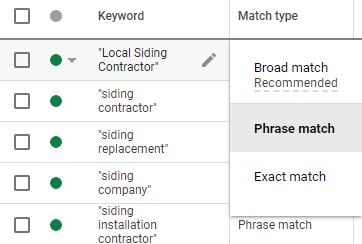 In Display and Video campaigns, keywords indicate the content themes or topics of the pages you want your ads to appear on. However, keywords are used less frequently in these campaigns due to their restrictive nature. By relying solely on keywords, you risk limiting your reach to only pages that mention those specific terms, in addition to other targeting parameters like audience, time of day, location, and more.
Note: Shopping campaigns can only utilize negative keywords, as the product information from your product feed acts as your primary “keywords.” Smart campaigns only allow for broader keyword themes.
Keyword-Level Settings
When adding keywords, consider these settings:
- Keyword bid: Only relevant if you’re using Manual CPC bidding.
- Match type: Choose the match type that aligns with your campaign strategy.
- Settings available at other levels: This includes tracking templates, custom parameters, automated rules, final URLs, and keyword labels.
Keyword Best Practices
Here are some key tips for effective keyword management:
- Conduct thorough keyword research. Leverage keyword research tools to identify the most relevant and valuable keywords for your offerings.
- Don’t solely rely on keywords; explore other targeting options. While keywords are fundamental, they are most effective when combined with other targeting methods.
- Utilize a mix of match types. This approach provides flexibility and helps you reach a wider audience.
- Factor in bidding when setting up keywords. Even if you’re not setting individual Max CPC bids for each keyword, your overall bidding strategy can influence your approach to keyword selection and targeting.
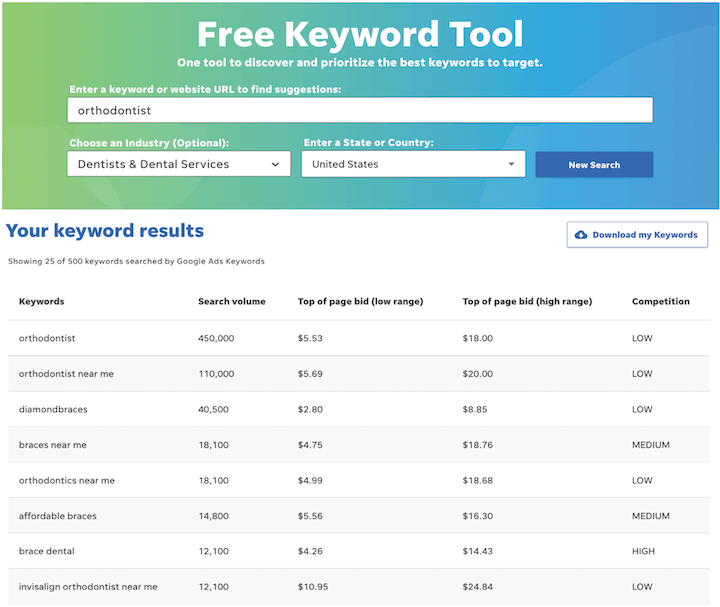 This example shows how to conduct in-depth keyword research using our Free Keyword Tool.
The Ad Level: Where Creativity Meets Targeting
Now, let’s examine the most granular part of your Google Ads account structure: the ad level. This is where you craft compelling ads, refine your copy, and bring your creative vision to life.
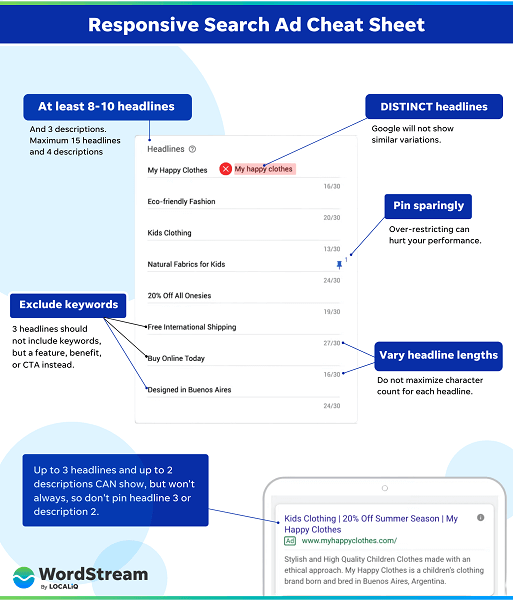
 When creating Search ads, it’s essential to follow responsive search ad copy best practices to maximize their effectiveness.
Ad-Level Settings
Here are the primary settings you can adjust within the ad creation interface:
- Ad components: These are the building blocks of your ads, including headlines, descriptions, images, or videos. When creating Search ads, our responsive search ad copy template can help you structure compelling copy.
- Landing page: This is the destination URL where users are directed after clicking your ad. It’s crucial to remember that all ads within the same ad group must direct to the same landing page URL, and all ads within a campaign must point to the same domain.
- Settings available at other levels: This includes tracking templates, custom parameters, automated rules, and ad labels.
Ad-Level Best Practices
While incorporating persuasive language and strong calls to action in your ads is essential, here are some often-overlooked yet crucial ad-level tips:
- Always A/B test your ad copy. This is the most effective way to gain insights into what resonates best with your target audience. Experiment with different keywords, visuals in Display ads, video lengths in Video ads, or language highlighting specific product prices or service offerings.
- Avoid having just one ad (or an excessive number of ads) per ad group. Using only one ad limits your reach and potentially exposes your audience to stale copy. Conversely, having too many ads can make it challenging to isolate what truly works.
- Treat your ads as the “face” of your business. Ensure they accurately reflect your brand identity. Don’t sacrifice brand consistency for the sake of overly aggressive calls to action.
- Include a clear call to action (CTA). Every ad should have at least one compelling call to action that clearly communicates the desired action to viewers.
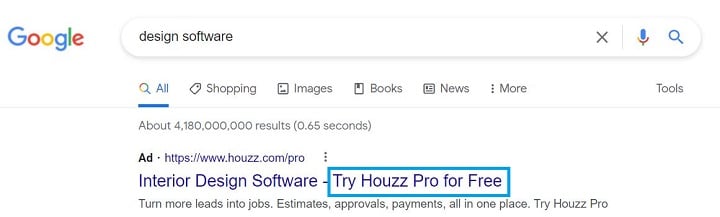 This image shows an example search ad with a clear and concise CTA.
Unpacking the Google Ads Account Anatomy
By paying attention to each element within your Google Ads account, you can create a highly customized and effective advertising strategy. Whether you’re new to pay-per-click advertising or a seasoned professional, understanding the components of a Google Ads account is essential for success. For further guidance on optimizing your account structure, explore our tips for future-proofing your PPC campaigns.