You’re enjoying a successful Google Ads campaign, with your ads and keywords attracting a lot of clicks. That’s fantastic! However, without conversion tracking in place, you’re missing out on valuable data about how many of those clicks turn into actual sales. Wondering how to track conversions in Google Ads, or what a conversion even is?
 Don’t worry, we’ll explore all that and more in this comprehensive guide. Whether you’re looking to reset tracking for an existing account or start from scratch, this post will equip you with the knowledge to become a Google Ads conversion tracking expert.
Contents
- Why is conversion tracking in Google Ads important?
- How can I track conversions in Google Ads?
- Different types of Google Ads conversions
- Setting up Google Ads conversion tracking
- Making sense of your conversion data
- Troubleshooting common issues
Why is conversion tracking in Google Ads important?
Your Google Ads conversion tracking can determine the success or failure of your campaigns. Without knowing what works and what doesn’t, how can you possibly make improvements? Conversion tracking reveals which ads are generating the most conversions. Armed with this knowledge, you can optimize your keywords, budget, bidding strategies, and more. You can also replicate the strategies of your successful campaigns to those that need a boost. Simply put, conversion tracking empowers you to maximize your return on investment and minimize wasted ad spend in Google Ads.
How can I track conversions in Google Ads?
To track conversions in Google Ads, you need to define your conversion actions, implement the appropriate tracking tag, and select an attribution model. Of course, if it were that simple, you wouldn’t need this blog post. We’ll delve into the step-by-step instructions soon, but first, let’s clarify what each of these terms means so you grasp their significance for your Google Ads account. Conversions encompass any valuable actions your target audience takes after encountering your ad. What constitutes a conversion varies across businesses. For instance, live chat website visits, phone calls to your business, clicks to specific pages, video views, form submissions, and more can all qualify as conversion actions.
 Examples of where conversions can happen on a small business website.
- Conversion tracking involves monitoring and recording all completed conversion actions you define for your account, attributing them to the ads responsible.
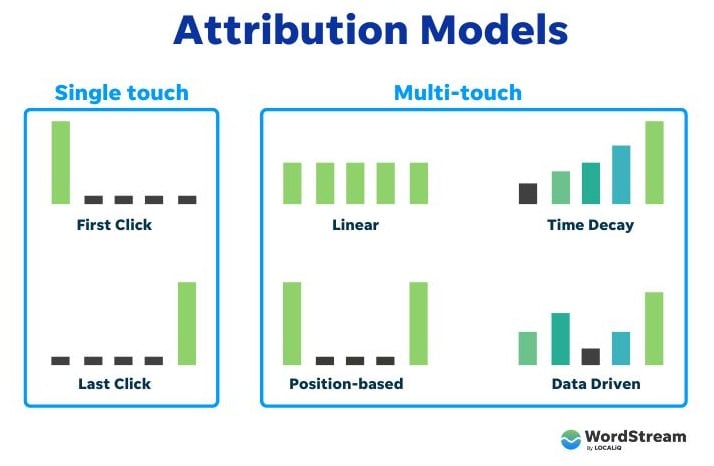
- Attribution modeling is a crucial setting within your conversion tracking setup that influences how conversions are credited to your ads. If a user interacts with multiple ads before converting, an attribution model determines which ad(s) receive credit. For example, first-click attribution gives full credit to the first ad interacted with, while linear attribution distributes credit equally among all ads. Our guide to attribution models provides a deeper dive.
- Conversion value is an optional setting for some conversion actions that allows assigning a specific monetary value to each action. For example, a business might know that form submissions from a particular landing page lead to a $5000 job versus a $500 one, so they can assign the higher value to that page’s conversion action. This can influence bidding strategies like maximize conversion value.
- Google tag is a snippet of code added to your website that acts as a bridge between your site and your Google Ads account. We’ll explain the Google tag installation process and its purpose in detail later. For now, understand that this tag enables your website to accurately communicate completed actions back to your Google Ads account.
What types of conversions can you track with Google Ads?
Google defines five main types of conversion actions available when setting up conversion tracking in your Google Ads account:
- Website actions: These are the most common types of Google Ads conversions, encompassing actions like making a purchase, submitting a form, clicking a specific button, and more.
- Phone calls: This conversion type tracks calls placed to your business directly from your Google Ads.
- App installs and in-app conversions: These conversions are specific to businesses advertising an app, tracking app downloads or actions taken within the app.
- Imported or offline conversions: These conversions capture actions that happen offline but may have originated from an ad. You can import these tracked offline actions, such as an over-the-phone sale or an in-person interaction, through a customer relationship management (CRM) platform.
- Local conversions: These conversions track actions taken by users specifically related to an advertiser’s physical location during or after interacting with an ad, occurring solely across Google’s products or services like Google Maps. Examples include clicks to call, menu views, or getting directions.
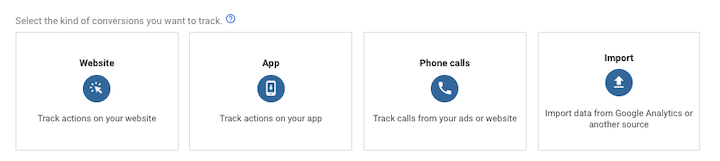 Note that you won’t see Local conversion actions as an option here since Google Ads automatically applies them to your account.
Conversion categories
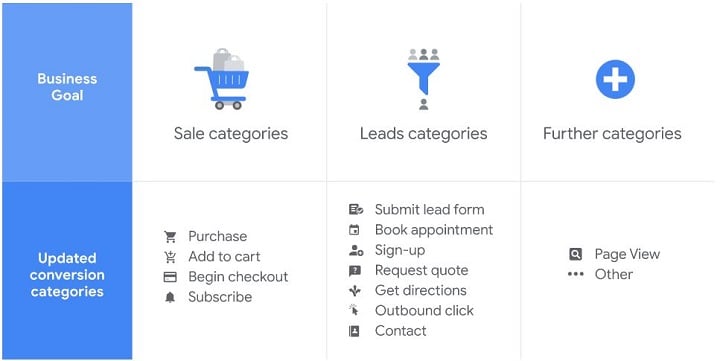
You’ll also need to assign a conversion category to your conversion actions. This categorization simplifies your PPC reporting later on by organizing data by category. While there are 12+ conversion categories in Google Ads to choose from, Google groups them into three main types:
- Sale categories: This category includes actions directly related to making a purchase, such as completing a purchase, adding an item to the shopping cart, initiating checkout, or subscribing to a recurring service.
- Leads categories: This category encompasses other website actions and local actions that indicate interest or potential leads, such as submitting a lead form, booking an appointment, requesting a quote, calling your business, or getting directions.
- Further categories: This category offers additional options for unique Google Ads conversion tracking scenarios, such as tracking pageviews.
How to set up Google Ads conversion tracking in 3 steps
Now that you understand the key concepts, let’s walk through a basic website conversion action setup! You’ll need:
- A website where you’ll place your Google tag code.
- The ability to edit your website’s code, either yourself or through your web developer, to paste a short code snippet.
There are two main steps to initiate your Google Ads conversion tracking journey: creating a conversion action and installing your Google tag.
Are you making any mistakes in Google Ads?
Find out instantly with the Free Google Ads Performance Grader.
Step #1: Create your conversion action
The first step in setting up standard Google Ads conversion tracking is creating a conversion action within the Google Ads platform. Follow these straightforward steps:
- Log into your Google Ads account.
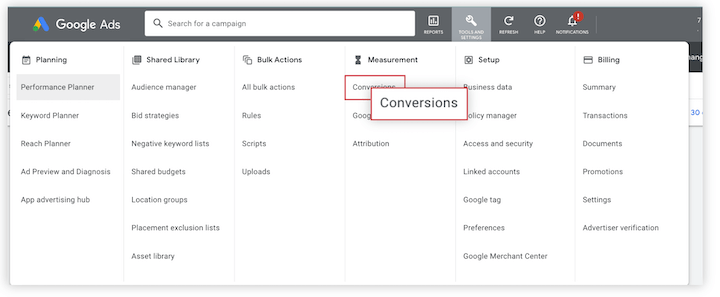
- Click the tools menu in the upper right corner and select Conversions under the Measurement section.
- You’ll be taken to the summary section of your Conversions view, where you’ll click +New conversion action.
- Select “website” as your conversion source.
- Follow the prompts to enter your domain and scan your website. This checks if the Google tag is already installed. If not, you’ll receive a code snippet to add to your website.
- Choose how you want to set up your conversion action: URL setup or manual setup.
Which setup option should you choose?
While a URL setup is quicker and easier, it’s only suitable if you’re tracking a page load as a conversion.
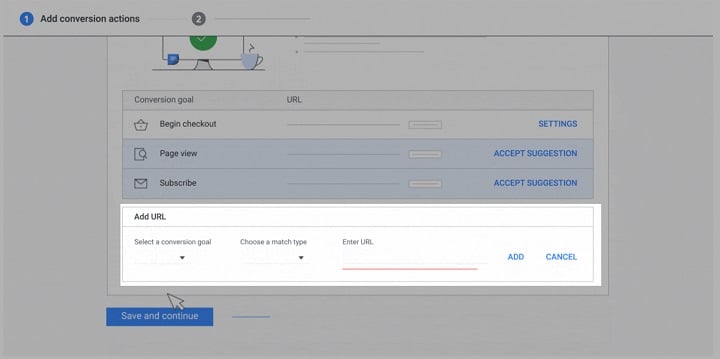 On the other hand, a manual setup allows tracking clicks on buttons or links, with the option to customize the event tag for conversion value tracking, transaction IDs, and other custom parameters.
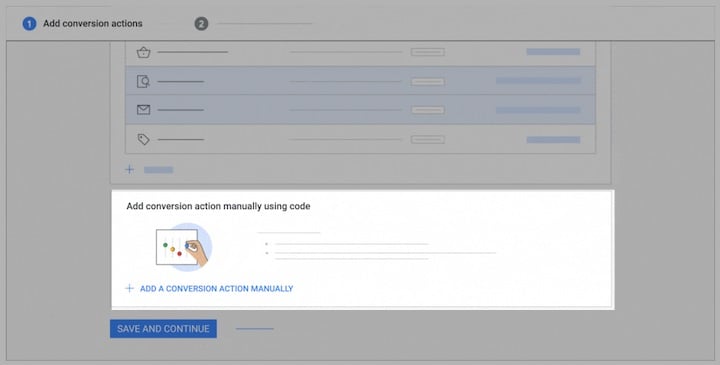 Here are the instructions for a URL setup, and here are the instructions for a manual setup. This process is straightforward, with prompts guiding you through each step, including selecting your attribution model. Refer to our earlier attribution model guide to determine the best fit for your needs.
Step #2: Set up your Google tag
The next step depends on whether your Google tag is already set up.
- If your Google tag is set up and you created your conversion action using a URL, you’re all set and ready to start gathering conversion data.
- If your Google tag is not set up and you created your conversion action using a URL, you’ll see instructions on setting up the Google tag.
- If your Google tag is set up and you created your conversion action manually, you’ll receive instructions to add the action’s unique event snippet.
- If your Google tag is not set up and you created your conversion action manually, you’ll get instructions to add both the Google tag to every page of your site and the conversion action’s event snippet.
Installing the Google tag
The Google tag’s purpose is to set new cookies on your domain, storing information about user actions on your site after clicking your ad. Install the Google tag on every page of your website. You only need one tag per Google Ads account. You can install the tag by pasting the Google tag code directly into your website code (instructions here) or using Google Tag Manager (instructions here).
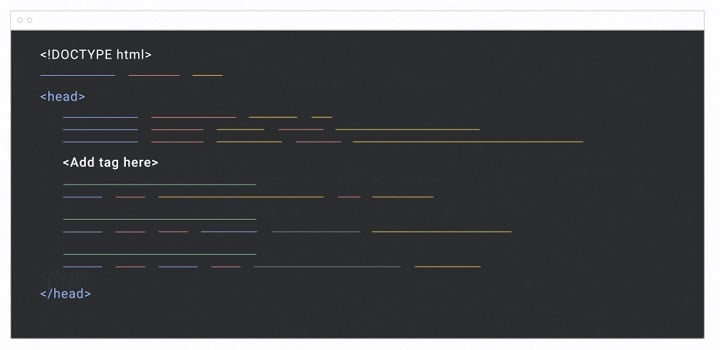
Step #3: Check your Google Tag
To verify if your Google tag is correctly installed and tracking conversions, follow these steps:
- Log into your Google Ads account and navigate to the Conversions section through the upper right corner menu.
- In the conversion actions table view, the Status column indicates the performance of each conversion action. Our Google Ads conversion tracking hang ups guide explains the different statuses to look out for.
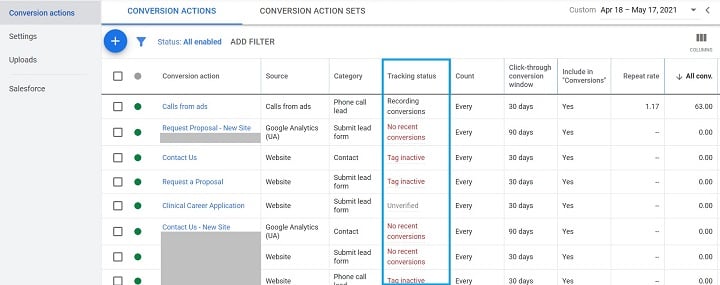 Example of different conversion action statuses you might encounter.
Analyzing your Google Ads conversion data
With your Google Ads conversion tracking properly configured, you’re ready to see conversion data populate your account! Ensure that columns like conversions (abbreviated as “conv.” in the platform’s column view), conversion rate (conv. rate), and cost per conversion (cost/conv.) are visible in your view. These PPC metrics provide valuable insights to optimize your campaigns for maximum return on investment. Curious how your conversion data compares to competitors? Check out our search ad industry benchmarks for reference.
Google Ads conversion tracking troubleshooting
Not seeing any conversions in your Google Ads account? If you encounter issues with your Google Ads conversion tracking, consider these tips and refer to our post on conversion tracking hangups for detailed solutions. Additionally, review our post on conversion tracking mistakes to avoid, as these can be subtle and go unnoticed.
Conversion columns aren’t displaying any data
Conversion data can take up to 24 hours to appear in Google Ads. If, after 24 hours, conversions are still absent, it’s possible that no customers have converted yet. Test the process by simulating a conversion yourself: click on your ad when it appears and complete the required action to trigger the conversion on your site. If, after another 24 hours, the conversion still hasn’t registered, double-check that the code is installed correctly. You might need to install additional plug-ins or relocate the code within your page’s structure.
Campaign receives numerous clicks but few conversions
A high volume of clicks with few conversions results in a higher cost per conversion, ultimately lowering your return on investment (ROI). To understand this discrepancy, ask yourself:
- Am I using a dedicated landing page? Directing users to your homepage can lead to lower conversion rates.
- Is my landing page optimized for conversions? Does it have a clear call-to-action, a simple form, and essential information readily available above the fold?
- Is my landing page relevant to the ad? Does it maintain consistency in keywords and messaging, reassuring the user that clicking the ad will deliver on its promise?
 A landing page from a small business website demonstrating effective conversion optimization. Explore more landing page examples here.
Set up your Google Ads conversion tracking now
Conversion tracking is crucial for any successful paid advertising strategy, making the time invested in setting it up incredibly worthwhile. If you’re satisfied with your conversion tracking but want to delve deeper into your account’s performance, try our free Google Ads Grader for additional optimization insights.