This post continues the discussion about landed costs. We’ll cover the three main ways landed costs are used, building on the previous example of setting up insurance costs to connect insurance invoices with product shipments.
Three Ways to Use Landed Costs
1. Landed Costs by Line Item
- Assign a landed cost group to each line item upon receipt. This can be done by default (from item setup or the purchase order) or manually.
- Adjust calculated amounts for each line item on the receipt.
2. Landed Costs by Apportionment
- Apply a single landed cost to the entire receipt.
- Distribute the cost across items based on quantity, extended cost, or weight.
- This method requires a flat amount cost method for the landed cost.
3. Landed Costs by Invoice Match
- Assign a landed cost group to each line item on the receipt (defaulting from item setup, the purchase order, or manual entry).
- Estimate the landed cost on the receipt (optional).
- Set up the landed cost for invoice matching and, if needed, revaluation for cost variance.
- Use the “Enter/Match Invoices” function to enter the landed cost vendor’s invoice and match it to the product vendor’s shipment.
Detailed Look at Each Option
Landed Costs by Line Item
In this method, a Landed Cost Group is assigned to each purchase order line item. While the item/site combination in Cards»Inventory»Quantities/Sites provides a default value, it can be changed on the purchase order (Transactions»Purchasing»Purchase Order Entry) by clicking the expansion arrow next to the Item header.

This default carries over to the Receivings Transaction Entry (Transactions»Purchasing»Receivings Transaction Entry), viewable by clicking the expansion arrow on the Item header. To see calculated landed costs, click the expansion arrow beside the Unit Cost header.
You can modify the displayed percentage or amount, depending on the landed cost calculation method.
Landed Costs by Apportionment
This method involves selecting “Landed Costs” at the bottom of the Receivings Transaction Entry window to access the Receivings Landed Cost Apportionment window.

Choose the landed costs to spread across the entire receipt. Apportion by quantity, value, or weight using a landed cost with a flat amount calculation method.
The system calculates apportionment as follows:
- Quantity: (Line item’s shipped quantity - rejected quantity) / (Total shipped quantity - total rejected quantity)
- Value: [(Line item’s shipped quantity - rejected quantity) * Originating Unit Cost] / Sum of all line items [(shipped quantity - rejected quantity) * Originating Unit Cost]
- Weight: (Line item’s extended shipping weight) / (Total extended shipping weight)
Both apportionment and item-based methods result in the same distributions:
- Debit to Inventory
- Credit to Accrued Purchases for Landed Cost (as per Landed Cost Maintenance)
Landed Costs by Invoice Match
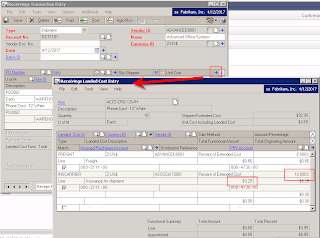
Assume an estimated landed cost of 10% of the extended cost for INSCARRIER was posted on the receipt. Upon receiving the actual invoice from Associated Insurance, the cost is significantly higher.
Since INSCARRIER is set up for invoice matching, record Associated Insurance’s invoice and match it to the Advanced Office Systems shipment by going to Transactions»Purchasing»Enter/Match Invoice:

Key differences when entering the landed cost invoice:
- Use the landed cost vendor’s ID.
- Mark the line item with “LC” to indicate a landed cost.
- Select the matching landed cost instead of an actual item.
- Match to the original shipment using the “Matched to Shipment” expansion button.
Resulting distributions depend on the “Revalue Inventory for Cost Variance” setting:
Revaluing:
- Debit to Inventory (if the cost exceeds the receipt amount)
- Debit to Accrued Purchases for Landed Cost
- Credit to Accounts Payable
Not Revaluing:
- Debit to Purchase Price Variance for Landed Cost (if the cost exceeds the receipt amount)
- Debit to Accrued Purchases for Landed Cost
- Credit to Accounts Payable
Conclusion
This post aimed to clarify the different approaches to landed costs in Dynamics GP. While some businesses use all three methods, many find one or two that best suit their needs.