It’s no secret that thoroughly testing user interactions is a challenge. Traditional automated testing frameworks weren’t designed for front-end views, and that’s where React.js changed the game.
The rise of single page application (SPA) frameworks meant our clients became more complex. Testing front-end code and UI components became a tougher nut to crack. While adopting test-driven development (TDD) might seem unusual initially, it brings a lot to the table: a predictable environment, multiple test runners, built-in testing tools, and continuous integration support.
A decade ago, I might have told you testing was the cure for everything. Then Backbone gained popularity, and we shifted to front-end MVC](https://frontend.turing.edu/lessons/module-3/mvc.html), transforming our testable back ends into glorified data repositories. With the bulk of our complex logic residing in the browser, our apps became harder to test effectively, making front-end code and [UI components a testing nightmare.
React inherently provides models, functions, and components, all of which can be considered units in a broad sense. It steers us toward component-based development. This sets the stage perfectly for unit testing. Essentially, React’s very structure makes it well-suited for unit testing, a tried-and-true approach, directly within our UI/client.
To ensure our models and functions are functioning as expected, we run tests on their corresponding units. For React UI testing, we follow these steps:
- Create well-structured, independent modules.
- Employ Jasmine, Mocha, or similar tools for function testing.
- Use a test runner like Karma or Chutzpah.
And just like that, our React code is unit tested.
Running front-end tests used to be the real obstacle. Frameworks were all over the place, and testing often involved manually refreshing a browser window. Of course, forgetting to do so was easy, trust me, I’ve been there.
In 2012, Vojta Jina released Karma runner (initially known as Testacular). Karma brought UI testing into the mainstream development workflow. Our React tests could now run in a terminal or on a continuous integration server. Tests would automatically rerun when files were modified, and we could even test across multiple browsers simultaneously.
What more could we ask for? Well, how about actually testing our front-end React code?
UI Testing: Going Beyond Unit Tests
Unit tests are great for the basics. They excel at verifying algorithm consistency, validating input, checking data transformations, or testing any other isolated operation.
However, front-end code is more than just data manipulation. It’s about user interactions and rendering the correct views at the correct time. It’s about crafting a user experience.
Here’s what we aim for in React testing:
- Testing user events.
- Testing responses to user events.
- Ensuring the right elements render when they should.
- Running tests across different browsers.
- Automatically rerunning tests when files change.
- Integrating with continuous integration systems like Travis.
Before React, finding a solid way to test user interaction and view rendering was a challenge.
React Unit Testing: UI Components
React simplifies the process of achieving our testing goals. It encourages an architecture that lends itself to testable patterns, making test writing smoother. This is further aided by React’s powerful TestUtils.
React components share many similarities with functional programming principles, even though they are objects. For example, with the same set of input parameters, a React component will always produce the same output, regardless of how many times it’s rendered, who renders it, or where the output is placed. This means we don’t need complex setups to test React components or worry about tracking global variables and configuration objects.
We achieve this consistency by minimizing state usage. In functional programming, this is called referrential transparency.
When it comes to testing user interactions, React has us covered with events linked to function callbacks. Setting up test spies and confirming that a click event triggers the correct function is straightforward. And since React components handle their own rendering, we can simply trigger a click and inspect the HTML for changes. This works because each React component focuses solely on itself—a click in one area won’t affect others. We avoid tangled event handlers and work with well-defined function calls.
Thanks to React’s magic, we don’t need to directly manipulate the Document Object Model (DOM). React utilizes the virtual DOM to render components into a JavaScript variable. This reference to the virtual DOM is all we need to test our React components.
React’s Built-in Test Utilities
React’s TestUtils provide the gateway to testing user interactions and examining output. TestUtils allow us to render a React component into a variable instead of directly into the page. For instance, we could render a React component like this:
| |
We could then check if all child components rendered correctly:
| |
Using getDOMNode(), we can access the raw DOM element and test its values. For example, let’s verify that our component’s H1 tag displays “A title”:
| |
Combining these steps, the complete test looks like this:
| |
The function findRenderedDOMComponentWithTag does exactly as its name suggests: it searches through child components, locates the desired component, and returns it. This returned value then behaves like a regular React component.
TestUtils also allow us to simulate user events. To trigger a click event, we would write:
| |
This code simulates a click, activating any associated listeners. These listeners are typically component methods that modify the output, the state, or both. If needed, they can also call functions on parent components.
Testing all scenarios is straightforward: the updated state is accessible in component.state, we can inspect the output using standard DOM functions, and we can track function calls with spies.
Why Not Jest?
React’s official documentation suggests using Jest as a test runner and UI testing framework. Building upon Jasmine, Jest retains its syntax and advantages.
Editor’s note: Since the initial publication of this article, Jest has undergone significant improvements. We encourage you to explore our updated tutorial, React Unit Testing Using Enzyme and Jest, to form your own opinion on Jest’s capabilities.
Jest opts to mock everything except the component under test. While theoretically appealing, I find this behavior inconvenient. Any unimplemented components or elements originating from other parts of the codebase simply become undefined. This might suffice in some cases, but it can also lead to silent bugs. I once encountered an issue where a click event wouldn’t call its listener no matter what I tried. Eventually, I discovered that Jest had silently “mocked away” the function without any indication.
A more significant drawback in earlier Jest versions was the absence of a watch mode. I prefer running tests in the background as I work, and watch mode provides automatic testing on every change, eliminating the need to manually trigger test runs.
Furthermore, Jest lacked support for running React tests across multiple browsers. While less of a concern today, this feature remains valuable for those rare instances where a heisenbug pops up in, say, a specific Chrome version.
React UI Testing: Putting It All Together
We’ve covered the theoretical workings of a robust front-end React test. Now, let’s solidify our understanding with a practical example.
Using a scatterplot component built with React and d3.js, we’ll visualize different methods of random number generation. We’ll use Karma as our test runner, Mocha as our UI testing framework, and Webpack as our module loader. You can find the code and a live demo in my React test site.
Setting Up
Our source files will reside in the <root>/src directory, with tests placed in <root>/src/__tests__. We can organize src into subdirectories for each major component, each containing its own tests. This structure promotes code reuse, making it easier to incorporate React components into other projects.
With the directory structure in place, let’s install the necessary dependencies:
| |
If you encounter installation errors, try rerunning the problematic parts. Sometimes, rerunning can resolve NPM issues.
Your package.json file should resemble the following after installation:
| |
After some configuration, you’ll be able to execute tests using either npm test or karma start:
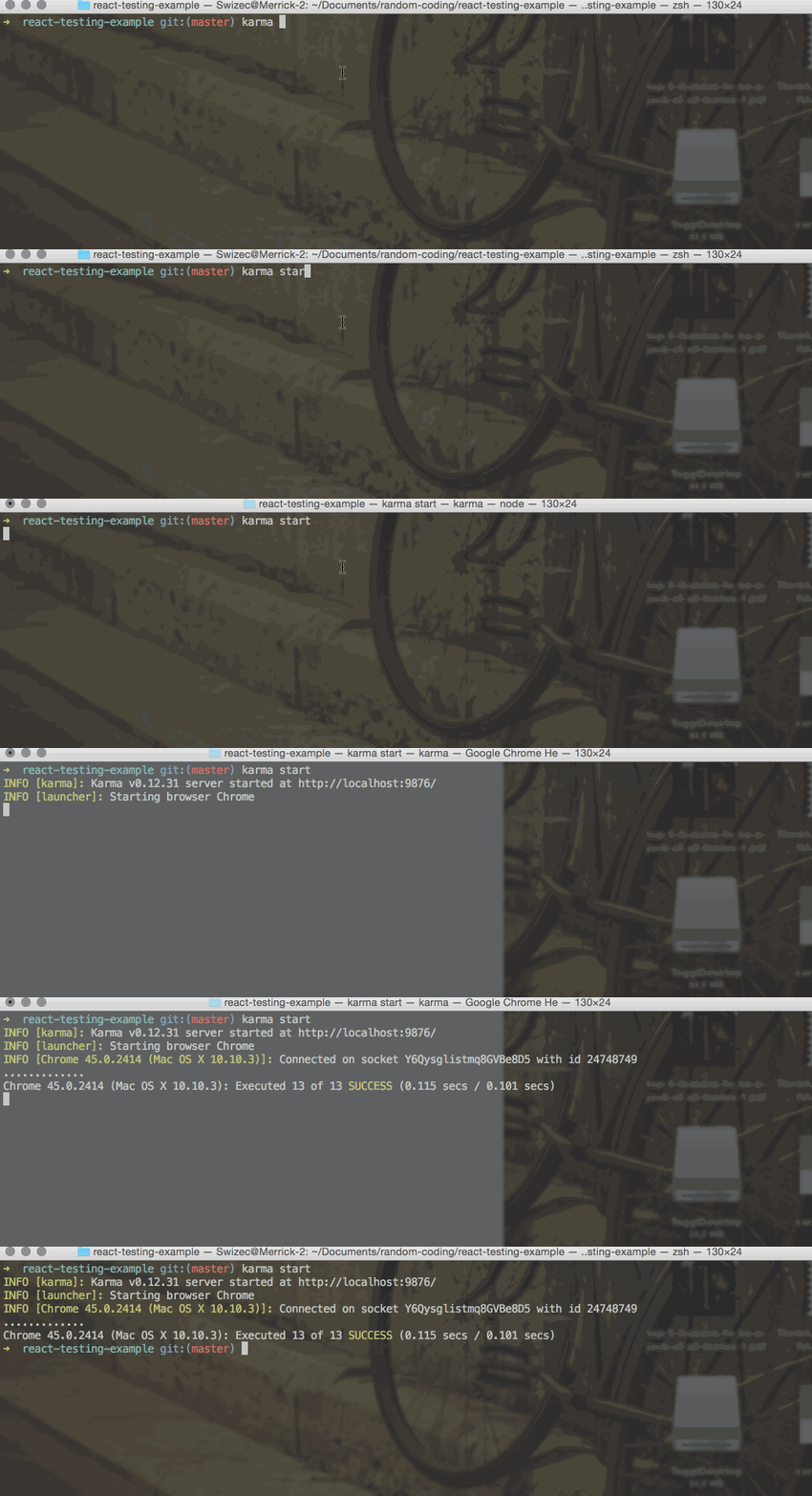
Configuration
To ensure Webpack can locate our code and Karma knows how to run our tests, add these two lines of JavaScript to a ./tests.webpack.js file:
| |
This code instructs Webpack to include any file with a -test suffix in the test suite.
Karma configuration involves a few more steps:
| |
Most of this configuration is standard Karma setup. The browsers setting specifies Chrome as our test environment, frameworks defines our testing framework, and singleRun ensures tests run only once by default. You can keep Karma running continuously using karma start --no-single-run. All straightforward so far.
Because Webpack manages our code’s dependencies, we don’t need to explicitly list all files in the files array. Only tests.webpack.js is required, which then incorporates all necessary files.
We use the webpack setting to configure Webpack’s behavior. In a standard setup, this would reside in a webpack.config.js file.
We also instruct Webpack to utilize the babel-loader for our JavaScript files, granting us access to advanced features from ECMAScript2015 and React’s JSX.
Within the webpackServer configuration, we disable Webpack’s debug output to avoid cluttering our test results.
React Component and Test
With a functional test suite, the remaining steps are simple. Our goal is to create a component that takes an array of random coordinates and generates an <svg> element populated with points.
Adhering to React UI testing best practices, specifically standard TDD practices, we’ll start by writing the test, followed by the actual React component. Let’s begin with a basic test file in src/__tests__/:
| |
First, we import React, its TestUtils, d3.js, the expect library, and the component we’re testing. Then, we create a new test suite using describe and generate some random data.
Our initial test will ensure that ScatterPlot renders a title. This test goes within the describe block:
| |
Most of our tests will follow a similar structure:
- Render the component.
- Locate a specific node within the rendered output.
- Verify the node’s contents.
As shown earlier, renderIntoDocument renders our component, findRenderedDOMComponentWithTag finds the specific element we’re testing, and getDOMNode grants us direct access to the DOM.
Without a component to render a title tag, our test would fail. Let’s create a component to address this:
| |
That’s it. The ScatterPlot component now renders a <div> containing an <H1> tag with the expected text, ensuring our test passes. Yes, it’s more involved than plain HTML, but bear with me a little longer.
A More Engaging Test
Now, let’s delve into a test that verifies the display of all data points on our chart:
| |
The structure remains familiar: render, find nodes, and check the outcome. The intriguing part lies in drawing those DOM nodes. Let’s inject some d3.js magic into our component:
| |
For a more comprehensive explanation, refer to my React test repo.
We utilize componentWillMount to initialize empty d3 scales for the X and Y domains and componentWillReceiveProps to ensure they update whenever data changes. The update_d3 function then sets the domain and range for both scales.
These scales will translate random values from our dataset into positions within our visualization. Since most random generators produce numbers within the [0,1 range, which is too small to be visible as pixels, we need this translation.
Next, let’s add the points to our component’s render method:
| |
This code iterates through the this.props.data array, adding a <circle> element for each data point.
If you’re interested in further exploring the combination of React and d3.js for data visualization, consider subscribing to receive a free chapter from my book, React+d3.js.
Automated React Component Testing: Not as Daunting as You Think
In this tutorial, we’ve learned that:
- React guides us towards modularity and encapsulation.
- Modular and encapsulated components simplify automated React UI testing.
- Unit tests alone are insufficient for front-end development.
- Karma is a powerful and efficient test runner.
- Jest has matured into a strong contender in the test runner landscape.
I encourage you to explore my React test example repo, where you’ll find more in-depth information on React UI testing.