While it might be considered sacrilege by many Django programmers, deploying Django applications on a Windows server running IIS is sometimes unavoidable, particularly when working with clients whose infrastructure is deeply rooted in the Windows ecosystem. This is because Django is inherently designed for Unix environments, relying on features like WSGI, FastCGI, and command-line tools, which are not native to Windows. Thankfully, compatibility between Django and IIS is steadily increasing, thanks to new features (eliminating workarounds) on both the Windows and Python+Django side. This helps bridge the gap between these two distinct technological worlds.
This concise tutorial will guide you through setting up a Django project on Windows. It covers installing Python, Django, and related tools, along with running the Django project both independently and through a FastCGI server. The latter is becoming increasingly important, especially since IIS now officially supports FastCGI (on IIS 7+ you simply install the CGI feature).
Note: This guide assumes you have a working knowledge of Windows and familiarity with the IIS management console. Although IIS version 8.5 is used in this tutorial, the instructions and concepts are applicable to earlier versions. It is based on Python 2.7 and Django 1.7, the versions I currently use for projects. You can find an alternative Django tutorial here.
Expert Tip: For deploying multiple Django (or even just Python) projects, or if you are a developer, consider using virtualenv, a tool designed for creating isolated Python environments.
Installing Python on Windows
To begin, download Python. The installer comes in both 32-bit and 64-bit MSI formats, and you should select the version that matches your machine’s architecture.
PIP is the tool which installs and maintains Python libraries (of which Django is only one example). It is invoked by running the pip command at the command prompt. It implements several sub-commands, and two of the most useful ones are install and freeze. PIP will also install project dependencies (additional libraries) are installed, should the project have any.
Running pip install <package_name> will download and install the package and all of its dependencies (which may be nested and fairly complex). Running pip install --upgrade <package_name> will likewise upgrade an existing package to its most recent version. PIP supports a special syntax for installing precise versions of a package instead of just "the most recent one". It is done by appending an operator and a version number to the package name; e.g. "Jinja2==2.7.3" (to install a precise version) or "six>=1.8" (to install any version equal to or greater than the specified version number).
Running pip freeze simply shows the list of currently installed packages in a format which is directly usable by pip install.
Note that some Python / PIP packages come with libraries written in C, which must be compiled for the package to work. Unless you set up your system to have a working C compiler which is also compatible with the Python executables, you will not be able to install such packages. Django is a pure Python library so it does not require a C compiler to install.
It is crucial to install Python 2.7.9 or a later version, as versions starting with 2.7.9 include PIP, the Python library/package/software manager used for installing all other components in this tutorial.
The installation process is very user-friendly and straightforward. It will suggest installing Python in the C:\Python27 directory, which is recommended for simplicity. Try to avoid the Windows habit of installing to directories containing spaces in their names.
After installation, the base directory will hold approximately 8 subdirectories, a few miscellaneous files, and two executables: Python.exe and PythonW.exe. The former serves as the default command-line interpreter and Python shell, while the latter acts solely as the interpreter, without utilizing or creating a console window when launched. This makes PythonW.exe suitable for executing GUI-based Python applications.
Next, you need to add Python to your system’s PATH environment variable. This is done through the Advanced System Settings (or System Properties) window. Under the Advanced tab, click the Environment Variables button. Two directories need to be added: C:\Python27 and C:\Python27\Scripts. Append these directories to the PATH list, ensuring they are separated by semicolons (;). The final part of your PATH variable should resemble ;C:\Python27;C:\Python27\Scripts.
Expert Tip: Consider installing GOW, a lightweight suite of Unix command-line utilities akin to Cygwin. It provides useful tools like
lsand more advanced ones likemake,wget,curl,ssh,scp,gzip, andtar.
Installing Django on Windows
You can install Django using PIP with a command like pip install django. Additional dependencies might be automatically installed if not already present on your system. Otherwise, only Django will be installed, with output similar to:
| |
To verify that both Python and Django are functioning correctly on Windows, open a new Windows Command Prompt, execute the python command, and then type import django at the Python prompt. Successful execution will result in no output or messages after the import django command, like so:
| |
Setting Up a Django project on Windows
In Django, a “project” is comprised of one or more “apps”. The project’s top-level directory typically contains a special project subdirectory housing settings and general project-level data, a dedicated subdirectory for each app, and a command-line script called manage.py. For instance:
| |
Distributing Django projects is straightforward - simply archive the entire project directory and extract it on another machine. In the example above, the project includes the project subdirectory, the application directory named djangoapp, and an additional templates subdirectory.
The manage.py script is the versatile tool for managing Django applications. It handles various tasks, from creating new apps and database migrations to running a test (built-in) HTTP server or even a FastCGI server.
Running a Test HTTP Server
If the project and its apps are operational, you should be able to launch the default Django development-only HTTP server by executing the command manage.py runserver. This should produce output similar to:
| |
As indicated by the messages, this initiates a server on the localhost at port 8000. You can access it immediately using your web browser.
Setting Up and Running a FastCGI Server
A more practical option is to enable a FastCGI server. This allows you to utilize IIS, Apache, or any other web server for serving the application in a production environment. To do this, download the fcgi.py (the Django management command for running Django on Windows with IIS via FastCGI) and place it within the management/commands subdirectory of the Django app’s (not the project’s!) directory. It is crucial for both the management and commands subdirectories to contain an empty file named __init__.py, which transforms these directories into Python modules.
fcgi.py is a very basic and minimalistic WSGI to FastCGI adapter. It does not support listening on a TCP socket or a pipe, and all its processing relies on stdin and stdout. Therefore, it’s not compatible with modern web servers such as nginx. However, it will function with IIS.
Configuring IIS for Running a FastCGI Application
With the FastCGI module loaded in IIS (or simply the CGI module in IIS 7+), the IIS management console will display the “FastCGI Settings” icon. Django, being a framework with its own URL routing, requires apps to be installed as a “handler” in IIS for specific paths.
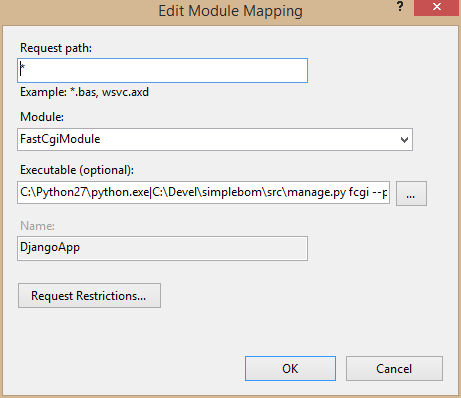
To install a Django app on the IIS Default Web Site, select it in the management console and open the Handler Mappings configuration. Click Add Module Mapping… and enter the following:
- Request path: Set to
\*to manage all requests using Django’s internal routing. - Module: Choose
FastCgiModuleto use the IIS FastCGI module. - Executable: Specify both the
python.exepath and its command-line arguments, separated by the pipe character (|). For example:C:\Python27\python.exe|C:\app\src\manage.py fcgi --pythonpath C:\app\src --settings project.settings. Ensure you include thefcgicommand for themanage.pyscript and manually set the Python interpreter’s search path for the project, along with the Python module name for the project’s settings module. - Name: Use any descriptive name.
The configuration dialog should resemble:
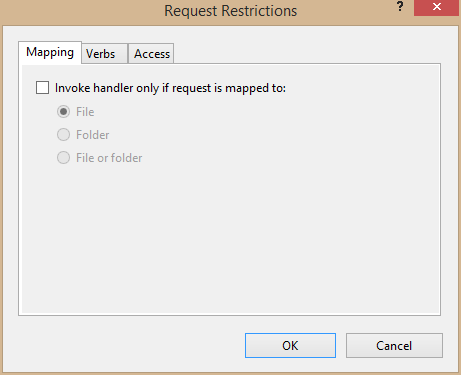
Next, click Request restrictions and edit the Mapping tab. Uncheck “Invoke handler only if the request is mapped to…” (otherwise, IIS might face issues mapping perceived subdirectories in the URL request):
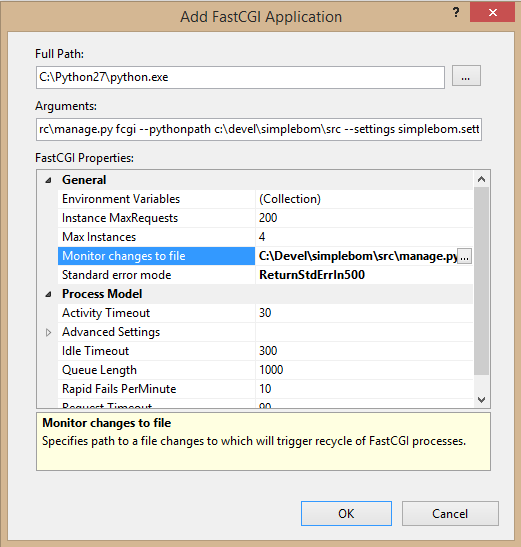
Confirm the handler information dialog. IIS will prompt you to confirm creating a corresponding FastCGI application entry. This entry will appear in FastCGI Settings, accessible from the IIS Management Console’s root screen. While the default IIS-generated entry suffices, consider these optional settings:
- Max instances: This approach uses a single-process, single-threaded model for running FastCGI applications. This means a separate Python interpreter process is initiated for each concurrent request. This setting limits the number of simultaneous Django app instances.
- Monitor changes to file: Once started, app processes remain active until manually terminated or after handling Instance MaxRequest requests. This setting instructs IIS to monitor an arbitrary file’s timestamp and restart/reload app instances upon modification. This benefits developers and production environments, enabling app reloads after changes. Monitoring a file’s timestamp for reloads might seem unusual on Windows but is standard in Unix-like environments and carried over here with FastCGI.
Setting Up Static Resource and Media Directories
Modern web apps, including Django apps, rely on various resource files like CSS and JavaScript. Django provides a handy feature allowing developers to integrate these resources within the application directory tree, which can then be extracted and copied by Django into a dedicated static directory. This developer-controlled feature’s storage location for static files is defined in the project’s settings.py. Well-designed projects use a logical path, but there’s no strict standard.
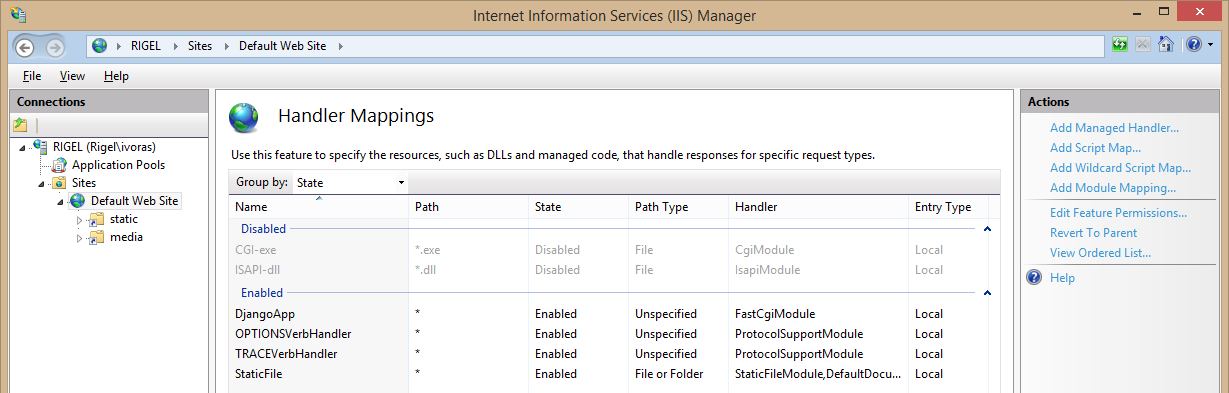
Apps handling uploaded files store them in a similarly managed directory, conventionally named media in Django. Both the static and media directories need to be added as virtual directories in the IIS configuration:
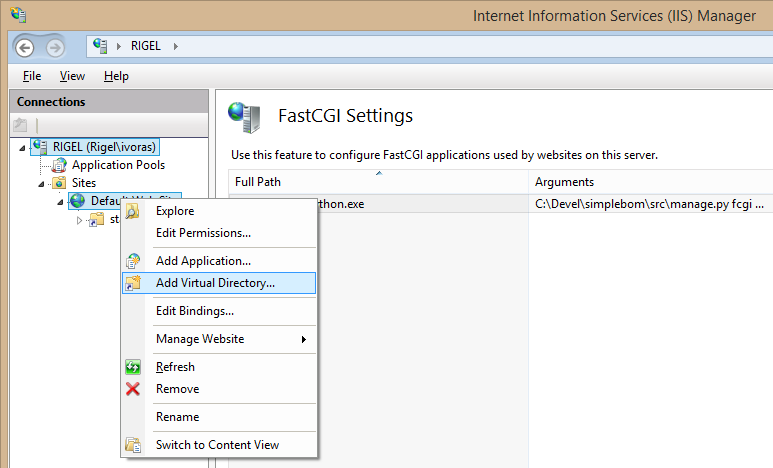
The key step here is reconfiguring the Handler Mappings for each directory, removing the Django App handler and prioritizing the StaticFile handler.
Ensure the static directory (along with all other files and directories in the Django project) is readable by IIS. The media directory must also be writable by IIS. The final site configuration should look similar to this:
About Databases
SQLite functions seamlessly on Windows by default, mirroring its behavior on Unix-like systems. Today, most open source databases, even PostgreSQL (which I highly recommend), work on Windows. However, existing Windows installations might necessitate deploying Django with MS SQL Server. This can be achieved using either an ODBC bridge driver or a native MS SQL driver. While both are theoretically functional, I haven’t personally tested them. Switching to a different database requires modifying the database connection parameters within the project’s settings.py file and manually handling data migration.
When using the SQLite database, ensure both the database file and its parent directory are writable by IIS.
Troubleshooting
The configuration outlined here is tested and proven, but if issues arise, follow these basic troubleshooting steps for your Django for Windows installation:
- Manually execute the FastCGI command-line command. This command, configured in FastCGI Settings, must match the one set in Handler Mappings for the site.
- Install the Tracing feature for IIS and configure it for the Django site in Failed Request Tracing Rules to trace all content (), status code “500”, and event severity “Error”. Traces will be saved as XML files (with accompanying XSLT) in the IIS directory
C:\inetpub\logs\FailedReqLogFiles(or a similar location depending on your configuration). Enable tracing for the specific website or virtual directory using the *Configure->Failed request tracing… action.
Conclusion
Undoubtedly, Django is designed with Unix-like environments in mind. The most common and supported way to run Django is on a Linux system (e.g., with uwsgi and nginx).
However, as this tutorial demonstrates, getting Django up and running on Windows doesn’t require a herculean effort. While some steps might seem unusual from a purely Windows perspective, they are necessary. Moreover, the configuration effort is a one-time task. Once configured, your Django application should behave almost identically to its Linux counterpart.