Recent Dynamics GP versions offer significant enhancements to 1099 tracking. The ability to track 1099 amounts by type and box at the transaction level enables more detailed tracking, eliminating the assumption that all vendor payments fall under the same 1099 type and box number.
Despite these advancements, comprehensive reporting features for reviewing this information by type and box are limited. While inquiries can be made easily (Inquiry–Purchasing–Vendor 1099 Details, Cards–Purchasing–1099 Details), these methods have limitations.

Cards–Purchasing–1099 Details
1099 Details window
These windows necessitate vendor-by-vendor review of 1099 information, which is manageable for a small vendor count but inefficient for those handling a larger volume. In such cases, a report or export function would be more practical.
While SmartList offers 1099 fields, these reflect “Amounts Since Last Close” summary fields, lacking date sensitivity and type/box breakdowns. They rely on the last Purchasing calendar year closure and might suffice for vendors with a single type and box, assuming timely module closure and no prior year postings.
Reporting options are limited to a vendor-specific report from Cards–Purchasing–1099 Details. Historically, printing the 1099 edit list from Routines–Purchasing–Print 1099 was recommended.

Routines–Purchasing–Print 1099
1099 Edit List
This report, although date-sensitive, lacks a breakdown by 1099 type and box, limiting its usefulness for vendors with diverse 1099 types and boxes.
For users dealing with vendors using various 1099 types and boxes, SmartList Builder offers a solution for creating a summary SmartList to display 1099 information. Two primary tables are involved:

The Purchasing 1099 Period Detail table provides key fields for reporting 1099 amounts by box and type:

It’s crucial to understand that the 1099 Box Number in this table is not the actual box number on the 1099 form but a sequential identifier. For instance, box 1b on a 1099-DIV form would be represented as 1099 Box Number 2. Adding the PM Vendor Master file to the SmartList allows for the inclusion of the vendor’s Tax ID and address.
While this SmartList can be used as is, it results in multiple lines per vendor due to the breakdown by box and period. To consolidate this, a summary SmartList can be created, grouping by 1099 Box Number, 1099 Type, Vendor ID, and Year, with the 1099 Amount field set to Sum.
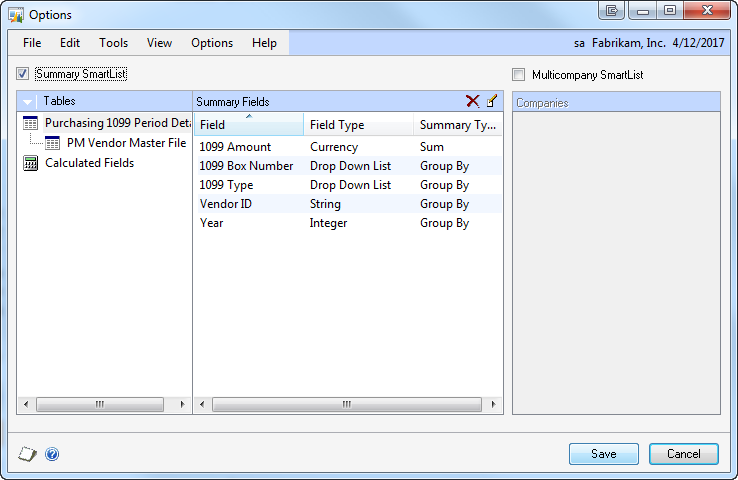

SmartList Builder Options button
Options Window
Select table to display summary options
For the PM Vendor Master File, setting most fields to Maximum pulls the common value for each vendor, as grouped by Vendor ID. Grouping by Vendor Check Name is redundant in this scenario.
Consider adding a restriction to display summaries with a 1099 amount greater than zero.

SmartList Builder Restrictions button
Restrictions window
The resulting SmartList will resemble this:
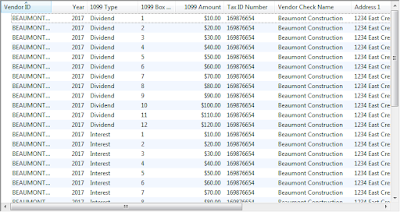
Summary SmartList Grouped by 1099 Box Number, 1099 Type, Year, and Vendor ID
This SmartList presents summarized information, including 1099 Amounts by type and sequential box number. For further refinement, create calculated fields to break down amounts by correct box labels.
When using a CASE statement to test for the sequential box number, consider these points:
Create a separate SmartList for each 1099 type with a restriction for a single type per SmartList, as box labels vary.
Remove the grouping by 1099 Box Number and exclude it from the SmartList, summarizing by 1099 Type, Year, and Vendor ID. Calculated fields will then display amounts for each box in separate columns.
Below is a sample CASE statement for extracting the amount for a specific box. A separate calculated field is required for each box on the 1099.
CASE WHEN {Purchasing 1099 Period Detail:1099 Box Number}= ‘1’ THEN {Purchasing 1099 Period Detail:1099 Amount} ELSE 0.00 END