
A LAMP stack is a collection of open-source software used to build websites and web applications. LAMP stands for Linux, Apache HTTP Server, MySQL database, and PHP programming language.
Apache Web Server
The Apache HTTP Server, developed by the Apache Foundation, is a popular web server recognized for its user-friendliness, straightforward configuration, extensive community support, and compatibility with various Linux systems.
Its impressive range of modules allows for extensive customization, while also boasting robustness and security.
To install it, connect to your Debian 10 system through a terminal emulator or SSH. Log in as root and execute the following commands:
sudo su sudo apt install apache2
Once installed, Debian/Ubuntu will automatically initiate the service and configure it to launch on system startup. You can manually start or stop the service using these commands:
sudo systemctl start apache2 sudo systemctl stop apache2
To prevent the service from starting automatically, execute:
sudo systemctl disable apache2
Conversely, to re-enable automatic startup:
sudo systemctl enable apache2
To check the status of the apache2 service:
sudo systemctl status apache2
Afterwards, open your preferred web browser and navigate to your server by entering “localhost,” your remote server’s IP address, or its domain in the address bar. The following page should appear:

1.- Apache default page on Debian
This confirms that Apache is operational.
Currently, your Debian/Ubuntu system can only handle client-side (front-end) websites. Web applications, however, often rely on a server-side programming language for execution.
PHP, being a widely used server-side programming language, powers many popular applications like WordPress. Its presence is crucial for a web server.
To install PHP and its extensions, open a terminal and run:
sudo apt install php libapache2-mod-php php-mysql php-mbstring php-xml php-zip
Testing your PHP installation is recommended. Create a new file named “test.php” in the /var/www/html/ directory and add the following code (you can use nano):
sudo nano /var/www/html/test.php
phpinfo(); ?>
Then, restart Apache:
sudo systemctl restart apache2
Now, access this file through your web browser (e.g., http://your-server/test.php). You should see:
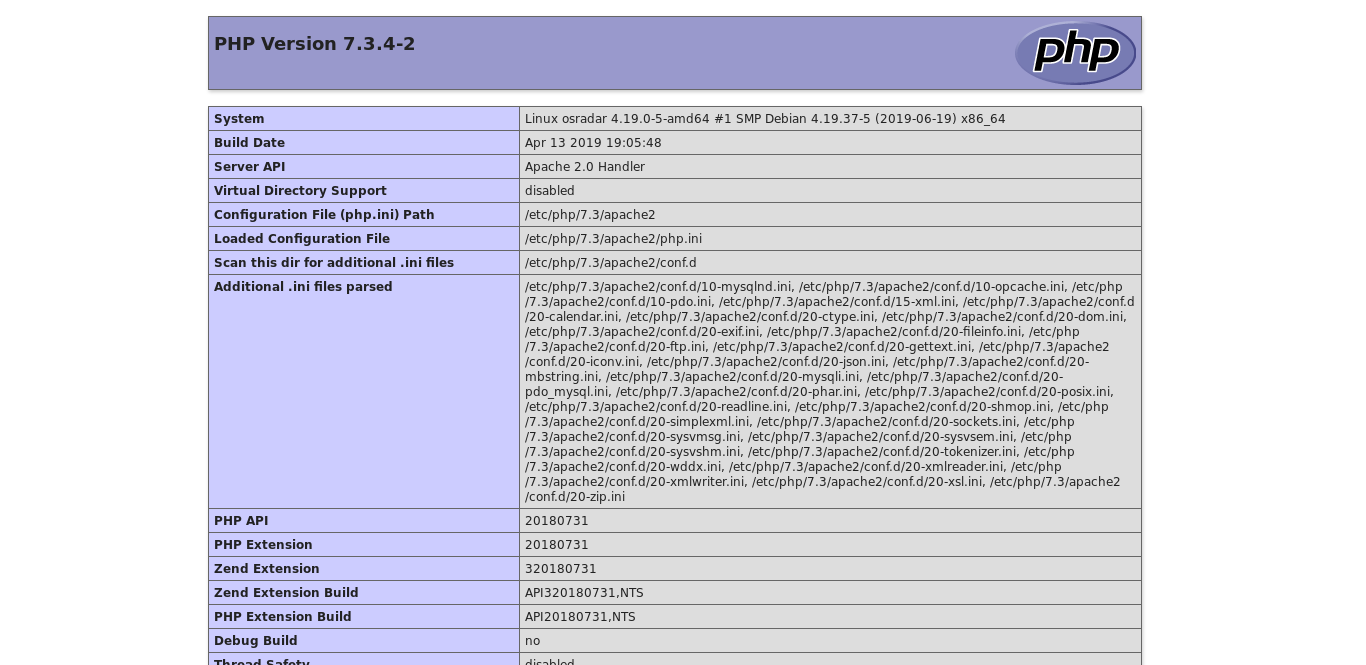
2.- PHP running on Debian/Ubuntu
This confirms that both Apache and PHP are up and running.
Install MariaDB
The final component for a LAMP stack on Debian/Ubuntu is a database, either MariaDB or MySQL. MariaDB, a fork of MySQL, is a robust relational SQL database management system with strong community support.
It seamlessly blends usability and security, endorsed by the community and distributions like CentOS, Debian, Ubuntu, and RHEL.
To install MariaDB, open a terminal and run:
sudo apt install mariadb-server
After installation, enhance security using the “mysql_secure_installation” script. This script allows you to set a root password and configure other essential settings.
sudo mysql_secure_installation
Follow the prompts to adjust the security settings for your MariaDB/MySQL installation. The initial prompt addresses the Validate Password Plugin, which assesses password strength. Following this, you’ll set a password for the MariaDB/MySQL root user. Create and confirm a secure password.
You can accept the default settings for subsequent prompts by pressing ‘Y’ and then ‘ENTER’. This action removes anonymous user accounts and the test database, disables remote root logins, and implements these changes, ensuring MariaDB/MySQL immediately adheres to the updated configuration.