Written by Steve Endow
Dynamics GP 2010 and 2013 offer a convenient “Remember user and password” feature, enabling automatic logins. When used with the “Remember this company” option, a single click on the GP icon launches the application, logs you in, and opens your preferred company.

A colleague encountered an issue where this feature wouldn’t activate for testing purposes. Troubleshooting this problem involved identifying all the locations where GP stores settings. This article documents those findings to assist others facing similar challenges.
If the “Remember user and password” option fails to work, the setting doesn’t save, or the option remains disabled, several settings might be the root cause.
By default, the “Remember user and password” option is deactivated.
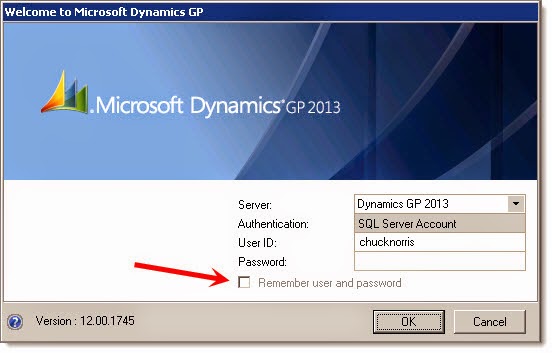
To enable it, go to Tools -> Setup -> System -> System Preferences, check the “Enable Remember User” option, and click OK to save.

Saving this updates a record in the DYNAMICS..SY01402 table.
SELECT * FROM SY01402 WHERE USERID = ‘GLOBALUSER’ AND syDefaultType = 71

A checked box sets the SYUSERDFSTR value to 1, while an unchecked box sets it to 0.
Once enabled, you can check the box upon launching GP and logging in.

When you input your credentials and click OK, Dynamics GP creates two registry entries. Mariano discusses these entries in his blog post.

At this stage, GP should remember your login details.
However, a question arises: how does the GP client know if you’ve opted to save your login information? What if, despite these steps, the “Remember user” option remains disabled, like my colleague experienced?
While the SY01402 setting is crucial, it was verified to be correct. Since GP hasn’t logged in yet, it can’t access the database to read the setting from SY01402, eliminating that as the issue.
The GP client could be relying on registry entries to determine whether to use saved credentials, but these entries were present on my colleague’s computer without resolving the problem.
This leads to the question: where else does GP store settings besides the database? The answer lies in the Dex.ini file.
Examining the Dex.ini file revealed the “RememberUser” setting in my configuration. My colleague’s Dex.ini file, however, was missing this line.

Adding the “RememberUser=TRUE” line to his Dex.ini file successfully activated the “Remember user” feature.
Just another typical day navigating the complexities of Dynamics GP.
Steve Endow, a Microsoft MVP for Dynamics GP and a Dynamics GP Certified IT Professional based in Los Angeles, owns Precipio Services. Precipio Services specializes in providing Dynamics GP integration, customization, and automation solutions.
Find Steve on Google+ and Twitter
http://www.precipioservices.com
