It’s only been a week since Expanded Text Ads became the sole text ad format available, and Google is already innovating with the introduction of IF functions. “Hold your horses, Allen: what’s an ‘IF’ function?” Simply put, it’s like a supercharged ad customizer. Check it out. Google states that “IF functions allow you to insert specific messaging into your text ads when a certain condition is met and default text when it isn’t.” This allows for ad copy customization based on device or audience, ensuring highly relevant messaging for potential customers.
Imagine you’re a smart online retailer successfully using remarketing. You recognize the value of “cart abandoners,” those who add items to their cart but leave without purchasing. To celebrate a recent sports team victory, you decide to offer a 10% discount on all items and advertise it on your Google Ads platform.
With IF functions, you can display a special “limited-time” or “exclusive” offer of 15% off and free shipping to those cart abandoners who are just a click away from completing a purchase. Everyone else sees the standard 10% discount, while these high-value prospects get an irresistible offer.
IF functions can be equally beneficial for lead generation businesses. People often behave differently on mobile devices compared to desktops, being less inclined to fill out forms on their phones. Tailoring your message with a simpler, mobile-specific call to action can help capture leads from previously underperforming mobile audiences.
Intrigued by IF functions? Let’s explore how they work.
How do IF Functions work in Google Ads?
The principles behind IF functions will be familiar if you’ve used ad customizers before. Essentially, by inserting a parameter into your ad, it becomes adaptable, with copy changing to match the conditions within the parameter.
IF functions are more user-friendly than other ad customizers because they don’t rely on complicated feeds. Instead, they work solely based on the conditions you set within curly brackets. If any issues arise, the ad reverts to its original version, eliminating the need for a separate ad without the IF function.
The key to using IF functions effectively lies in understanding the functions themselves. While the use of curly brackets might seem intimidating, especially to those who shy away from math or code, their simplicity makes them easy to use. Ensuring correct punctuation is all it takes.
Here are some important points to keep in mind:
- IF functions can be used anywhere in your ad except for the final URL.
- “Audience” and “device” are the only supported dimensions.
- Currently, the Google Ads interface will automatically populate the syntax for device targeting. Using “audience” as the dimension requires rewriting the parameter and entering the exact name(s) of the relevant list(s) from your account (found in Shared Library > Audiences).
- IF functions are exclusive to the search network.
Device & Audience IF Functions
Google provides a helpful table that illustrates the differences between the two IF function types and provides examples:
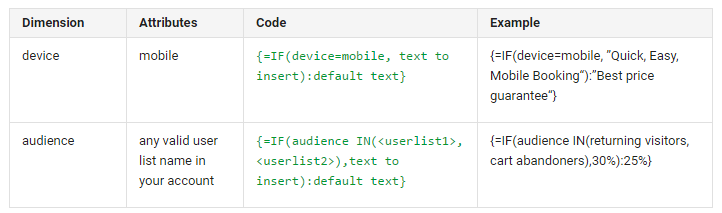
As you can see, device and audience functions share a similar structure. The main (and only) distinction is the “IN” field, which specifies the target audience lists for Google Ads.
When using IF functions, always remember to include “default text” within your curly brackets. This text will be shown to anyone who doesn’t meet the criteria of your IF function, making it incredibly important. Don’t just settle for generic copy; put thought into it!
Let’s delve into each IF function type.
Device-Specific IF functions
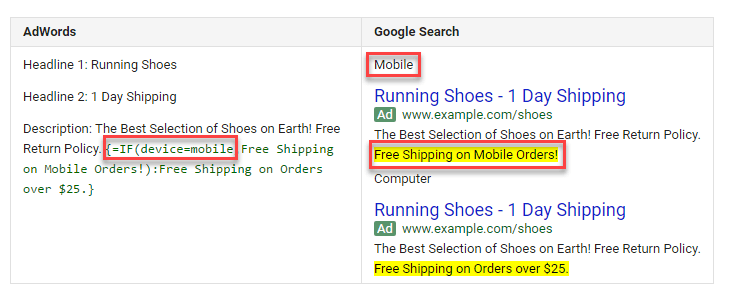
Quite simple. As shown in Google’s example, device-specific IF functions offer a new method for implementing mobile-specific ad copy, which was previously possible with Expanded Text Ads but disappeared with their update. There was a complex workaround involving feeds, but it was often challenging to use or unknown to many advertisers. Now, you simply need to specify “mobile” as the target device, input both modified and default versions of your ad copy, and voilà: you have mobile-specific ETAs.
Audience-specific IF functions
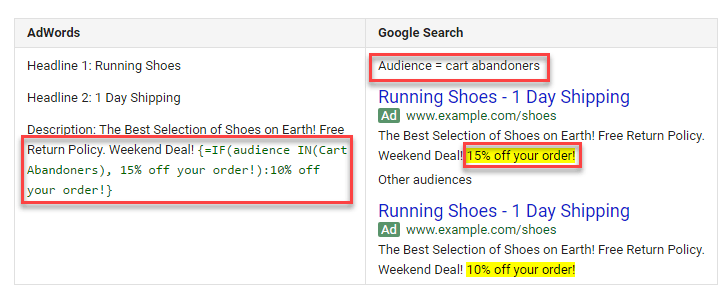
Audience-specific IF functions are slightly more complex, introducing one additional parameter: the audiences themselves. You can target multiple audiences, but as of now, only one ad copy modification is allowed per IF function. This means you cannot offer separate discounts for cart abandoners, email subscribers, and those who visited your site more than six months ago. Therefore, focus on your most valuable audiences and provide equally compelling copy for everyone else.
Implementing IF Functions in Your Google Ads Account
Go to the “Ads” tab within the Google Ads interface and click the prominent red button.
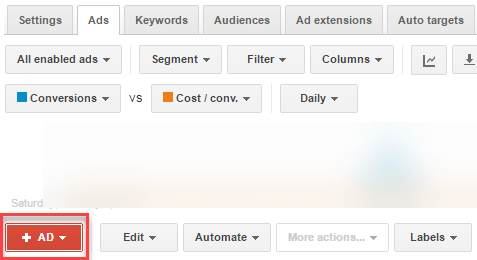
From the dropdown menu, choose “Text ad.”
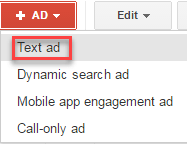
Now for a slightly trickier part: deciding where to place your IF function. Starting with the description line is recommended. As you become more comfortable, experiment by moving the formula to a headline or even the URL paths. Once you’ve decided, insert a left curly bracket ({) where you want to include the IF function. This will trigger another dropdown menu; select “IF function” to begin.
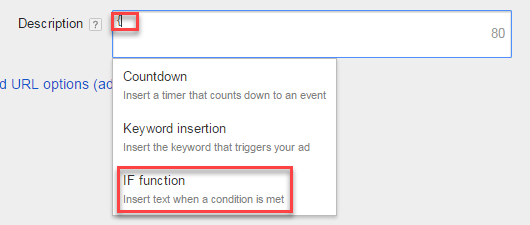
For Device
Device IF functions are easier because the formula automatically appears in the designated ad section. You only need to complete the required parameters, which in this case means entering your default and modified copy. The formula looks like this: {=IF(device=mobile, text to insert):default text}
For Audience
Audience IF functions are a bit trickier. First, identify the audiences you want to target with alternate ad copy and list them, ensuring the names are spelled correctly. Separate multiple audiences with commas. Afterward, follow the same process as with device IF functions: input your modified copy, then the default copy, and watch the leads come in. The formula appears as follows:
{=IF(audience IN(
IF functions and A/B Testing
After mastering IF function implementation and copywriting within curly brackets, it’s time to elevate your ETAs through testing. Integrate IF function split testing into your weekly optimization routine. Test alternate copy in new locations, such as placing enticing offers in the second headline, and tweak your default text to see if you can further improve your device/audience-specific offer.