For software engineers, a well-optimized environment is crucial for productivity. You’ve likely fine-tuned your IDE, debugger, and performance monitoring tools. But what about documentation, manuals, and reports? Writing demands a significant chunk of your time, so why not optimize that too? It’s time to find your ideal writing tool.
Remember, as a technical person, WYSIWYG editors might not be your cup of tea. Navigating menus and toolbars for formatting might not be your preferred method.
Imagine adding formatting styles directly within your text using simple inline syntax. That’s the beauty of Markdown, and that’s what this tutorial is all about.
When More Becomes Less…
Word processing software aims to cater to a wide range of users and needs, offering a plethora of features. However, only a fraction of these features are relevant to individual users. Most users simply need to create documents, not design brochures. They require a small subset of the available options.
Microsoft recognized this when they introduced “ribbons” in Microsoft Word, grouping features. Ironically, many users found the new interface more cumbersome.
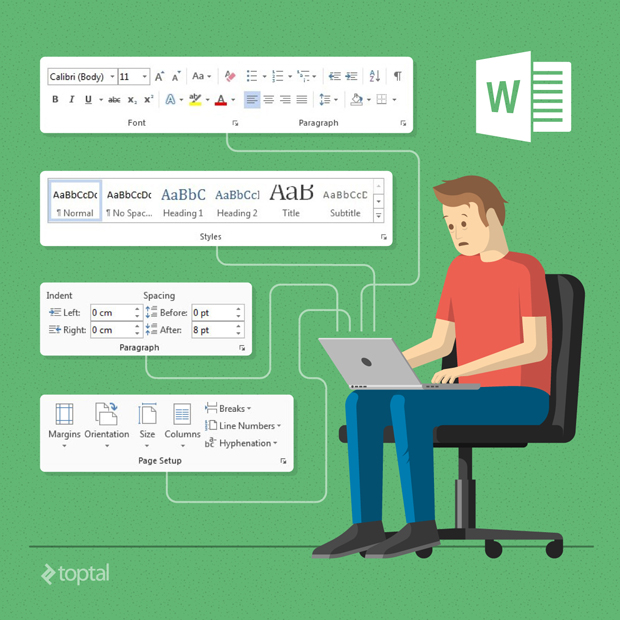
Sometimes, an abundance of options can hinder productivity and ease of use.
… and Less Becomes More
Let’s face it, you’re a software engineer, not a graphic designer. Your goal is to efficiently write manuals, technical documents, or reports. Basic formatting like headings, lists, and code blocks suffice, along with some font styling (bold, italics). (And imagine the convenience of doing all this in vi!)
Enter Markdown.
What is Markdown?
John Gruber (with significant contributions from tech guru and internet activist Aaron Swartz) created Markdown in 2004 with the goal of enabling people “to write using a simple plain text format, and optionally convert it to valid XHTML (or HTML)”.
Markdown ensures readability in its raw form, unlike markup languages like RTF or HTML.
It allows writing in plain text, which can be converted to HTML. To be precise, Markdown is really two things:
- A plain text formatting syntax.
- A software tool (originally written in Perl) for converting plain text formatting to HTML.
Markdown’s syntax is simple, intuitive, and easy to use. For software engineers comfortable with syntax conventions, it’s a straightforward way to write.
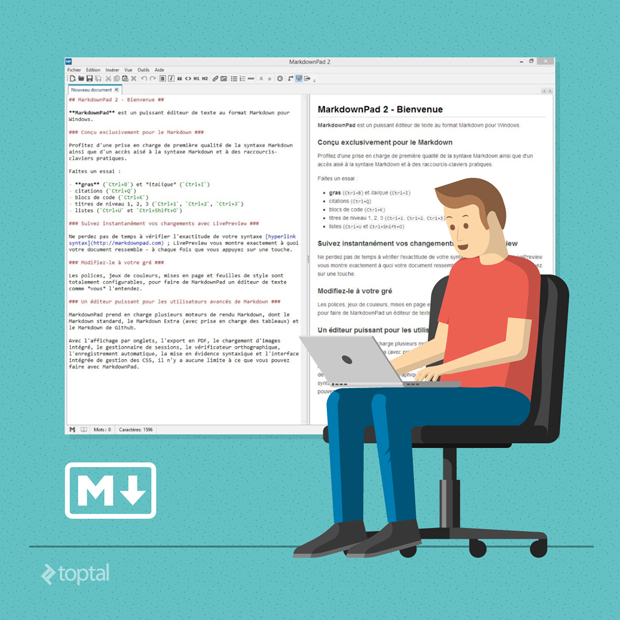
Learning Markdown: A Quick Start
Markdown is incredibly easy to learn. Master the basics in minutes, and it’ll become second nature. Like CSS preprocessors, use as much or as little as you need.
If you’ve used plain text writing conventions, you might already be familiar with some Markdown conventions. For example, asterisks for emphasis, numbers or dashes for lists. To italicize text, simply wrap it in asterisks like *this*, instead of cumbersome HTML tags.
Similarly, create an H1 heading with a ‘#’ prefix: # Section Heading.
Markdown is also valuable for documenting source code repositories. Most repos use README.md files (.md being the standard Markdown extension). Github, for instance, uses “Github-flavored Markdown” with additional functionality for development documentation, offering a time-saving alternative to HTML.
Here’s an example of including a snippet in your documentation:
Initiating Plugins
Initiate
pluginNameon your container using jQuery:
$(function() { $('#container').pluginName(); });Using the container’s ID, initiatepluginNamewith the jQuery method.pluginName().
Here’s how you’d achieve this in HTML vs. Markdown:
| HTML | Markdown |
| <h1>Initiating Plugins</h1> | # Initiating Plugins |
| <p>Initiate <code>pluginName</code> on your container using jQuery as follows:</p> | Initiate `pluginName` on your container using jQuery as follows: |
| <code> $(function() { $('#container').pluginName(); }); </code> | `$(function() { $('#container').pluginName(); });` |
| <p><em>Using our container's ID, we can initiate <code>pluginName</code> with the jQuery method <code>.pluginName()</code></em></p> | *Using our container's ID, we can initiate `pluginName` with the jQuery method `.pluginName()`.* |
Numerous online tutorials can help you master Markdown, including John Gruber’s (Markdown’s creator) Markdown overview and an online Markdown tutorial.
Markdown Parsers and Tools
Once your document is ready, you’ll need an app to parse the Markdown syntax into HTML. Several excellent free options are available:
- StackEdit: A browser-based Markdown editor with synchronization options for services like Google Drive and Dropbox.
- Online Kramdown Editor: Another browser-based editor with a minimalist interface.
- Mou: A feature-rich and free (in beta) Mac-based editor, ideal for developers. [This was used to write this article].
- MarkdownPad: An excellent Markdown editor for Windows.
- Texts: A cross-platform editor (Mac and Windows) that exports to PDF, .doc, ePub, and other formats.
Major platforms have adopted or allowed Markdown in their editors. While WordPress, Evernote, and Google Docs don’t have native support (as of this writing), third-party solutions exist:
- The blogging platform Ghost utilizes Markdown for its content editor, simplifying online writing.
- For WordPress, the Jetpack plugin offers official Markdown support (enable under Settings > Discussion). Alternatively, plugins like WP-Markdown convert between Markdown and HTML.
- For Evernote, apps like the online editor Markable or the Mac editor Byword allow exporting and publishing to notes. The browser extension Markdown Here converts Markdown notes to formatted text in the Evernote web app.
- While Google Docs lacks native support, editors like StackEdit offer export/synchronization with Drive.
The Drawbacks
Simplicity often comes with limitations. Markdown isn’t designed for complex word processing with advanced formatting. It’s not the right tool for such tasks.
However, for developers needing to create manuals, technical documentation, or reports, Markdown strikes an optimal balance between simplicity and essential features.
A potential drawback, especially for engineers who value change control, is the lack of collaborative features and change tracking in Markdown (though the StackEdit plugin for Google Docs is an exception). However, collaboration and change tracking can be achieved using a git repository for the Markdown document.
Conclusion
Is Markdown for everyone? Not necessarily. No single tool fits all.
However, if you’re a software engineer, Markdown might be the writing tool you’ve been searching for. If you haven’t already, give it a try!