Managing SSH logging and sessions with AWS Systems Manager (SSM)

Eliminating the need for custom scripts or tools, there’s a streamlined approach to maintaining an SSH log on Linux, circumventing potential errors and security vulnerabilities.

While tools like rootsh and screen offer ways to monitor user interactions, they are susceptible to manipulation by unauthorized users who can tamper with permissions and erase their digital footprints. Kernel-level logging presents another avenue, but the specialized knowledge it demands often poses a significant barrier.

A more practical solution leverages the following AWS services for seamless logging without the need for manual command-line configurations:

Let’s delve into the configuration process for each of these components.

EC2 and IAM

While deploying an EC2 instance is generally straightforward, a crucial step during launch is attaching an IAM role to empower the instance with the necessary permissions to achieve our logging objective.

This IAM role, linked to the EC2 instance, necessitates the incorporation of the predefined AmazonSSMManagedInstanceCore policy, along with the following policy, implemented either inline or as a customer-managed policy:

 1
 2
 3
 4
 5
 6
 7
 8
 9
10
11
12
13
14
15
{
    "Version": "2012-10-17",
    "Statement": [
        {
            "Action": [
                "logs:CreateLogStream",
                "logs:DescribeLogStreams",
                "logs:DescribeLogGroups",
                "logs:PutLogEvents"
            ],
            "Effect": "Allow",
            "Resource": "*"
        }
    ]
}

Beyond the IAM role, consider these typical EC2 instance specifications:

  • OS: Opt for Amazon Linux 2, pre-equipped with AWS Systems Manager Agent (SSM Agent) for streamlined setup. Ubuntu distributions, also bundled with SSM Agent, offer a viable alternative.
  • Instance Type: While any type suffices, t3.micro offers a cost-effective starting point.
  • Security Group: The default security group assigned by AWS to the VPC will suffice, as this method doesn’t rely on opening SSH port 22.

While the EC2 instance initializes, we can proceed with setting up KMS.

KMS

To fortify the security of our SSH session logs delivered to CloudWatch, employing a KMS key for encryption is essential. Let’s navigate to the KMS service and proceed with key creation.

A screenshot of AWS with breadcrumbs "KMS," "Customer managed keys," and "Create key," currently at Step 1: "Configure key." The "Key type" can be set to "Symmetric" (selected) or "Asymmetric." Under "Advanced options," the setting "Key material origin" can be "KMS" (selected), "External," or "Custom key store (CloudHSM)."
Step 1: Choosing a symmetric key type.
A screenshot of AWS with the same breadcrumbs, now at Step 2: "Add labels." An Alias field is set to "cwlg," an optional Description field is left blank, and an optional Tags field has no tags added.
Step 2: Naming our key.
A screenshot of AWS with the same breadcrumbs, now at Step 3: "Define key administrative permissions." The first field, "Key administrators," has a blank search box with 10 rows of results (page 1 of 3) with columns Name, Path, and Type. Only the first row (with respective column values "admin," "/," and "User") has its corresponding checkbox checked. The other field, "Key deletion," has a single option, "Allow key administrators to delete this key," which has its checkbox checked as well.
Step 3 (optional): Assigning an administrator.

While optional, designating a key administrator is recommended, extending key management capabilities beyond the AWS account root user. If shared access isn’t a requirement, Step 3 can be bypassed.

In this scenario, the IAM user “admin” assumes the role of key administrator, with the flexibility to choose any user or role. Additionally, we have the option to restrict key deletion rights for the administrator.
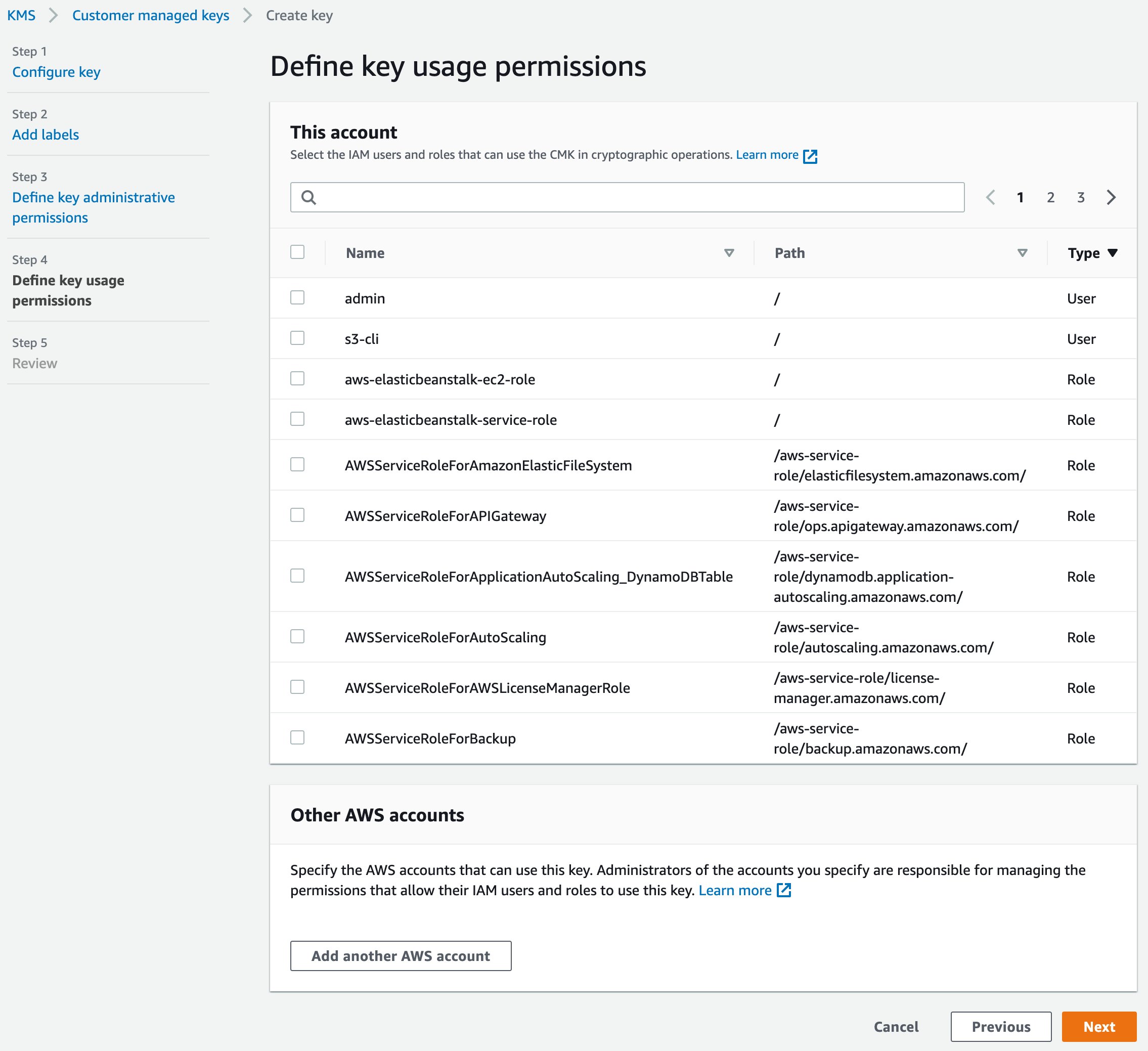
A screenshot of AWS with the same breadcrumbs, now at Step 4: "Define key usage permissions." The first field, "This account," has the same search results as in Step 3, but none of them are checked. The other field, "Other AWS accounts," has nothing added to it.
Step 4: Skipping the user assignment page.

Given that this key is exclusively dedicated to CloudWatch Logs for SSH log encryption and decryption, no additional users will be granted access.
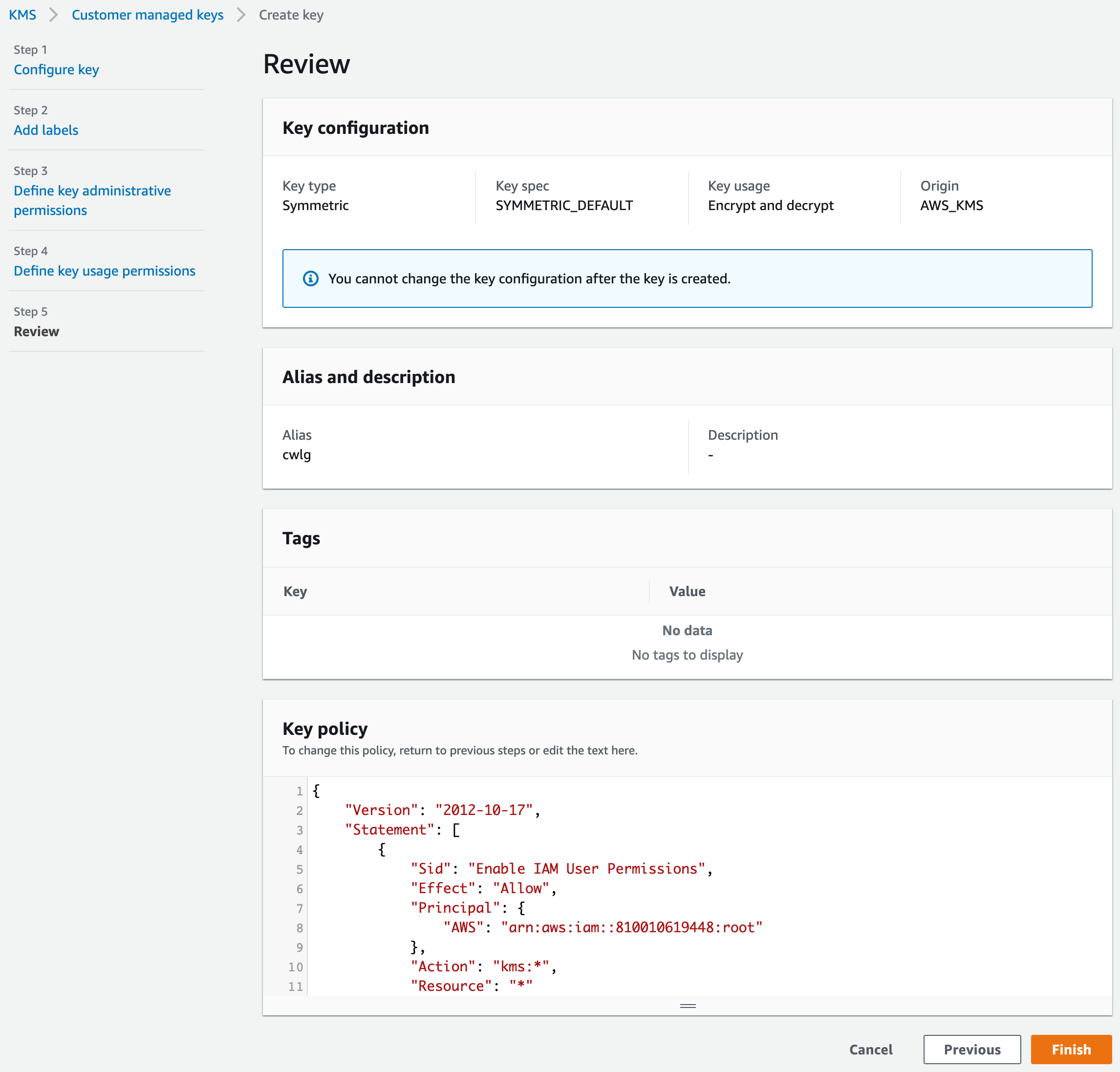
A screenshot of AWS with the same breadcrumbs, now at Step 5: "Review." The first field, "Key configuration," lists the "Key type" as "Symmetric," the "Key spec" as "SYMMETRIC_DEFAULT," the "Key usage" as "Encrypt and decrypt," and the "Origin" as "AWS_KMS." The next field, "Alias and description," lists one Alias, "cwlg," with no Description. The next field, "Tags," shows no data. The last field, "Key policy," includes a textbox prefilled with a policy in JSON format.
Step 5: Review our configuration and swap the default key policy.

Upon reaching the Review page, a crucial adjustment to the KMS-generated key policy is necessary. The default policy lacks the requisite permissions for CloudWatch Logs to utilize the key. We’ll replace it with the following policy:

 1
 2
 3
 4
 5
 6
 7
 8
 9
10
11
12
13
14
15
16
17
18
19
20
21
22
23
24
25
26
27
28
29
30
31
32
33
34
35
36
37
38
39
40
41
42
43
44
45
46
47
48
49
50
51
52
53
54
55
56
57
58
{
    "Version": "2012-10-17",
    "Statement": [
        {
            "Sid": "Enable IAM User Permissions",
            "Effect": "Allow",
            "Principal": {
                "AWS": "arn:aws:iam::ACCOUNT_ID:root"
            },
            "Action": "kms:*",
            "Resource": "*"
        },
        {
            "Sid": "Allow access for Key Administrators",
            "Effect": "Allow",
            "Principal": {
                "AWS": "arn:aws:iam::ACCOUNT_ID:user/USERNAME"
            },
            "Action": [
                "kms:Create*",
                "kms:Describe*",
                "kms:Enable*",
                "kms:List*",
                "kms:Put*",
                "kms:Update*",
                "kms:Revoke*",
                "kms:Disable*",
                "kms:Get*",
                "kms:Delete*",
                "kms:TagResource",
                "kms:UntagResource",
                "kms:ScheduleKeyDeletion",
                "kms:CancelKeyDeletion"
            ],
            "Resource": "*"
        },
        {
            "Sid": "Allow access to CloudWatch Log",
            "Effect": "Allow",
            "Principal": {
                "Service": "logs.REGION.amazonaws.com"
            },
            "Action": [
                "kms:Encrypt",
                "kms:Decrypt",
                "kms:ReEncrypt*",
                "kms:GenerateDataKey*",
                "kms:DescribeKey"
            ],
            "Resource": "*",
            "Condition": {
                "ArnLike": {
                    "kms:EncryptionContext:aws:logs:arn": "arn:aws:logs:REGION:ACCOUNT_ID:*"
                }
            }
        }
    ]
}

Ensure accurate replacement of all placeholders:

  • Substitute ACCOUNT_ID with your AWS account ID.
  • Replace USERNAME with the designated administrator username from Step 3. If Step 3 was omitted, remove the second statement block, identifiable by "Sid": "Allow access for Key Administrators".
  • Replace REGION with the specific regional identifier code for your service deployment, such as us-west-1.

With these configurations, KMS is primed for operation.

CloudWatch Log Group

A designated repository is essential for SSM Agent to channel SSH session logs. This can be a CloudWatch Log group, an S3 bucket, or both. Let’s proceed with creating a CloudWatch Log group.

A screenshot of AWS with breadcrumbs "CloudWatch," "CloudWatch Logs," "Log groups," and "Create log group." There is no multistep sidebar. The first field, "Log group details," has three sub-fields: "Log group name" (set to "ssm-session-demo"), "Retention setting" (set to "Never expire" from a dropdown), and "KMS key ARN - optional" (set to a truncated value beginning with "arn:aws:kms"). The second field, "Tags," has no tags.
Creating a “CloudWatch Logs” log group.

Take note of the pre-populated KMS key ARN field, furnished by AWS upon key creation in Step 5 of the KMS section.

An error relating to the KMS key at this juncture signifies that the correct policy, granting the CloudWatch Logs service access to the key, wasn’t associated earlier.

Storing SSH Logs in an S3 Bucket

For storing activity logs with S3 instead of—or in addition to—CloudWatch Logs, we need to add these permissions to our EC2 instance profile as a separate policy (or manually combine them with other permissions we may need associated):

{
    "Version": "2012-10-17",
    "Statement": [
        {
            "Effect": "Allow",
            "Action": [
                "s3:PutObject"
            ],
            "Resource": "arn:aws:s3:::BUCKET_NAME/*"
        },
        {
            "Effect": "Allow",
            "Action": [
                "s3:GetEncryptionConfiguration"
            ],
            "Resource": "*"
        },
        {
            "Effect": "Allow",
            "Action": "kms:GenerateDataKey",
            "Resource": "*"
        }
    ]
}

In the above snippet, be sure to replace the BUCKET_NAME placeholder.

With our log storage - CloudWatch Logs, an S3 bucket, or a combination of both - configured, we can proceed to the pivotal step of tapping into SSH sessions.

AWS Systems Manager Session Manager

This final phase focuses on establishing secure access to our Linux environment for comprehensive SSH session monitoring and logging. Our journey begins at the Session Manager dashboard.

A screenshot of the AWS Session Manager dashboard with sections, "How it works," "Why use Session Manager?," "Getting started," "More resources," and in the upper-right corner, "Start a session." The latter section has an orange "Start Session" button and a white "Configure Preferences" button.
Step 1: Getting started with the dashboard.

Within the dashboard, locate the white “Configure Preferences” button in the upper-right “Start a session” box to enable session logging.

The Preferences page presents multiple configurable sections, but our primary focus will be directing streaming SSH session logs to CloudWatch or S3 for real-time visibility into our Linux machine’s activities.

A screenshot of an AWS section entitled "CloudWatch logging." Its first setting, also called "CloudWatch logging," has a checkbox labeled Enable that is checked. The next setting, "Choose your preferred logging option," has "Stream session logs (Recommended)" selected instead of "Upload session logs." The next setting, "Enforce encryption," has a checkbox labeled "Allow only encrypted CloudWatch log groups" that is checked. The final setting, "CloudWatch log group," has "Choose a log group name from the list" selected instead of "Enter a log group in the text box." Beneath it is a list, "CloudWatch log groups," with "ssm-session-demo" selected. It has corresponding columns "Encryption" (set to "Encrypted"), "Expire events after" (set to "Never expire"), "Metric filters" (set to 0), "Stored bytes" (set to 0), and a "Creation time" timestamp.
Step 2a: Enabling CloudWatch logging.

Immediately following the “CloudWatch logging” section, you’ll find the “S3 logging” section, where you can specify the desired bucket for log storage.
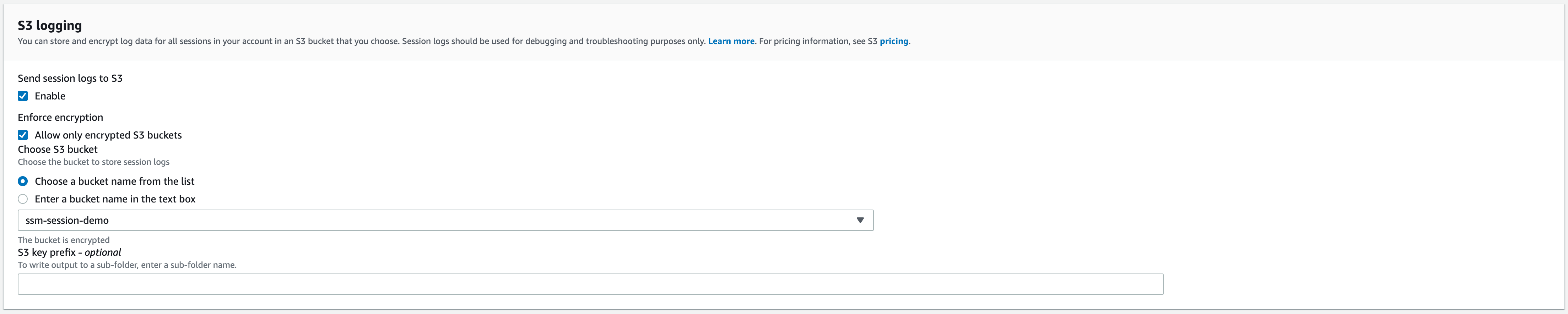
A screenshot of an AWS section entitled "S3 logging." Its first setting, "Send session logs to S3," has a checkbox labeled "Enable" that is checked. Its next setting, "Enforce encryption," has a checkbox labeled "Allow only encrypted S3 buckets" that is checked. Its next setting, "Choose S3 bucket," has "Choose a bucket name from the list" selected instead of "Enter a bucket name in the textbox." Beneath that, "ssm-session-demo" is selected from a drop-down list. The last field, "S3 key prefix - optional," is blank.
Step 2b: Enabling S3 logging.

With SSH logging configured, it’s time to test the setup. Establish an SSH connection to your Linux machine and execute a few commands to verify activity logging.

Let’s initiate a session. On the same page, locate the “Sessions” tab to begin. Clicking the “Start session” button presents a list of EC2 instances available for session initiation:

A screenshot of AWS with breadcrumbs AWS Systems Manager, Session Manager, and Start a session. A "Target instances" search box has no query filled in and only one result, with "Instance name" set to "SSM Demo."
Step 3: Selecting our EC2 instance to start an SSH session with.

If your EC2 Linux instance isn’t listed, double-check that it’s running and has the correct IAM permissions associated, as outlined earlier.

Handling an SSM Agent “Doesn’t Support Streaming Logs” Error

In case we receive an error saying the SSM Agent version installed on our EC2 machine does not support streaming CloudWatch logs, not to worry. There’s a painless way to fix this.

A screenshot of an AWS error message with white text on a red background. A circled X is next to the message, "The SSM Agent version installed on this instance doesn't support streaming logs to CloudWatch. Either update the SSM Agent to the latest version, or disable the streaming logs option in your preferences."
A potential “outdated SSM agent version” error.

To update the SSM Agent, we need to navigate to Run Command in the left panel of the AWS Systems Manager service.

A screenshot of the AWS Systems Manager Run Command dashboard with sections, "How it works," "Features and Benefits," "Use Cases and Blogposts," "Documentation," and in the upper-right corner, "Manage your instances." That section contains only an orange "Run a Command" button.
Step 1: Starting with the “Run Command” dashboard.

Once we’re there, we can click on the orange “Run a Command” button, leading to a new page where we can fill in some parameters.

A screenshot of AWS with breadcrumbs AWS Systems Manager, Run Command, and Run a command. A search box labeled "Command document" lists 10 rows (page 4 of more than 5), with one named "AWS-UpdateSSMAgent" selected. It has "Amazon" in its "Owner" column and "Windows, Linux" in its "Platform types" column. A field at the bottom, "Document version," has "1 (Default)" selected from a drop-down list.
Step 2: Selecting a command document.

We’ll start by selecting AWS-UpdateSSMAgent from the list.

A screenshot of an AWS section entitled "Targets." The first field, also called "Targets," has options "Specify instance tags," "Choose instances manually" (selected), and "Choose a resource group." At the bottom is an "Instances" search box with no query, with its only result, "SSM Demo," checked. The corresponding instance ID in the row is copied to a box just above "Instances" with an X.
Step 3: Selecting the EC2 instance that has an SSM agent in need of an update.

Once that’s selected, we’ll scroll down until we see the “Targets” section. There we need to select the EC2 instance on which we want to update the SSM Agent, then hit the “Run” button at the end. This will send us to a page where we can monitor the progress of the update.

A screenshot of AWS with breadcrumbs "AWS Systems Manager," "Run Command," and "Command ID" (followed by a GUID). The first section, "Command status," shows success indicators, as does the only row of the next section, "Targets and outputs," which lists the single instance from earlier. There are also two unexpanded sections at the bottom, "Command description" and "Command parameters."
Step 4: Monitoring our update progress.

The agent update shouldn’t take more than five minutes. Once that’s done, we should be able to create a session back in the Session Manager.

At this point, you should have a live SSH session.
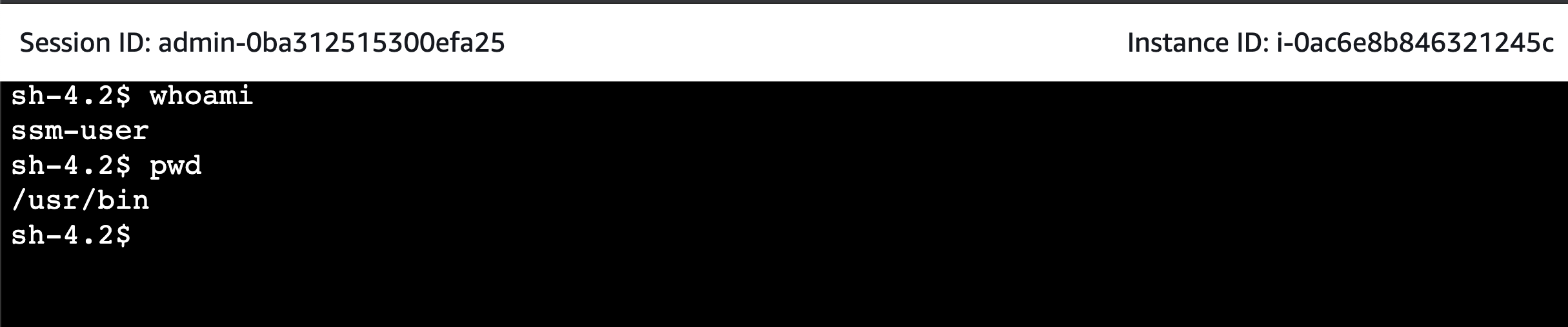
A screenshot of AWS with a session ID and instance ID above a terminal. The prompt is "sh-4.2__TOKEN_14__quot; and the commands "whoami" and "pwd" have been entered, with the outputs "ssm-user" and "/usr/bin" respectively.
An SSH session using the SSM agent via AWS Systems Manager Session Manager.

Execute a few commands, then navigate to your designated CloudWatch Logs log group (or your S3 bucket) to confirm that all activities are being meticulously recorded.
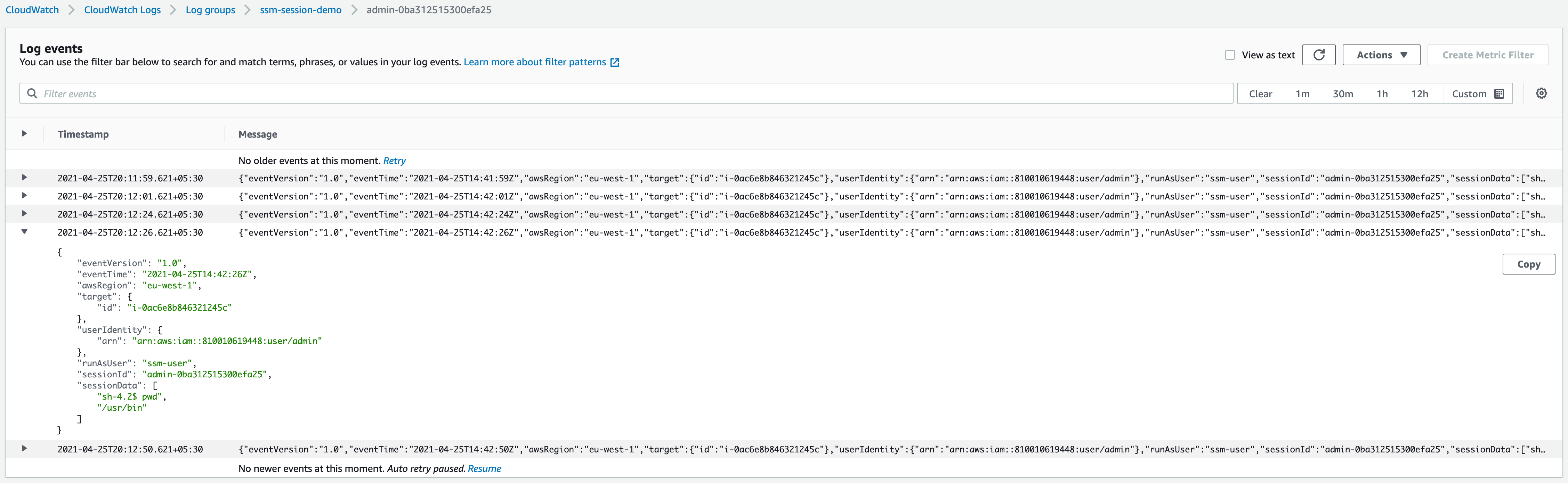
A screenshot of AWS with breadcrumbs "CloudWatch," "CloudWatch Logs," "Log groups," "ssm-session-demo," and the session ID of the previous step. The only section is a search box, "Log events," with rows that each have a timestamp and a JSON-formatted message. One of them is expanded to reveal its JSON pretty-printed and with a white button to the right labeled "Copy."
SSH log events being recorded in CloudWatch Logs.

Congratulations! You now have a robust setup, fortified with at-rest encryption, capturing every command executed within your Linux environment.

However, bear in mind that this level of comprehensive logging might capture more than intended. Sensitive information, such as secrets provided or generated during a session, will also be recorded in CloudWatch or S3, potentially exposing it to unauthorized access. To mitigate this risk, leverage the command stty -echo; read passwd; stty echo; for each secret you need to input during a session, masking them from the logs.

A Great SSM/SSH AWS Logging Solution With Minor Caveats

Session Manager shines as a powerful tool for secure remote access to your AWS virtual machines without the need to expose port 22. However, keep in mind that this method of generating SSH logs is functional only through Session Manager. Direct SSH connections or those established through port forwarding won’t be logged, as outlined in the Session Manager documentation.

Despite this limitation, the synergy of Session Manager and session logging presents a compelling solution for comprehensive control and monitoring of VM activity. Moreover, the absence of charges for using Session Manager adds to its appeal. Costs are limited to your EC2 instance and the chosen storage for logs—either CloudWatch Logs or an S3 bucket.

For those who favor video-based guidance, a more detailed walkthrough of this process is available on YouTube.


Licensed under CC BY-NC-SA 4.0