Managing Demanding Tasks with Laravel

When tackling time-intensive and resource-heavy tasks in PHP, many developers opt for quick fixes. We’ve all been there, using ini_set('max_execution_time', HUGE_INT);. But there’s a better way.

This tutorial showcases how to enhance user experience in Laravel applications by offloading long-running tasks from the main request flow, minimizing developer effort. By leveraging PHP’s capability to initiate background processes, the main script becomes more responsive, managing user expectations effectively instead of keeping them waiting indefinitely.

Don’t Wait, Defer!

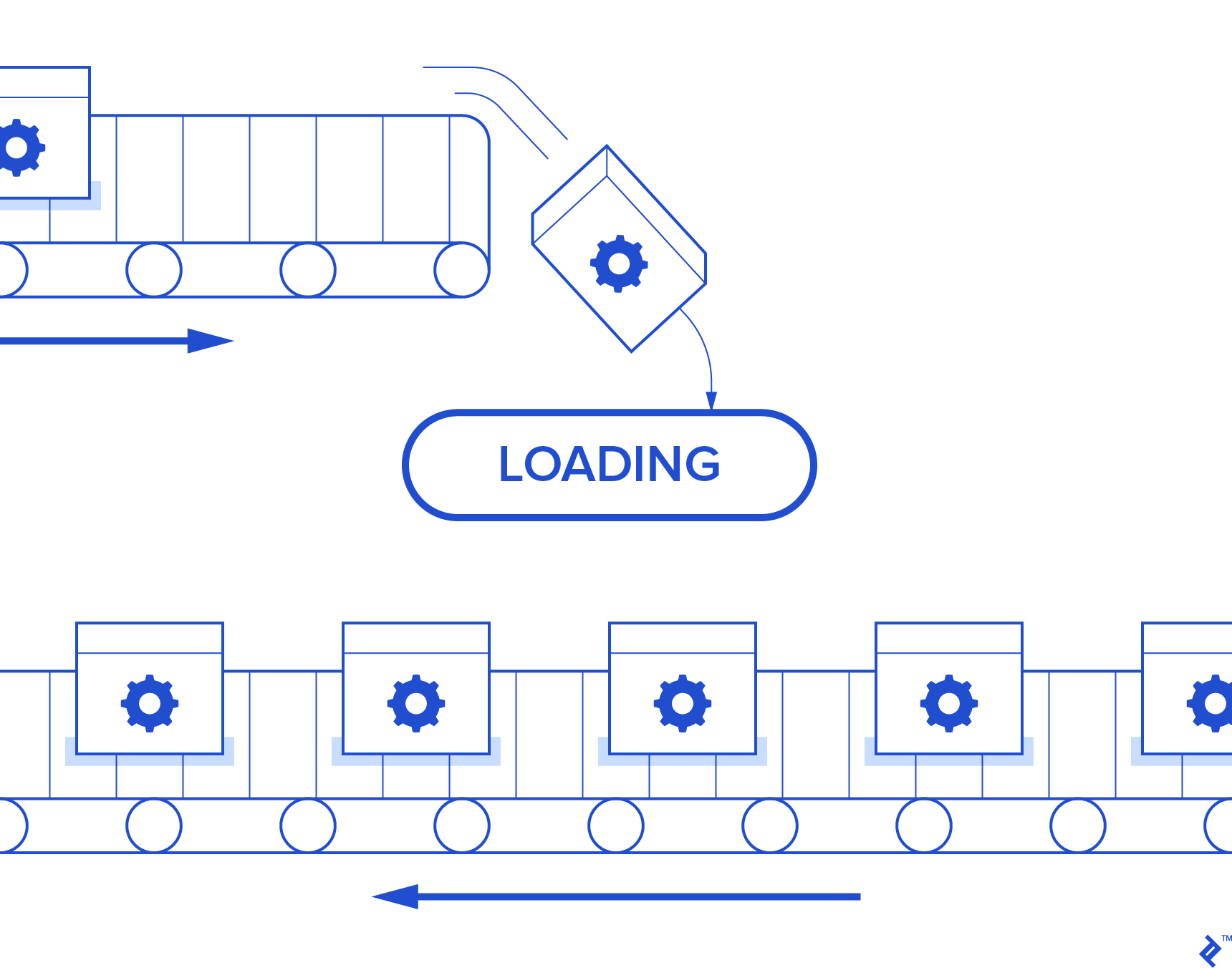
The core principle here is deferment: diverting lengthy tasks (by internet standards) to separate processes that operate independently of the request. This allows us to implement a notification system, keeping the user informed about the task’s progress (e.g., X out of Y rows imported) and notifying them upon completion.

This tutorial uses a relatable scenario: importing data from large Excel spreadsheets into a web application database. The complete project is available on my github.

Don’t make your users sit and wait on a long running task. Defer.

Laravel Setup

We’ll use "laravel/framework": "5.2.*" and "maatwebsite/excel": "~2.1.0", a convenient wrapper for the phpoffice/phpexcel package.

Laravel is a great fit for this due to:

  1. Artisan: Simplifies command-line task creation. For the uninitiated, Artisan is Laravel’s command-line interface, powered by the robust Symfony Console component.
  2. Eloquent ORM: Streamlines mapping Excel data to database columns.
  3. Excellent Maintenance and Documentation
  4. Full PHP 7 Compatibility: Laravel, particularly Homestead, is fully compatible with PHP 7.

While Laravel is my choice, the concepts and code can be adapted to any framework using the Symfony/Process component (installable via composer: composer require symfony/process).

Start by launching your Homestead based Vagrant box, the standard for Laravel development. If you haven’t set up Homestead, the official documentation offers a comprehensive guide.

Before starting your Vagrant box, modify Homestead.yaml to: map your local development folder to the virtual machine, and automatically provision NGINX to load your project when accessing URLs like http://heavyimporter.app.

My configuration file:

 1
 2
 3
 4
 5
 6
 7
 8
 9
10
	folders:
	    - map: ~/public_html/toptal
	      to: /home/vagrant/toptal

	sites:
	    - map: heavyimporter.app
	      to: /home/vagrant/toptal/heavyimporter/public

	databases:
	    - heavyimporter

Save the file and run vagrant up && vagrant provision to start and configure the VM. You can then log in using vagrant ssh and initiate a new Laravel project. (Refer to Hashicorp’s Vagrant documentation if you encounter issues.)

1
cd /home/vagrant/toptal && composer create-project --prefer-dist laravel/laravel heavyimporter

After project creation, adjust configuration variables in the .env file in the home folder. Enhance security by running php artisan key:generate.

Relevant parts of my .env file:

1
2
3
4
5
6
7
8
APP_ENV=local
APP_DEBUG=true
APP_KEY=***

DB_HOST=127.0.0.1
DB_DATABASE=heavyimporter
DB_USERNAME=homestead
DB_PASSWORD=*****

Incorporate the maatwebsite/excel package: composer require maatwebsite/excel:~2.1.0.

Register the service provider and facade/alias in config/app.php.

Service providers are fundamental to Laravel, bootstrapping everything. Facades provide simplified static interfaces to access these providers. For instance, instead of using Illuminate\\Database\\DatabaseManager to access the database, you can use DB::staticmethod().

Our service provider is Maatwebsite\Excel\ExcelServiceProvider, and the facade is 'Excel'=>'Maatwebsite\Excel\Facades\Excel'.

Your app.php should now resemble this:

1
2
3
4
5
6
7
8
9
	//...
	'providers' => [
		//...
		Maatwebsite\Excel\ExcelServiceProvider::class
	],
	'aliases' => [
		//...
		'Excel'=>'Maatwebsite\Excel\Facades\Excel'
	]

Database Setup with Artisan

Let’s create database migrations for two tables: flag_table to store the import status and data for the Excel data.

For a progress indicator, add rows_imported and total_rows columns to flag_table to calculate and display the import progress.

Run php artisan make:migration CreateFlagTable and php artisan make:migration CreateDataTable to generate these tables. In the new files within database/migrations, define the table structure in the up and down methods.

 1
 2
 3
 4
 5
 6
 7
 8
 9
10
11
12
13
14
15
16
17
18
19
20
21
22
23
24
25
26
27
28
29
30
31
32
33
34
35
36
//...CreateFlagTable.php
class CreateFlagTable extends Migration
{
    public function up()
    {
        Schema::create('flag_table', function (Blueprint $table) {
            $table->increments('id');
            $table->string('file_name')->unique();
            $table->boolean('imported');
            $table->integer('rows_imported');
            $table->integer('total_rows');
            $table->timestamps();
        });
    }

    public function down()
    {
        Schema::drop('flag_table');
    }

//...CreateDataTable.php
class CreateDataTable extends Migration
{
    public function up()
    {
        Schema::create('data', function (Blueprint $table) {
            $table->increments('id');
            $table->string('A', 20);
            $table->string('B', 20);
        });
    }

    public function down()
    {
        Schema::drop('data');
    }

Before writing import code, create empty models for the database tables using Artisan: php artisan make:model Flag and php artisan make:model Data. In each new file, specify the table name as a protected property:

 1
 2
 3
 4
 5
 6
 7
 8
 9
10
11
12
13
14
15
16
17
18
19
20
	//file: app/Flag.php
	namespace App;

	use Illuminate\Database\Eloquent\Model;

	class Flag extends Model
	{
	    protected $table = 'flag_table';
	    protected $guarded = []; //this will give us the ability to mass assign properties to the model
	}
	//...

	//file app/Data.php
	//...
	class Data extends Model
	{
	    protected $table = 'data';
	    protected $guarded = [];
	    protected $timestamps = false; //disable time stamps for this
	}

Routing

Routes direct HTTP requests to the appropriate controller in Laravel. We need a POST route that directs the Excel file upload to the import method in the controller. The file will be uploaded to the server for later retrieval by the command-line task. Place all routes (including the default one) within the web middleware group to utilize session state and CSRF protection. The routes file should look like this:

1
2
3
4
5
6
7
8
9
	Route::group(['middleware' => ['web']], function () {
		//homepage
	    Route::get('/', ['as'=>'home', function () {
	        return view('welcome');
	    }]);
		
		//upload route
	    Route::post('/import', ['as'=>'import', 'uses'=>'Controller@import']);
	});

The Task Logic

The main controller will house the core logic, responsible for:

  • Validating the uploaded file type
  • Uploading the file and creating an entry in flag_table (to be updated by the command-line process with the total row count and import status)
  • Initiating the import process (calling the Artisan task) and notifying the user

Here’s the code for the main controller:

 1
 2
 3
 4
 5
 6
 7
 8
 9
10
11
12
13
14
15
16
17
18
19
20
21
22
23
24
25
26
27
28
29
30
31
32
33
34
35
36
37
38
39
40
41
42
43
44
45
46
47
48
49
50
51
52
53
54
55
	namespace App\Http\Controllers;

	//...

	use Maatwebsite\Excel\Facades\Excel;
	use Symfony\Component\Process\Process as Process;
	use Symfony\Component\Process\Exception\ProcessFailedException;
	use Illuminate\Http\Request;
	use Validator;
	use Redirect;
	use Config;
	use Session;
	use DB;
	use App\Flag;

	//...

   public function import(Request $request)
   {
       $excel_file = $request->file('excel_file');

       $validator = Validator::make($request->all(), [
           'excel_file' => 'required'
       ]);

       $validator->after(function($validator) use ($excel_file) {
           if ($excel_file->guessClientExtension()!=='xlsx') {
               $validator->errors()->add('field', 'File type is invalid - only xlsx is allowed');
           }
       });

       if ($validator->fails()) {
           return Redirect::to(route('home'))
                       ->withErrors($validator);
       }

       try {
           $fname = md5(rand()) . '.xlsx';
           $full_path = Config::get('filesystems.disks.local.root');
           $excel_file->move( $full_path, $fname );
           $flag_table = Flag::firstOrNew(['file_name'=>$fname]);
           $flag_table->imported = 0; //file was not imported
           $flag_table->save();
       }catch(\Exception $e){
           return Redirect::to(route('home'))
                       ->withErrors($e->getMessage()); //don't use this in production ok ?
       }

      //and now the interesting part
       $process = new Process('php ../artisan import:excelfile');
       $process->start();

       Session::flash('message', 'Hold on tight. Your file is being processed');
       return Redirect::to(route('home'));
   }

The process-related code utilizes the symfony/process package to launch a separate thread for the import, preventing the running script from waiting for its completion. The user is redirected with a message to wait. This enables you to display an “import pending” message or update the status periodically using Ajax requests.

Vanilla PHP can achieve a similar effect using exec (often disabled by default):

1
2
3
4
	function somefunction() {
		exec("php dosomething.php > /dev/null &");
		//do something else without waiting for the above to finish
	}

symfony/process offers more extensive functionality. For alternatives, explore the Symphony package source code documentation.
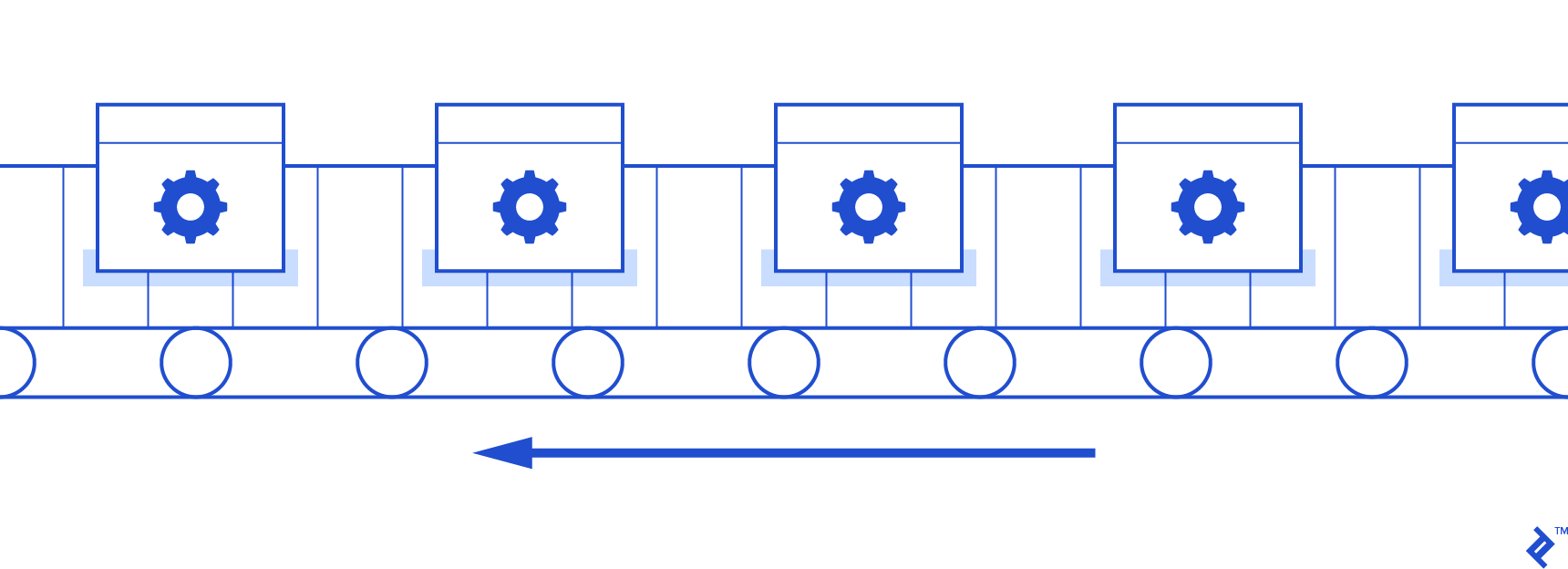
Using the Symfony package, you can spawn a PHP process on a separate thread, independently of the request.

The Import Code

Now, let’s craft the php artisan command to manage the import. Create the command class file: php artisan make:console ImportManager and reference it in the $commands property within /app/console/Kernel.php:

1
2
3
   protected $commands = [
       Commands\ImportManager::class,
   ];

This generates ImportManager.php in the /app/Console/Commands folder. The handle() method will contain our import logic.

The import code will:

  1. Update flag_table with the total number of rows.
  2. Iterate through each Excel row, inserting it into the database and updating the status.

To prevent memory issues with massive Excel files, process the data in smaller chunks instead of thousands of rows at once.

We’ll adapt the ImportManager::handle() method to fetch a limited set of rows iteratively. This aids in tracking progress, updating flag_table’s imported_rows column after processing each chunk.

Note: Pagination is handled by Maatwebsite\Excel, as detailed in Laravel’s documentation.

The final ImportManager class:

 1
 2
 3
 4
 5
 6
 7
 8
 9
10
11
12
13
14
15
16
17
18
19
20
21
22
23
24
25
26
27
28
29
30
31
32
33
34
35
36
37
38
39
40
41
42
43
44
45
46
47
48
49
50
51
52
53
54
55
56
57
namespace App\Console\Commands;

use Illuminate\Console\Command;

use DB;
use Validator;
use Config;
use Maatwebsite\Excel\Facades\Excel;

use App\Flag;

class ImportManager extends Command
{
   protected $signature = 'import:excelfile';
   protected $description = 'This imports an excel file';
   protected $chunkSize = 100;

   public function handle()
   {
       $file = Flag::where('imported','=','0')
                   ->orderBy('created_at', 'DESC')
                   ->first();

       $file_path = Config::get('filesystems.disks.local.root') . '/' .$file->file_name;

      // let's first count the total number of rows
       Excel::load($file_path, function($reader) use($file) {
           $objWorksheet = $reader->getActiveSheet();
           $file->total_rows = $objWorksheet->getHighestRow() - 1; //exclude the heading
           $file->save();
       });

      //now let's import the rows, one by one while keeping track of the progress
       Excel::filter('chunk')
           ->selectSheetsByIndex(0)
           ->load($file_path)
           ->chunk($this->chunkSize, function($result) use ($file) {
               $rows = $result->toArray();
              //let's do more processing (change values in cells) here as needed
               $counter = 0;
               foreach ($rows as $k => $row) {
                   foreach ($row as $c => $cell) {
                       $rows[$k][$c] = $cell . ':)'; //altered value :)
                   }
                   DB::table('data')->insert( $rows[$k] );
                   $counter++;
               }
               $file = $file->fresh(); //reload from the database
               $file->rows_imported = $file->rows_imported + $counter;
               $file->save();
           }
       );

       $file->imported =1;
       $file->save();
   }
}

Progress Notification via Recursion

For user notification, we can utilize Ajax requests to a status-reporting route, providing updates on the import progress.

A simple jQuery script to poll the server until completion:

 1
 2
 3
 4
 5
 6
 7
 8
 9
10
11
12
13
14
15
16
17
18
19
20
21
	(function($){
       'use strict';
		function statusUpdater() {
			$.ajax({
				'url': THE_ROUTE_TO_THE_SCRIPT,
			}).done(function(r) {
				if(r.msg==='done') {
				    console.log( "The import is completed. Your data is now available for viewing ... " );
				} else {
					//get the total number of imported rows
					console.log("Status is: " + r.msg);
					console.log( "The job is not yet done... Hold your horses, it takes a while :)" );
					statusUpdater();
				}
			  })
			  .fail(function() {
				  console.log( "An error has occurred... We could ask Neo about what happened, but he's taken the red pill and he's at home sleeping" );
			  });
		}
		statusUpdater();
	})(jQuery);

On the server, add a GET route named status to report the import status:

 1
 2
 3
 4
 5
 6
 7
 8
 9
10
11
12
13
14
15
16
17
18
19
20
21
	//...routes.php
	Route::get('/status', ['as'=>'status', 'uses'=>'Controller@status']);

	//...controller.php
	...
   public function status(Request $request)
   {
       $flag_table = DB::table('flag_table')
                       ->orderBy('created_at', 'desc')
                       ->first();
       if(empty($flag)) {
           return response()->json(['msg' => 'done']); //nothing to do
       }
       if($flag_table->imported === 1) {
           return response()->json(['msg' => 'done']);
       } else {
           $status = $flag_table->rows_imported . ' excel rows have been imported out of a total of ' . $flag_table->total_rows;
           return response()->json(['msg' => $status]);
       }
   }
	...
Send Ajax requests to a status-reporting route to notify the user of progress.

Cron Job Deferment

For non-time-sensitive data, consider scheduling the import during off-peak hours using cron jobs to execute php artisan import:excelfile.

On Ubuntu:

1
2
3
4
crontab -e
	
#and add this line
@midnight cd path/to/project && /usr/bin/php artisan import:excelfile >> /my/log/folder/import.log

Your Insights?

What other methods have you used to enhance performance and user experience in such scenarios? Share your experiences!

Licensed under CC BY-NC-SA 4.0