The arrival of React Native was met with widespread enthusiasm. Typically, web technologies on mobile devices evoke memories of tools like Apache Cordova, which package websites or web applications for mobile platforms. This beginner-friendly React Native tutorial delves into the architecture and principles behind React Native, highlighting its distinctiveness from comparable solutions. By the article’s end, we’ll have successfully converted a basic React “Hello World” application into its React Native counterpart.
Our journey begins with the fundamentals of React Native. Officially launched in March 2015 following a private beta phase that began earlier that year, it had already been in use internally at Facebook for some time. As the adage goes, “Rome wasn’t built in a day,” and the same applies to technology. Tools like grunt and platforms such as Node.js underwent years of development to reach maturity. The fast-paced nature of the web development world, with its constant influx of frameworks, packages, and tools, has made developers increasingly wary of jumping on every bandwagon, only to find themselves trapped in vendor lock-in situations. We’ll explore what sets React Native apart, why it’s worth investing time in, and acknowledge a few scenarios where it may not be the perfect solution.
Behind the Scenes
When it comes to utilizing web technologies on mobile devices, the available solutions generally fall into one of the categories outlined below.
Packaging Web Apps Within a Mobile Web Browser
In this approach, the web application resides within a mobile browser, commonly known as a WebView. This allows a website or web application to function on a mobile device with minimal modifications. While considerations for mobile browser events like tapping, device orientation changes, and smaller screen sizes may be necessary for an optimal user experience, a functional mobile version can be achieved with relatively little effort. Cordova/PhoneGap stands out as the most popular option in this category. However, this method has a significant drawback: applications built with Cordova can sometimes exhibit noticeably slower performance compared to native applications, particularly those with graphics-intensive elements. Additionally, certain features readily available in mobile browsers might not be fully supported within the WebView provided by the mobile operating system. Moreover, the user experience may deviate from native applications, stemming from either the application itself or the platform’s limitations. These discrepancies can range from variations in scrollbar behavior to noticeable delays when interacting with elements.
Compilation into Native Technologies
A fundamentally different approach involves converting the original source code into a different programming language, ultimately generating a native codebase. This trade-off prioritizes native performance but introduces an abstraction layer and potential uncertainties. With closed-source solutions, the inner workings and potential black boxes involved remain hidden from view. In other cases, there’s uncertainty regarding the extent to which future mobile operating system updates might disrupt the code and the availability of timely fixes or updates. Haxe serves as a well-known illustration of this category.
Utilizing a JavaScript Layer
This category leverages the JavaScript engine present in the mobile environment to execute JavaScript code. Native controls are mapped to JavaScript objects and functions, meaning a function call like fancyButtonRightHere() would result in a button appearing on the screen. Noteworthy examples within this category include NativeScript and Appcelerator Titanium.
React Native can be categorized as belonging to this third group. For iOS and Android, React Native relies on JavaScriptCore, the default JavaScript engine on iOS and the engine powering Apple’s Safari browsers. Interestingly, OS X and iOS developers have the capability to directly interact with JavaScriptCore if desired.
A key distinction lies in React Native’s execution of JavaScript code within a separate thread, ensuring that the user interface remains responsive and animations run smoothly without interruptions.
React: The Core Element
The inclusion of “React” in React Native is no accident. Grasping the essence of React is crucial for understanding React Native. The concepts discussed below function similarly in both React and React Native, although the code examples provided are designed for browser execution.
Single Point of Entry for Rendering
Examining a simple React component reveals a render function as its initial characteristic. In fact, the absence of a defined render function within a component will trigger an error in React.
| |
The key takeaway here is that instead of directly manipulating DOM elements, we return an XML-like structure, known as JSX, which represents what will eventually be rendered in the DOM.
| |
This XML-like code is then processed by a dedicated JSX transformer, which converts it into functions. Consequently, the component, after transformation, would resemble the following:
| |
The primary advantage of this approach is that a quick glance at the component reveals its intended purpose. For instance, a <FriendList /> component might render multiple <Friend /> components. Since rendering components outside the render function is not permitted, there’s no ambiguity regarding the origin of a rendered component.
One-Way Data Flow
React utilizes properties, or props for short, to construct the content of a component. Similar to XML attributes, props are passed directly to a component and can be accessed and used within that component.
| |
This results in a tree-like organization of components, where data can only be passed downward when constructing child elements.
Re-Rendering Upon Changes
Beyond props, components can possess an internal state. A prime example is a click counter that updates its value upon a button press. In this case, the click count itself would be stored within the state.
Any modification to either props or state triggers a complete re-rendering of the component.
Virtual DOM
With re-rendering occurring whenever props or state change, the question arises: how does React maintain such impressive performance? The answer lies in the “Virtual DOM.” When re-rendering becomes necessary, a virtual representation of the updated DOM is generated. This Virtual DOM comprises lightweight element representations modeled after the component tree, making their generation significantly more efficient than creating actual DOM elements. Before applying changes to the real DOM, React performs checks to pinpoint the exact location of changes within the component tree. A diff is generated, and only the specific changes are then applied to the real DOM.
Getting Started with React Native for Beginners
Before diving into development with this framework, beginners need to have certain prerequisites in place. Given that iOS was the initial supported platform, and the one we’ll focus on in this tutorial, macOS and Xcode (version 6.3 or later) are essential. Node.js is also required. Additionally, it’s beneficial to install Watchman using the Brew package manager by executing brew install watchman. While not mandatory, it proves helpful when handling numerous files within a React Native project.
Installing React Native is straightforward: simply execute install the React Native command-line application using npm install -g react-native-cli. Subsequently, the react-native command assists in creating new React Native applications. For instance, running react-native init HelloWorld generates a folder named HelloWorld containing the boilerplate code.

Converting a React Application
With React as the cornerstone and its core principles deeply rooted in the React library, let’s explore the steps involved in transforming a minimal React “Hello World” application into a React Native equivalent.
It’s worth noting that we’ll employ some ES2015 features, specifically classes, in the code example below. However, sticking with React.createClass or using a function form akin to the widely used module pattern remains entirely viable.
| |
Step 1: Embracing CommonJS Modules
The first step involves modifying how we require the React module, replacing it with react-native.
| |
What is typically handled by the tooling pipeline in React web application development is an inherent part of React Native.
Step 2: Absence of the DOM
Unsurprisingly, mobile environments lack a DOM. Therefore, we need to replace <div /> with <View /> and <span /> with <Text />.
| |
While directly placing text within <div /> elements is commonplace in web development, the native realm requires text to be enclosed within a <Text /> component, as it cannot be directly embedded within a <View />.
| |
Step 3: Inline Styles Take Center Stage
React Native embraces Flexbox modeling for layout, eliminating the need for the familiar float and inline-block properties used in web development. Notably, React Native does not utilize CSS.
| |
The concept of inline styles might seem unusual to newcomers. It’s analogous to the shift React developers experienced when first encountering JSX after working with templating engines like Handlebars or Jade.
The underlying idea is that stylesheets are not defined globally as in CSS. Instead, they are declared directly at the component level, providing a centralized location for all the information needed to understand a component’s behavior, layout, and applied styles.
| |
Step 4: Event Handling
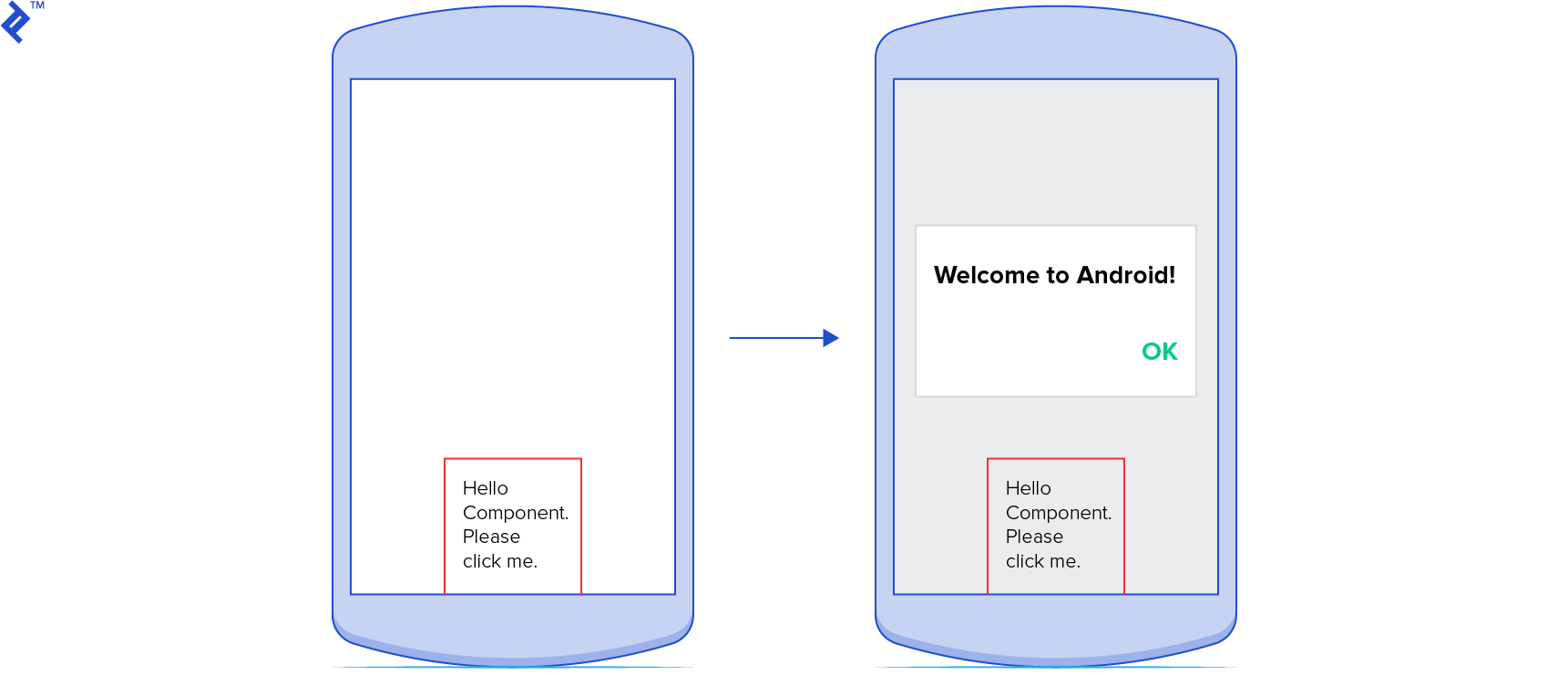
Tapping an element on a mobile device serves as the equivalent of clicking in web pages. Let’s adjust our code so that tapping the element triggers the “alert” to appear.
| |
Unlike web development where events are directly accessible on <View /> components, here we need to explicitly employ elements that trigger events—in this case, a touch event upon pressing the view. React Native offers various touchable components, each providing distinct visual feedback.
Step 5: Platform-Specific Behavior Customization
Detecting the platform on which the application is running is possible by accessing the value of Platform.OS. For instance, let’s say we want to display a different alert message in our React Native code example based on the platform. We can achieve this as follows:
| |
Alternatively, the select method provides a switch-like syntax:
| |
Step 6: Integrating Custom Fonts and Utilizing react-native link
Adding a custom font involves a few extra steps. Firstly, ensure that the font’s full name and file name are identical. iOS relies on the full name to locate the font, while Android uses the file name.
Therefore, if your font’s full name is myCustomFont, ensure that the font file is named myCustomFont.ttf.
Next, create an assets folder and configure npm to recognize it. Start by creating the folder under assets/fonts within the application’s root directory. While other directories are permissible, this is the conventional location for fonts.
Inform npm about the assets folder by adding an Assets property within the rnpm section of your package.json file:
| |
With these steps completed, run the command react-native link. This copies the fonts to their appropriate destinations and updates info.plist on iOS with the necessary XML.
Now you can use the custom font by referencing its full name in any stylesheet. Let’s apply it to our Text element:
| |
Step 7: Arranging Elements
Component layout in React Native follows the same principles as Flexbox. Suppose we want to position our button at the bottom of the screen. Let’s wrap our TouchableOpacity with a container View:
| |
Now, define the container style along with the other styles:
| |
Pay close attention to justifyContent and alignItems. These properties govern component alignment along the primary and secondary axes, respectively. By default, the primary axis is vertical, and the secondary axis is horizontal (this can be modified by setting the flexDirection property to row).
justifyContent accepts six possible values:
flex-start: Positions elements together at the beginning of the component’s bounding box.flex-end: Positions elements at the end of the bounding box.center: Centers elements horizontally within the bounding box.space-around: Distributes elements evenly, centering them within their allocated space.space-evenly: Distributes elements evenly, maintaining equal spacing between elements and boundaries.space-between: Distributes elements with equal spacing between adjacent elements.
alignItems accepts four values: flex-start, flex-end, center, and stretch. The first three behave similarly to their justifyContent counterparts, while stretch makes the component occupy all available space along the axis, effectively filling it completely.
To position our TouchableOpacity at the bottom and center it horizontally, modify the style as follows:
| |
Detailed information about justifyContent and alignItems values can be found here and here.
Step 8: Application Registration
In React web development, we define a mount point, call React.render, and let React handle the rest. React Native introduces a slight variation.
| |
We need to register the component for the Objective-C side, which is done using the AppRegistry object. Ensure the name provided here matches the name specified in the Xcode project.
While our Hello World React Native application might have more lines of code compared to its web counterpart, React Native enforces a greater degree of separation of concerns, particularly with styles defined directly within components.
As a best practice, avoid rebinding the clickMe method to the this context within the render method, especially as your React (Native) application grows in complexity. Rebinding on every render call can lead to performance issues. Instead, bind the method inside the constructor.
Running the Application
To run the application, replace the contents of index.ios.js with the code from the final step of our transformed application. Open the Xcode project and click the Run button. A terminal window will launch, followed by the simulator. The terminal runs the React Native server, which creates a bundle that the native application fetches. This setup enables a rapid development cycle similar to web development, where changes are reflected almost instantly in the simulator.
For Android, add the following to your package.json file under scripts:
| |
Then, run npm run android-linux. Ensure the android/app/src/main/assets directory exists beforehand.
Once the terminal window appears, your application will launch in the simulator. Pressing CMD+D reveals a development menu, and clicking the designated area will trigger an alert. Here’s how it looks on iOS:

And on Android:
For distribution, relying on a local development server is not feasible. To address this, use the command react-native bundle to create a bundle for use without the React Native server. Update the didFinishLaunchingWithOptions method in AppDelegate to utilize the offline bundle.
You can also find the code for this example application available on Github.
Working with React Native
Another notable aspect is that React Native extends beyond React concepts and JavaScript for mobile development; it also embraces familiar workflows from web development. Web developers are accustomed to using developer tools, inspecting elements, and leveraging live reloading.
React Native bundles all JavaScript files into a single bundle, which is either served from a server or packaged with the application. Serving from a server during development on the Simulator is incredibly beneficial, as it enables live reloading. While the developer menu provided by React might not be as comprehensive as Chrome Developer Tools, it offers a web-like development experience with live reloading and debugging using Chrome (or Safari) developer/debugger tools.
Web developers are familiar with online playgrounds like JSFiddle or JSBin for quick testing. Similarly, React Native has a similar environment, allowing you to experiment with React Native directly in your web browser.
React Native: A Robust and Modern Choice
While initial recommendations might have been more cautious, React Native has matured into a robust and reliable option.
One of React’s significant advantages is its non-intrusive nature regarding your workflow. It focuses solely on the view layer, leaving other decisions up to you. Whether you prefer defining your own Grunt pipeline, using Webpack, incorporating Backbone.js for models, or sticking with plain JavaScript objects, React imposes no limitations. As the official website states: “Since React makes no assumptions about the rest of your technology stack, it’s easy to try it out on a small feature in an existing project.”
To a large extent, this holds true for React Native as well. Mobile developers can seamlessly integrate React Native into their applications, reaping the benefits of its web-inspired development workflow, and choose to scale up its integration as needed.
One thing is certain: React Native is here to stay. Facebook’s substantial investment, with multiple React Native-powered applications available in app stores, speaks volumes. Furthermore, the thriving and ever-growing React Native community solidifies its position as a powerful and enduring framework.