Transactional data, a crucial asset for any business, often contains sensitive information like financial or health records. This data is most vulnerable during transmission between the storing server and the requesting client.
Encrypting data on the server and employing the SSL-enabled HTTPS protocol is the standard security measure for data in transit. However, enhancing this security level is possible. By using HTTPS and transmitting data in an encrypted format, which is only decrypted on clients possessing valid certificates, a traditional man-in-the-middle (MITM) attack becomes significantly more challenging.

Always Encrypted is Microsoft’s solution to this challenge, enabling encrypted data transmission and decryption only by users with valid certificates. Even if an attacker obtains the data, it remains unusable without the proper certificate on the client machine.
This article guides you on setting up and utilizing Always Encrypted. It’s a must-read for anyone transmitting sensitive data over public communication channels, even if secured with SSL.
Understanding Always Encrypted
Introduced with SQL Server 2016, Always Encrypted is a client-side encryption technology. It automatically keeps data encrypted, not just during storage but also during retrieval by authorized applications. Unlike Transparent Data Encryption, which encrypts data and log files on disk in real time but allows any querying application to read the data, Always Encrypted mandates that client applications utilize an Always Encrypted-enabled driver for database communication. This driver enables the application to securely transfer encrypted data to the database, where it can be decrypted later only by an application with access to the encryption key. Other applications querying the data can retrieve the encrypted values, but without the encryption key, the data remains unusable, rendering it useless. This architecture ensures that the SQL Server instance never interacts with the unencrypted data.
Currently, the only Always Encrypted-enabled drivers are the .NET Framework Data Provider for SQL Server, requiring .NET Framework version 4.6 installation on the client computer, and the JDBC 6.0 driver. While this is expected to change over time, these are the official Always Encrypted requirements as of April 2017.
But why is this technology necessary? Several compelling reasons justify the use of Always Encrypted:
- Enhanced Security: Data security is paramount. With SSL vulnerabilities becoming apparent, Always Encrypted adds an extra layer of protection to the transport pipeline.
- Regulatory Compliance: An increasing number of industry regulations, particularly in finance and telecom, mandate data encryption and protection from unauthorized access, including DBAs. This aligns with PII standard (“Personally Identifiable Information”), which emphasizes the protection of sensitive data like credit card numbers, social security numbers, names, and addresses. Failure to comply can result in severe penalties for data owners.
Implementing Always Encrypted
Implementing Always Encrypted involves some initial setup on the database server hosting the encrypted tables. This process consists of two main steps:
- Creating the column master key definition
- Creating the column encryption key
Column Master Key
So, what exactly is a column master key?
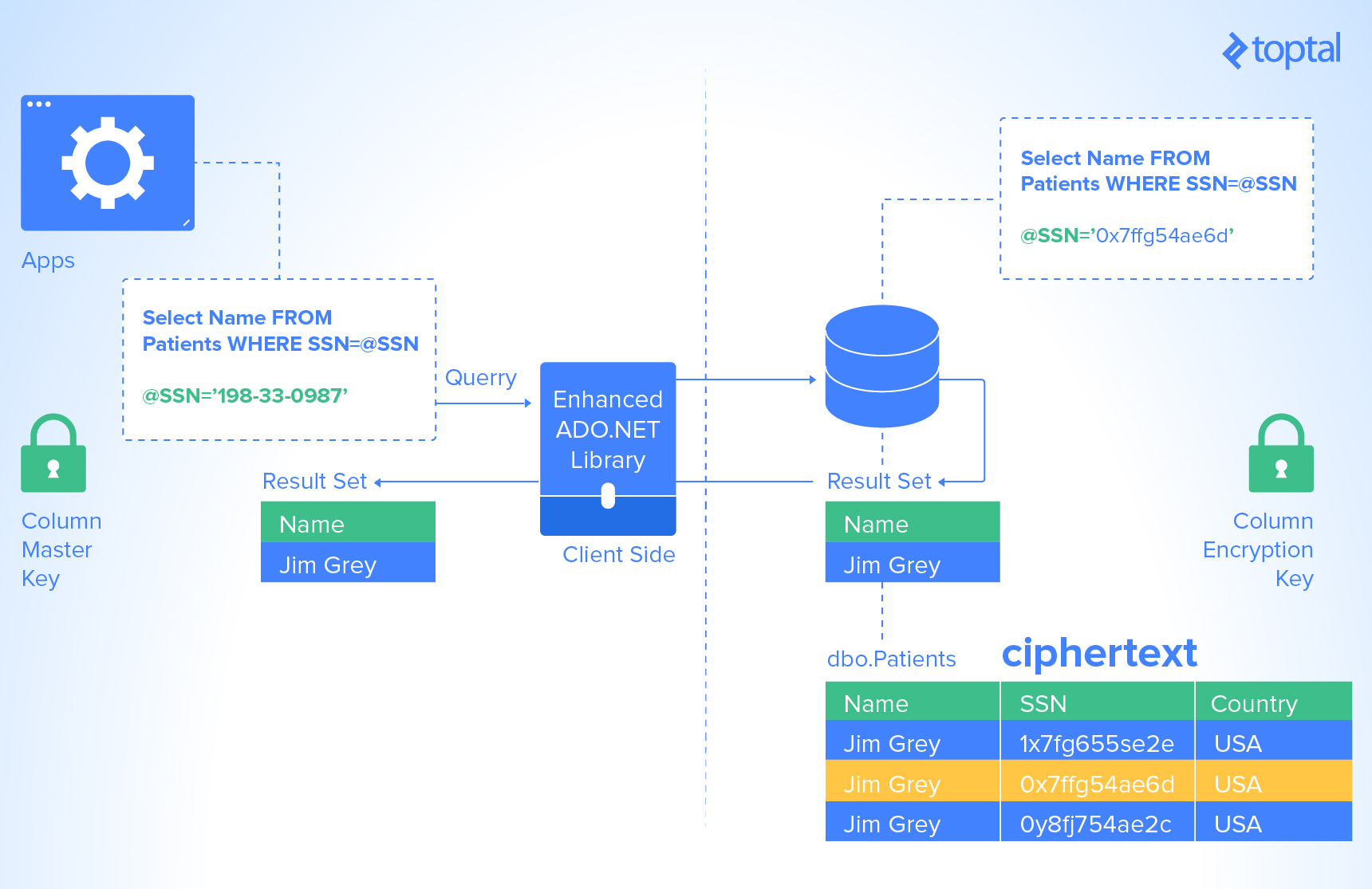
Essentially, it’s a certificate stored in a Windows certificate store (used in the demo for certificate storage), a third-party hardware security module (a general term for third-party certificate management solutions), or the Azure Key Vault (Microsoft’s cloud-based certificate management solution).
The application performing the encryption utilizes the column master key to safeguard various column encryption keys responsible for encrypting data within a database table’s columns. Using SQL Server’s certificate stores, often called Enterprise Key Manager, necessitates the use of SQL Server Enterprise Edition.
This article focuses on using a self-signed certificate stored in the Windows operating system’s Microsoft Certificate Store. While this approach illustrates the concept of Always Encrypted, it’s not suitable for production environments. In production, certificate management requires dedicated, secure user accounts and preferably separate servers.
Creating a column master key definition can be done through SQL Server Management Studio’s (SSMS) graphical interface or using T-SQL. In SSMS, connect to the SQL Server 2016 database instance where you intend to use Always Encrypted for table protection.
Creating and Utilizing Column Master Keys
Within Object Explorer, navigate to the desired database, then to Security, and expand the Always Encrypted Keys folder to reveal its two subfolders, as depicted below:
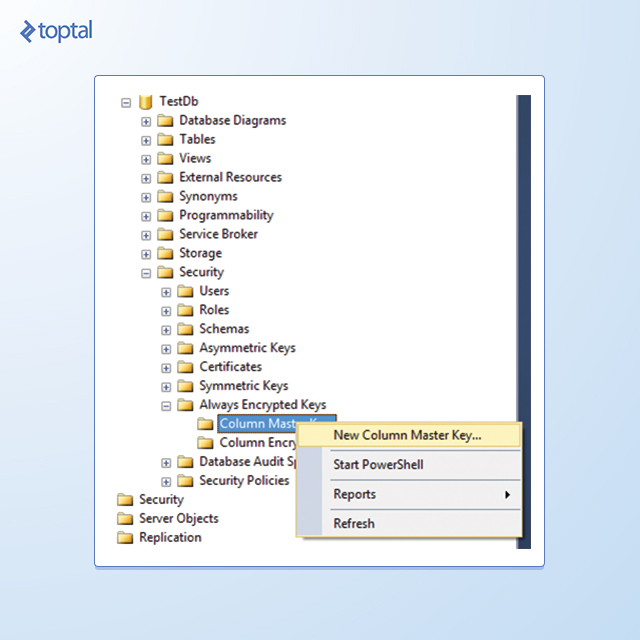
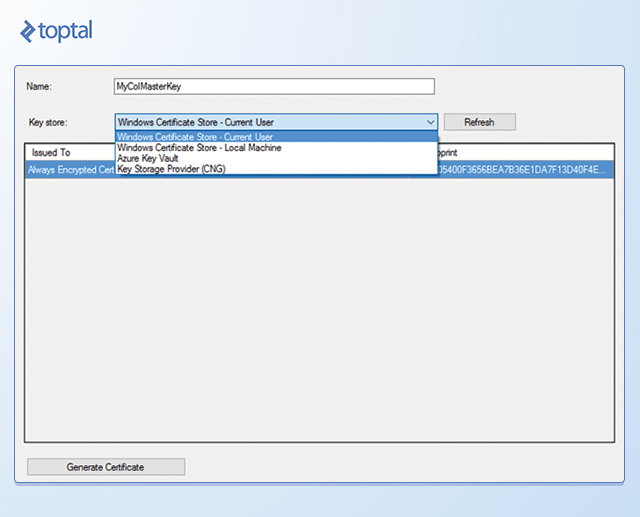
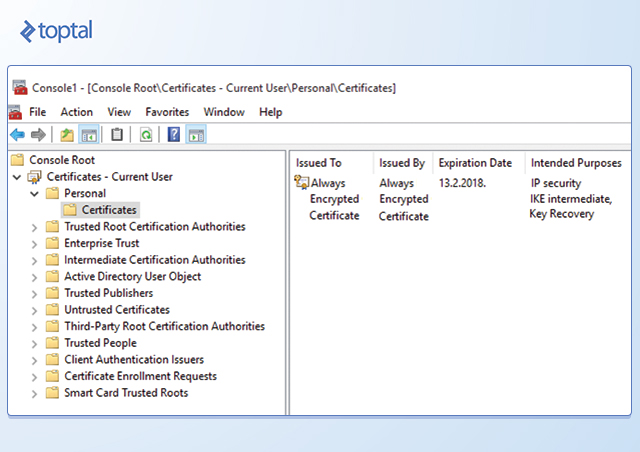
To create the column master key, right-click the Column Master Keys folder and select New Column Master Key. In the New Column Master Key dialog box, provide a name for the key, choose whether to store it in the current user’s or local machine’s certificate store or Azure Key Vault, and select a certificate from the list. If no suitable certificates exist or you prefer a new self-signed certificate, click Generate Certificate followed by OK. This action creates and loads a self-signed certificate into the certificate store of the active SSMS user account.
Important: Perform these steps on a trusted machine, but avoid using the computer hosting your SQL Server instance. This precaution ensures data protection even if the host computer is compromised.
After creating and configuring the certificate as a column master key, export and distribute it to all computers hosting clients requiring data access. For web-based client applications, load the certificate onto the web server. For applications installed on user computers, deploy the certificate individually to each user’s machine.
For operating system-specific instructions on certificate export and import, refer to these URLs:
- Exporting certificates:
- Importing certificates:
When importing certificates into the certificate store on computers running applications that handle data encryption and decryption, import them into either the machine certificate store or the domain account’s certificate store associated with the running application.
Column Encryption Key
With a column master key in place, you can create encryption keys for specific columns. The SQL Server 2016 ADO.NET driver uses these column encryption keys to encrypt data before sending it to SQL Server and to decrypt data retrieved from the SQL Server 2016 instance. Like column master keys, you can create column encryption keys using T-SQL or SSMS. While T-SQL might be easier for column master keys, SSMS is often more convenient for column encryption keys.
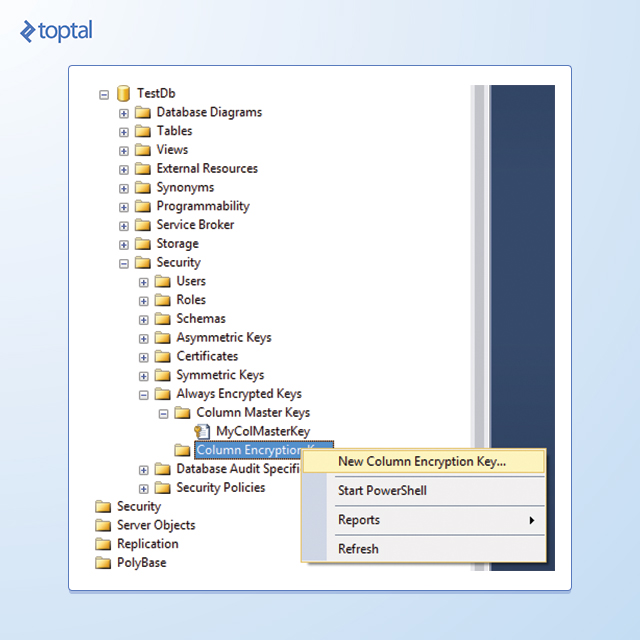
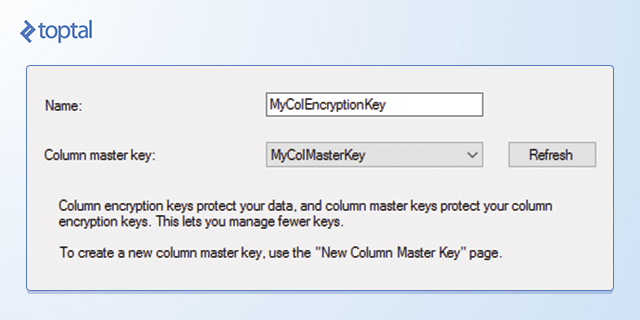
To create a column encryption key, connect to the database instance using Object Explorer. Navigate to the database, then to Security, and expand the Always Encrypted Keys folder. Right-click Column Encryption Keys and select New Column Encryption Key. In the New Column Encryption Key dialog box, enter a name for the new key, select a Column Master Key Definition from the dropdown list, and click OK. You can now utilize this column encryption key when defining a new table.
Creating Tables with Encrypted Values
Having established the column master key definition and column encryption keys, you can now create a table to store encrypted values.
Before proceeding, determine the encryption type, columns to encrypt, and whether these columns can be indexed. With Always Encrypted, define column sizes normally; SQL Server adjusts storage size based on encryption settings. After table creation, you might need to modify your application to execute commands on this table using Always Encrypted.
SQL Server 2016 Encryption Types
Before creating a table for encrypted values, decide whether each column requires encryption.
Firstly, will the column be used for looking up values or just retrieving them?
For lookup columns, use a deterministic encryption type, which permits equality operations. However, searching data encrypted with Always Encrypted has limitations. SQL Server 2016 only supports equality operations like equal to, not equal to, joins (based on equality), and GROUP BY clause usage. LIKE searches are not supported. Additionally, sorting encrypted data must occur at the application level, as SQL Server sorts based on encrypted values, not decrypted ones.
If a column isn’t used for locating records, use the randomized encryption type. While more secure, this type doesn’t support searches, joins, or grouping operations.
Creating Tables with Encrypted Columns
Use the standard CREATE TABLE syntax when creating tables, adding specific parameters within the column definition. The ENCRYPTED WITH syntax within the CREATE TABLE statement uses three parameters.
First is ENCRYPTION_TYPE, accepting RANDOMIZED or DETERMINISTIC. Second is ALGORITHM, accepting only RAEAD_AES_256_CBC_HMAC_SHA_256. Third is COLUMN_ENCRYPTION_KEY, representing the encryption key for the value.
| |
Indexing with Always Encrypted
Encrypted data columns can serve as key columns in indexes, provided they use the DETERMINISTIC encryption type. Attempting to index columns with RANDOMIZED encryption results in an error. Both types can be INCLUDE columns in nonclustered indexes.
Since encrypted values can be indexed, no extra performance tuning is needed for Always Encrypted values beyond standard indexing and tuning practices. Increased network bandwidth and I/O due to larger returned values are the only side effects.
Always Encrypted Performance
Performance is crucial, especially when adding encryption overhead to database traffic. SQL Performance provides excellent performance testing grounds, having evaluated query execution and disk usage under various scenarios:
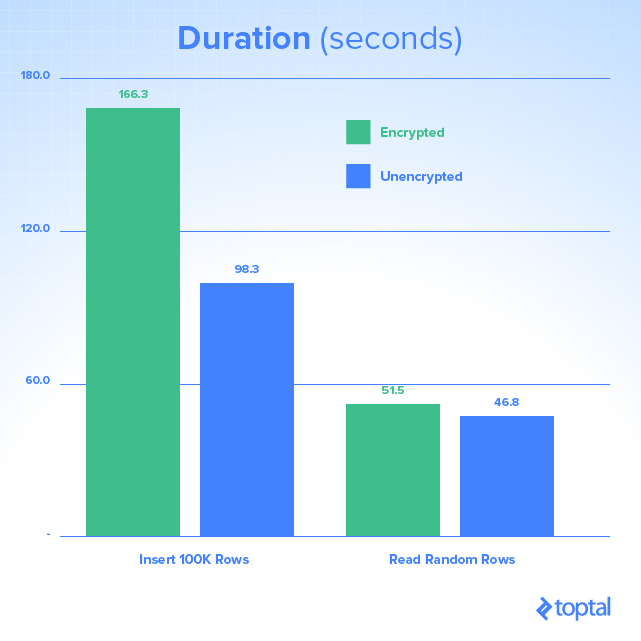
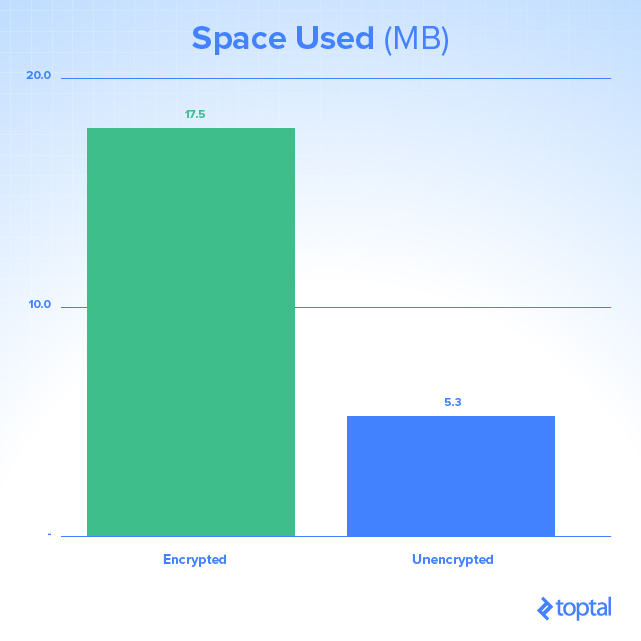
Encryption and decryption processes demand CPU and hard drive resources, impacting storage space and query duration. As this varies depending on your environment (CPU, RAM, disk capabilities), test for potential production issues.
Note: For deeper insights into optimizing Microsoft SQL Server performance, refer to our earlier article, “How to Tune Microsoft SQL Server for Performance.”
Application Modifications
How do you implement Always Encrypted in legacy code effectively?
One of Always Encrypted’s advantages in SQL Server 2016 is that applications already utilizing stored procedures, ORMs, or parameterized T-SQL commands typically require no code changes, unless they use non-equality operations. Applications building SQL statements dynamically and executing them directly against the database need modification. Implement query parameterization, a recommended security best practice, before leveraging Always Encrypted.
Another necessary change is adding the connection string attribute Column Encryption Setting=enabled to the connection string used by the application to connect to the database.
With this setting, the ADO.NET driver checks with SQL Server if an executed command involves encrypted columns and, if so, identifies them. For high-load applications, this setting might not be ideal, especially if many commands don’t involve encrypted values.
Therefore, the .NET Framework introduces a new method called SqlCommandColumnEncryptionSetting on the SqlConnection object, with three possible values:
Disabled: No Always Encrypted columns or parameters are used in queries executed through this connection object.Enabled: Always Encrypted columns and/or parameters are used in queries executed through this connection object.ResultSet: No Always Encrypted parameters are used, but queries executed through this connection object return columns encrypted with Always Encrypted.
Note: Using this method may require significant application code changes. An alternative is refactoring your application to use different connections.
For optimal SQL Server performance, request Always Encrypted metadata only for queries using it. In applications where a large portion of queries utilize Always Encrypted, enable the connection string attribute and set SqlCommandColumnEncryptionSetting to Disabled for specific queries within the application. If most queries don’t use Always Encrypted values, disable the connection string attribute and set SqlCommandColumnEncryptionSetting to Enabled or ResultSet as needed for queries using encrypted columns. In most cases, simply enabling the connection string attribute is sufficient, and application performance remains unaffected while using encrypted data.
Is Always Encrypted Worth It?
In short: Absolutely!
Not only does it mitigate potential security risks and empower SQL developers with enhanced security features, but it also strengthens system compliance—crucial across industries like telecom, banking, and insurance. Notably, given the technical requirements outlined, Always Encrypted can be implemented with minimal application changes to existing systems.
While custom solutions can achieve similar results, this technology comes bundled with the new SQL Server version, ready for immediate use. As a new technology, it’s important to acknowledge existing limitations and potential extra hardware demands.
However, unless these factors are deal-breakers for your environment and your application operates outside your company’s Intranet, there’s little reason not to leverage Always Encrypted.