Written by Steve Endow
Imagine this: Your SQL Server is down to its last 8 MEGABYTES of disk space! What steps can you take to address this?

While a full disk can stem from various factors like unnecessary database backups or large files, this scenario focuses on a situation where those common culprits have been ruled out, yet the SQL Server’s data disk remains full. So, what can be done?
In a recent case, a client with a 250 GB drive dedicated solely to SQL Server databases found themselves with only 8 MB of free space. While one might argue for a larger disk, the immediate need was to address the full disk. As we’ll demonstrate, 250 GB is ample storage for this particular client’s data.
Various diagnostic approaches exist, but a good starting point is a tool called WinDirStat. This tool analyzes one or more drives and presents a visual representation of the files occupying the most space, offering insights into space consumption by files and folders.
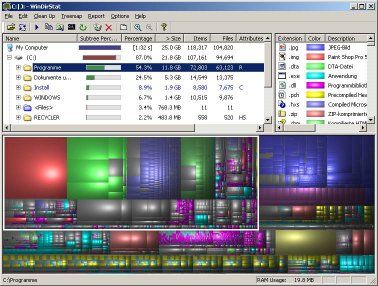
Despite knowing that the 250 GB drive solely housed SQL Server databases, WinDirStat revealed the space consumption of each mdf and ldf file.
The analysis exposed three databases with a log file (ldf) size of 19.6 GB, while the actual database (mdf) was only 18 GB. These databases comprised the production company database and two test databases, which were essentially copies of the production database. The restoration of a production backup into two test environments resulted in three instances of the nearly 20 GB SQL log file.
Furthermore, the tempdb database was found to be 44 GB! A simple restart of the SQL Server service, which recreates the tempdb, would free up over 40 GB of disk space. More information on Dynamics GP and tempdb can be found in this post about Dynamics GP and tempdb.
Now, let’s address the issue of large log files. In cases where the SQL log file exceeds the size of the Dynamics GP company database, or when it reaches several gigabytes, it often points to a mostly empty log file that doesn’t necessitate such a large size (this might not hold true for applications other than Dynamics GP).
Transaction logs capture database activity occurring between SQL Server backups, typically growing automatically to accommodate this activity. However, situations like importing thousands of historical transactions can lead to abnormally large log files.
Although a SQL Server backup clears the log file, it doesn’t shrink it by default. Consequently, a 20 GB log file might have only 10 MB of actual data, with the remaining space essentially unused but still consuming disk space.
How can you determine the actual log file usage? One effective method is using the SQL Server Management Studio Shrink Files window, accessed by right-clicking the database and selecting Tasks -> Shrink -> Files.

Once in the Shrink File window, switch the File type to Log.

In the provided screenshot, a 20 GB log file for a training copy of the Dynamics GP company database is shown to be 99% empty.
Clicking OK in this window initiates the shrinking of the log file by SQL Server. In this instance, the log file was reduced to 20 MB, instantly freeing up 20 GB of disk space in under a second. While this specific operation might not impact performance, similar operations on a production database are best performed during off-peak hours as a precaution.
By replicating this process on another test GP database, the client freed up an additional 20 GB, bringing the total to 40 GB. Shrinking the production company database log file after hours is projected to yield an additional 20 GB, increasing the total free space to 60 GB.
Finally, restarting SQL Server to recreate the tempdb should liberate another 40 GB, culminating in a total of 100 GB of free disk space.
In just a few minutes, the client went from a mere 8 MB to a spacious 100 GB of free disk space – all without deleting a single file. The 250 GB hard drive suddenly seems quite roomy.
Steve Endow is a Microsoft MVP for Dynamics GP and a Dynamics GP Certified IT Professional in Los Angeles. He is the owner of Precipio Services, which provides Dynamics GP integrations, customizations, and automation solutions.
You can also find him onGoogle+andTwitter
http://www.precipioservices.com
