
Manually managing library hall reservations for various departments became increasingly difficult, prompting a search for an automated solution. Teachers and students needed a system for booking the hall independently. Extensive research led to MRBS (Meeting Room Booking System), a free and open-source web-based platform for managing room bookings and resource scheduling.
Key features of MRBS include:
- Accessibility via any workstation browser (web/intranet based).
- User-friendly web interface and straightforward navigation.
- Flexible options for recurring bookings.
- Integration with existing user databases like Netware, NT Domain, or NIS for authentication.
- Prevention of double-booking conflicts.
- Comprehensive reporting capabilities.
- Selectable views by day, week, or month.
- Multiple authorization levels (read-only, user, admin).
- Support for bookings by time or period, particularly useful for schools and colleges.
- Email notifications for room administrators regarding new bookings.
This setup utilizes the following server specifications:
- Operating System: Debian 11
- RAM: 2 GB
- Storage: 10 GB
- SSH connection
- A dedicated “mrbs” subdomain pointing to the server’s IP, under the main domain.
Let’s initiate the setup process!
System Update
Prior to installation, ensure your Debian 11 system is current:
sudo apt update && sudo apt -y upgrade
Package Installation
Install the necessary packages using:
sudo apt install -y apache2 apache2-utils software-properties-common mariadb-server mariadb-client php libapache2-mod-php php-mysql php-iconv
MariaDB Security Configuration
Enhance the security of your MariaDB installation:
sudo mysql_secure_installation
Access the web root directory:
cd /var/www/html
Download the MRBS 1.11.0 package:
sudo wget https://excellmedia.dl.sourceforge.net/project/mrbs/mrbs/MRBS%201.11.0/mrbs-1.11.0.zip
Unzip the package:
sudo unzip mrbs-1.11.0.zip
Rename the extracted directory:
sudo mv mrbs-1.11.0 mrbs
Set ownership for the web server user:
sudo chown -R www-data:www-data mrbs/web/
Set web directory permissions:
sudo chmod -R 755 mrbs/web
Copy the sample configuration file:
sudo cp mrbs/web/config.inc.php-sample mrbs/web/config.inc.php
Customize your MRBS setup:
sudo vim mrbs/web/config.inc.php
Virtual Host Creation
Create a dedicated virtual host for MRBS:
sudo cp /etc/apache2/sites-available/000-default.conf /etc/apache2/sites-available/mrbs.conf
sudo nano /etc/apache2/sites-available/mrbs.conf
Modify the configuration file:
| |
Disable the default Apache virtual host and enable the MRBS virtual host:
sudo a2dissite 000-default.conf && sudo a2ensite mrbs.conf
Restart Apache to implement changes:
sudo systemctl reload apache2 && sudo systemctl restart apache2
Database and User Creation
Create a database and dedicated user within MariaDB to house the MRBS data:
Access the MariaDB shell as root:
sudo mysql -uroot -p
Create the database and user:
| |
Important: Substitute “mrbs123” with a strong, unique password.
MRBS Table Import
Import the MRBS tables into the newly created database:
sudo mysql -u root -pyourmysqlrootpassword mrbs < /var/www/html/mrbs/tables.my.sql
Configure MRBS to use this database.
MRBS Configuration
Update the configuration file to connect MRBS to the database:
Open the configuration file:
sudo vim /var/www/html/mrbs/web/config.inc.php
Locate the “Database Settings” section and adjust the following:
| |
Important: Replace “mrbs123” with the password defined earlier. Save the file.
MRBS Application Access
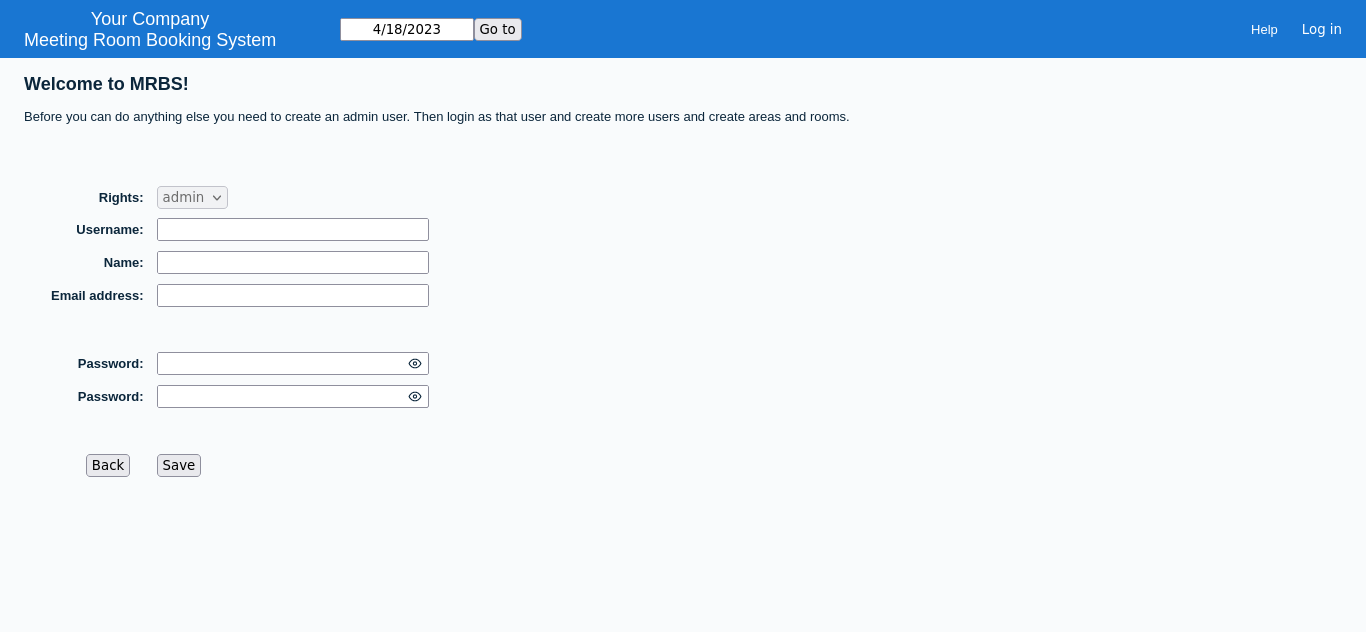
With MRBS installed and configured, access the application via: http://mrbs.yourdomain.com
Reference: https://mrbs.sourceforge.io/view_text.php?section=Documentation&file=INSTALL
Reference: https://mrbs.sourceforge.io/view_text.php?section=Documentation&file=INSTALL