Content creation can feel like a juggling act, especially with the constant demands of blog posts, guides, and other tasks. What if there was a way to effortlessly manage all your content ideas, track their progress, and streamline the entire creation process?
 This might sound too good to be true, but it’s not. The solution is an editorial calendar, and in this post, we’ll explore how to create one (and even provide a free template!). If you’re ready to boost your workflow efficiency, keep reading!
Table of contents
- What is an editorial calendar?
- Why use an editorial calendar?
- How to create an editorial calendar
- Free editorial calendar tools
- Free editorial calendar template
What is an editorial calendar?
An editorial calendar is more than just a content schedule. It’s a visual tool that empowers individuals or teams to plan, create, schedule, and promote content effectively, covering everything from the upcoming week to an entire year. It encompasses tasks, team member assignments, and deadlines for every step of the process.
Why use an editorial calendar?
The advantages of using an editorial calendar are numerous, but here are some key benefits:
- Enhanced content coherence. Planning content in advance allows for thematic organization and the creation of interconnected pieces throughout the month.
- Time savings. You’ll always have a clear picture of the next content piece to tackle, eliminating writer’s block. Plus, all your tasks will be prioritized and streamlined. Some editorial calendar tools even offer integrations for seamless publishing and promotion across multiple platforms.
- Improved project tracking. An editorial calendar ensures that everyone on the team stays aligned with the project timeline, preventing missed tasks or delays.
- Efficient idea management. Combining an idea repository with your content calendar enables effective idea capture, especially with mobile accessibility.
Personally, adopting an editorial calendar has been transformative for my workflow, and I haven’t looked back. Procrastination often stems from uncertainty about the next step, leading to task avoidance. However, when I have a clear checklist of tasks within my editorial calendar, my productivity soars, and procrastination diminishes. I’m hopeful that it can have the same positive impact on you!
Let’s delve into how you can utilize a free Trello-based editorial calendar template.
How to create an editorial calendar
Follow these fundamental principles to guide your process:
1. Define a basic content strategy
While an editorial calendar refines your content strategy, having an initial framework is crucial. For a comprehensive guide, refer to our resource on creating a content strategy. However, here are some starting points:
- What are your objectives? Are you aiming to drive organic traffic with blog posts, generate leads through gated content, or produce sales enablement materials? The answer to this question will guide your content type selection.
- What kind(s) of content will you create? For organic traffic, SEO-focused blog posts are essential. Gated content might involve PDF ebooks, while sales enablement may require one-sheets or slide decks. Brand awareness and link building often involve guest posts.
- What is your desired publishing frequency? Based on your chosen content type and team size, set realistic goals for weekly, monthly, and yearly content output.
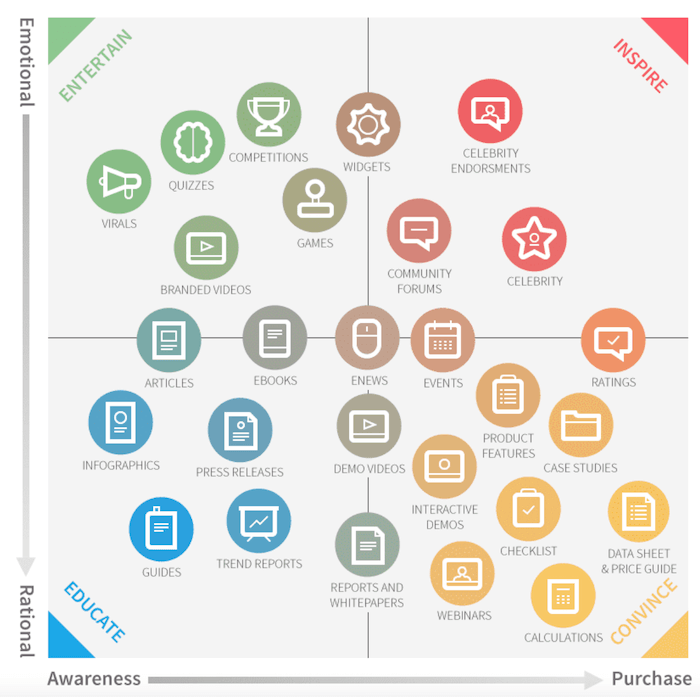
 Free guide >> 25 Ways to Get More Traffic to Your Website
2. Outline your work flow
Once you have a grasp of your content type and volume, outline your workflow. This includes:
- Idea generation process: How do you find, store, and manage your content ideas?
- SEO optimizations: Incorporate keyword research, on-site, and off-site tasks.
- Define the different stages and specific activities within your workflow, and assign tags, color codes, or labels to visualize and manage production timelines.
3. Select an editorial calendar software
Armed with an understanding of your strategy, workflow, and team size, it’s time to choose the most suitable software. Let’s explore some options in the next section.
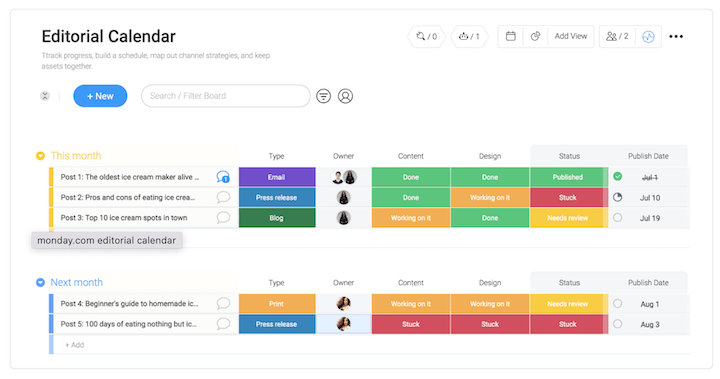
Editorial calendar tools
There are various free approaches and tools to create your own editorial calendar.
Project management software
Project management software like Asana and Trello are popular choices for editorial calendars. My colleagues and I utilize the free version of Trello and find it incredibly useful. Trello offers a workspace where you can create boards containing cards for adding descriptions, checklists, labels, due dates, attachments, and more, making it easy to manage different aspects of content creation.
While Trello is excellent for collaboration, it may not be ideal for large teams as it can become cluttered with numerous cards and labels. The paid version unlocks more power-ups and advanced integration features.
We’ll provide a downloadable Trello editorial calendar template later in this post.
Spreadsheets
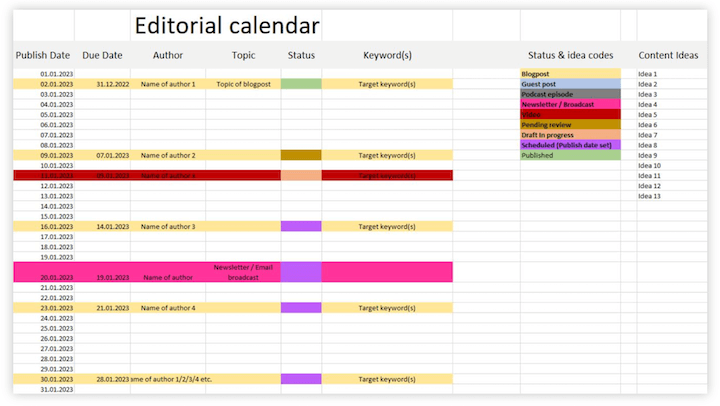
Spreadsheet software like Excel and Google Sheets can serve as editorial calendars if you prefer familiarity over learning new software. However, they are more manual and less visually intuitive. Below is an example of an editorial calendar in Excel/Google Sheets to give you an idea. Feel free to adapt it to your needs.
Regular calendars
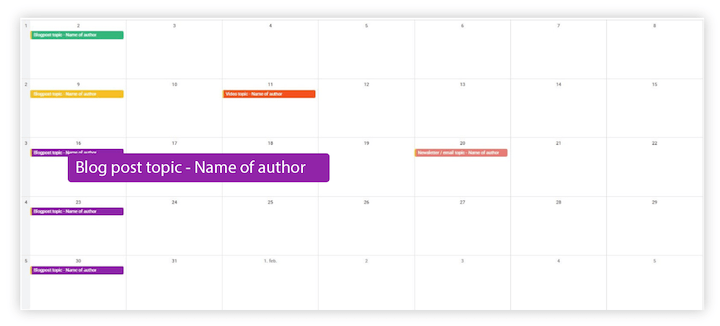
Regular calendars like Outlook or Google Calendar can be handy for quick task visualization and scheduling, with the added benefit of built-in reminders. You can even create checklist templates for various workflow stages and paste them into calendar note fields to track progress. However, regular calendars may not be suitable for detailed status tracking or comprehensive overviews. Here’s a simplified illustration of a month’s worth of planned content in Google Calendar, using color codes for content type and status:
Free Trello editorial calendar template
Let’s dive into my Trello editorial calendar template. It has worked wonders for streamlining my content marketing funnel, and I’m excited to share it with you!
Here’s the link: Trello editorial calendar template
Here’s a preview:
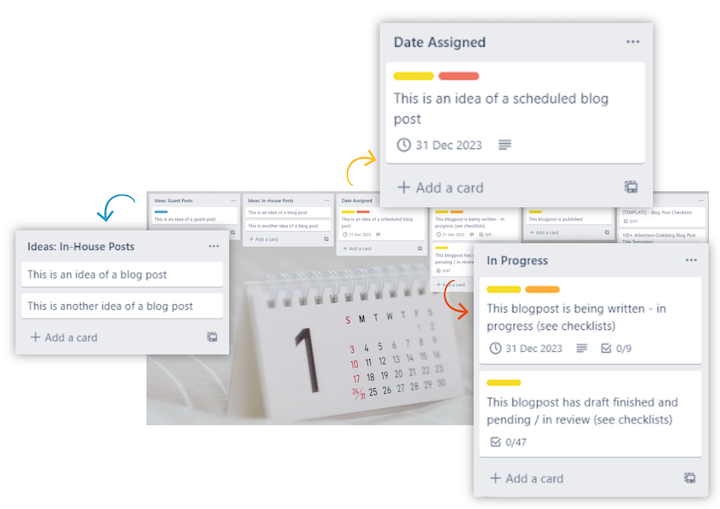
Here’s a breakdown of its three core components:
- Lists: Represent the different content stages, from ideation to promotion.
- Checklists: Provide task breakdowns within cards.
- Labels: Color-coded labels indicate statuses, such as “Pending review.”
To start working on a content idea, simply move its card to the “date assigned” list and set a due date.
The lists
This Trello editorial calendar board has 6 lists:
- Guest post ideas: Stores guest content ideas.
- In-house post ideas: Stores ideas for your own content.
- Date assigned: Content ideas with scheduled dates.
- In progress: Content currently being worked on.
- Published: Published content.
- Resources: Checklist templates and other resources.
As mentioned, each list houses cards representing your content ideas. You can add checklists, labels, and dates to each card.
The checklists
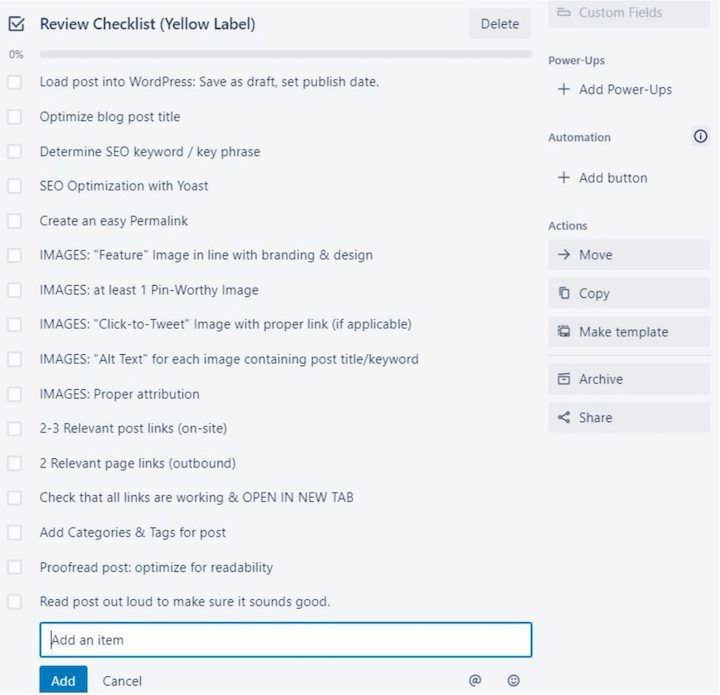
This editorial calendar features several checklists tailored to different stages of content creation. These checklists provide step-by-step guidance throughout the entire process.
Keyword research: The first checklist for any content piece. It offers both free and paid approaches (using Ahrefs). I personally use both methods, and you can learn more about my process in this post on free keyword research.
Review draft checklist: Covers title, content structure, call to action, and image identification.
Review checklist: Used when editing your first draft and preparing it for publication. It focuses on on-site SEO, social media optimization, quality assurance, and more
Publishing and initial promotion checklist: Outlines steps for publishing and promoting your content across various channels.
Follow-up promo checklist: Covers promotional activities one year after publication.
Pinterest publishing checklist: A step-by-step guide for creating and scheduling pins for post promotion on Pinterest.
To add these checklists to a card:
- Go to the desired card.
- Click the “Checklist” option on the card’s right-hand side.
- Choose “Copy items from…” and select the desired checklist.
The labels
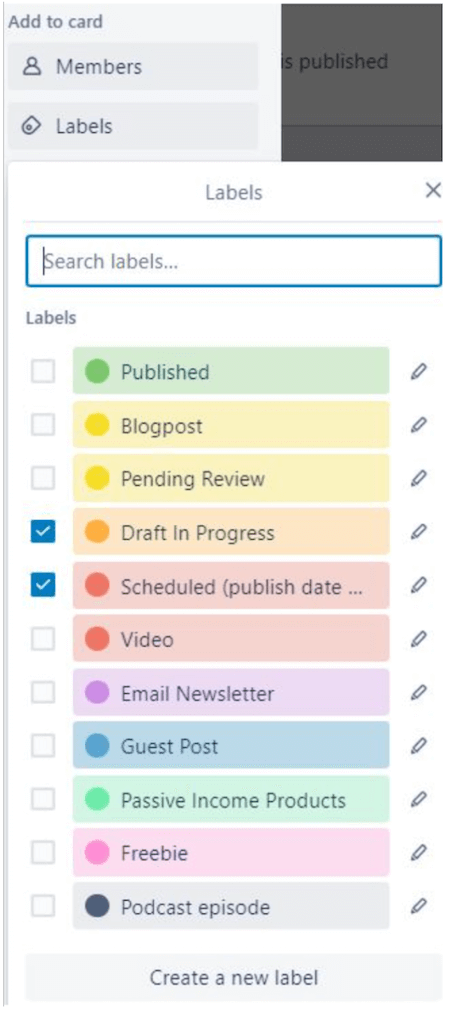
I use labels for content type and status to stay organized and on schedule. You can add custom labels to suit your needs.
Here are my content type labels:
- Blog post
- Video
- Email newsletter
- Guest post
- Freebie
- Podcast episode
- Passive income products
Here are my content status labels:
- Draft in progress
- Pending review
- Scheduled (publish date)
- Published
How to get this free editorial calendar template
Here’s how to get your copy of the board:
If you don’t have a Trello account, sign up at Trello.com
Log in to your Trello account.
Once logged in, click here
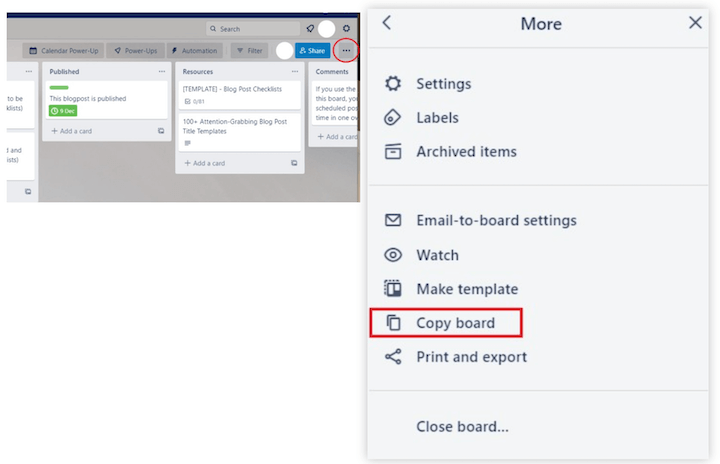
Inside the board, click the three-dot icon at the top right and choose “More.”
Click on the “copy board” option
Return to your Trello workspace overview, and your new editorial calendar will be accessible there.
Pro tips for this editorial calendar
Here are some final tips for maximizing this template’s effectiveness:
1. Customize to your liking
Remember that this is a template, so feel free to edit it to match your specific workflow. The more personalized it is, the better it will serve your needs.
2. Get Trello for mobile
Download the Trello app and use the widget for quick idea capturing on the go. Here’s how:
Download and install the Trello app from the App Store or Google Play.
Add the widget to your phone’s widget area.
Whenever you have a content idea, open the widget and click “Add card.”
Choose the relevant Trello board and list (usually one of your idea lists). It will look something like this:
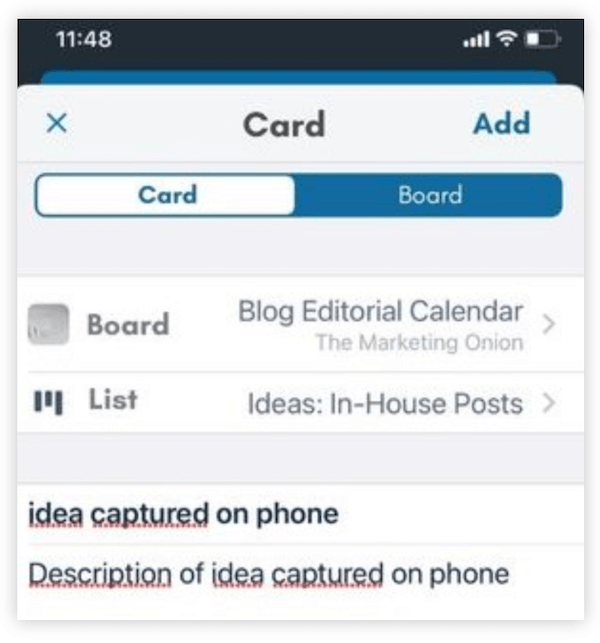
Click the “Add” button, and your idea will be saved to your selected list.
3. Use the calendar power-up
Activating the calendar power-up in Trello provides a visual calendar view of your scheduled posts, displaying up to a month’s worth of content at a glance. Click the calendar power-up at the top of your board to activate it.
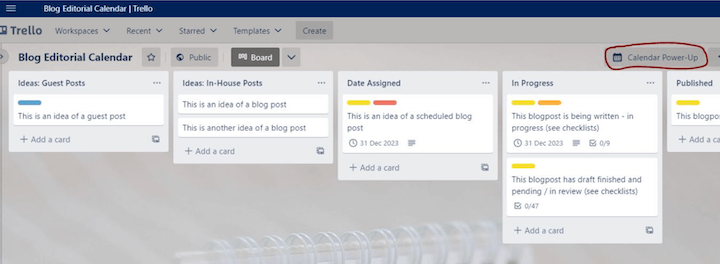
This will display a calendar with your cards, including their labels, on their assigned dates. Here’s an example with cards in different lists to illustrate:
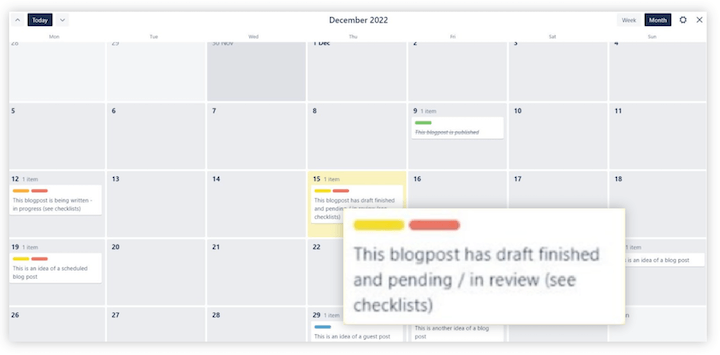
Clicking on the cards in the calendar view allows you to access them directly. Note that all status labels are visible, providing a clear overview of your scheduled posts’ progress. The labels are explained in more detail below, along with other board features.
4. Use Mammoth
For WordPress users who write content in Microsoft Word or Google Docs, the Mammoth .docx converter plugin simplifies importing posts into WordPress.
5. Use Yoast
The Yoast SEO plugin is beneficial for completing the tasks outlined in the checklists.
Start building out your editorial calendar
An editorial calendar is an indispensable tool for any content creator. I hope this post has provided valuable insights and that the provided template enhances your workflow efficiency.
Feel free to leave a comment if you have any questions. I’m here to help!
Thank you!