The use of social network analysis is rapidly growing across various professional fields. It can provide valuable information for achieving business objectives, including targeted marketing, and help identify potential security or reputational risks. Moreover, social network analysis can assist companies in achieving internal goals by providing insights into employee behavior and the relationships between different departments.
Numerous software solutions are available for organizations to perform social network analysis, each with its own strengths, limitations, and suitability for specific purposes. This article concentrates on Microsoft Power BI, a widely used data visualization tool. Although Power BI offers several social network add-ons, this article will explore the use of custom visuals created in R to achieve more visually appealing and adaptable results.
This tutorial presumes familiarity with basic graph theory, specifically directed graphs. Additionally, subsequent steps are best suited for Power BI Desktop, which is only compatible with Windows. Mac OS or Linux users can utilize the Power BI browser, but it lacks support for certain features, such as importing Excel workbooks.
Organizing Data for Visualization
The creation of social networks begins with gathering connection (edge) data. This data consists of two main fields: the source node and the target node representing the endpoints of the edge. To obtain more comprehensive visual insights, we can collect additional data, usually depicted as node or edge properties:
1) Node properties
- Shape or color: Represents the user type, such as their location/country.
- Size: Indicates the user’s importance within the network, like their follower count.
- Image: Serves as a unique identifier, such as the user’s avatar.
2) Edge properties
- Color, stroke, or arrowhead connection: Signifies the connection type, such as the sentiment of the connecting post or tweet.
- Width: Depicts the connection strength, such as the number of mentions or retweets between two users within a specific timeframe.
Let’s examine a sample social network visual to understand the function of these properties:

Hover text can also be utilized to complement or substitute the aforementioned parameters, as it accommodates supplementary information that might not be easily conveyed through node or edge properties.
Evaluating Power BI’s Social Network Extensions
Having defined the various data characteristics of a social network, let’s assess the advantages and disadvantages of four commonly used tools for network visualization in Power BI.
| Extension | Social Network Graph by Arthur Graus | Network Navigator | Advanced Networks by ZoomCharts (Light Edition) | Custom Visualizations Using R |
|---|---|---|---|---|
| Dynamic node size | Yes | Yes | Yes | Yes |
| Dynamic edge size | No | Yes | No | Yes |
| Node color customization | Yes | Yes | No | Yes |
| Complex social network processing | No | Yes | Yes | Yes |
| Profile images for nodes | Yes | No | No | Yes |
| Adjustable zoom | No | Yes | Yes | Yes |
| Top N connections filtering | No | No | No | Yes |
| Custom information on hover | No | No | No | Yes |
| Edge color customization | No | No | No | Yes |
| Other advanced features | No | No | No | Yes |
Social Network Graph by Arthur Graus, Network Navigator, and Advanced Networks by ZoomCharts (Light Edition) are all suitable extensions for creating basic social networks and beginning your social network analysis journey.
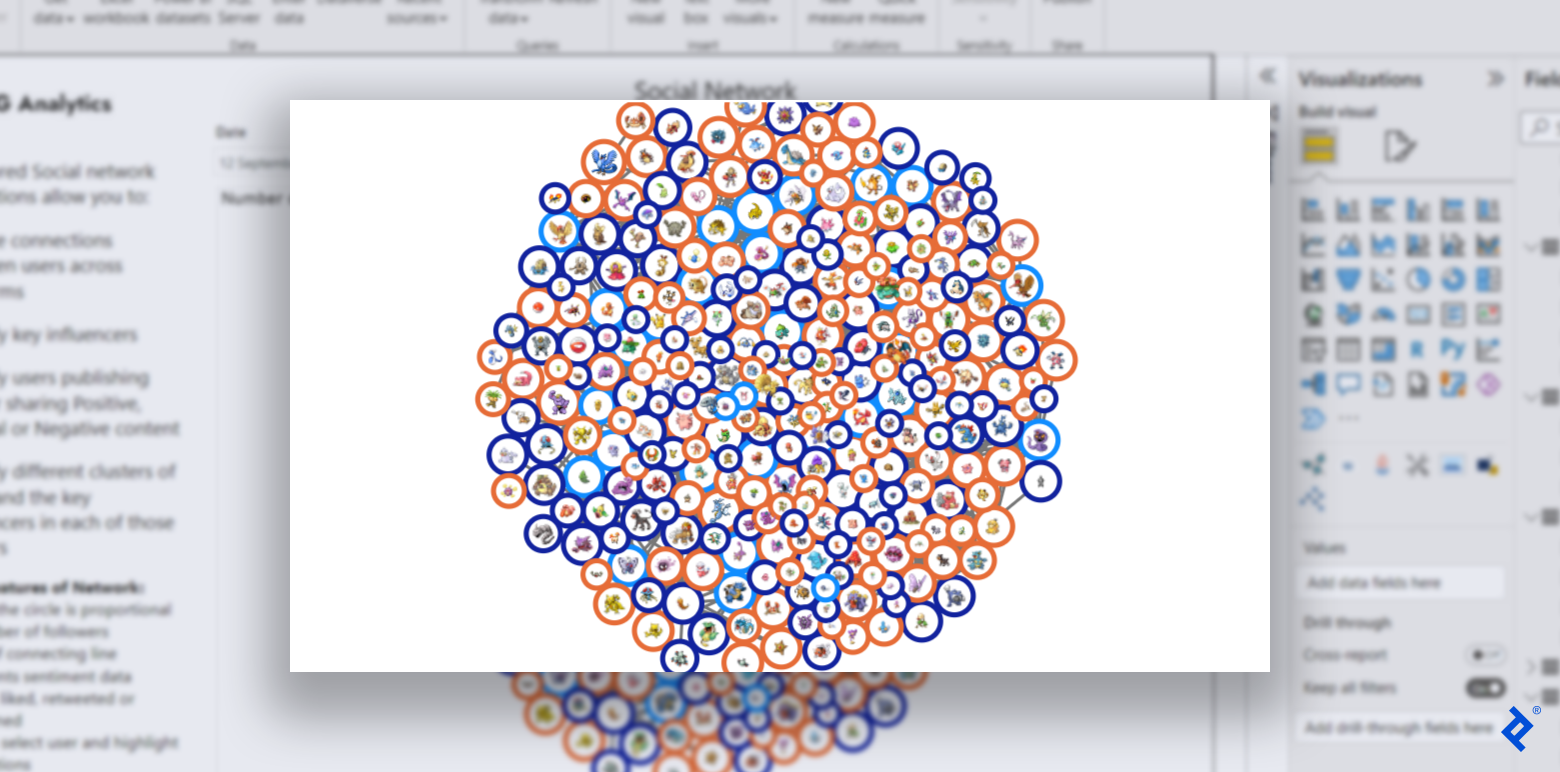

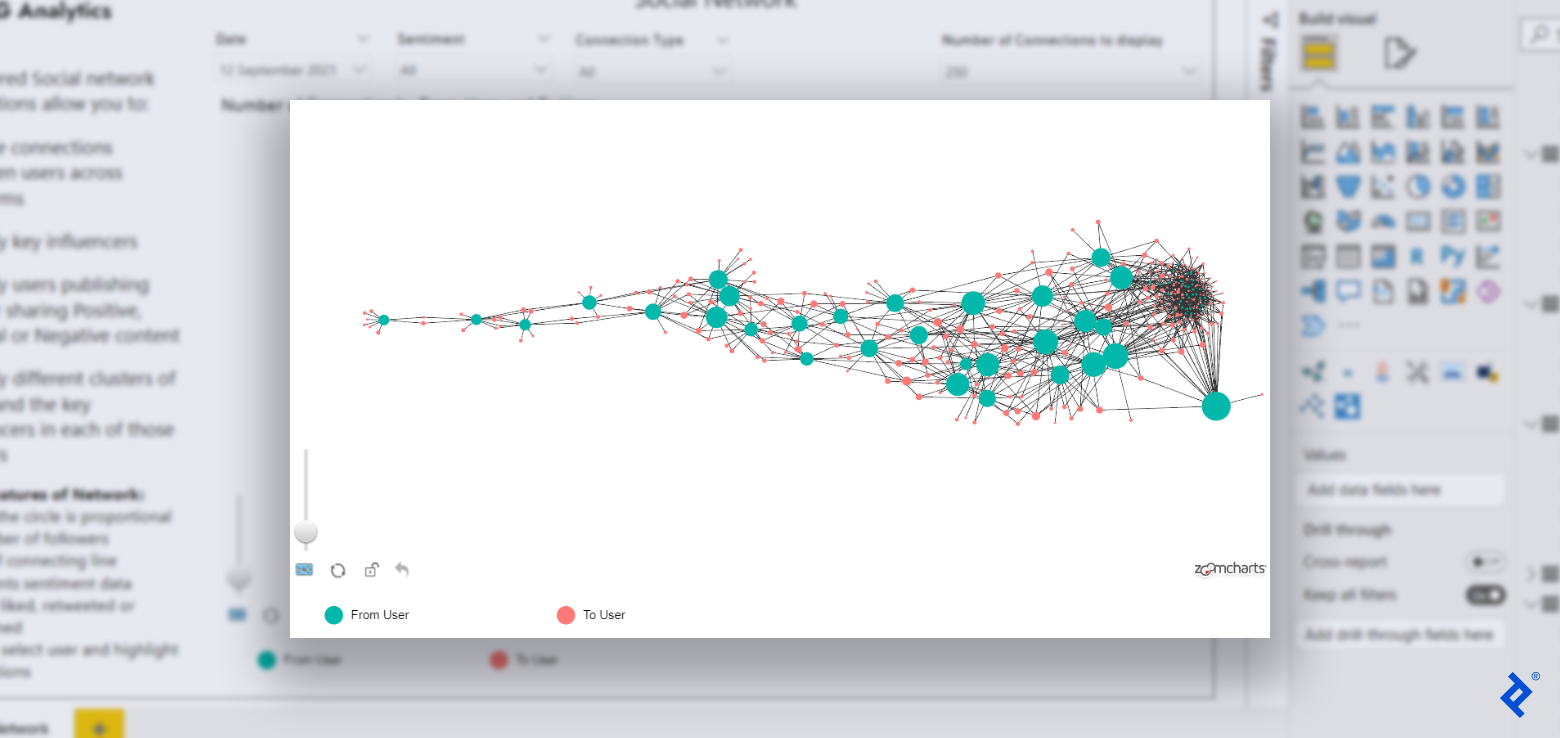
However, to bring your data to life and uncover groundbreaking insights with captivating visuals, or if your social network is particularly intricate, developing custom visuals in R is recommended.
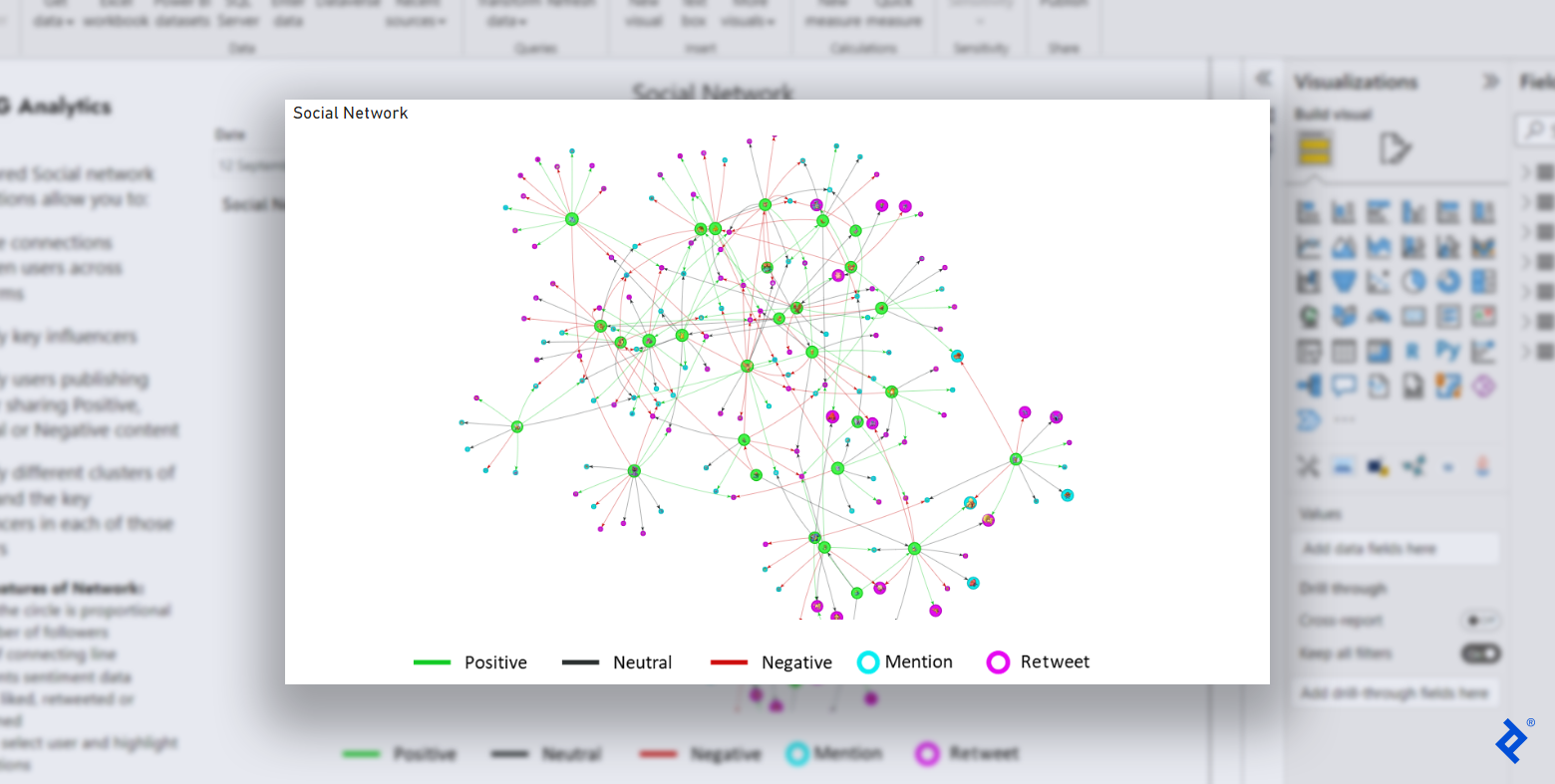
This customized visualization represents the final outcome of this tutorial’s social network extension in R, showcasing the extensive range of features and node/edge properties offered by R.
Constructing a Social Network Extension for Power BI Using R
Creating an extension for visualizing social networks in Power BI using R involves five distinct steps. However, before constructing our social network extension, we need to import our data into Power BI.
Prerequisite: Gathering and Preparing Data for Power BI
You can follow this tutorial using a provided test dataset](https://docs.google.com/spreadsheets/d/1_ws7hiEo8_Nnmbg95GBMnGLziTuxeDf4/edit?usp=sharing&ouid=118320780115282327017&rtpof=true&sd=true) based on Twitter and Facebook data or utilize your own social network data. Our data has been randomized; you may [download real Twitter data if desired. After you collect the required data, add it into Power BI (for example, by importing an Excel workbook or adding data manually). Your outcome should resemble the following table:

Once your dataset is prepared, you are ready to create a custom visualization.
Step 1: Establishing the Visualization Template
Developing a Power BI visualization is intricate—even rudimentary visuals necessitate thousands of files. Thankfully, Microsoft provides a library called pbiviz, which offers the necessary infrastructure-supporting files with minimal code. The pbiviz library also bundles all our final files into a .pbiviz file, which can be directly imported into Power BI as a visualization.
The most straightforward way to install pbiviz is with Node.js. After pbiviz is installed, we need to initialize our custom R visual using our computer’s command-line interface:
| |
Remember to replace toptalSocialNetworkByBharatGarg with your desired visualization name. The -t rhtml argument instructs the pbiviz package to generate a template for developing R-based HTML visualizations. Errors will appear because we haven’t specified details like the author’s name and email in our package, but we will address these later. If the pbiviz script fails to execute in PowerShell, you might need to enable scripts using Set-ExecutionPolicy RemoteSigned.
Upon successful code execution, you will see a folder with the following structure:

With the folder structure in place, we can proceed to write the R code for our custom visualization.
Step 2: Writing the Visualization Code in R
The directory created in the previous step contains a file named script.r, which has default code. (This code generates a simple Power BI extension using the iris sample database in R to plot a histogram of Petal.Length by Petal.Species.) We will modify this code while retaining its default structure, including the commented sections.
Our project utilizes three R libraries:
- DiagrammeR: Generates graphs from text.
- visNetwork: Offers interactive network visualizations.
- data.table: Facilitates data organization, akin to data.frame.
Let’s replace the code in the Library Declarations section of script.r to reflect our library usage:
| |
Next, we’ll replace the code in the Actual code section with our own R code. Before creating our visualization, we need to read and process our data. We’ll take two inputs from Power BI:
num_records: A numeric input N used to select the top N connections from our network (to limit displayed connections).dataset: Our social network’s nodes and edges.
To determine the N connections for plotting, we need to aggregate the num_records value because Power BI provides a vector by default instead of a single numeric value. We can achieve this using an aggregation function like max:
| |
Now, we’ll read dataset as a data.table object with custom columns. We’ll sort the dataset by value in descending order to prioritize displaying the most frequent connections. This ensures that we select the most relevant records to plot when limiting connections with num_records:
| |
Next, we need to prepare our user information. This involves creating and assigning unique user IDs (uid) to each user, storing them in a new table. We’ll also calculate the total number of users and store it in a variable called num_nodes:
| |
Let’s enrich our user information with additional properties, such as:
- The number of followers (represented by node size).
- The number of records.
- The user type (indicated by color codes).
- Links to avatars.
We will employ R’s merge function to update the table:
| |
We’ll also add our generated uid to the original dataset to retrieve the from and to user IDs later in the code:
| |
Next, we’ll create node and edge data frames for visualization. We’ll choose the style and shape of our nodes (filled circles) and select the appropriate columns from our user_ids table to populate our nodes’ color, data, value, and image attributes:
| |
Similarly, we’ll choose the columns from the dataset table that correspond to our edges’ from, to, and color attributes:
| |
Finally, with our node and edge data frames ready, let’s generate our visualization using the visNetwork library and store it in a variable called p, which the default code will use later:
| |
Here, we’ve customized a few network visualization settings in visOptions and visPhysics. You are encouraged to explore the documentation and modify these options as per your requirements. Our Actual code section is now complete, and we should update the Create and save widget section by removing the line p = ggplotly(g); as we’ve coded our own visualization variable, p.
Step 3: Preparing the Visualization for Power BI
With the R coding complete, we need to make some adjustments to our supporting JSON files to prepare the visualization for use in Power BI.
Let’s begin with the capabilities.json file. This file contains most of the information displayed in the Visualizations tab for a visual, such as our extension’s data sources and other settings. Firstly, we need to modify dataRoles and replace the existing value with new data roles for our dataset and num_records inputs:
| |
Within the capabilities.json file, let’s also update the dataViewMappings section. We’ll add conditions that our inputs must meet, and update the scriptResult to match our new data roles and their conditions. Refer to the conditions section, along with the select section under scriptResult, for changes:
| |
Moving on to our dependencies.json file, we’ll add three additional packages under cranPackages. This enables Power BI to identify and install the necessary libraries:
| |
Note: Power BI should automatically install these libraries. However, if you encounter library errors, try running the following command:
| |
Finally, let’s add relevant information about our visual to the pbiviz.json file. Updating the following fields is recommended:
- The visual’s description field.
- The visual’s support URL.
- The visual’s GitHub URL.
- The author’s name.
- The author’s email.
Now that our files are updated, we need to repackage the visualization from the command line:
| |
Upon successful code execution, a .pbiviz file should be generated in the dist directory. The complete code covered in this tutorial is available on GitHub.
Step 4: Importing the Visualization into Power BI
To import your newly created visualization into Power BI, open your Power BI report (either an existing one or one created during our Prerequisite step with test data) and navigate to the Visualizations tab. Click the … [more options] button and select Import a visual from a file. Note: You may need to first select Edit in a browser for the Visualizations tab to appear.

Navigate to the dist directory within your visualization folder and select the .pbiviz file to seamlessly import your visual into Power BI.
Step 5: Creating the Visualization in Power BI
Your imported visualization is now available in the visualizations pane. Click on the visualization icon to add it to your report, and then add the relevant columns to the dataset and num_records inputs:

You can enhance your visualization with additional text, filters, and features based on your project needs. It’s recommended that you review the detailed documentation for the three R libraries used to further customize your visualizations, as this example project cannot encompass all possible use cases for the available functions.
Enhancing Your Next Social Network Analysis
Our final result demonstrates the power and effectiveness of R in creating custom Power BI visualizations. Consider utilizing social network analysis with custom visuals in R for your next dataset to make more informed decisions based on comprehensive data insights.
The Toptal Engineering Blog would like to thank Leandro Roser for reviewing the code samples presented in this article.