Understanding a user’s whereabouts is valuable for many apps we use daily. Numerous location-based apps are simplifying our lives and transforming how we interact with services. Take, for instance, the immensely popular app Foursquare, where users who frequent a particular place and “check in” often receive discounts. Another example is Uber, which helps you secure a ride from your smartphone at a lower price than a traditional taxi. The list of such apps is vast and continues to expand.
In this article, we will create a basic Android application to determine the user’s latitude and longitude using Android’s Google Location Services API. When building Android applications, there are a couple of approaches to obtaining the user’s location.
Package “android.location”
The package “android.location” has been accessible since the inception of Android and grants access to location services. These services enable applications to acquire periodic updates on the device’s geographical position.
The package provides two methods for acquiring location data:
LocationManager.GPS_PROVIDER: This method pinpoints location using satellites. Depending on the circumstances, it might take a while to provide a location fix.
LocationManager.NETWORK_PROVIDER: This method determines location based on the accessibility of nearby cell towers and WiFi access points. It’s quicker than GPS_PROVIDER.
When determining user location, you must work with these providers and their availability. Ideally, you’d first obtain the location using NETWORK_PROVIDER, which, though potentially less accurate, is much faster. Subsequently, you could strive for greater accuracy by seeking a more precise location fix using the GPS_PROVIDER.
The APIs within this package are quite low-level, requiring developers to manage the intricacies of determining when to request location data and schedule calls to the API optimally. To enhance the developer experience with location-based system services and simplify the development of location-aware applications, Google introduced a new method for requesting a user’s location using Google Play Services. This method offers a more straightforward API with improved accuracy, low-power geofencing, and many other features.
Google Location Services API
Google Location Services API, also referred to as FusedLocationProviderApi, is Google’s recommended method for acquiring a user’s location. It provides optimal accuracy tailored to our requirements. Here are some advantages of using this API over the previous one:
Simplicity: Unlike the previous API, you no longer need to manage multiple providers. You simply specify high-level requirements like “high accuracy” or “low power,” and the API will choose a suitable approach.
Availability: It grants your app immediate access to the best, most up-to-date known location. This information is usually readily available; you just need to request it.
Power-efficiency: It minimizes your application’s power consumption.
Versatility: It caters to a wide range of needs, from foreground uses requiring highly accurate location data to background uses needing only periodic location updates with minimal power impact.
Let’s develop a location-based Android application using this API. We’ll use Google’s recommended IDE for Android application development - Android Studio. Getting started with Android Studio is fairly straightforward. Their website comprehensively details the installation and configuration of Android Studio, including how to set up your first Android application for development.
Android Studio should make things incredibly easy for us. However, we’ll need to start by configuring the build script and adding Google Play Services as a dependency for this application. We can do this by modifying the “build.gradle” file as follows:
| |
As of this writing, the latest available version of Google Play Services is 6.5.87. Always check for the most recent version before starting. If newer versions are released later, and you choose to update your projects, test all location-related features against all Android versions you support.
At this point, we’re ready to begin the actual work on our application.
Requesting Permission, Configuring AndroidManifest.xml
Android devices have specific security features that prevent any random application from requesting a user’s precise location. To address this, we need to edit “AndroidManifest.xml” and add the permission we require for this application:
| |
While we’re at it, let’s also define the version of Google Play Services used in this application:
| |
Checking for Google Play Services Availability
Before using features provided by Google Play Services, we must verify if the device has Google Play Services installed and if the version matches the one we intend to use (6.5.87).
| |
This method checks for Google Play Services. If the device doesn’t have it installed (rare, but it happens), it will display a dialog with the corresponding error and prompt the user to install/update Google Play Services from the Google Play Store.
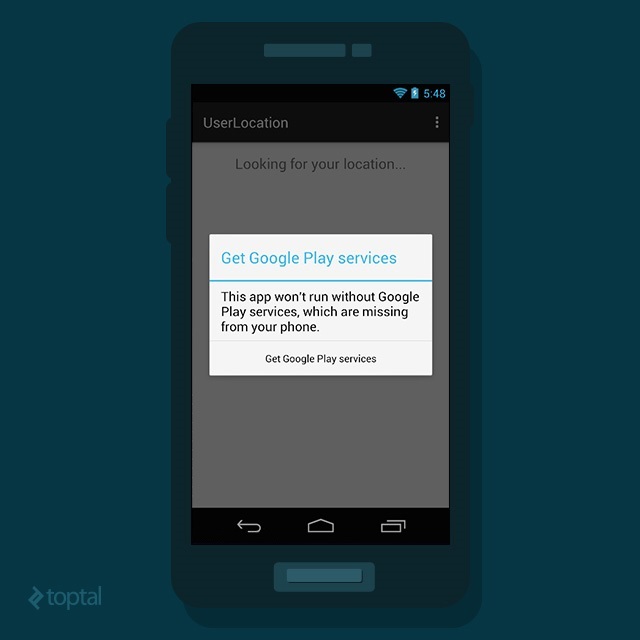
After the user addresses the resolution provided by “GooglePlayServicesUtil.getErrorDialog()”, a callback method “onActivityResult()” is triggered. So, we need to implement some logic to handle that call:
| |
Accessing Google APIs
To access Google APIs, we only need to perform one more step: create an instance of GoogleApiClient. The Google API Client serves as a common entry point for all Google Play services and manages the network connection between the user’s device and each Google service. Our first step is to initiate the connection. I usually call this code from the “onCreate” method of the activity:
| |
By chaining a series of method calls, we specify the callback interface implementation and the Location Service API we want to use. The interface implementation, in this case, “this,” will receive a response to the asynchronous “connect()” method when the connection to Google Play Services succeeds, fails, or is suspended. After adding this code, our “MainActivity” should look like this:
| |
Then, in our “onStart” method, we call the “connect” method and wait for the “onConnected” callback method to be invoked:
| |
The “onConnected” method will look like this:
| |
This callback is triggered when Google Play Services is connected, implying that we should have the last known location. However, this location could be null (rare, but possible). In such a case, I recommend listening for location updates, which we’ll cover next.
Listening for Location Updates
After calling “getLastLocation,” you might want to request periodic updates from the Fused Location Provider. This period could be short or long, depending on your application. For example, if you’re building an application that tracks a user’s location while driving, you’ll need to listen for updates at short intervals. Conversely, if your application involves sharing the user’s location with a friend, you might only need to request the location occasionally.
Creating a request is quite easy - you can call this method inside the “onCreate” method:
| |
We create a new LocationRequest object. The interval is set to 20 seconds (20000 milliseconds). Additionally, we set a throttled update rate to 5 seconds. This instructs the API to provide updates every 20 seconds (ideally), but if a change occurs within a 5-second window, it should provide that as well. Finally, we set the priority to “PRIORITY_HIGH_ACCURACY” among other available priority options: PRIORITY_BALANCED_POWER_ACCURACY, PRIORITY_LOW_POWER, and PRIORITY_NO_POWER.
Once you’ve built the request, you’re ready to start listening for location updates after the “onConnected()” method is fired:
| |
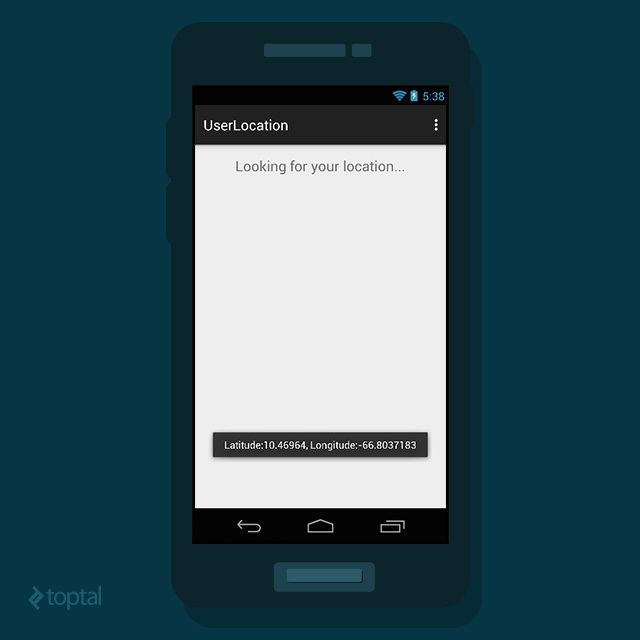
Now, all that’s left is to implement the callback method to satisfy the LocationListener interface:
| |
Stop Listening for Updates
It’s crucial to explicitly stop listening for updates when they’re no longer needed or if the user exits your application. The following method should be invoked from within the “onPause” callback:
| |
… and disconnecting from the Google API:
| |
Wrapping Up
As demonstrated, the core concepts behind implementing location-aware applications in Android are quite straightforward. Furthermore, with the available APIs being both user-friendly and easy to grasp, building basic location-based applications for Android should be a breeze. The small sample application we’ve built here serves to illustrate precisely that. You can find the complete source code for this on GitHub. Please note that for simplicity, the application doesn’t handle the “onConnectionFailed” callback method.
Hopefully, this tutorial will help you get started with the Google Location Services API.