If you’re anything like me, you’re always checking your Gmail. But even with all the time we spend in our inboxes, Gmail still holds a few secrets. We’re here to unveil some of the most useful Gmail tips and tricks to streamline your email experience.

Gmail Keyboard Shortcuts
Believe it or not, Gmail has a whole bunch of handy keyboard shortcuts! Many common shortcuts from other programs, like Word, also work in Gmail. Here are a few examples you can use while writing messages:

Ctrl + b | Bold your text. Ctrl + i | Italicize your text. Ctrl + u | Underline your text. Ctrl + Shift + 7 | Start a numbered list. Ctrl + Shift + 8 | Start a bulleted list. Ctrl + k | Insert a hyperlink to your highlighted text. (Remember: For Mac users, just swap out Ctrl for ⌘)
Check out the full list of Gmail keyboard shortcuts.
Even More Gmail Shortcuts (You Just Have to Turn Them On)
If those shortcuts weren’t enough, Gmail has even more in store! You’ll just need to enable them first. Go to the gear icon in the top right corner, select “Settings,” and then navigate to the “Keyboard shortcuts” section. Turn them on, and don’t forget to save your changes at the bottom. c | Start composing a new message. Use Shift + c to open the compose window in a new window. d | Open a new tab to compose a message. f | Forward a message. e | Archive a message. # | Delete a message. / | Search your Gmail. Shift + i | Mark as read. Shift + u | Mark as unread. Ctrl + s | Save a draft.
Gmail Search Operators: Unleash the Power of the Search Bar
That Gmail search bar is a powerful tool! It can do so much more than just search for keywords.
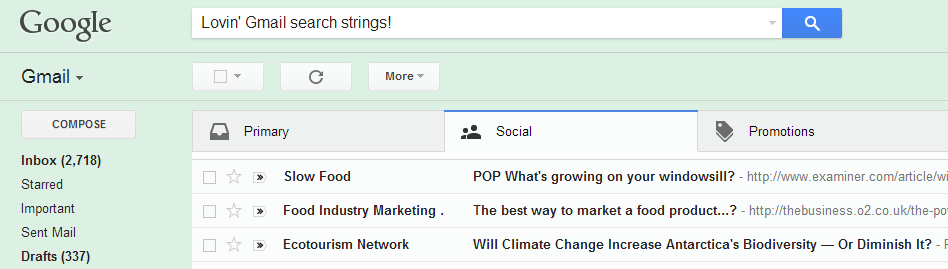
Here are some tips to maximize your search efficiency. Try typing these into the Gmail search bar: From: | Find all messages from a particular sender. To: | Find all messages sent to a specific recipient. OR | Search for messages containing either term A or term B. Make sure to use all caps for “OR”. In:anywhere | Search for messages across all of Gmail, even in the Trash and Spam folders (which are usually excluded). Is:starred | Find all your starred messages. Is:unread | Locate all your unread messages. Has:Attachment | Find all messages with attachments. This is super useful for freeing up space by finding and deleting messages with large files. After: | Search for messages sent or received after a certain date. Before: | Search for messages sent or received before a specific date. Combine “before” and “after” for even greater precision! Older_than: / newer_than: | Similar to “before” and “after,” but instead of specific dates, you can use days (d), months (m), or years (y).
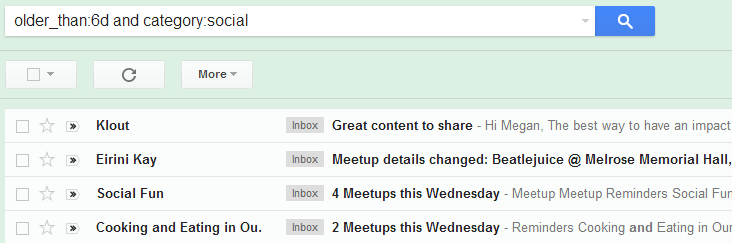
These are just a few examples! There are many more search operators you can use with “in:”, “is:”, and “has:”. see them all.
Beyond the Basics: 15 Bonus Gmail Hacks
1. Dots Don’t Matter!
You might not believe this, but veronica.mars@gmail.com is actually the same as ver.on.ica.mar.s@gmail.com and veronicamars@gmail.com. All these variations point to a single email address. How cool is that?
2. The Undo Button is Real!
We’ve all wished for an undo button in life, right? For those awkward things we say, missed opportunities, or accidental coffee spills on our keyboards. Well, life just got an upgrade! There is an undo button, at least for Gmail. To activate it, click the Gear Icon in the upper right corner, go to Settings, and then click on the Labs tab. You’ll find the option to enable Gmail’s undo button a few options down. There’s a treasure trove of other cool features in Labs, some of which we’ll explore in other hacks below!

You can even set your cancellation period – I use 30 seconds just to be safe.
3. Supercharge Your Stars!
You’re probably familiar with Google’s yellow star for marking important emails. But did you know there are more? Head over to settings and discover a galaxy of 12 different stars and symbols to categorize your inbox.

4. Find Your Perfect Fit with Density
Feeling a little cramped in Gmail? Here’s a neat trick: adjust your Gmail spacing! Just click that gear icon and play around with the density settings.
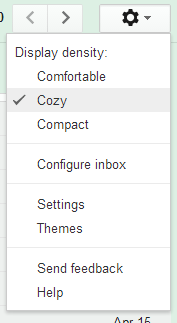
Now doesn’t that feel as cozy as a snowy cabin getaway?
5. Canned Responses: Your Email Time-Saver
If you often find yourself sending the same email over and over, canned responses are here to rescue you. Start by enabling the Canned Responses feature in Gmail Labs. Next time you’re writing an email, look for the extra dropdown menu at the bottom, right beside the trash can. Click “Canned Responses” and select “New Canned Response” to give your template a name and save it.
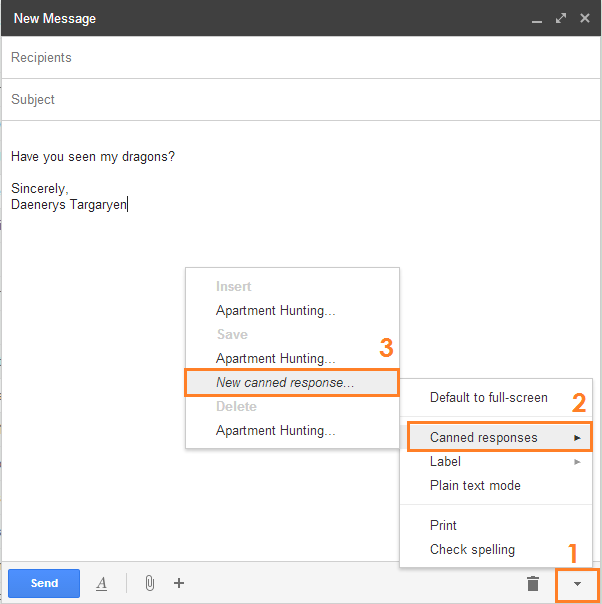
Now, whenever you compose a new email, go to “Canned Responses” and you’ll see the option to insert your saved response. I even have a canned response for apartment hunting because I was sending the same information repeatedly. Canned responses are like handy templates that you can personalize further before sending. This Gmail secret might not be used every day, but you’ll be thankful for it when you need it!
6. Get Instant Notifications with Desktop Notifications
Stay updated with desktop notifications! This feature sends you a pop-up whenever you receive a new email. It works seamlessly with Chrome, Firefox, and Safari. To turn it on, go to Settings > General.
7. Silence the Noise with Mute Conversations
Tired of being bombarded with irrelevant email chains? With Gmail’s “Mute” feature, you can silence the noise! Open the conversation you want to mute, go to “More,” and select “Mute.” The conversation will no longer demand your attention unless someone directly replies to you or adds you to the “To” or “CC” field.
8. Declutter Your Inbox with Archiving
Archiving emails is like digital spring cleaning! It helps keep your Inbox tidy without deleting messages. It’s perfect for hiding those decade-old emails you can’t bear to part with. For example, my “Social” tab in Gmail was overflowing with messages from Meetup groups and events. I didn’t want to unsubscribe entirely because, hey, maybe I would attend the Wednesday African Drum Circle at the MFA someday. But I needed a way to manage the influx of emails. So, I used the search string we learned earlier to find all emails in my Social tab older than 6 days. BONUS TIP: Clicking the Select All box (highlighted in pink below) will only select the emails on the current page. To select all the emails that match your search, click the link in the pop-up (highlighted in blue).
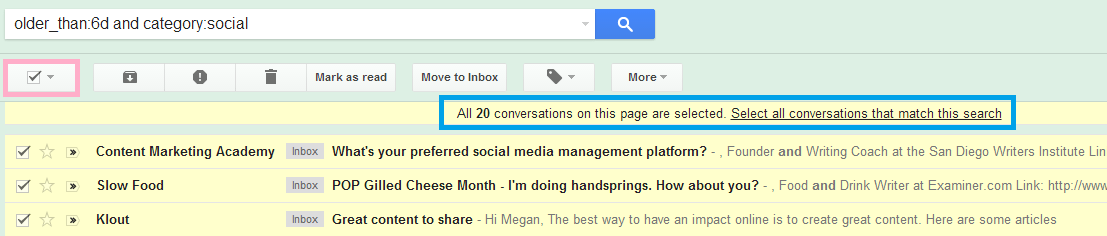
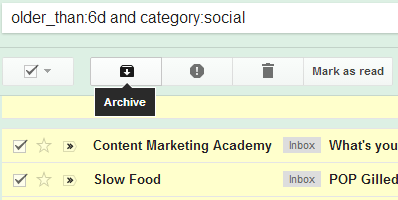
Now, with all the matching emails selected, I can hit the Archive button and say goodbye to the clutter!
9. Send + Archive: The Ultimate Decluttering Combo
Take your archiving game to the next level with “Send + Archive.” This feature lets you send an email and archive it simultaneously. Before you can use it, you’ll need to turn it on in the Settings menu. Now, whenever you reply to an email, you’ll notice a “Send + Archive” option.
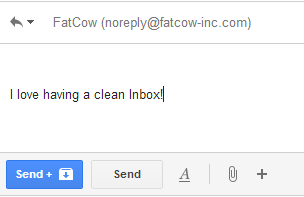
This sends your email and whisks it away to your archive, keeping your inbox tidy. Don’t worry; if someone replies to your archived email, it will reappear in your inbox, ready for your attention.
10. Find Archived Emails with Ease
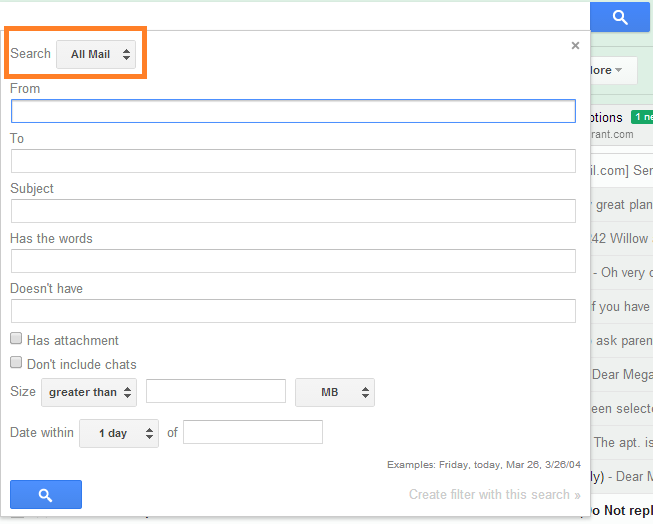
Finding archived emails is simple! Just use the search string “All Mail:” in the search bar. You can also use the search dropdown menu.
11. Stay Connected with Gmail Offline
Did you know you can read and reply to emails even when you’re offline? Thanks to the Gmail Offline Chrome app, messages are synced, and actions taken offline are queued up to be executed once you have internet access. Now you can be productive from anywhere!
12. Ditch the Post-its with Gmail Email Tasks
Say goodbye to scattered to-do lists! Gmail has a built-in task list. Just open or select an email, click “More,” and hit “Add to Tasks.”
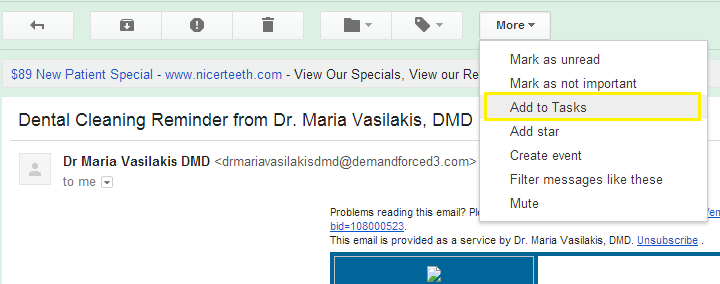
Your personalized Gmail task list will appear, ready for action! Add more tasks, set due dates, check off completed items, and more.
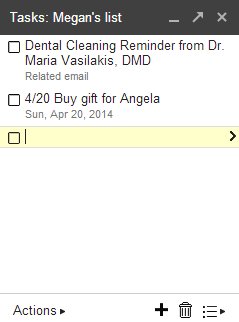
If you start a task item with a date, it will automatically sync with your Google Calendar (make sure you’ve enabled the “Task” calendar in Google Calendar’s “My Calendars” section). Gmail tasks are a game-changer for staying organized.
13. Master Email Organization with Custom Gmail Filters
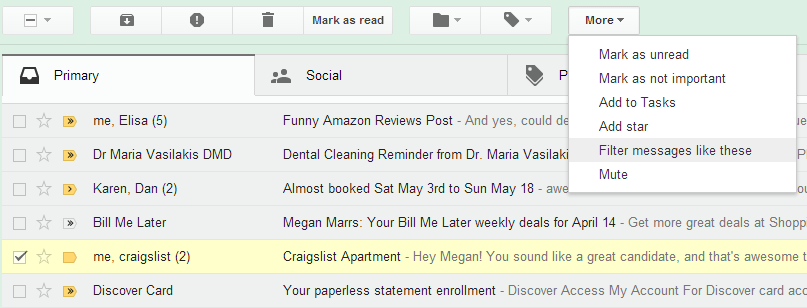
Gmail filters can automate your email management. To get started, create a filter based on an existing message. For example, let’s say I’ve been apartment hunting and sending out tons of emails through Craigslist. To keep all those messages organized, I’ll create a filter. First, select an email that represents the messages you want to filter. Then, go to “More > Filter messages like these.”
Now, define your filter parameters. For this example, I’ll keep it simple. I’ll create a filter for any emails with the words “apartment” and “craigslist” in the subject line, as that’s what I’ve been using for my apartment hunting emails.
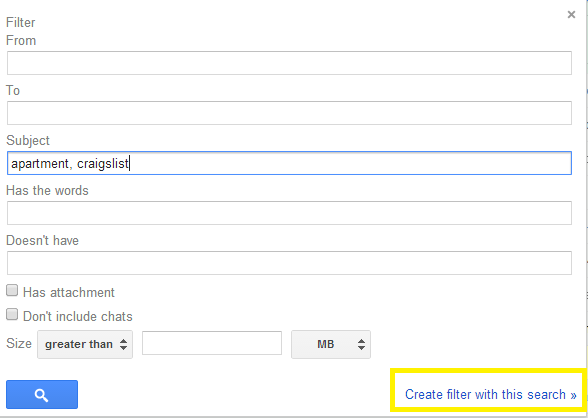
Next, specify the action you want the filter to perform. In my case, I’ll have it apply the label “Apartment Hunting” and star the email. And voilà! My filter is ready to go.

(Note: You can edit existing filters by going to Settings > Filters.) Custom email aliases offer another excellent way to set up filters. You can add any +word to your username, and messages sent to that address will still be delivered to your regular inbox. For example, when I sign up for H&M offers, I use veronicamarrs+HM@gmail.com. However, all messages will still be delivered to my regular address, veronicamarrs@gmail.com. Why? Because now I can create a custom filter that automatically applies a “Fashion” label to any messages addressed to veronicamarrs+HM@gmail.com. See? Gmail filters are easy to set up and can make a world of difference in taming your inbox!
14. Instantly Identify Messages Sent Directly to You
Personal level indicators are small arrows next to your messages. A double arrow (») indicates an email sent directly to you, while a single arrow (>) means you and other recipients received it. Activate this feature in the Settings section (scroll down the General tab) for instant clarity.

15. Conquer Your Inbox with Gmail Labels
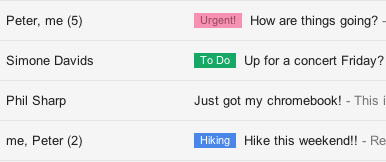
Labels are the key to a clean and organized Gmail experience. You can apply multiple labels to a single email and even customize them with different colors for easy visual identification. People often wonder how to create folders in Gmail. While Gmail doesn’t have traditional folders, it uses labels as a flexible alternative. To move an email into a label folder, select or open the email and choose the “Move To” option.
Level Up Gmail with Add-On Features
Many fantastic applications can enhance your Gmail experience even further. Here are a couple of favorites:
- Boomerang: Boomerang for Gmail allows you to schedule emails to be sent later. You can also set up automatic email reminders, all seamlessly integrated with Gmail.
- Rapportive: Rapportive puts a wealth of contact information at your fingertips directly within Gmail. Instantly see a contact’s LinkedIn profile, Twitter info, Facebook page, Skype details, and more!
There you have it – a collection of Gmail tips and tricks to make your email life a breeze! Now go forth and conquer your inbox! (And don’t forget to check out our tips for running Gmail ads!).