Creating an exceptional app goes beyond mere aesthetics and functionality; performance plays a pivotal role. Despite the rapid advancements in mobile device hardware, poorly performing apps that exhibit lag during screen transitions or scroll like slideshows can severely hinder user experience and lead to frustration. This article delves into measuring and optimizing the performance of an iOS app for enhanced efficiency. To illustrate this, we’ll construct a basic app featuring an extensive list of images and text.
To accurately assess performance, employing real devices is strongly advised. Simulators fall short when it comes to building and optimizing apps for smooth iOS animation. This discrepancy arises from the fact that simulators often run on substantially more powerful CPUs than those found in iPhones. Additionally, the GPU disparity between a Mac and an iPhone necessitates emulation on the former, leading to faster CPU-bound operations and slower GPU-bound operations on the simulator, which might not reflect real-world performance.
Achieving 60 FPS Animation
A crucial aspect of perceived performance lies in ensuring animations run at a smooth 60 FPS (frames per second), mirroring the screen’s refresh rate. While timer-based animations exist, they are not the focus here. Generally, exceeding 50 FPS results in a visually pleasing and responsive app. However, animations stuck between 20 and 40 FPS exhibit noticeable stuttering and lack of fluidity. Dipping below 20 FPS severely impacts usability.
Before proceeding, it’s vital to understand the distinction between CPU-bound and GPU-bound operations. The GPU excels at rendering graphics, significantly outpacing the CPU in this domain. Offloading graphics rendering, the process of generating images from 2D or 3D models, to the GPU is ideal. However, overloading the GPU can lead to performance degradation, even with a relatively idle CPU.
Core Animation](https://developer.apple.com/library/mac/documentation/Cocoa/Conceptual/CoreAnimation_guide/Introduction/Introduction.html) is a robust framework that manages [animation both within and outside your app. It dissects the process into six distinct steps:
Layout: Arranging layers and defining properties like color and positioning.
Display: Drawing backing images onto a context, executing any custom drawing code from
drawRect:ordrawLayer:inContext:.Prepare: Core Animation performs tasks such as image decompression before sending the context to the renderer.
Commit: Core Animation transmits the prepared data to the render server.
Deserialization: Outside the app’s scope, the packaged layers are unpacked into a render server-compatible format, converting everything into OpenGL geometry.
Draw: Rendering the shapes, essentially triangles.
Steps 1-4 fall under CPU operations, while 5-6 are GPU-bound. Developers primarily control the first two steps. Semi-transparent layers, requiring multiple pixel fills per frame, significantly strain the GPU. Offscreen drawing, triggered by effects like shadows, masks, rounded corners, or layer rasterization, also impacts performance. Large images exceeding GPU processing capacity are handled by the slower CPU. While shadows are achievable via layer properties, employing numerous on-screen shadowed objects can hinder performance. Utilizing shadow images can be a viable alternative.
Evaluating iOS Animation Performance
We’ll start with a basic app containing five PNG images and a table view. This app loads these five images repeatedly across 10,000 rows, adding shadows to both images and adjacent labels:
| |
Images are reused, but labels remain unique, resulting in:
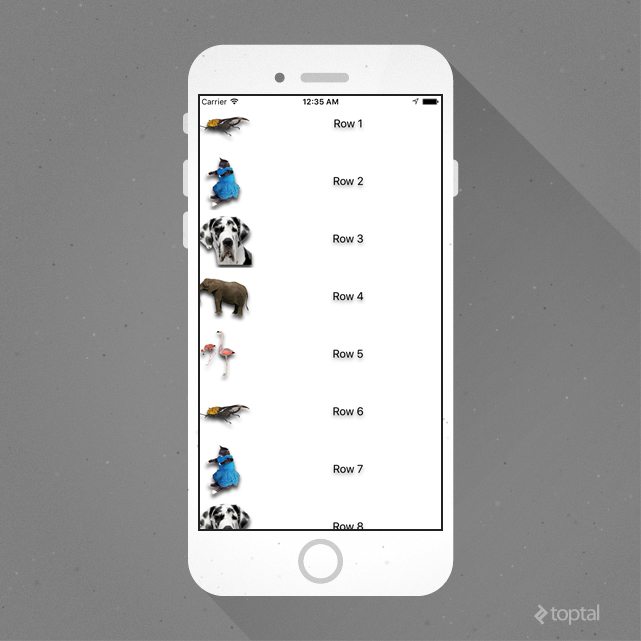
Vertical scrolling is likely to reveal stuttering. One might assume that loading images on the main thread is the culprit, and shifting this to a background thread would solve the issue.
Instead of speculating, let’s measure performance using Instruments.
Utilizing Instruments requires switching from “Run” to “Profile” while connected to a real device, as some instruments are unavailable on the simulator (another reason to avoid simulator-based optimization). We’ll primarily use “GPU Driver”, “Core Animation”, and “Time Profiler” templates. Notably, multiple instruments can be run concurrently via drag-and-drop, eliminating the need to stop and restart for each one.
With instruments set up, let’s begin measurement. First, let’s assess our FPS:
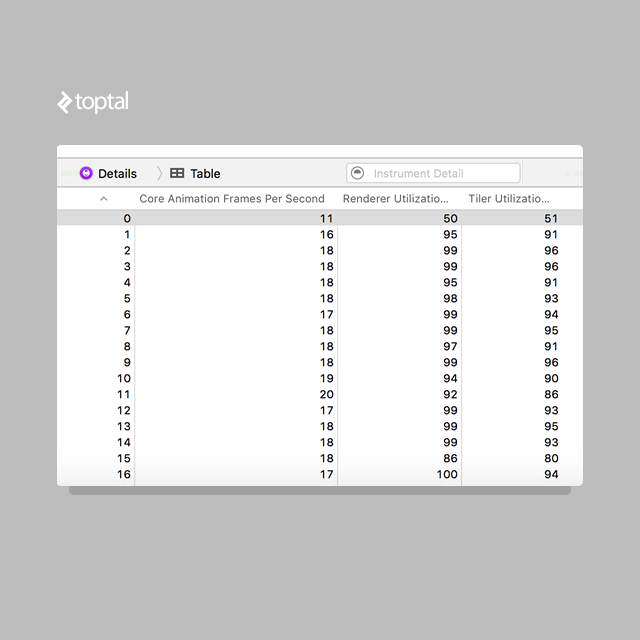
A dismal 18 FPS is observed. Is main thread image loading truly the bottleneck? The renderer and tiler utilization nearing maximum capacity suggests otherwise. This points to rendering as the culprit, not main thread image loading.
Optimizing for Efficiency
The shouldRasterize property, often suggested for optimization, caches a flattened image of the layer, reducing expensive layer redrawing to a single instance. However, frequent frame changes render this cache ineffective.
Implementing this change:
| |
And remeasuring:
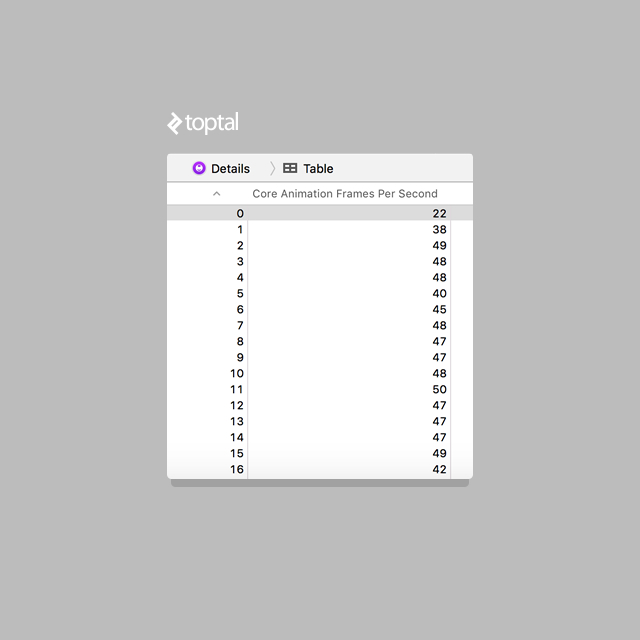
Two lines of code double our FPS to above 40, significantly smoother. But would offloading image loading to a background thread help?
| |
Performance remains at approximately 18 FPS:
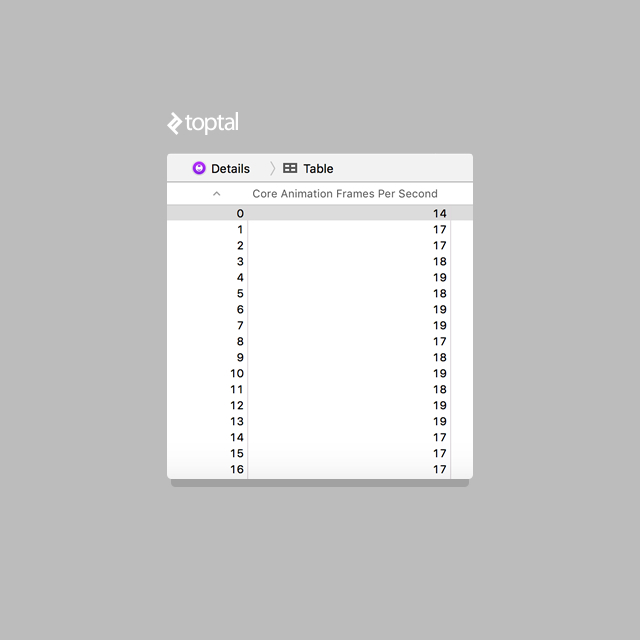
No significant improvement. While blocking the main thread is not ideal, it wasn’t the performance bottleneck; rendering was.
Returning to the optimized example, while 40 FPS is an improvement, further enhancements are possible.
Enabling “Color Blended Layers” in the Core Animation tool reveals:
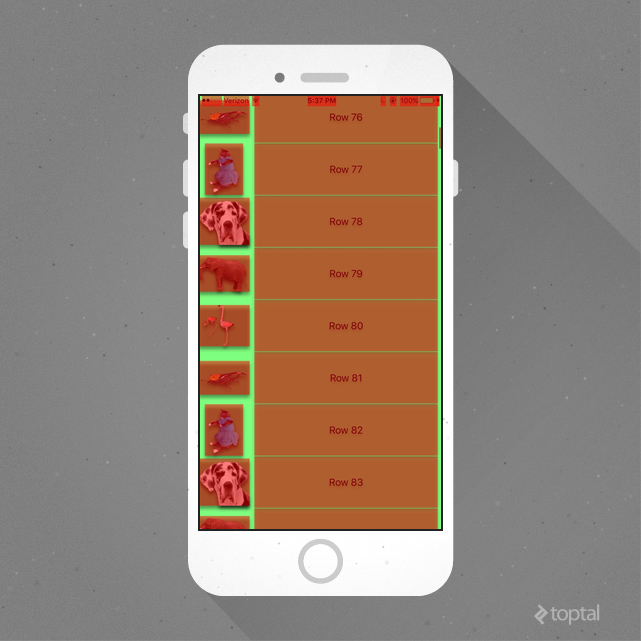
“Color Blended Layers” highlights areas of intense GPU rendering, with green indicating minimal activity and red indicating heavy activity. Despite enabling shouldRasterize, it’s crucial to understand that “Color Blended Layers” differs from “Color Hits Green and Misses Red”, which highlights rasterized layers in red upon cache regeneration. shouldRasterize doesn’t affect the initial rendering of non-opaque layers.
This necessitates a pause for consideration. Regardless of shouldRasterize, the framework analyzes all views, blending based on subview opacity. While a transparent UILabel might be necessary in some instances, a transparent UILabel on a white background is often redundant and impacts performance. Let’s make it opaque:

Performance improves, but the app’s appearance changes. The shadow now surrounds the image due to the opacity of both the label and image. To maintain the original aesthetics while optimizing performance, we need a different approach.
To achieve both, let’s revisit two neglected Core Animation phases:
- Prepare
- Commit
While seemingly out of our control, we can influence them. Image loading necessitates decompression, with varying times based on the format. PNG decompression is faster than JPEG, though loading times differ based on image size. However, the decompression process, occurring at the “point of drawing”, is detrimental to performance, as it happens on the main thread.
Forcing decompression is an option, either by directly setting the image property of a UIImageView or, even better, drawing it into a CGContext. This approach requires decompression before drawing, allowing us to offload this CPU-intensive task to a background thread, pre-sizing the image based on the UIImageView. This optimizes drawing, frees up the main thread, and eliminates unnecessary “preparing” calculations.
While at it, why not incorporate shadows during image drawing? We can then cache the resulting image as a static, opaque entity. The code becomes:
| |
And finally:
| |
The outcome:
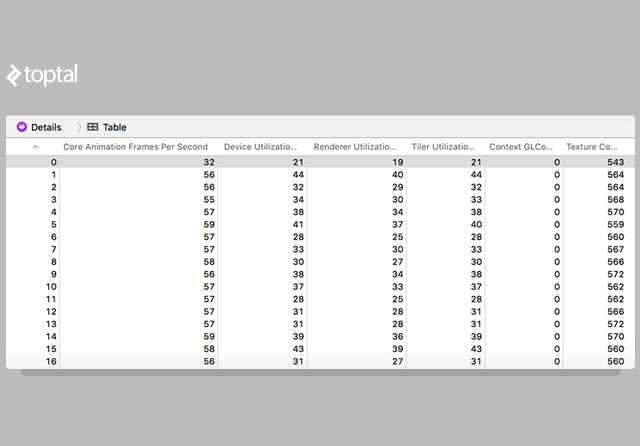
We now achieve over 55 FPS, with render and tiler utilization nearly halved.
Conclusion
For further optimization, consider that UILabel utilizes WebKit HTML for text rendering. Switching to CATextLayer and manipulating shadows there might yield additional performance gains.
While our implementation caches images instead of loading them in a background thread, this approach works efficiently due to the limited number of images and their on-screen presence before scrolling. Moving this logic to a background thread might provide a minor performance boost.
Efficient tuning distinguishes exceptional apps from mediocre ones. iOS animation performance optimization can be challenging, but Instruments empowers developers to pinpoint and address bottlenecks effectively.