The ability to work remotely as a freelancer offers numerous advantages, although establishing a productive and organized work setup in a distributed environment can present significant hurdles. It’s crucial to acknowledge that there’s no universally “correct” approach that caters to every individual’s needs and preferences. Ultimately, crafting a functional remote digital workspace is a highly personalized endeavor, as the ideal setup for one developer might not resonate with another.
Bearing this in mind, the arrangement I’ll be outlining represents what has proven effective for me, particularly when engaged in remote projects encompassing both development and system administration. While I firmly believe this method offers several merits, I encourage every reader to assess and tailor it to align with their specific operational requirements and personal inclinations.
My approach heavily leverages functionalities provided by SSH and associated tools within the Linux environment. It’s worth highlighting that users of MacOS and other Unix-like systems can similarly benefit from these procedures, contingent upon their systems’ compatibility with the tools discussed.
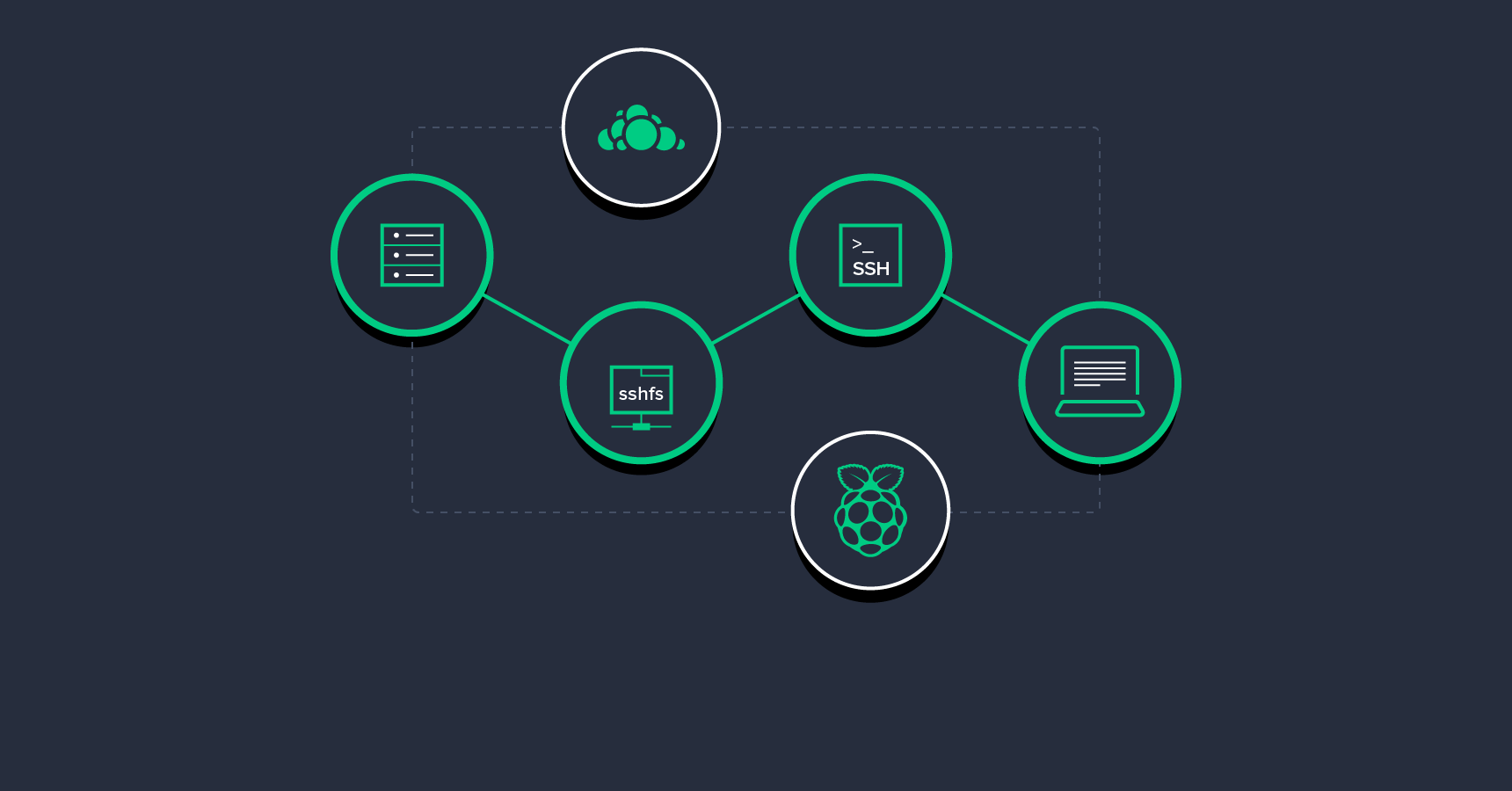
My Personal Mini-Server
A cornerstone of my setup is a Raspberry Pi 2](https://www.raspberrypi.org/products/raspberry-pi-2-model-b/)-powered [server strategically positioned in my residence, serving as a centralized hub for hosting essential components ranging from my source code repositories to demo websites.
Despite occasional travel, my apartment functions as my primary “base of operations” when working remotely, affording me reliable internet connectivity (100 Mbit/sec) with minimal latency. Consequently, my work flow from home is primarily restricted by the speed limitations of the destination network. While the setup I’m describing thrives in such a well-connected environment, it’s not an absolute necessity. In fact, I’ve successfully implemented this approach even with a relatively low-bandwidth ADSL connection, experiencing only minor performance differences. The most crucial factor, based on my observations, is the availability of either unmetered or exceptionally affordable bandwidth.
As a residential internet subscriber, my ISP provided me with a basic, low-cost router that proved inadequate for my needs. To address this, I contacted my ISP and requested they switch my router to “bridge mode,” effectively transforming it into a simple connection terminator. In this configuration, it functions solely as a PPPoE point for a single connected device. This transition disables its capabilities as a WiFi access point or a conventional home router. To compensate for these functions, I’ve incorporated a professional small Mikrotik router RB951G-2HnD. This device assumes responsibility for NAT within my local network (which I’ve designated as 10.10.10.0/24) and extends DHCP capabilities to both wired and wireless devices connected to it. Both the Mikrotik and the Raspberry Pi have been assigned static IP addresses, 10.10.10.1 and 10.10.10.10 respectively, as they’re utilized in situations where a consistent, predictable address is essential.
My home internet connection lacks a static IP address. For my remote work, this presents a minor inconvenience, as my objective is to establish a personalized or SOHO workspace, not a continuously operational online platform. (It’s worth noting that the cost of static IP addresses has been steadily decreasing, and fairly inexpensive static VPN IP options are now readily available for those who require them for their servers.) My chosen DNS broker, Joker.com, offers a complimentary dynamic DNS service in conjunction with its other features. I leverage this service to create a dynamic subdomain within my personal domain. This dynamic subdomain serves as my external access point to my home network. The Mikrotik is configured to redirect both SSH and HTTP through the NAT to the Raspberry Pi, enabling me to connect to my personal home server simply by entering a command similar to ssh mydomain.example.com.
Data Accessibility From Anywhere
One notable limitation of the Raspberry Pi is its lack of built-in redundancy. While I’ve equipped it with a 32 GB card, the potential data loss in case of hardware failure is a concern. To mitigate this risk and ensure continuous data access even during residential internet outages, I mirror all my data to a cloud-like server. As I’m based in Europe, I opted for the most compact dedicated bare-metal (i.e. unvirtualized) server from Online.net option available, featuring a modest VIA CPU, 2 GB of RAM, and a 500 GB SSHD. Given that my requirements don’t demand high CPU or memory performance, this configuration aligns perfectly. (As a side note, this preference for optimization stems from my experience with my first “powerful” server, a dual Pentium 3 machine with 1 GB of RAM—a setup that was likely half as fast as my current Raspberry Pi 2 yet still enabled us to achieve remarkable results.)
I back up my Raspberry Pi to this remote cloud-like server using rdiff-backup. Considering the storage capacity disparity between the two, these backups effectively provide me with a near-infinite backup history. Additionally, the cloud-like server houses an installation of ownCloud, allowing me to operate a personal, Dropbox-like service. ownCloud’s evolution towards groupware and collaborative features enhances its utility when adopted by multiple users. Since I integrated ownCloud into my workflow, I can confidently assert that all my local data is backed up, either to the Raspberry Pi or the cloud-like server, with most data enjoying the added security of dual backups. Redundancy in backups is always a prudent practice when dealing with valuable data.
The Power of SSHFS
A significant portion of my current work revolves around non-web-related development (surprisingly!). Consequently, my workflow often adheres to the traditional edit-compile-run cycle. Depending on the project’s specifics, I might store project files locally on my laptop, within the ownCloud-synced folder, or, more intriguingly, directly on the Raspberry Pi, accessing them remotely.
This last option is made possible by SSHFS, which empowers me to seamlessly mount remote directories from the Raspberry Pi onto my local machine. This functionality feels almost magical: any remote directory residing on a server accessible via SSH (operating within the permissions granted to your user account on that server) can be mounted as if it were a local directory.
Working on a remote project directory? Simply mount it locally and dive right in. Need a powerful server for development or testing, and, for whatever reason, accessing it directly via vim in a console isn’t feasible? Mount the server’s filesystem locally and proceed without constraints. This approach proves particularly advantageous when I’m working with a low-bandwidth internet connection. Even when restricted to a console text editor, running the editor locally and transferring files via SSHFS delivers a smoother experience than working directly over a remote SSH session.
Need to compare multiple /etc directories spread across different remote servers? No problem. Mount each directory locally using SSHFS and employ the diff command (or any other appropriate tool) to perform the comparison effortlessly.
Perhaps you need to process massive log files but are hesitant to install a log parsing tool on the server due to its extensive dependencies, and copying the files is impractical. Once again, SSHFS provides an elegant solution. Mount the remote log directory locally and utilize your preferred log parsing tool, even if it’s a resource-intensive, GUI-based application. SSH’s support for on-the-fly compression, leveraged by SSHFS, ensures that working with text files consumes minimal bandwidth.
I typically invoke the sshfs command with the following options:
sshfs -o reconnect -o idmap=user -o follow_symlinks -C server.example.com:. server
Let’s break down these command line options:
-o reconnect- This option instructssshfsto automatically re-establish the SSH connection if it drops. It’s crucial, as the default behavior upon connection loss is either an abrupt mount point failure or a system hang (the latter being more common in my experience). Enabling this option by default seems like a logical choice.-o idmap=user- This option ensures that the remote user account used for the SSH connection is mapped to the local user. As SSH connections can be established using various usernames, this option maintains consistency, ensuring the local system perceives the user as a single entity. Access rights and permissions on the remote system are enforced as usual based on the remote user’s privileges.-o follow_symlinks- While mounting numerous remote filesystems is possible, I find it more streamlined to mount my remote home directory and manage access to other critical directories like/srv,/etc, or/var/logthrough symlinks created within a remote SSH session. This option enablessshfsto resolve these remote symlinks, granting you access to the linked directories.-C- Enables SSH compression. This option is particularly effective for file metadata and text files, making it another strong candidate for a default setting.server.example.com:.- Defines the remote endpoint.server.example.comrepresents the hostname, while the part after the colon specifies the remote directory to mount. In this example, “.” points to the default directory after SSH login, typically the home directory.server- Indicates the local directory where the remote filesystem will be mounted.
When dealing with low-bandwidth or unstable internet connections, it’s essential to use SSHFS in conjunction with SSH public/private key authentication and a local SSH agent. This configuration eliminates the need for password prompts (for both system login and SSH keys) when using SSHFS and ensures the reconnect feature functions as intended. If the SSH agent isn’t properly configured to provide the unlocked key automatically, the reconnect functionality might not work reliably. Numerous online resources provide detailed SSH key tutorials, and most GTK-based desktop environments I’ve encountered automatically launch their SSH agent (or “wallet” or any other designation they might use).
Advanced SSH Techniques
Having a fixed, globally accessible point on the internet with a high-bandwidth connection—in my case, the Raspberry Pi, though it could be any standard VPS—significantly simplifies data exchange and tunneling.
Need a quick nmap while connected via a mobile network? Your server becomes an instant solution. Need to transfer data swiftly, and SSHFS feels like overkill? Plain SCP gets the job done.
Another scenario you might encounter involves having SSH access to a server where port 80 (or any other port) is firewalled, blocking access from your external network. SSH’s port forwarding capabilities provide a workaround. You can forward the blocked port to your local machine and access it through localhost. An even more intriguing technique utilizes the SSH-accessible host as an intermediary to forward a port on another machine potentially located behind the same firewall. For instance, consider the following setup:
- 192.168.77.15 - A host residing within a remote, firewalled network. You need to access port 80 on this machine.
- foo.example.com - An SSH-accessible host that can connect to 192.168.77.15
- Your local system, localhost
The following command forwards port 80 on 192.168.77.15 to localhost:8080 via the SSH server at foo.example.com:
ssh -L 8080:192.168.77.15:80 -C foo.example.com
The argument to -L specifies the local port and the target address and port. -C enables compression for bandwidth efficiency. This command establishes a standard SSH shell session to the host and, additionally, listens on localhost port 8080 for connections.
One of SSH’s most remarkable advancements is its ability to establish secure VPN tunnels. These tunnels manifest as virtual network devices on both ends of the connection (provided they have valid IP addresses configured) and effectively bypass firewalls, granting you access to the remote network as if you were physically present. For technical and security reasons, setting up VPN tunnels necessitates root access on both participating machines, making it a more complex undertaking than port forwarding, SSHFS, or SCP. This technique caters to advanced users who can readily find tutorials outlining the setup process.
A Mobile Office

By embracing the technologies and techniques described above, you liberate yourself from the constraints of a fixed work location, enabling you to work productively from virtually anywhere with a decent internet connection, even while waiting for your car at the mechanic. Mount remote systems effortlessly using SSH, forward ports, establish tunnels, access your private server or cloud data securely—all while enjoying the freedom to work from a sun-drenched beach or a cozy café in a bustling city. The possibilities are limitless!