The mobile app development landscape is constantly changing, with new frameworks and technologies appearing all the time. While our phones and tablets are the most recognizable mobile devices, their popularity pales in comparison to smartphones.
Apple’s iOS and Google’s Android are the dominant players in the mobile market, each experiencing its own share of successes and challenges over the last decade. Today, we’ll delve into Android’s presence on devices beyond the realm of mobile phones.
The open-source nature of Google’s mobile operating system has led to an intriguing phenomenon. We are all familiar with the various Android adaptations from different smartphone manufacturers, but what about the multitude of devices running Android that aren’t mobile phones? From refrigerators and smart ovens to door locks and Point of Sale (POS) systems, Android’s reach extends far beyond our pockets. This last category, POS devices, is what inspired this article.
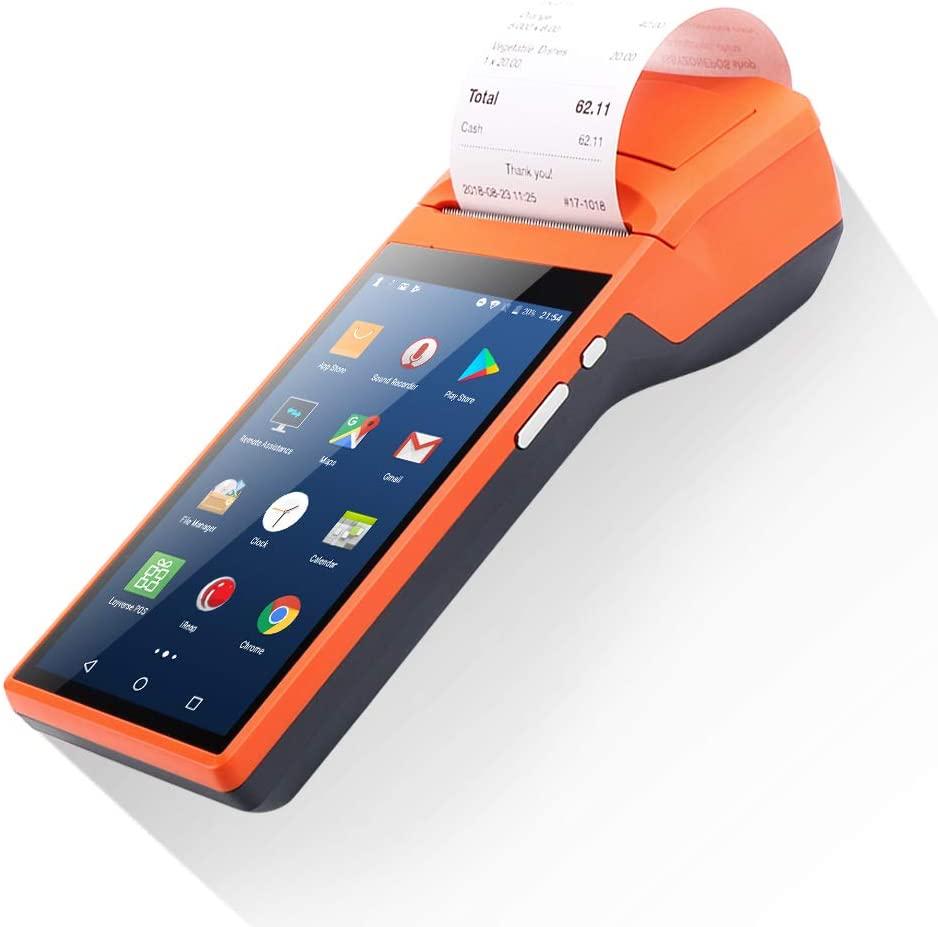
Android-Powered POS Terminals
Around a year ago, I had the opportunity to work with an unusual Android device, one that most people are unlikely to encounter. It was an Android-based POS system from a Chinese vendor equipped with a built-in thermal printer, similar to those used for receipts at stores or ATMs.
The most astonishing aspect was its software: a completely unmodified version of Android. If I remember correctly, it was running Android 8, also known as Android Oreo, at the time. The device resembled a traditional portable POS terminal, but instead of a physical PIN pad, it featured a capacitive touchscreen like those found on older Android phones.
My objective was simple: to determine if we could utilize the device’s capabilities, particularly the thermal printer, while simultaneously running our own application. As soon as I realized this was feasible, another concern arose: security.
Consider this: if you have a device processing card payments and other sensitive transactions, you wouldn’t want it running apps like TikTok, Gmail, or Snapchat. This device functioned like any other tablet, even coming with Google’s Play Store pre-installed. Imagine a cashier at a local store snapping selfies, opening emails from suspicious senders, and browsing potentially dangerous websites on the same device they use to process your payment. It wouldn’t exactly inspire confidence in the security of your financial information.
Restricting User Access on Android POS Devices
Beyond the security concerns, I faced a more pressing challenge: confining users to our app on the Android POS device. Modifying the operating system directly was not an option, as these devices were intended for users without technical expertise.
While cashiers are capable of installing applications, most wouldn’t be comfortable with advanced procedures like flashing custom ROMs. Our app was developed using React Native, but that’s inconsequential in this context. All my modifications involved native Java code, ensuring compatibility regardless of the framework used for the main application.
It’s important to note that this method is specific to Android apps. Apple’s iOS, with its closed ecosystem, doesn’t offer the same level of control, which is understandable.
There are essentially four ways a user could potentially exit our application:
- The Home button.
- The Back button.
- The Recents button.
- Exiting through the notification bar.
Clicking on a notification or accessing settings from the notification bar would allow a user to leave our application. While gestures are another possibility, they ultimately trigger the same actions as physical buttons.
Implementing a PIN system to unlock the application can provide an extra layer of security, allowing only authorized individuals to install different versions of the app without granting full access to end users.
Disabling the Home Button
To prevent users from pressing the Home button, we don’t actually disable it. Instead, we leverage Android’s launcher functionality. Launchers are apps that provide customizable home screens, app drawers, and UI elements. Each Android device comes with a default launcher pre-installed.
Our strategy involves registering our application as a launcher. By doing so, we can designate it as the default launcher, essentially overriding the Home button’s behavior. Pressing the Home button will then launch our app instead of returning to the default home screen. To achieve this, we add two lines of code to the AndroidManifest XML file in our Android project:
| |
The first line allows our app to be selected as a potential launcher, and the second line sets it as the default whenever the Home button is pressed.
The final step involves instructing the field agent to install the application on the client’s device. Android prompts users to select a default launcher during the installation process if the app offers this functionality.
With this modification, pressing the Home button or clearing all recent applications will redirect users to our application.

Handling the Back Button
Next, we address the Back button. Most mobile apps offer an on-screen back navigation method, especially since many devices lack a dedicated “back” key.
In the past, Apple’s iOS devices were known for their single physical button below the screen. However, recent Android devices have also transitioned away from physical Home buttons, opting for on-screen buttons and gestures as phone manufacturers embrace all-screen designs with minimal bezels.
The default Android Back button has become less essential. To render it ineffective in our case, we add a simple code block to our activity:
| |

This straightforward code intercepts the Back button press within our main activity. By overriding the default method with an empty one, we effectively disable the Back button within our app.
This technique is similar to how some applications request confirmation before exiting, preventing accidental closures from multiple back presses.
Neutralizing the Recents Button
The Recents button poses the most significant challenge, and the solution is somewhat unorthodox. It’s important to emphasize that this approach is not recommended for general use or Play Store publication, but it serves our specific purpose.
Similar to how the main activity detects Back button presses, it can also detect when the app is paused, meaning it transitions from the foreground to the background.
We can leverage this event to retrieve our application’s task ID and instruct the activity manager to bring it back to the foreground. To enable this, we need to add a specific permission to the AndroidManifest XML file:
| |
This permission grants us access to read and modify ongoing tasks. We also need to intercept the moment our application enters the background, which we achieve by overriding the onPause method in our activity.
Within this method, we retrieve the task manager and force it to bring a specific task to the foreground. In our case, this task is our application, which was just sent to the background.
| |
With this modification, attempting to access the Recents menu will immediately refocus our application. While some screen flickering might occur, exiting the app becomes impossible. Furthermore, this approach also prevents exiting through the notification bar, as actions performed there trigger the backgrounding event, instantly returning the user to our app.
The speed of this process makes it practically unnoticeable to the user. Additionally, quick settings toggles remain accessible, allowing users to adjust Wi-Fi or sound settings without leaving the app. However, any action requiring access to the full Settings app is blocked.

The Result: A Virtually Unclosable App
This approach might not be the most elegant solution, but it was a fascinating exploration into a possibility I hadn’t considered before. And most importantly, it works! However, a word of caution: once implemented, only two methods remain to exit the application—reinstalling the operating system or using ADB to kill/uninstall the app.
Losing the ADB connection to the device without a backup plan would pose a significant problem. To mitigate this risk, I implemented a PIN system.
Handling Edge Cases
Several scenarios require attention. First, what happens if the device reboots, either manually or due to a system crash?
Since we established our application as the default launcher, it will automatically launch on startup. Android essentially loads the default launcher to display the home screen. With our app designated as the default launcher, reboots are no longer a concern.
Could Android potentially kill our application? Theoretically, it could if RAM memory becomes full, but this is highly unlikely in practice. Our app’s unclosable nature prevents other apps from consuming memory, making it difficult for RAM to fill up unless our application has a severe memory leak.
Even if Android were to terminate our app, attempting to return to the home screen would trigger its relaunch, maintaining the user’s confinement.
Implementing a Backdoor
To address potential issues, I incorporated a PIN-based unlock mechanism within the app’s settings. Entering the correct PIN disables the restrictions imposed on the onPause and onBackPressed methods through a simple conditional statement, allowing access to the settings via the quick settings menu. From there, users can revert to the stock launcher, effectively exiting the app.
While this is just one approach, the key takeaway is the importance of having a method to disable the imposed limitations. Fingerprint authentication or other secure methods could also be employed. The possibilities are vast.

Conclusion
Through this process, I successfully created an application that is virtually impossible to close or kill, even after a device reboot. This technique proved valuable for our project, and the experience of exploring such an unconventional solution was both rewarding and motivating.
Android has simplified app development for numerous devices and use cases, including IoT devices, kiosk applications, POS systems, taxi navigation and payment gateways, and many more.
While Android has made development easier, there are niche situations where restricting user access, as demonstrated in this article, becomes necessary.