This tutorial guides you through building a Node.js application that utilizes the Firebase Auth REST API for managing users and their roles. Moreover, it demonstrates the API’s usage in authorizing user access to specific resources.
Introduction
Nearly all applications necessitate a certain degree of authorization. While a simple username/password check against a Users table might suffice in some scenarios, many others demand a more granular permissions model. This model would allow certain users access to specific resources while restricting others. Implementing such a system can be complex and time-consuming. This tutorial explores building a role-based authentication API using Firebase to expedite this process.
Role-based Auth
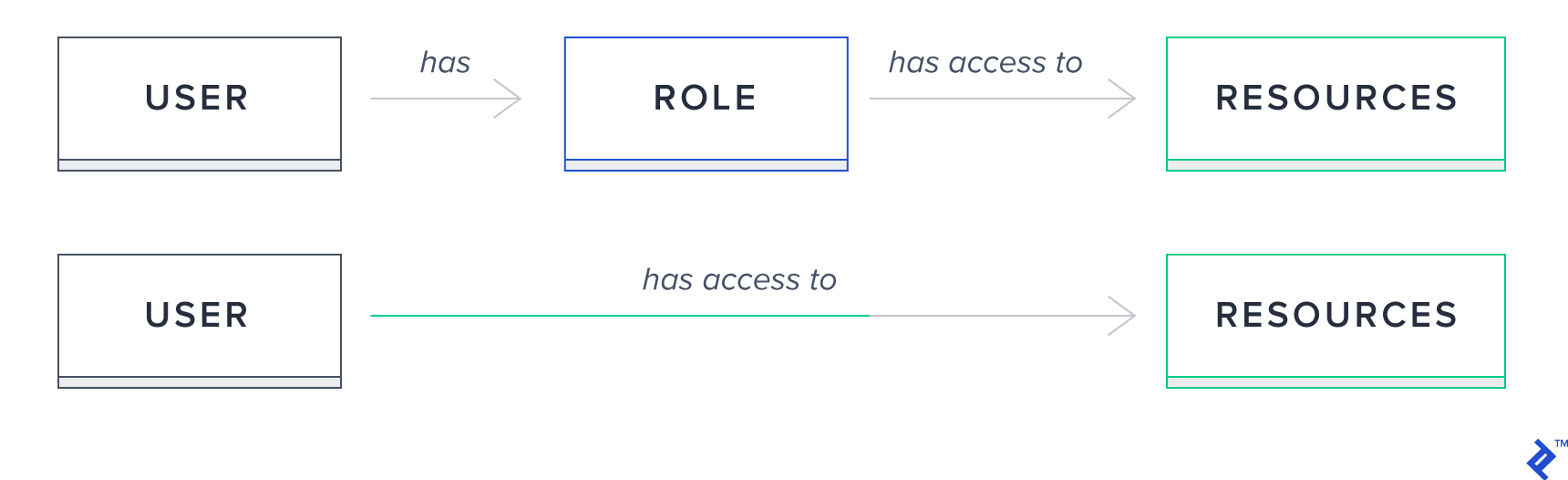
In this authorization model, access is granted to roles rather than individual users. Each user can possess one or more roles, shaping your permission structure. Resources, on the other hand, are associated with specific roles, dictating user access.
Firebase
Firebase Authentication
In essence, Firebase Authentication is a versatile token-based authentication system offering seamless integration with popular providers like Google, Facebook, and Twitter.
It enables us to employ custom claims, which we’ll leverage to build a flexible role-based API. These claims can be viewed as user roles within Firebase, mapping directly to the roles defined in our application.
We can embed any JSON value within these claims, for instance, { role: 'admin' } or { role: 'manager' }.
Once set, these custom claims are incorporated into the generated Firebase token, which we can then decode to control access.
Firebase Authentication comes with a generous free quota, often sufficient for most applications.
Firebase Functions
Functions provide a fully managed serverless platform. You only need to write your Node.js code and deploy it, leaving infrastructure scaling, server configuration, and other tasks to Firebase. We’ll utilize this service to build our API and expose it over HTTP for web access.
Firebase allows configuring express.js applications as handlers for various paths. For instance, you can create an Express app and associate it with /mypath, routing all requests to that path to your configured app.
Within a function’s context, you gain access to the entire Firebase Authentication API via the Admin SDK.
This is how we’ll build our user API.
What We’ll Build
Before diving in, let’s outline our objective. We aim to create a REST API with the following endpoints:
Http Verb
Path
Description
Authorization
GET
/users
Lists all users
Only admins and managers have access
POST
/users
Creates new user
Only admins and managers have access
GET
/users/:id
Gets the :id user
Admins, managers, and the same user as :id have access
PATCH
/users/:id
Updates the :id user
Admins, managers, and the same user as :id have access
DELETE
/users/:id
Deletes the :id user
Admins, managers, and the same user as :id have access
Each endpoint will handle authentication, validate authorization, execute the corresponding operation, and return an appropriate HTTP status code.
We’ll develop authentication and authorization functions to validate the token and verify if the claims contain the necessary role for the requested operation.
Building the API
Building the API necessitates:
A Firebase project
firebase-tools installed
Start by logging into Firebase:
1
firebase login
Next, initialize a Functions project:
 1
 2
 3
 4
 5
 6
 7
 8
 9
10
11
12
firebase init
? Which Firebase CLI features do you want to set up for this folder? ...
(O) Functions: Configure and deploy Cloud Functions
? Select a default Firebase project for this directory: {your-project}? What language would you like to use to write Cloud Functions? TypeScript
? Do you want to use TSLint to catch probable bugs and enforce style? Yes
? Do you want to install dependencies with npm now? Yes
This creates a Functions folder with the basic setup for Firebase Functions.
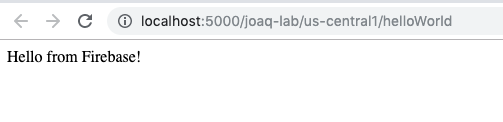
Inside src/index.ts, you’ll find a helloWorld example. Uncomment and test this function to ensure your Functions setup is working correctly. Then, navigate to cd functions and execute npm run serve. This transpiles the code and starts a local server.
Now, any request directed to /api will be handled by our app instance.
Next, we’ll configure the app instance to handle CORS and incorporate JSON body-parsing middleware. This enables requests from any URL and facilitates the processing of JSON-formatted requests.
Firebase Functions allows us to employ an Express app as a handler. Any path following the one defined in functions.https.onRequest(app); (in this case, api) will also be handled by our app. This enables us to define specific endpoints like api/users and assign handlers for each HTTP verb, which we’ll do next.
Let’s create the file src/users/routes-config.ts.
Here, we’ll define a create handler for POST '/users'.
Within this function, we’ll first verify the presence of all required fields in the request body. Subsequently, we’ll create the user and set the custom claims.
We’re only passing { role } to setCustomUserClaims as Firebase automatically manages other fields.
If no errors occur, we return a 201 status code along with the uid of the newly created user.
Now, let’s secure this handler by implementing authorization. We’ll add a couple of handlers to our create endpoint. In express.js, you can chain handlers, executed sequentially. Within a handler, you can execute code and pass control to the next handler using next() or directly return a response. Our approach involves first authenticating the user and then validating their authorization.
This function will check for the presence of the authorization bearer token in the request header. It then decodes the token using admin.auth().verifyidToken() and stores the user’s uid, role, and email in the res.locals variable. We’ll use this information later for authorization.
If the token is invalid, a 401 response is returned to the client:
This handler retrieves the user’s information from res.locals, which we populated earlier. It then verifies if the user possesses the required role to execute the operation. If the operation permits execution by the same user, we check if the ID in the request parameters matches the ID from the authentication token. If the user lacks the necessary role, a 403 response is returned.
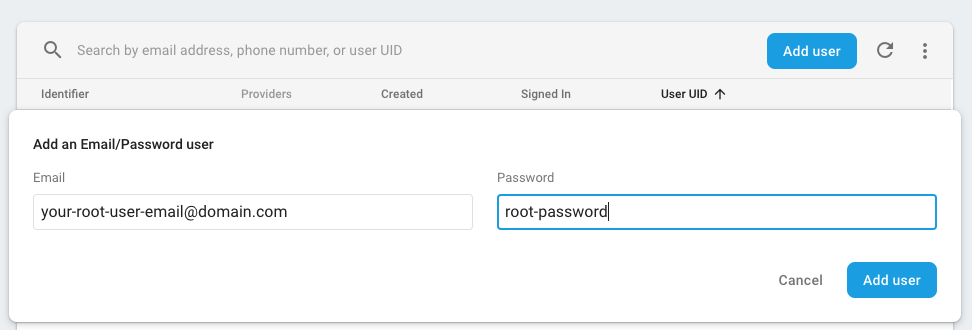
These two methods enable us to authenticate requests and authorize them based on the role present in the incoming token. However, Firebase prevents us from setting custom claims directly from the project console. As a workaround, we can create a root user through the Firebase Authentication Console.
We’ll then implement an email comparison in our code. This allows requests from this specific user to bypass restrictions and execute all operations.
exportfunctionroutesConfig(app: Application){//..
// lists all users
app.get('/users',[isAuthenticated,isAuthorized({hasRole:['admin','manager']}),all]);// get :id user
app.get('/users/:id',[isAuthenticated,isAuthorized({hasRole:['admin','manager'],allowSameUser: true}),get]);// updates :id user
app.patch('/users/:id',[isAuthenticated,isAuthorized({hasRole:['admin','manager'],allowSameUser: true}),patch]);// deletes :id user
app.delete('/users/:id',[isAuthenticated,isAuthorized({hasRole:['admin','manager']}),remove]);}
In src/users/controller.ts, we’ll utilize the Admin SDK to interact with Firebase Authentication and perform the respective operations. As with the create operation, we return meaningful HTTP status codes for each operation.
For the update operation, we verify the presence of all fields and overwrite the customClaims with those provided in the request:
You can now run the function locally. Before doing so, ensure you’ve set up the account key to enable local connections to the authentication API. Then, execute:
1
npm run serve
Deploy the API
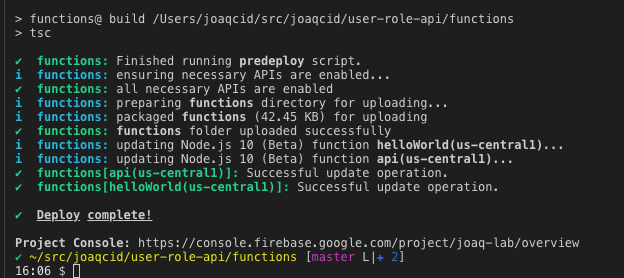
With our application utilizing Firebase’s role-based authentication API ready, we can deploy it and make it accessible. Firebase simplifies deployment to a single command: firebase deploy. Once deployed, our API will be accessible at the provided URL.
In this instance, the URL is [https://us-central1-joaq-lab.cloudfunctions.net/api].
Consuming the API
Once deployed, our API can be accessed in various ways. This tutorial covers accessing it through Postman and an Angular application.
Attempting to access the List All Users URL (/api/users) directly through a browser results in:
This occurs because browser requests are sent as GET requests without authentication headers. This behavior confirms our API is functioning securely.
Our API relies on token-based authentication. To generate a token, we invoke Firebase’s Client SDK and authenticate with valid user credentials. Upon successful authentication, Firebase returns a token in the response, which we then include in the headers of subsequent requests to our API.
From an Angular App
This section outlines the key aspects of consuming the API from an Angular app. The complete repository is available here. For a detailed guide on creating an Angular app and configuring @angular/fire, refer to this [post].
Let’s focus on the sign-in process. We’ll create a SignInComponent with a <form> for user credentials.
Inspecting the network requests in your browser’s DevTools, you’ll notice Firebase returns a token after successful user authentication.
This token is what we’ll include in our API requests’ headers. An HttpInterceptor offers a convenient way to add the token to all requests automatically.
This file demonstrates retrieving the token from AngularFireAuth and adding it to request headers. We then register the interceptor in our AppModule.
With the interceptor configured, we can now make API requests using httpClient. As an example, here’s a UsersService demonstrating how to list all users, retrieve a user by ID, create a new user, and update a user.
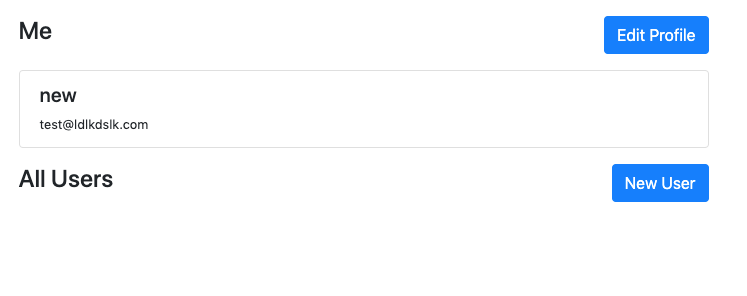
Back in our main component, let’s add buttons to trigger these actions. The “Edit User” button will be accessible only to the logged-in user. You can expand this functionality to allow editing other users if required.
//...
<divclass="d-flex justify-content-between my-3"><h4> Me </h4><buttonclass="btn btn-primary"(click)="edit(user)"> Edit Profile
</button></div>//...
<divclass="d-flex justify-content-between my-3"><h4> All Users </h4><buttonclass="btn btn-primary"(click)="create()"> New User
</button></div>//...
Postman is a tool for constructing and sending API requests. We can use it to simulate calls to our API from any client application or another service.
Let’s demonstrate sending a request to list all users.
Open Postman and enter the following URL: https://us-central1-{your-project}.cloudfunctions.net/api/users
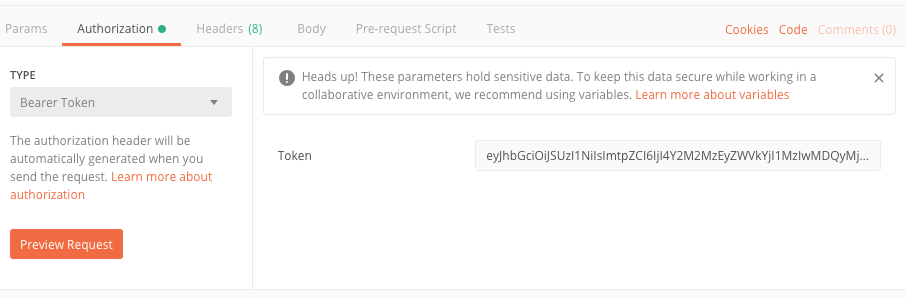
Navigate to the “Authorization” tab, select “Bearer Token”, and paste the token we obtained from the browser’s DevTools earlier.
Conclusion
Congratulations! You’ve successfully completed this tutorial and learned how to build a user role-based API on Firebase.
We covered consuming this API from both an Angular application and Postman.
Here’s a summary of the key takeaways:
Firebase enables you to quickly build and deploy a production-ready authentication API, which you can later extend based on your requirements.
Most projects require authorization. Firebase Authentication provides a rapid solution for implementing a role-based access control model.
The role-based model centers around controlling access to resources based on user roles instead of individual users.
By utilizing an Express.js application within Firebase Functions, we can create REST APIs and implement handlers for authentication and authorization.
Firebase’s built-in custom claims provide a straightforward mechanism for building a secure, role-based authentication API for your application.
You can find more information about Firebase Authentication here. To further leverage the roles we’ve defined, consider exploring @angular/firehelpers.