Developing games is a fascinating and complex area of programming that continually pushes the boundaries of software development.
Although many platforms and devices exist for playing and creating games, Flash-based development remains dominant for web browser games.
Converting Flash-based games to HTML5 Canvas technology would allow us to enjoy them on mobile browsers. Furthermore, using Apache Cordova, skilled web developers could easily package them into cross-platform mobile game apps.
The team at CreateJS embarked on this mission and aimed for even greater things.
EaselJS, a component of the CreateJS suite, simplifies drawing on HTML5 Canvas. Consider creating custom data visualizations with high performance involving thousands of elements. SVG, while a possibility, isn’t ideal. This is because SVG uses DOM elements, and browsers struggle when handling a large number of them (around 600). Initial renderings, re-draws, and animations become resource-intensive with that many DOM elements. HTML5 Canvas allows us to circumvent these issues. Canvas drawings are analogous to ink on paper—no DOM elements and their associated overhead.
However, Canvas-based development requires extra care in managing elements, attaching events, and defining behaviors. EaselJS addresses this by allowing us to code as if interacting with discrete elements. It handles mouse-overs, clicks, and collisions behind the scenes.
SVG-based coding does offer a significant advantage: SVG is a mature specification with numerous design tools that export SVG assets. This facilitates smooth collaboration between designers and developers. Existing libraries such as D3.JS, as well as more recent and powerful options like SnapSVG, offer valuable features.
If your primary reason for using SVGs is a streamlined designer-to-developer workflow, consider Adobe Illustrator (AI) extensions that generate code from AI shapes. In our case, these extensions can output EaselJS or ProcessingJS code, both of which are HTML5 Canvas-based libraries.
In essence, if you’re starting a new project, there’s little reason to choose SVGs anymore!
SoundJS, another member of the CreateJS suite, provides a straightforward API for the HTML5 Audio specification.
PreloadJS handles the preloading of assets like images and audio files. It integrates seamlessly with other CreateJS libraries.
EaselJS, SoundJS, and PreloadJS simplify game development for JavaScript developers. Anyone familiar with Flash-based game development will find the API methods intuitive.
“This is all fantastic. However, what if we have a team converting multiple games from Flash to HTML5? Can this suite handle that?”
Answer: “Yes, but only if all your developers are at a Jedi level!”
If you have a team with varying skill levels, which is common, relying solely on CreateJS for scalable and modular code can feel risky. What if we combine the CreateJS suite with AngularJS? Can we mitigate this risk by incorporating the leading and most widely used front-end JavaScript framework?
Yes, we can, and this HTML5 Canvas game tutorial will guide you through building a basic game using CreateJS and AngularJS!
Establishing the Foundation
AngularJS dramatically simplifies development by empowering your team with the following capabilities:
- Improved code modularity, allowing team members to focus on specific aspects of the game.
- Decomposition of code into testable and maintainable units.
- Code reusability, enabling the instantiation and reuse of a single factory class for loading different but similar assets and behaviors.
- Faster development through parallel work without conflicts, as multiple team members can work concurrently.
- Prevention of poor coding practices (JavaScript has its share of problematic elements, and JSLint can only do so much).
- Integration of a robust testing framework.
If, like me, you’re a “tinkerer” or a hands-on learner, download the code from GitHub and start exploring. I recommend examining my check-ins to understand the steps I took to harness the benefits of integrating AngularJS into CreateJS code.
Launching Your AngularJS Seed Project
If you haven’t already, install nodeJS before running this demo.
After creating or downloading an AngularJS seed project from GitHub, run npm install to download all dependencies to your app directory.
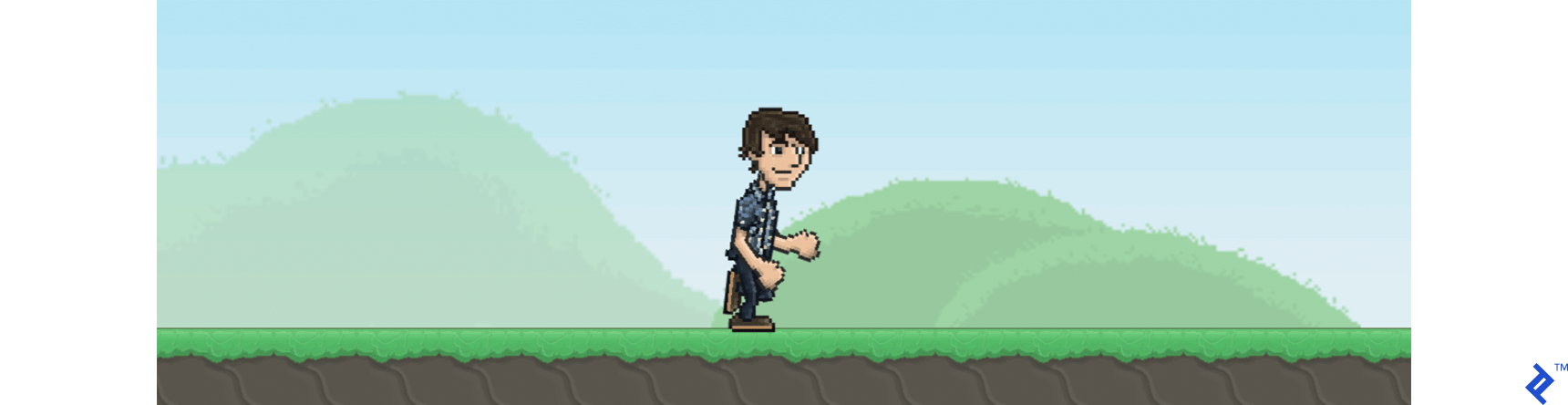
To run your application, execute npm start from the same directory and open http://localhost:8000/app/#/view1 in your browser. Your page should resemble the image below.
Combining EaselJS with AngularJS
Add a reference to the CreateJS library in your AngularJS seed project, ensuring that the CreateJS script is included after AngularJS.
<script src="http://code.createjs.com/createjs-2014.12.12.min.js"></script>
Next, let’s clean up the application:
- Delete the view2 folder from your app directory.
- Remove the menu and AngularJS version information from index.html by deleting the following code:
1
2
3
4
5
6
7
8
| <ul class="menu">
<li><a href="#/view1">view1</a></li>
<li><a href="#/view2">view2</a></li>
</ul>
…
<div>Angular seed app: v<span app-version></span></div>
…
<script src="view2/view2.js"></script>
|
Remove the view2 module from app.js by deleting the line:
myApp.view2,
If you’re new to AngularJS and unfamiliar with its directives, check this tutorial. Directives in AngularJS enhance HTML’s capabilities. They are a well-designed feature of the framework, making AngularJS both powerful and extensible.
When you need specialized DOM functionality or a component, search online. There’s a good chance it already exists in repositories like Angular modules.
Our next step is to create a new AngularJS directive that implements the EaselJS example. Create a new directive named spriteSheetRunner in a new file at /app/view1/directives/spriteSheetRunner.js.
 1
 2
 3
 4
 5
 6
 7
 8
 9
10
11
12
13
14
15
16
17
18
19
20
21
22
23
24
25
26
27
28
29
30
31
32
33
34
35
36
37
38
39
40
41
42
43
44
45
46
47
48
49
50
51
52
53
54
55
56
57
58
59
60
61
62
63
64
65
66
67
68
69
70
71
72
73
74
75
76
77
78
79
80
81
82
83
84
85
86
87
| angular.module('myApp.directives', [])
.directive('spriteSheetRunner', function () {
"use strict";
return {
restrict : 'EAC',
replace : true,
scope :{
},
template: "<canvas width='960' height='400'></canvas>",
link: function (scope, element, attribute) {
var w, h, loader, manifest, sky, grant, ground, hill, hill2;
drawGame();
function drawGame() {
//drawing the game canvas from scratch here
//In future we can pass stages as param and load indexes from arrays of background elements etc
if (scope.stage) {
scope.stage.autoClear = true;
scope.stage.removeAllChildren();
scope.stage.update();
} else {
scope.stage = new createjs.Stage(element[0]);
}
w = scope.stage.canvas.width;
h = scope.stage.canvas.height;
manifest = [
{src: "spritesheet_grant.png", id: "grant"},
{src: "sky.png", id: "sky"},
{src: "ground.png", id: "ground"},
{src: "hill1.png", id: "hill"},
{src: "hill2.png", id: "hill2"}
];
loader = new createjs.LoadQueue(false);
loader.addEventListener("complete", handleComplete);
loader.loadManifest(manifest, true, "/app/assets/");
}
function handleComplete() {
sky = new createjs.Shape();
sky.graphics.beginBitmapFill(loader.getResult("sky")).drawRect(0, 0, w, h);
var groundImg = loader.getResult("ground");
ground = new createjs.Shape();
ground.graphics.beginBitmapFill(groundImg).drawRect(0, 0, w groundImg.width, groundImg.height);
ground.tileW = groundImg.width;
ground.y = h - groundImg.height;
hill = new createjs.Bitmap(loader.getResult("hill"));
hill.setTransform(Math.random() * w, h - hill.image.height * 4 - groundImg.height, 4, 4);
hill.alpha = 0.5;
hill2 = new createjs.Bitmap(loader.getResult("hill2"));
hill2.setTransform(Math.random() * w, h - hill2.image.height * 3 - groundImg.height, 3, 3);
var spriteSheet = new createjs.SpriteSheet({
framerate: 30,
"images": [loader.getResult("grant")],
"frames": {"regX": 82, "height": 292, "count": 64, "regY": 0, "width": 165},
// define two animations, run (loops, 1.5x speed) and jump (returns to run):
"animations": {
"run": [0, 25, "run", 1.5],
"jump": [26, 63, "run"]
}
});
grant = new createjs.Sprite(spriteSheet, "run");
grant.y = 35;
scope.stage.addChild(sky, hill, hill2, ground, grant);
scope.stage.addEventListener("stagemousedown", handleJumpStart);
createjs.Ticker.timingMode = createjs.Ticker.RAF;
createjs.Ticker.addEventListener("tick", tick);
}
function handleJumpStart() {
grant.gotoAndPlay("jump");
}
function tick(event) {
var deltaS = event.delta / 1000;
var position = grant.x 150 * deltaS;
var grantW = grant.getBounds().width * grant.scaleX;
grant.x = (position >= w grantW) ? -grantW : position;
ground.x = (ground.x - deltaS * 150) % ground.tileW;
hill.x = (hill.x - deltaS * 30);
if (hill.x hill.image.width * hill.scaleX <= 0) {
hill.x = w;
}
hill2.x = (hill2.x - deltaS * 45);
if (hill2.x hill2.image.width * hill2.scaleX <= 0) {
hill2.x = w;
}
scope.stage.update(event);
}
}
}
});
|
Once you’ve created the directive, update /app/app.js to add a dependency to the app:
 1
 2
 3
 4
 5
 6
 7
 8
 9
10
11
12
| 'use strict';
// Declare app level module which depends on views, and components
angular.module('myApp',[
'ngRoute',
'myApp.view1',
'myApp.version',
'myApp.services',
'myApp.uiClasses',
'myApp.directives'])
.config(['$routeProvider', function($routeProvider) {
$routeProvider.otherwise({redirectTo: '/view1'});
}]);
|
Include the directive code in index.html by adding a reference to spriteSheetRunner.js.
1
| <script src="view1/directives/spriteSheetRunner.js"></script>
|
We’re almost there! Copy the game assets to your app folder. I’ve prepared the images, so download them and save them in your app/assets folder.
Finally, add our new directive to the page. Modify your app/view/view1.html file to a single line:
1
| <sprite-sheet-runner></sprite-sheet-runner>
|
Start your application, and you’ll see your runner in action :)
If this is your first AngularJS or CreateJS application, celebrate—you’ve accomplished something impressive!
Preloading Assets with a Service
Services in AngularJS are singletons primarily used for sharing code and data. We’ll use a service to share the “game assets” throughout the application. For a deeper dive into AngularJS services, refer to the AngularJS documentation.
AngularJS development services offer an efficient mechanism for centrally loading and managing all assets. Asset changes propagate to each instance of a service, simplifying code maintenance.
Create a new JS file named loaderSvc.js in your /app/view1/services folder.
 1
 2
 3
 4
 5
 6
 7
 8
 9
10
11
12
13
14
15
16
17
18
19
20
21
| //app/view1/services/loaderSvc.js
myServices.service('loaderSvc', function () {
var manifest = [
{src: "spritesheet_grant.png", id: "grant"},
{src: "sky.png", id: "sky"},
{src: "ground.png", id: "ground"},
{src: "hill1.png", id: "hill"},
{src: "hill2.png", id: "hill2"}
],
loader = new createjs.LoadQueue(true);
this.getResult = function (asset) {
return loader.getResult(asset);
};
this.getLoader = function () {
return loader;
};
this.loadAssets = function () {
loader.loadManifest(manifest, true, "/app/assets/");
};
});
|
AngularJS requires us to register any services we use. Update your app.js file to include a reference to myApp.services.
 1
 2
 3
 4
 5
 6
 7
 8
 9
10
11
12
13
| 'use strict';
// Declare app level module which depends on views, and components
angular.module('myApp',[
'ngRoute',
'myApp.view1',
'myApp.version',
'myApp.services',
'myApp.directives'])
.config(['$routeProvider', function($routeProvider) {
$routeProvider.otherwise({redirectTo: '/view1'});
}]);
var myServices = angular.module('myApp.services', []);
|
Update your directive code in the app/view1/directives/spriteSheetRunner.js file. Remove the preloading code and use the service instead.
 1
 2
 3
 4
 5
 6
 7
 8
 9
10
11
12
13
14
15
16
17
18
19
20
21
22
23
24
25
26
27
28
29
30
31
32
33
34
35
36
37
38
39
40
41
42
43
44
45
46
47
48
49
50
51
52
53
54
55
56
57
58
59
60
61
62
63
64
65
66
67
68
69
70
71
72
73
74
75
76
77
78
79
| angular.module('myApp.directives', [])
.directive('spriteSheetRunner', ['loaderSvc', function (loaderSvc) {
"use strict";
return {
restrict : 'EAC',
replace : true,
scope :{
},
template: "<canvas width='960' height='400'></canvas>",
link: function (scope, element, attribute) {
var w, h, manifest, sky, grant, ground, hill, hill2;
drawGame();
function drawGame() {
//drawing the game canvas from scratch here
//In future we can pass stages as param and load indexes from arrays of background elements etc
if (scope.stage) {
scope.stage.autoClear = true;
scope.stage.removeAllChildren();
scope.stage.update();
} else {
scope.stage = new createjs.Stage(element[0]);
}
w = scope.stage.canvas.width;
h = scope.stage.canvas.height;
loaderSvc.getLoader().addEventListener("complete", handleComplete);
loaderSvc.loadAssets();
}
function handleComplete() {
sky = new createjs.Shape();
sky.graphics.beginBitmapFill(loaderSvc.getResult("sky")).drawRect(0, 0, w, h);
var groundImg = loaderSvc.getResult("ground");
ground = new createjs.Shape();
ground.graphics.beginBitmapFill(groundImg).drawRect(0, 0, w + groundImg.width, groundImg.height);
ground.tileW = groundImg.width;
ground.y = h - groundImg.height;
hill = new createjs.Bitmap(loaderSvc.getResult("hill"));
hill.setTransform(Math.random() * w, h - hill.image.height * 4 - groundImg.height, 4, 4);
hill.alpha = 0.5;
hill2 = new createjs.Bitmap(loaderSvc.getResult("hill2"));
hill2.setTransform(Math.random() * w, h - hill2.image.height * 3 - groundImg.height, 3, 3);
var spriteSheet = new createjs.SpriteSheet({
framerate: 30,
"images": [loaderSvc.getResult("grant")],
"frames": {"regX": 82, "height": 292, "count": 64, "regY": 0, "width": 165},
// define two animations, run (loops, 1.5x speed) and jump (returns to run):
"animations": {
"run": [0, 25, "run", 1.5],
"jump": [26, 63, "run"]
}
});
grant = new createjs.Sprite(spriteSheet, "run");
grant.y = 35;
scope.stage.addChild(sky, hill, hill2, ground, grant);
scope.stage.addEventListener("stagemousedown", handleJumpStart);
createjs.Ticker.timingMode = createjs.Ticker.RAF;
createjs.Ticker.addEventListener("tick", tick);
}
function handleJumpStart() {
grant.gotoAndPlay("jump");
}
function tick(event) {
var deltaS = event.delta / 1000;
var position = grant.x + 150 * deltaS;
var grantW = grant.getBounds().width * grant.scaleX;
grant.x = (position >= w + grantW) ? -grantW : position;
ground.x = (ground.x - deltaS * 150) % ground.tileW;
hill.x = (hill.x - deltaS * 30);
if (hill.x + hill.image.width * hill.scaleX <= 0) {
hill.x = w;
}
hill2.x = (hill2.x - deltaS * 45);
if (hill2.x + hill2.image.width * hill2.scaleX <= 0) {
hill2.x = w;
}
scope.stage.update(event);
}
}
}
}]);
|
Creating a UI Elements Factory
Reusing and repeating sprites is essential in game development. We’ll use AngularJS Factories to enable the instantiation of UI classes (which are sprites in our case).
Like any other AngularJS module, we need to register the Factory in the application. Modify your app.js file to include the uiClasses factory:
 1
 2
 3
 4
 5
 6
 7
 8
 9
10
11
12
13
14
15
| 'use strict';
// Declare app level module which depends on views, and components
angular.module('myApp',[
'ngRoute',
'myApp.view1',
'myApp.version',
'myApp.services',
'myApp.uiClasses',
'myApp.directives'])
.config(['$routeProvider', function($routeProvider) {
$routeProvider.otherwise({redirectTo: '/view1'});
}]);
var uiClasses = angular.module('myApp.uiClasses', []);
var myServices = angular.module('myApp.services', []);
|
Let’s use this new factory to create the sky, hill, ground, and our runner. Create the following JavaScript files:
- app/view1/uiClasses/sky.js
 1
 2
 3
 4
 5
 6
 7
 8
 9
10
11
12
13
14
15
16
17
18
19
| uiClasses.factory("Sky", [
'loaderSvc',
function (loaderSvc) {
function Sky(obj) {
this.sky = new createjs.Shape();
this.sky.graphics.beginBitmapFill(loaderSvc.getResult("sky")).drawRect(0, 0, obj.width, obj.height);
}
Sky.prototype = {
addToStage: function (stage) {
stage.addChild(this.sky);
},
removeFromStage: function (stage) {
stage.removeChild(this.sky);
}
};
return (Sky);
}]);
|
- app/view1/uiClasses/hill.js
 1
 2
 3
 4
 5
 6
 7
 8
 9
10
11
12
13
14
15
16
17
18
19
20
21
22
23
24
25
26
27
28
29
30
31
32
33
34
35
36
37
38
39
40
| uiClasses.factory("Hill", [
'loaderSvc',
function (loaderSvc) {
function Hill(obj) {
this.hill = new createjs.Bitmap(loaderSvc.getResult(obj.assetName));
this.hill.setTransform(Math.random() * obj.width, obj.height - this.hill.image.height * obj.scaleFactor - obj.groundHeight,
obj.scaleFactor, obj.scaleFactor);
}
Hill.prototype = {
addToStage: function (stage) {
stage.addChild(this.hill);
},
removeFromStage: function (stage) {
stage.removeChild(this.hill);
},
setAlpha: function (val) {
this.hill.alpha = val;
},
getImageWidth: function () {
return this.hill.image.width;
},
getScaleX: function () {
return this.hill.scaleX;
},
getX: function () {
return this.hill.x;
},
getY: function () {
return this.hill.y;
},
setX: function (val) {
this.hill.x = val;
},
move: function (x, y) {
this.hill.x = this.hill.x + x;
this.hill.y = this.hill.y + y;
}
};
return (Hill);
}]);
|
 1
 2
 3
 4
 5
 6
 7
 8
 9
10
11
12
13
14
15
16
17
18
19
20
21
22
23
24
25
26
27
28
29
30
31
32
33
34
35
36
37
| uiClasses.factory("Ground", [
'loaderSvc',
function (loaderSvc) {
function Ground(obj) {
var groundImg = loaderSvc.getResult("ground");
this.ground = new createjs.Shape();
this.ground.graphics.beginBitmapFill(groundImg).drawRect(0, 0, obj.width + groundImg.width, groundImg.height);
this.ground.tileW = groundImg.width;
this.ground.y = obj.height - groundImg.height;
this.height = groundImg.height;
}
Ground.prototype = {
addToStage: function (stage) {
stage.addChild(this.ground);
},
removeFromStage: function (stage) {
stage.removeChild(this.ground);
},
getHeight: function () {
return this.height;
},
getX: function () {
return this.ground.x;
},
setX: function (val) {
this.ground.x = val;
},
getTileWidth: function () {
return this.ground.tileW;
},
move: function (x, y) {
this.ground.x = this.ground.x + x;
this.ground.y = this.ground.y + y;
}
};
return (Ground);
}]);
|
- app/view1/uiClasses/character.js
 1
 2
 3
 4
 5
 6
 7
 8
 9
10
11
12
13
14
15
16
17
18
19
20
21
22
23
24
25
26
27
28
29
30
31
32
33
34
35
36
37
38
39
40
41
| uiClasses.factory("Character", [
'loaderSvc',
function (loaderSvc) {
function Character(obj) {
var spriteSheet = new createjs.SpriteSheet({
framerate: 30,
"images": [loaderSvc.getResult(obj.characterAssetName)],
"frames": {"regX": 82, "height": 292, "count": 64, "regY": 0, "width": 165},
// define two animations, run (loops, 1.5x speed) and jump (returns to run):
"animations": {
"run": [0, 25, "run", 1.5],
"jump": [26, 63, "run"]
}
});
this.grant = new createjs.Sprite(spriteSheet, "run");
this.grant.y = obj.y;
}
Character.prototype = {
addToStage: function (stage) {
stage.addChild(this.grant);
},
removeFromStage: function (stage) {
stage.removeChild(this.grant);
},
getWidth: function () {
return this.grant.getBounds().width * this.grant.scaleX;
},
getX: function () {
return this.grant.x;
},
setX: function (val) {
this.grant.x = val;
},
playAnimation: function (animation) {
this.grant.gotoAndPlay(animation);
}
};
return (Character);
}]);
|
Remember to add all these new JS files to your index.html.
Now, we need to update the game directive.
 1
 2
 3
 4
 5
 6
 7
 8
 9
10
11
12
13
14
15
16
17
18
19
20
21
22
23
24
25
26
27
28
29
30
31
32
33
34
35
36
37
38
39
40
41
42
43
44
45
46
47
48
49
50
51
52
53
54
55
56
57
58
59
60
61
62
63
64
| myDirectives.directive('spriteSheetRunner', ['loaderSvc','Sky', 'Ground', 'Hill', 'Character', function (loaderSvc, Sky, Ground, Hill, Character) {
"use strict";
return {
restrict : 'EAC',
replace : true,
scope :{
},
template: "<canvas width='960' height='400'></canvas>",
link: function (scope, element, attribute) {
var w, h, sky, grant, ground, hill, hill2;
drawGame();
function drawGame() {
//drawing the game canvas from scratch here
if (scope.stage) {
scope.stage.autoClear = true;
scope.stage.removeAllChildren();
scope.stage.update();
} else {
scope.stage = new createjs.Stage(element[0]);
}
w = scope.stage.canvas.width;
h = scope.stage.canvas.height;
loaderSvc.getLoader().addEventListener("complete", handleComplete);
loaderSvc.loadAssets();
}
function handleComplete() {
sky = new Sky({width:w, height:h});
sky.addToStage(scope.stage);
ground = new Ground({width:w, height:h});
hill = new Hill({width:w, height:h, scaleFactor: 4, assetName: 'hill', groundHeight: ground.getHeight()});
hill.setAlpha(0.5);
hill.addToStage(scope.stage);
hill2 = new Hill({width:w, height:h, scaleFactor: 3, assetName: 'hill2', groundHeight: ground.getHeight()});
hill2.addToStage(scope.stage);
ground.addToStage(scope.stage);
grant = new Character({characterAssetName: 'grant', y: 34})
grant.addToStage(scope.stage);
scope.stage.addEventListener("stagemousedown", handleJumpStart);
createjs.Ticker.timingMode = createjs.Ticker.RAF;
createjs.Ticker.addEventListener("tick", tick);
}
function handleJumpStart() {
grant.playAnimation("jump");
}
function tick(event) {
var deltaS = event.delta / 1000;
var position = grant.getX() + 150 * deltaS;
grant.setX((position >= w + grant.getWidth()) ? -grant.getWidth() : position);
ground.setX((ground.getX() - deltaS * 150) % ground.getTileWidth());
hill.move(deltaS * -30, 0);
if (hill.getX() + hill.getImageWidth() * hill.getScaleX() <= 0) {
hill.setX(w);
}
hill2.move(deltaS * -45, 0);
if (hill2.getX() + hill2.getImageWidth() * hill2.getScaleX() <= 0) {
hill2.setX(w);
}
scope.stage.update(event);
}
}
}
}]);
|
Notice that moving uiClasses out of the directive reduced its size by 20%, from 91 to 65 lines.
Additionally, we can write independent tests for each factory class, simplifying their maintenance.
Note: Testing is beyond the scope of this post, but here is an excellent starting point.
Arrow Key Interaction
At this stage in our HTML5 Canvas game tutorial, clicking the mouse or tapping on a mobile device makes our character jump, and we can’t stop them. Let’s add arrow key controls:
- Left arrow (pause the game)
- Up arrow (jump)
- Right arrow (start running)
To implement this, create the keyDown function and add an event listener as the last line of the handleComplete() function.
 1
 2
 3
 4
 5
 6
 7
 8
 9
10
11
12
13
14
15
16
| function keydown(event) {
if (event.keyCode === 38) {//if keyCode is "Up"
handleJumpStart();
}
if (event.keyCode === 39) {//if keyCode is "Right"
if (scope.status === "paused") {
createjs.Ticker.addEventListener("tick", tick);
scope.status = "running";
}
}
if (event.keyCode === 37) {//if keyCode is "Left"
createjs.Ticker.removeEventListener("tick", tick);
scope.status = "paused";
}
}
window.onkeydown = keydown;
|
Try running your game again and test the keyboard controls.
Adding Music
Games aren’t as engaging without music, so let’s add some.
First, add the MP3 files to your app/assets folder. Download them from the URLs below:
Next, we’ll use our loader service to preload these sound files, utilizing the loadQueue of the PreloaderJS library. Update your app/view1/services/loaderSvc.js to preload these files.
 1
 2
 3
 4
 5
 6
 7
 8
 9
10
11
12
13
14
15
16
17
18
19
20
21
22
23
24
25
26
| myServices.service('loaderSvc', function () {
var manifest = [
{src: "spritesheet_grant.png", id: "grant"},
{src: "sky.png", id: "sky"},
{src: "ground.png", id: "ground"},
{src: "hill1.png", id: "hill"},
{src: "hill2.png", id: "hill2"},
{src: "runningTrack.mp3", id: "runningSound"},
{src: "jump.mp3", id: "jumpingSound"}
],
loader = new createjs.LoadQueue(true);
// need this so it doesn't default to Web Audio
createjs.Sound.registerPlugins([createjs.HTMLAudioPlugin]);
loader.installPlugin(createjs.Sound);
this.getResult = function (asset) {
return loader.getResult(asset);
};
this.getLoader = function () {
return loader;
};
this.loadAssets = function () {
loader.loadManifest(manifest, true, "/app/assets/");
};
});
|
Modify your game directive to play sounds based on game events.
 1
 2
 3
 4
 5
 6
 7
 8
 9
10
11
12
13
14
15
16
17
18
19
20
21
22
23
24
25
26
27
28
29
30
31
32
33
34
35
36
37
38
39
40
41
42
43
44
45
46
47
48
49
50
51
52
53
54
55
56
57
58
59
60
61
62
63
64
65
66
67
68
69
70
71
72
73
74
75
76
77
78
79
80
81
82
83
84
85
86
87
88
89
90
91
| myDirectives.directive('spriteSheetRunner', [
'loaderSvc',
'Sky',
'Ground',
'Hill',
'Character',
function (loaderSvc, Sky, Ground, Hill, Character) {
"use strict";
return {
restrict : 'EAC',
replace : true,
scope :{
},
template: "<canvas width='960' height='400'></canvas>",
link: function (scope, element, attribute) {
var w, h, sky, grant, ground, hill, hill2, runningSoundInstance, status; drawGame();
function drawGame() {
//drawing the game canvas from scratch here
if (scope.stage) {
scope.stage.autoClear = true;
scope.stage.removeAllChildren();
scope.stage.update();
} else {
scope.stage = new createjs.Stage(element[0]);
}
w = scope.stage.canvas.width;
h = scope.stage.canvas.height;
loaderSvc.getLoader().addEventListener("complete", handleComplete);
loaderSvc.loadAssets();
}
function handleComplete() {
sky = new Sky({width:w, height:h});
sky.addToStage(scope.stage);
ground = new Ground({width:w, height:h});
hill = new Hill({width:w, height:h, scaleFactor: 4, assetName: 'hill', groundHeight: ground.getHeight()});
hill.setAlpha(0.5);
hill.addToStage(scope.stage);
hill2 = new Hill({width:w, height:h, scaleFactor: 3, assetName: 'hill2', groundHeight: ground.getHeight()});
hill2.addToStage(scope.stage);
ground.addToStage(scope.stage);
grant = new Character({characterAssetName: 'grant', y: 34}); grant.addToStage(scope.stage);
scope.stage.addEventListener("stagemousedown", handleJumpStart);
createjs.Ticker.timingMode = createjs.Ticker.RAF;
createjs.Ticker.addEventListener("tick", tick);
// start playing the running sound looping indefinitely
runningSoundInstance = createjs.Sound.play("runningSound", {loop: -1});
scope.status = "running";
window.onkeydown = keydown;
}
function keydown(event) {
if (event.keyCode === 38) {//if keyCode is "Up"
handleJumpStart();
}
if (event.keyCode === 39) {//if keyCode is "Right"
if (scope.status === "paused") {
createjs.Ticker.addEventListener("tick", tick);
runningSoundInstance = createjs.Sound.play("runningSound", {loop: -1});
scope.status = "running";
}
}
if (event.keyCode === 37) {//if keyCode is "Left"
createjs.Ticker.removeEventListener("tick", tick);
createjs.Sound.stop();
scope.status = "paused";
}
}
function handleJumpStart() {
if (scope.status === "running") {
createjs.Sound.play("jumpingSound");
grant.playAnimation("jump");
}
}
function tick(event) {
var deltaS = event.delta / 1000;
var position = grant.getX() + 150 * deltaS;
grant.setX((position >= w + grant.getWidth()) ? -grant.getWidth() : position);
ground.setX((ground.getX() - deltaS * 150) % ground.getTileWidth());
hill.move(deltaS * -30, 0);
if (hill.getX() + hill.getImageWidth() * hill.getScaleX() <= 0) {
hill.setX(w);
}
hill2.move(deltaS * -45, 0);
if (hill2.getX() + hill2.getImageWidth() * hill2.getScaleX() <= 0) {
hill2.setX(w);
}
scope.stage.update(event);
}
}
}
}]);
|
Implementing Score and Life Indicators
Let’s add a game score and life (heart) indicators to our HTML5 Canvas game. The score will be displayed numerically in the upper left corner, while heart symbols in the upper right corner will represent the remaining lives.
We’ll use an external font library to render hearts. Add the following line to the header of your index.html file:
1
| <link href="//maxcdn.bootstrapcdn.com/font-awesome/4.2.0/css/font-awesome.min.css" rel="stylesheet">
|
Standard AngularJS binding will handle real-time updates. Add the following code to your app/view1/view1.html file:
 1
 2
 3
 4
 5
 6
 7
 8
 9
10
| <sprite-sheet-runner score="score" lifes-count="lifesCount"></sprite-sheet-runner>
<span class="top-left"><h2>Score: {{score}}</h2></span>
<span class="top-right"><h2>Life:
<i ng-if="lifesCount > 0" class="fa fa-heart"></i>
<i ng-if="lifesCount < 1" class="fa fa-heart-o"></i>
<i ng-if="lifesCount > 1" class="fa fa-heart"></i>
<i ng-if="lifesCount < 2" class="fa fa-heart-o"></i>
<i ng-if="lifesCount > 2" class="fa fa-heart"></i>
<i ng-if="lifesCount < 3" class="fa fa-heart-o"></i>
</h2></span>
|
To position our indicators correctly, add CSS classes for top-left and top-right in the app/app.css file.
 1
 2
 3
 4
 5
 6
 7
 8
 9
10
11
| .top-left {
position: absolute;
left: 30px;
top: 10px;
}
.top-right {
position: absolute;
right: 100px;
top: 10px;
float: right;
}
|
Initialize the score and lifesCount variables in the app/view1/view1.js controller.
 1
 2
 3
 4
 5
 6
 7
 8
 9
10
11
| 'use strict';
angular.module('myApp.view1', ['ngRoute'])
.config(['$routeProvider', function($routeProvider) {
$routeProvider.when('/view1', {
templateUrl: 'view1/view1.html',
controller: 'View1Ctrl' });
}])
.controller('View1Ctrl', ['$scope', function($scope) {
$scope.score = 0;
$scope.lifesCount = 3;
}]);
|
Modify your main game directive to use these scope variables, ensuring that the indicators update correctly.
1
2
3
4
5
6
7
8
| ...
replace : true,
scope :{
score: '=score',
lifesCount: '=lifesCount'
},
template:
...
|
To test the scope binding, add these three lines at the end of the handleComplete() method:
1
2
3
| scope.score = 10;
scope.lifesCount = 2;
scope.$apply();
|
When you run the application, you should see the score and life indicators.
Extra white space on the right side of the page will persist because we’re hardcoding the game’s width and height at this point in our HTML5 game programming tutorial.
Dynamic Game Width
AngularJS offers many useful methods and services, including $window, which provides an innerWidth property that we can use to calculate element positioning.
Modify your app/view1/view1.js file to inject the $window service.
 1
 2
 3
 4
 5
 6
 7
 8
 9
10
11
12
13
| 'use strict';
angular.module('myApp.view1', ['ngRoute'])
.config(['$routeProvider', function($routeProvider) {
$routeProvider.when('/view1', {
templateUrl: 'view1/view1.html',
controller: 'View1Ctrl'
});
}])
.controller('View1Ctrl', ['$scope', '$window', function($scope, $window) {
$scope.windowWidth = $window.innerWidth;
$scope.gameHeight = 400;
$scope.score = 0;
$scope.lifesCount = 3;
}]);
|
Extend the main game directive with width and height properties, and that’s it!
1
2
| <sprite-sheet-runner width="windowWidth" height="gameHeight" score="score" lifes-count="lifesCount">
</sprite-sheet-runner>
|
 1
 2
 3
 4
 5
 6
 7
 8
 9
10
11
12
13
14
15
16
17
18
| ...
scope :{
width: '=width',
height: '=height',
score: '=score',
lifesCount: '=lifesCount'
},
...
drawGame();
element[0].width = scope.width;
element[0].height = scope.height;
w = scope.width;
h = scope.height;
function drawGame() {
...
|
Your game now dynamically adjusts to the width of the browser window.
If you’re interested in porting this to a mobile app, I recommend exploring my other mobile app development tutorial on using the Ionic framework. You should be able to create an Ionic seed app, copy all the code from this project, and have the game running on your mobile device in under an hour.
The only aspect not covered here is collision detection. To delve deeper into that, I recommend this article.
Conclusion
Throughout this game development tutorial, I believe you’ve discovered that AngularJS and CreateJS form a powerful combination for HTML5 game development. You’ve learned the basics and seen firsthand the benefits of combining these platforms.
Feel free to download, use, share, and modify the code for this article from GitHub.