Embarking on your Google Ads (AdWords) journey is a lot like welcoming your first child into the world: exhilarating yet daunting. (_“_Will it bring success and happiness? Or will it bankrupt me?”) Once your Google Ads account is up and running, be prepared for sleepless nights for two key reasons:
- As you’re drifting off to sleep, your mind bursts with brilliant ideas for your campaigns, keeping you glued to your inbox until the early hours.
- Every 20 clicks that don’t convert feel like your child crying in the night, robbing you of sleep and filling you with doubt. Just like you envision your child blossoming into a creative spirit or a sharp, analytical mind, pay-per-click (PPC) marketing demands a blend of both. Mastering PPC requires a balance of creativity and analytical prowess, just like finding love requires charm and intellect. If you’re an Excel whiz with zero social skills, you’ll struggle to win hearts or customers.

Conversely, if you’re a Photoshop maestro who can’t decipher CTRs, conversion rates, or impression share, your PPC campaigns will flounder.

The takeaway? You need both sides of your brain firing on all cylinders. My creative juices flow when crafting compelling text ads, image ads (crucial for standing out), and persuasive landing pages. However, I always ground my creativity in data-driven insights from Google Analytics. This analytical approach guides smarter decisions, as Google Ads alone provides a limited view. While Google Ads offers valuable data, it primarily reflects what happens before a click. The information comes after I’ve designed the ads and landing pages. This leaves a gap in understanding what transpires after that crucial click—did it lead to a conversion or not? Google Ads is a powerful tool, but it doesn’t reveal the complete picture of user behavior post-click. For instance, some keywords might attract visitors who stay longer, explore more pages, and demonstrate higher engagement, while others lead to quick bounces. Relying solely on AdWords data keeps you in the dark about these nuances. You won’t know which keywords drive these behaviors beyond basic conversion rates. What about new versus returning visitors? Is there someone in a small town repeatedly clicking your ad (we all have one)? Imagine the possibilities if we could combine the strengths of Google Ads and Google Analytics.

(My Photoshop skills are unmatched, by the way) Here’s what you’ll discover today:
- Seamlessly connecting Google Ads to Analytics for data-backed decisions.
- Implementing unique tracking parameters (UTM) to monitor the performance of clickable elements.
- Leveraging call tracking integrated with Google Analytics to pinpoint keywords that generate valuable phone calls. Let’s dive in!
1. Linking Google Ads to Analytics
Connecting these two powerhouses is surprisingly simple: just link your Google Ads account to your Google Analytics account. This unlocks a treasure trove of metrics directly within your AdWords interface, including average visit duration, pages per visit, new visitor percentage, and bounce rate. You might uncover fascinating insights—certain keywords might lead to fleeting 11-second visits, while others captivate visitors for an average of 307 seconds. Armed with this knowledge, you can effectively allocate your budget, as some conversions stem from phone calls, not just online actions. Here’s how to make the magic happen:
- Begin by ensuring you have a Google Analytics account linked to your website.
- Confirm you have administrative privileges (not just “user” access) within Google Analytics for the specific site you want to track.
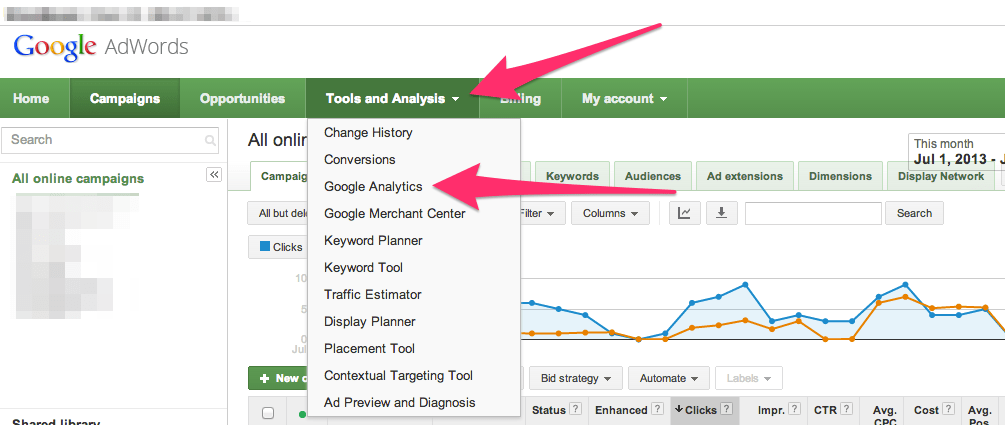
- Log in to your Google Ads account, navigate to “Tools and Analysis,” and choose “Google Analytics” from the dropdown menu.
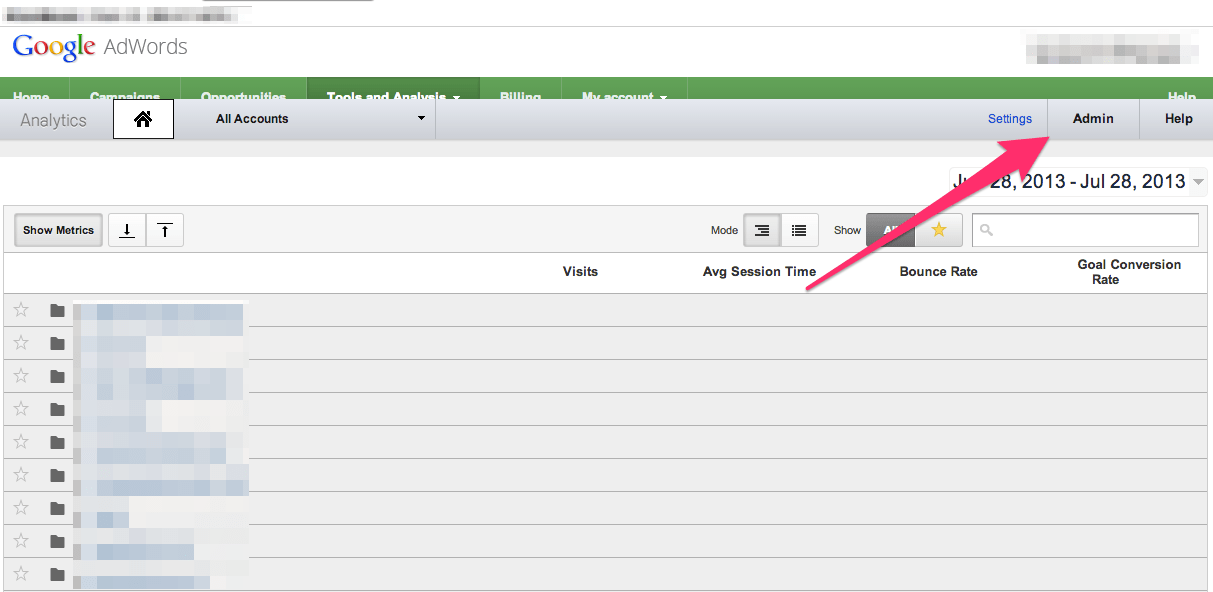
- Locate and click the “Admin” button situated in the top right corner of the screen.
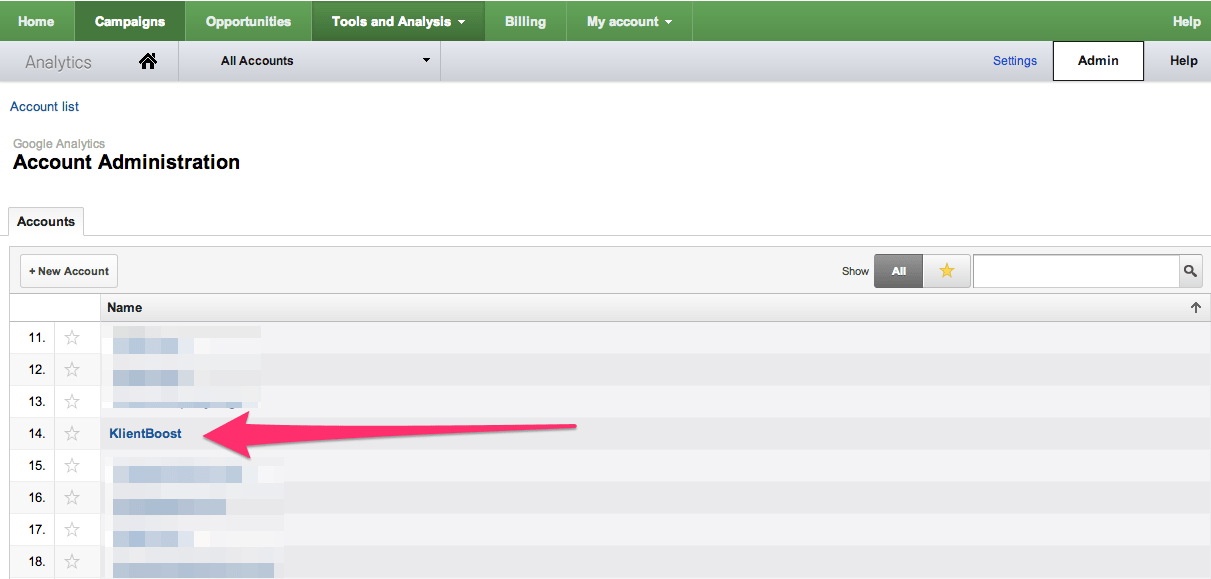
- Select the specific domain you want to establish a link with.
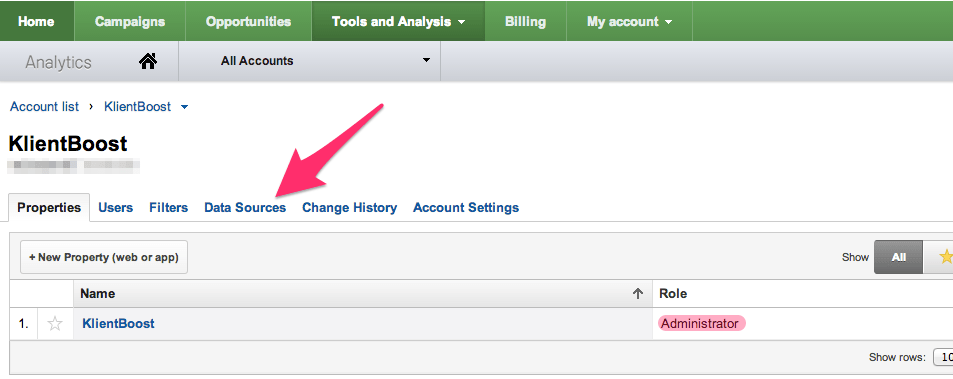
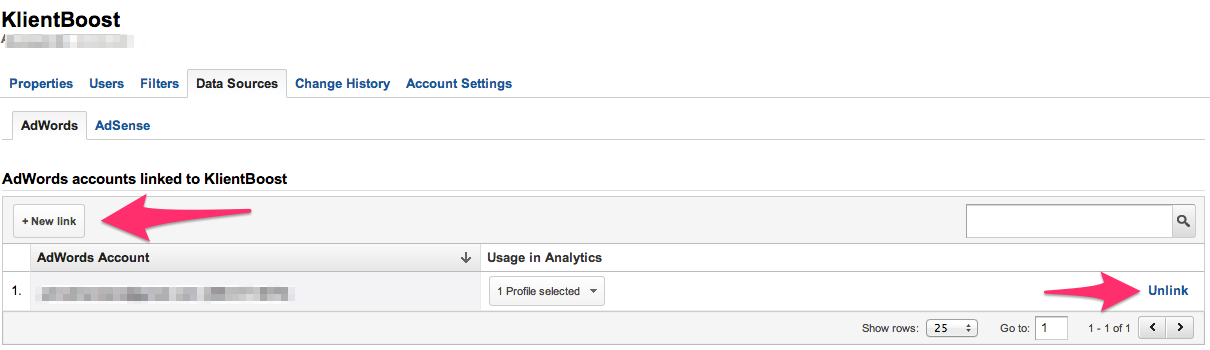
- Click on “Data Sources,” verifying that your role is designated as “Administrator.”
- Now you can link your Google Ads account or, if needed, unlink it using the option on the right. (Your view might differ slightly if your account is already linked.) Next, choose the specific profiles within the selected domain that you wish to link. For a hassle-free start, I recommend enabling Google’s auto-tagging feature for your links.
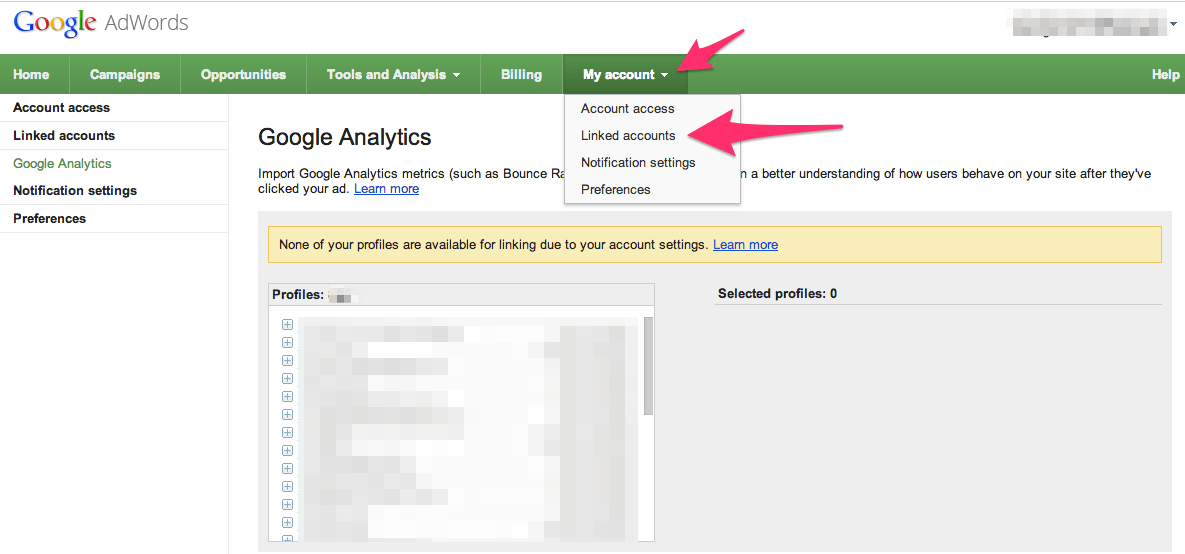
- An additional step not covered in the video is importing the metrics into Google Ads. To do this, go to “My account” within your Google Ads interface, select “Linked accounts,” and choose the desired profile (domain) for import.
With the accounts linked, it’s time to activate the Analytics columns within your Google Ads account.
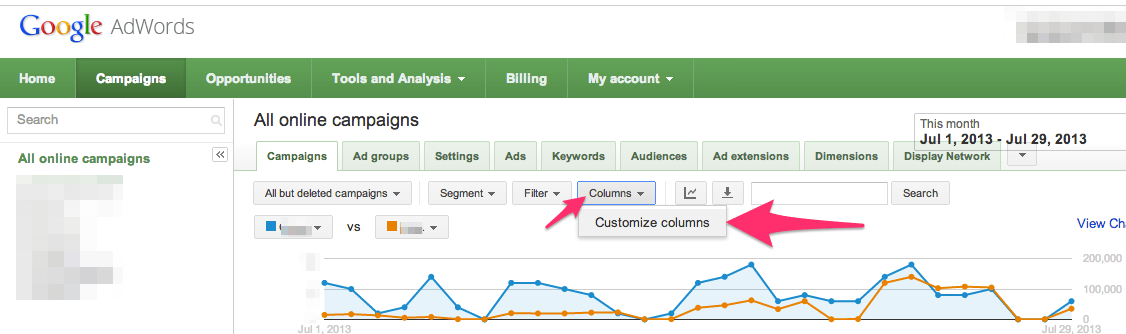
Head over to the campaign, ad group, or keyword tab within Google Ads and click the “Columns” button.
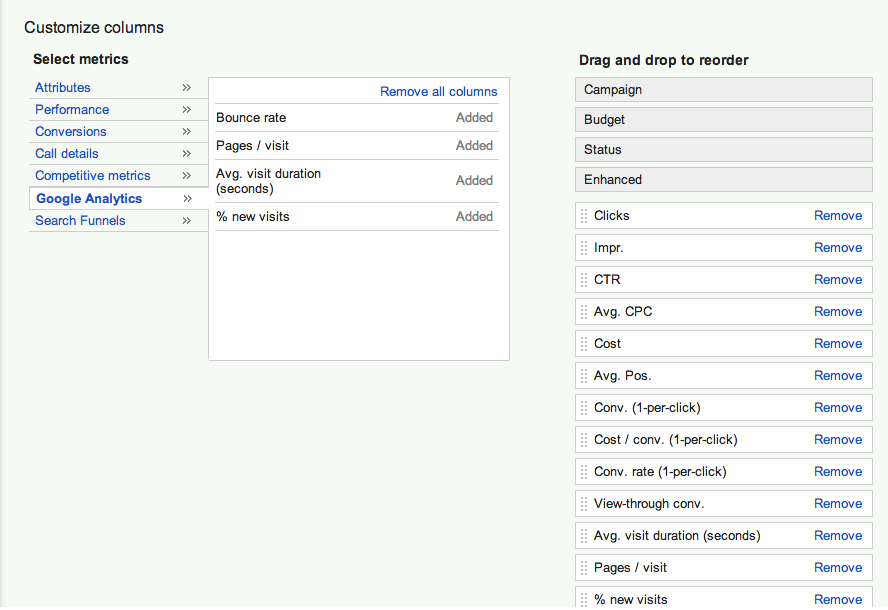
This grants you the power to customize your columns and seamlessly view Analytics data within your Google Ads interface.

Take a moment to celebrate! Connecting Google Ads and Analytics is a significant step, so reward yourself with your beverage of choice before we delve into tracking parameters.
2. Setting Unique Tracking Parameters
Unique tracking parameters are invaluable tools in a marketer’s arsenal. They empower you to assign unique links to any online element, such as banner ads, text ads, newsletters, e-books, and more. This enables precise tracking within Google Analytics, providing deeper insights into what resonates with your audience. Soon, you’ll have answers to questions like:
- Does this ad generate more page views per visit compared to the time spent on site from another ad?
- Did my newsletter with this subject line outperform others in terms of click-through rates and conversions?
- Do vegetarians indulge in animal crackers? Well, maybe not that last one, but you get the gist! To set up unique tracking parameters for your destination URLs, the Google Analytics URL Builder is your go-to resource. Here’s a breakdown of the fields you’ll need to populate to generate a unique link (fields marked with an asterisk are mandatory): Website URL*: Your website’s address in the format of http:// Campaign Source*: Specify the origin of your traffic—display network, search network, email blast, newsletter, Google, Bing, etc. Campaign Medium*: Identify the advertising channel—CPC, CPM, banner ads, email marketing, etc. Campaign Term: (Optional) Use this field to track individual keywords, which can be particularly useful for Bing Ads tracking. Campaign Content: (Optional) Differentiate between multiple ads targeting the same keyword. Campaign Name*: Clearly label the specific campaign you’re running (e.g., your Google Ads campaign name or a seasonal promotion). Imagine a well-organized Google Analytics dashboard where you can effortlessly monitor the performance of your campaigns.
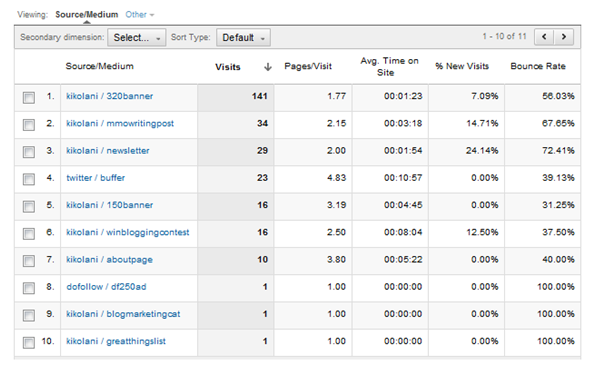
Important Considerations: Avoid overusing tracking links, especially if you’ve already linked AdWords and Analytics. The integrated data should provide ample insights into the performance of your paid keywords. Exercise caution with tracking links within your website. If you promote internal offers (like a free e-book) within your blog posts, Google Analytics might overestimate visits, leading to inaccurate data and potential headaches. For a deeper dive into internal campaign tracking, check out this article by Justin Cutroni.. Bonus Tip: If your URLs tend to become unwieldy, consider shortening them using services like bit.ly or goo.gl. This preserves your tracking parameters while improving user experience.
3. Keyword-Level Call Tracking in Analytics
Every savvy PPC marketer understands the value of phone leads. Keyword-level call tracking takes this understanding to a whole new level. While Google Ads can track online conversions like sales, signups, and downloads, what about those valuable calls originating from your website (not just your ads)?
Imagine being able to attribute calls directly to specific keywords, ads, or pages on your website, revealing which elements drive the highest call volume. This level of granular tracking empowers you to optimize your budget allocation for maximum ROI.
Phone leads often convert at higher rates than online forms due to the human touch and reassurance that a live voice provides.
While Google Ads offers call extensions with forwarding numbers, they lack the depth of insight provided by dedicated call tracking solutions.
Imagine a system that dynamically generates unique phone numbers for each visitor based on their referring keyword or medium. This is achieved through a JavaScript code snippet placed on your website.
Several providers, including ifbyphone, CallRail, CallFire, RingRevenue, and Bionic Click, offer robust call tracking solutions. These services vary in features, pricing, and integration methods with Google Analytics. Some require specific tags in your destination URLs (which you can conveniently add at the keyword level in Google Ads) to interact with the code on your site, ensuring accurate call attribution within your analytics.
Have you uncovered other ingenious ways to harness the combined power of Google Ads and Analytics? Share your brilliance in the comments below! 