In the current technological landscape, APIs are essential for most projects. They facilitate communication between services, whether they form a single, intricate system or are spread across different machines, networks, or programming languages.
Numerous technologies cater to the communication requirements of distributed systems, such as REST, SOAP, GraphQL, and gRPC. While REST remains a popular choice, gRPC presents a strong alternative with its high performance, typed contracts, and excellent tooling.
REST Overview
Representational State Transfer (REST) focuses on retrieving or manipulating data within a service. Typically, a REST API utilizes the HTTP protocol, employing a URI to pinpoint a resource and an HTTP verb (like GET, PUT, POST) to specify the intended action. Request and response bodies hold operation-specific data, complemented by metadata in their headers. To illustrate, let’s examine a simple example of retrieving product information through a REST API.
Here, we request product details with an ID of 11, specifying JSON as the desired response format:
| |
In response to this request, we might receive the following (excluding irrelevant headers):
| |
Although JSON offers human readability, it’s not the most efficient format for inter-service communication. The repetitive nature of referencing property names, even with compression, can lead to large message sizes. Let’s explore an alternative that addresses this issue.
gRPC Overview
gRPC, short for gRPC Remote Procedure Call, is an open-source, contract-based, and cross-platform communication protocol designed to streamline and manage communication between services. It achieves this by exposing a set of functions to external clients.
Operating over HTTP/2, gRPC leverages features such as bidirectional streaming and inherent Transport Layer Security (TLS). This enables more efficient communication through the use of serialized binary payloads. gRPC employs protocol buffers as its default mechanism for structured data serialization, akin to REST’s use of JSON.
However, protocol buffers go beyond being just a serialization format like JSON. They encompass three main components:
- A contract definition language within
.protofiles (We’ll focus on proto3, the latest iteration of this language.) - Generated code for accessor functions
- Language-specific runtime libraries
The remote functions available on a service, as defined in a .proto file, are outlined within the service node in the protocol buffer file. Developers can define these functions and their parameters using the robust type system offered by protocol buffers. This system supports diverse data types including numeric, date, list, dictionary, and nullable types for defining input and output messages.
Both the server and the client need access to these service definitions. Currently, there isn’t a default mechanism for sharing these definitions beyond directly providing access to the .proto file itself.
This example .proto file defines a function for retrieving a product entry based on its ID:
syntax = "proto3";

package product;

service ProductCatalog {
    rpc GetProductDetails (ProductDetailsRequest) returns (ProductDetailsReply);
}

message ProductDetailsRequest {
    int32 id = 1;
}

message ProductDetailsReply {
    int32 id = 1;
    string name = 2;
    string sku = 3;
    Price price = 4;
}

message Price {
    float amount = 1;
    string currencyCode = 2;
}
ProductCatalog Service DefinitionThe strict typing and field ordering enforced by proto3 make message deserialization significantly more efficient compared to parsing JSON.
Comparing REST vs. gRPC
In summary, the key distinctions when comparing REST and gRPC are:
| REST | gRPC | |
|---|---|---|
| Cross-platform | Yes | Yes |
| Message Format | Custom but generally JSON or XML | Protocol buffers |
| Message Payload Size | Medium/Large | Small |
| Processing Complexity | Higher (text parsing) | Lower (well-defined binary structure) |
| Browser Support | Yes (native) | Yes (via gRPC-Web) |
JSON and REST are well-suited for situations where contracts are less rigid and frequent payload additions are anticipated. In scenarios where contracts tend to remain relatively stable and speed is paramount, gRPC generally takes the lead. In my experience, gRPC has consistently demonstrated better performance and efficiency compared to REST.
gRPC Service Implementation
Let’s create a simple project to demonstrate the ease of adopting gRPC.
Creating the API Project
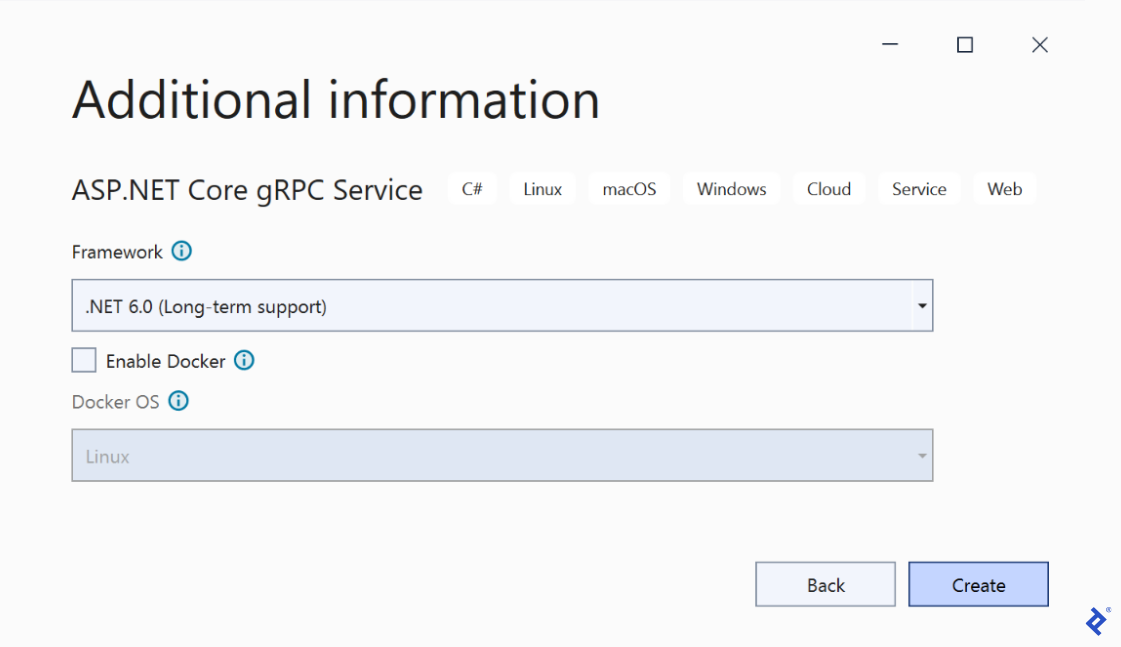
We’ll begin by creating a .NET 6 project using Visual Studio 2022 Community Edition (VS). We’ll select the ASP.NET Core gRPC Service template and name the project InventoryAPI, along with its initial solution, Inventory.

Next, we’ll choose .NET 6.0 (Long-term support) as our framework:
Defining Our Product Service
With the project created, VS presents us with a sample gRPC prototype definition service named Greeter. We’ll adapt Greeter’s core files to align with our requirements.
- To define our contract, we’ll replace the contents of
greet.protowith Snippet 1, and rename the file toproduct.proto. - To create our service, we’ll replace the contents of
GreeterService.cswith Snippet 2, renaming the file toProductCatalogService.cs.
using Grpc.Core;
using Product;

namespace InventoryAPI.Services
{
    public class ProductCatalogService : ProductCatalog.ProductCatalogBase
    {
        public override Task<ProductDetailsReply> GetProductDetails(
            ProductDetailsRequest request, ServerCallContext context)
        {
            return Task.FromResult(new ProductDetailsReply
            {
                Id = request.Id,
                Name = "Purple Bowtie",
                Sku = "purbow",
                Price = new Price
                {
                    Amount = 100,
                    CurrencyCode = "USD"
                }
            });
        }
    }
}
ProductCatalogServiceOur service currently returns a predefined product. To make it functional, we simply need to adjust the service registration in Program.cs to point to the new service name. We’ll rename app.MapGrpcService<GreeterService>(); to app.MapGrpcService<ProductCatalogService>(); to make our API operational.
A Note of Caution: Not Your Typical Protocol Test
While it might be tempting, we can’t directly test our gRPC service using a browser pointed at its endpoint. Attempting this would result in an error message indicating that communication with gRPC endpoints must occur through a dedicated gRPC client.
Creating the Client
Let’s create a gRPC client using VS’s Console App template to test our service. I’ll name mine InventoryApp.
For convenience, we’ll establish a relative file path for sharing our contract. This reference will be added manually to the .csproj file. We’ll update the path and set the mode to Client. Note: Familiarize yourself with and ensure confidence in your local folder structure before using relative referencing.
Here are the .proto references as they appear in both the service and client project files:
| Service Project File (Code to copy to client project file) | Client Project File (After pasting and editing) |
|---|---|
| |
Now, to invoke our service, we’ll replace the contents of Program.cs. Our code will achieve the following:
- Create a channel representing the service endpoint’s location (refer to the
launchsettings.jsonfile for the specific port, as it might vary). - Instantiate the client object.
- Construct a simple request.
- Send the request.
using System.Text.Json;
using Grpc.Net.Client;
using Product;

var channel = GrpcChannel.ForAddress("https://localhost:7200");
var client = new ProductCatalog.ProductCatalogClient(channel);

var request = new ProductDetailsRequest
{
    Id = 1
};

var response = await client.GetProductDetailsAsync(request);

Console.WriteLine(JsonSerializer.Serialize(response, new JsonSerializerOptions
{
    WriteIndented = true
}));
Console.ReadKey();
Program.csPreparing for Launch
To test our code, we’ll right-click the solution in VS and select Set Startup Projects. Within the Solution Property Pages dialog:
- Select Multiple startup projects, and from the Action drop-down menu, set both
InventoryAPIandInventoryAppto Start. - Click OK.
We can now run the solution by clicking Start in the VS toolbar (or pressing F5). Two console windows will appear: one indicating the service is listening, and the other displaying the retrieved product details.
gRPC Contract Sharing
Let’s explore another method for connecting the gRPC client to our service definition. The most accessible contract-sharing solution for clients is to expose our definitions through a URL. Other options are either very fragile (file sharing through a specific path) or require more setup (contract distribution through a native package). Sharing via URL (similar to SOAP and Swagger/OpenAPI) offers flexibility and reduces code complexity.
To get started, make the .proto file available as static content. We’ll update our code manually because the build action UI is configured for “Protobuf Compiler,” which copies the .proto file for web serving. Changing this setting through the UI would disrupt the build. Therefore, we’ll first add Snippet 4 to our InventoryAPI.csproj file:
  <ItemGroup>
    <Content Update="Protos\product.proto">
      <CopyToOutputDirectory>Always</CopyToOutputDirectory>
    </Content>
  </ItemGroup>

  <ItemGroup>
    <Content Include="Protos\product.proto" CopyToPublishDirectory="PreserveNewest" />
  </ItemGroup>
InventoryAPI Service Project FileNext, we’ll insert the code from Snippet 5 at the beginning of our ProductCatalogService.cs file. This sets up an endpoint to serve our .proto file:
using System.Net.Mime;
using Microsoft.AspNetCore.StaticFiles;
using Microsoft.Extensions.FileProviders;
Namespace ImportsFinally, we’ll add Snippet 6 just before app.Run(), also within ProductCatalogService.cs:
var provider = new FileExtensionContentTypeProvider();
provider.Mappings.Clear();
provider.Mappings[".proto"] = MediaTypeNames.Text.Plain;
app.UseStaticFiles(new StaticFileOptions
{
    FileProvider = new PhysicalFileProvider(Path.Combine(app.Environment.ContentRootPath, "Protos")),
    RequestPath = "/proto",
    ContentTypeProvider = provider
});

app.UseRouting();
.proto Files Accessible Through the APIWith Snippets 4-6 in place, our .proto file content should now be accessible through the browser.
A New Test Client
Now, let’s create another console client and connect it to our existing server using VS’s Dependency Wizard. However, this wizard doesn’t support HTTP/2. To address this, we need to configure our server to communicate over HTTP/1 and start it. With our server now serving the .proto file, we can build a new test client that connects to it using the gRPC wizard.
- To switch our server to HTTP/1, we’ll modify the
appsettings.jsonfile:- Change the
Protocolfield (located atKestrel.EndpointDefaults.Protocols) toHttps. - Save the file.
- Change the
- To enable our new client to read the
.protodefinition, the server must be running. Previously, we launched both the client and server through VS’s Set Startup Projects dialog. Adjust the server solution to start only the server project and run it. (Our previous client will no longer be able to connect due to the HTTP version change). - Next, we’ll create the new test client. Open a new instance of VS and follow the same steps outlined in the Creating the API Project section, but this time, select the Console App template. Name this project and solution
InventoryAppConnected. - With the client structure in place, we’ll connect it to our gRPC server. In the VS Solution Explorer, expand the new project.
- Right-click Dependencies, and from the context menu, choose Manage Connected Services.
- In the Connected Services tab, select Add a service reference and then gRPC.
- Within the Add Service Reference dialog, choose the URL option and enter the
httpversion of the service address (make sure to retrieve the randomly assigned port number fromlaunchsettings.json). - Click Finish to add a service reference that can be easily updated.
You can compare your work with sample code for this example. Since VS has effectively generated the same client code as in our initial test, we can directly reuse the Program.cs file content from the previous service.
When contract changes occur, we’ll need to update our client’s gRPC definition to match the modified .proto definition. This is easily achieved by accessing VS’s Connected Services and refreshing the relevant service entry. Our gRPC project is now complete, and we have a straightforward way to synchronize our service and client.
Your Next Project Candidate: gRPC
This gRPC implementation provides practical insight into the advantages of using gRPC. REST and gRPC each have scenarios where they excel based on the type of contract involved. However, when both options are suitable, I encourage you to consider gRPC—it’s a forward-looking choice for the future of APIs.