Spreadsheets are ubiquitous in today’s business world. Despite variations among different spreadsheet software implementations, their importance to users who rely on them is undeniable.
While getting started with spreadsheets is straightforward, achieving mastery of their advanced features requires time and effort. Once you’ve become proficient in formulas, functions, pivot tables, and the like, another level of capability awaits: custom extensions. These extensions provide a way to further enhance your spreadsheet experience. Various spreadsheet applications offer different interfaces for creating extensions. This article focuses on Google Sheets, which offers a user-friendly interface known as Google Apps Script for interacting with spreadsheets. Written in a specialized subset of JavaScript, Apps Script allows integration with other Google apps and services.
Why Is Google Sheets’ Apps Script So Great?
The inherent flexibility of spreadsheets makes them an excellent tool for entrepreneurs and startups, and with the addition of Apps Script, the possibilities become virtually limitless. I first discovered the utility of Apps Script about seven years ago. At the time, I was managing a website with a team of editors, and we wanted a way to establish and track specific goals. However, we found it challenging to create a custom report that combined data from Analytics, AdSense, and Facebook into a single, unified view. Moreover, we needed a way to generate reports based on up-to-date data with daily updates. Initially, we considered using a spreadsheet to store all the numbers, but keeping it updated proved cumbersome. After some exploration, I discovered that Apps Script could be the answer! It enables document modification, data retrieval from external services, and automation of the entire workflow. Since then, I have created dozens of spreadsheets to address a wide range of use cases.
Practical Use Cases
Here are some real-world examples that might inspire you to create your own Apps Script solutions:
- A common use case is retrieving data from publicly accessible REST APIs. This can be done on-demand or at scheduled intervals using a cron-like mechanism.
- While developing a React Native application, I needed to enable non-technical moderators to edit a small portion of a configuration file. A simple JSON-like file was the ideal solution, so I created a spreadsheet with a method to collect data from specific cells and update the configuration on the server.
- Importing bank account transactions - you can leverage your bank’s API or utilize tools like Puppeteer to scrape the banking website, export the data to JSON format, and then automatically import it into your spreadsheet.
- Rapid prototyping of apps or dashboards - the ease with which you can create interfaces in Google Sheets makes it a great tool for building initial prototypes and validating ideas.
- Forwarding Google Forms responses from a spreadsheet to Slack.
- Creating a Secret Santa group, complete with automated assignments, email reminders, package tracking, and keeping everyone informed—all managed from within a spreadsheet.
The possibilities are truly boundless. Now, let’s delve deeper and create a sample extension.
The Project
In this article, we’ll build a basic extension that validates provided VAT ID numbers against the VIES system established by the European Union. While Google offers a web-based script editor suitable for small extensions, it has limitations:
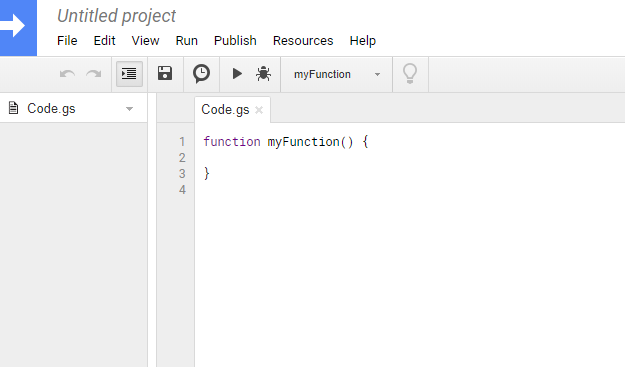
As an alternative, we’ll use another tool developed by Google called Clasp](https://github.com/google/clasp). This command-line tool facilitates local development of Apps Script projects, enabling us to store code in a Git repository and collaborate with other [Google Docs developers. It also simplifies the deployment process.
Clasp, built on Node.js, can be installed using the following command:
| |
To utilize the tool, log in to your Google account by running:
| |
A new browser tab should appear. After signing in, create a new project by executing:
| |
You’ll be prompted to specify a script type; choose “sheets.” You might also be asked to enable the Apps Script API; if so, follow the on-screen instructions. Upon successful completion, you’ll receive links to the document and script editor, similar to:
| |
Make a note of both URLs, as we’ll need them shortly. You can now open the project folder in your preferred code editor and begin developing.
Hello World
Let’s start with a simple example. Create a file named “index.js” and add the following code:
| |
Now, let’s push the code:
| |
Open the script editor in your browser (using the link provided during project creation). From here, you can execute and test the code. Navigate to Run > Run function > validate.
Pro Tip: Clasp allows you to run functions directly from the command line, although this requires additional project setup. More information can be found here.
If everything works correctly, nothing will seem to happen! Logs are stored in the Stackdriver Logging tool. You can access it through View > Stackdriver Logging, but it’s more convenient to do so from the console. Execute the following command:
| |
For the initial execution, Clasp will prompt you for a project ID. To obtain it, return to the script editor and select Resources > Cloud Platform project. You’ll find the ID, in the format “project-id-xxxxxxxxx,” within the popup. Copy and paste the entire ID into the console.
After a short delay, you’ll see your logged “hello world” message in the console.
Pro Tip: Both the “clasp push” and “clasp logs” commands accept the “–watch” flag, which can be helpful during development for automatically pushing changes and displaying logs.
VAT ID Validator
Now, let’s implement our validation logic. VIES offers a public SOAP API, which isn’t the most straightforward to use with JavaScript, but it will suffice for our purposes. Replace the contents of “index.js” with the following code:
| |
The “validate” function calls another function, “makeCall”, which connects to the VIES service and retrieves company details based on the supplied VAT ID. Try running “validate” again. It will request additional permissions, to which you should agree. Checking the logs should reveal a new entry:
| |
Pro Tip: Clasp enables you to write code using TypeScript, providing access to features like arrow functions, classes, type annotations, and more. You can find further details here.
Spreadsheet Integration
While we now have code that communicates with an external API, it’s not yet integrated with our spreadsheet. Let’s rectify that. Our goal is to select multiple cells within the document and trigger the validation mechanism. Validated VAT IDs will be highlighted in green if valid, red if not.
Replace the “validate” function in “index.js” with the following code:
| |
You’ll notice the addition of an “onOpen” function. This function will create a new menu item. Open the spreadsheet document (using the link you received after running “clasp create”). Once it’s fully loaded, you should see a new menu option labeled “VAT ID Validator” with a single choice: “Validate.” Click on it, and Google will request authorization for additional permissions. After granting permission, the script will run, but seemingly nothing will happen. This is because we need VAT IDs to validate. Here are a few to test with:
- PL8522604586
- IE6388047V
- NL813981487B01
- IT7863930017
- DE123456789
Paste these IDs into the spreadsheet, select all five cells, and click “Validate” once more. There you have it! The first three, being valid, should now be highlighted in green, while the remaining two, being invalid, will be highlighted in red.
Additional Exercises
Our extension is functional, but if you’re looking for more practice, consider adding additional validators. For example, you could validate whether selected cells contain a valid US Taxpayer Identification Number or credit card number. Two approaches can be taken:
- Similar to our VAT ID validation, find an API that handles the validation. This is especially relevant for TIN validation, where you need to verify both the data format and whether the number is officially registered.
- Implement your own validation logic directly within Apps Script. For credit card validation, you can adhere to established rules, many of which can be validated using the Luhn algorithm.
Remember, this is just an introduction, and the provided example is intentionally simple. The business logic within your Apps Script projects can be far more sophisticated, even utilizing custom JavaScript libraries to accomplish complex tasks. One library I frequently employ is Moment.js, as working with dates in plain JavaScript can be cumbersome.
If your script addresses a more general problem, you might want to consider deploying it as an add-on, allowing you to share it with other users. You can choose to share within your organization or make it publicly available. It will then be listed in the add-ons library, ready for use in any spreadsheet.
The deployment process is straightforward. The first step involves preparing your code for testing. You can find more information about this process here. When you’re ready to proceed with deployment, you can find instructions on how to do so publish your add-on. Keep in mind that if you choose to publish your add-on publicly, it will undergo a review by Google to ensure it meets app publication standards.
Next Steps
That’s all the foundational knowledge you need to embark on your Apps Script journey. The possibilities are truly vast, and Apps Script can be used not only with Google Sheets but also with Docs and Slides.
The next time you encounter a need to automate processes or workflows, consider whether Apps Script could provide a solution. This article has merely scratched the surface of what’s possible.
For inspiration or ready-made solutions, explore the extensive collection of add-ons library.
Here are two resources to aid you in beginning your spreadsheet scripting adventure:
- The Apps Script Reference for Sheets
- The complete code for this article can be found on GitHub: https://github.com/wojciech-skowronek/apps-scripts-vat-id-validator
Lastly, as Apps Script is a subset of JavaScript, you might find value in reading “The 10 Most Common Mistakes JavaScript Developers Make” by fellow Toptaler Ryan J. Peterson.