CloudKit Guide: Synchronizing User Data on iOS Devices

In the world of modern mobile app development, ensuring user data stays synchronized across multiple devices is a significant challenge. Despite its complexities, users have come to expect this feature to be seamless and reliable.

Apple offers a robust solution for iOS and macOS called CloudKit API, designed to tackle this synchronization hurdle for developers working within the Apple ecosystem.

This article guides experienced iOS developers familiar with Apple’s frameworks and Swift on how to use CloudKit for syncing data between two devices. Through a deep dive into the CloudKit API, we’ll explore leveraging this technology to create impressive multi-device applications. While focusing on an iOS application, the same principles apply to macOS clients.

Our case study will be a straightforward note application, demonstrating the core concepts with a single note. We’ll also delve into the intricacies of cloud-based data synchronization, including conflict resolution and handling unpredictable network behavior.
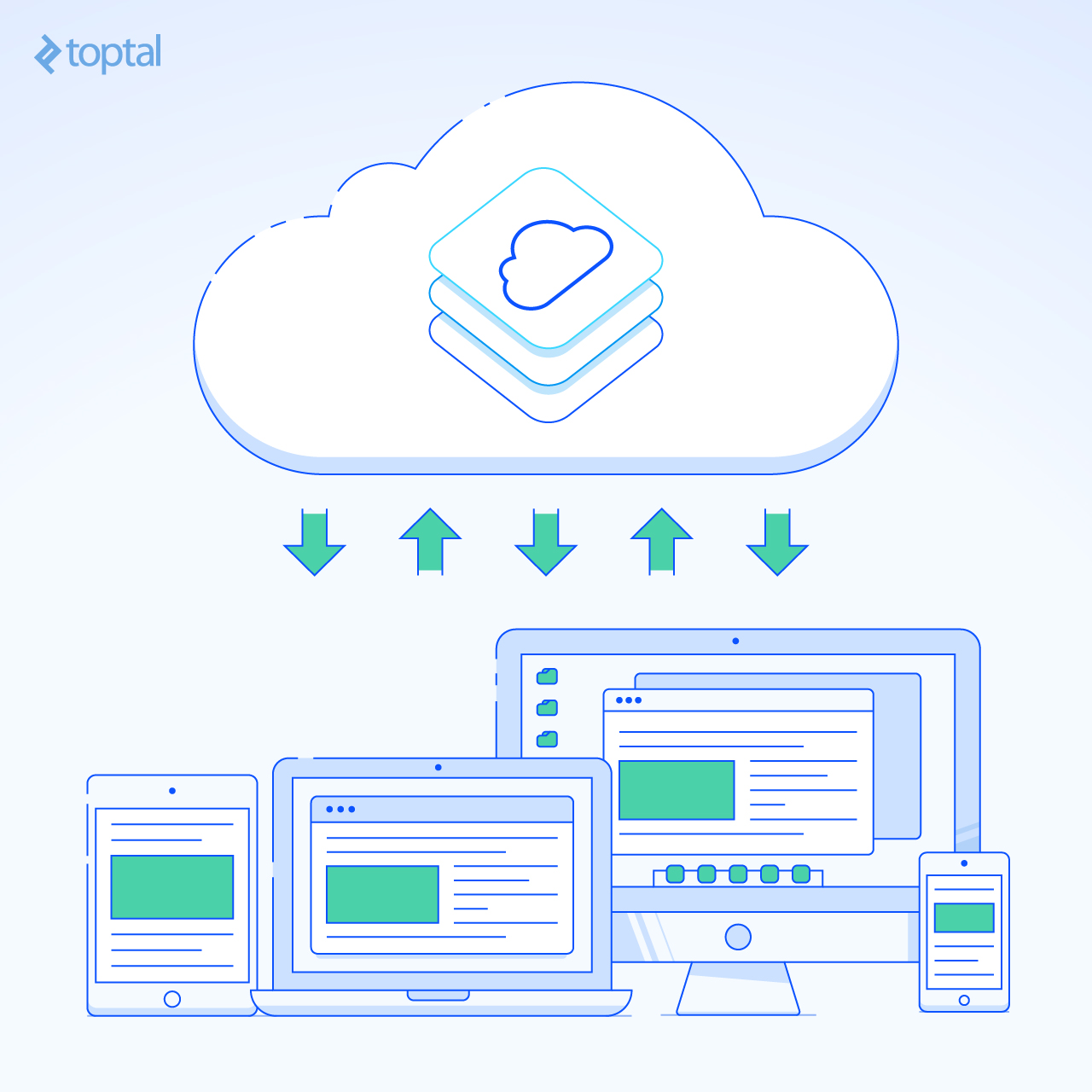
Using CloudKit to Sync User Data Between Multiple Clients

Understanding CloudKit

CloudKit is built upon Apple’s iCloud service, which has evolved significantly from its initial challenges. Early on, iCloud faced issues like a bumpy transition from MobileMe, sluggish performance, and even some privacy concerns that hindered its adoption.

The situation was even more challenging for app developers. Before CloudKit, inconsistent behavior and limited debugging tools made building high-quality products using the initial iCloud APIs incredibly difficult.

However, Apple has steadily addressed these issues over time. The introduction of the CloudKit SDK in 2014 marked a turning point, providing third-party developers with a comprehensive and robust solution for cloud-based data sharing across devices, including macOS and even web-based clients.

While CloudKit’s tight integration with Apple’s ecosystem makes it unsuitable for applications requiring broader device support like Android or Windows, it offers a powerful mechanism for user authentication and data synchronization for apps targeting Apple’s user base.

Setting Up CloudKit

CloudKit organizes data through a hierarchical structure: CKContainer, CKDatabase, CKRecordZone, and CKRecord.

CKContainer sits at the top, representing a collection of related CloudKit data. Each app automatically receives a default CKContainer, and a group of apps can share a custom one if permissions allow, enabling interesting cross-application workflows.

Within each CKContainer are multiple instances of CKDatabase. By default, CloudKit configures every CloudKit-enabled app with a public CKDatabase (accessible to all app users) and a private CKDatabase (visible only to the respective user). Additionally, iOS 10 introduced a shared CKDatabase for user-controlled group sharing.

CKRecordZones reside within a CKDatabase, containing CKRecords. Developers can read and write records, query for specific records, and crucially, receive notifications about changes to any of these elements.

For our Note app, we’ll utilize the default container and its private database to ensure user privacy. Within this database, we’ll create a custom record zone for specific record change notifications.

The Note itself will be stored as a single CKRecord with fields for text, modified (DateTime), and version. While CloudKit automatically tracks an internal modified value, maintaining our own allows us to know the actual modification time, even offline, for conflict resolution. The version field is a good practice for ensuring future compatibility, as users with multiple devices may not update your app simultaneously.

Building the Note App

Assuming you’re familiar with creating iOS apps in Xcode, you can optionally download to examine the example Note App Xcode project created for this CloudKit tutorial.

For our purposes, a single view application with a UITextView, delegating to the ViewController, is sufficient. Conceptually, we want to trigger a CloudKit record update whenever the text changes. However, it’s practical to implement a change coalescing mechanism, like a periodic background timer, to avoid overwhelming the iCloud sync servers with minor updates.

CloudKit apps need specific settings enabled in Xcode’s Target Capabilities Pane: iCloud (including the CloudKit checkbox), Push Notifications, and Background Modes (specifically, remote notifications).

We’ll divide the CloudKit functionality into two classes: a lower-level CloudKitNoteDatabase singleton and a higher-level CloudKitNote class.

Before proceeding, let’s discuss CloudKit errors.

Handling CloudKit Errors

Thorough error handling is crucial for any CloudKit client.

Its network-based nature makes it susceptible to various performance and availability issues. The service itself also implements safeguards against unauthorized requests, conflicting changes, and similar problems.

CloudKit provides a full range of error codes with accompanying details, enabling developers to handle edge cases and, when necessary, provide users with informative explanations about potential issues.

Moreover, certain CloudKit operations might return a single error value or a compound error indicated by a top-level partialFailure. This compound error includes a dictionary of nested CKErrors that require careful analysis to understand what occurred during the operation.

Extending CKError with helper methods can simplify navigating this complexity.

Note: The provided code includes explanatory comments at key points.

 1
 2
 3
 4
 5
 6
 7
 8
 9
10
11
12
13
14
15
16
17
18
19
20
21
22
23
24
25
26
27
28
29
30
31
32
33
34
35
36
37
38
39
40
41
42
43
44
45
46
47
48
49
50
51
52
53
54
55
56
57
58
59
60
61
62
63
import CloudKit

extension CKError {
	public func isRecordNotFound() -> Bool {
		return isZoneNotFound() || isUnknownItem()
	}
	public func isZoneNotFound() -> Bool {
		return isSpecificErrorCode(code: .zoneNotFound)
	}
	public func isUnknownItem() -> Bool {
		return isSpecificErrorCode(code: .unknownItem)
	}
	public func isConflict() -> Bool {
		return isSpecificErrorCode(code: .serverRecordChanged)
	}
	public func isSpecificErrorCode(code: CKError.Code) -> Bool {
		var match = false
		if self.code == code {
			match = true
		}
		else if self.code == .partialFailure {
			// This is a multiple-issue error. Check the underlying array
			// of errors to see if it contains a match for the error in question.
			guard let errors = partialErrorsByItemID else {
				return false
			}
			for (_, error) in errors {
				if let cke = error as? CKError {
					if cke.code == code {
						match = true
						break
					}
				}
			}
		}
		return match
	}
	// ServerRecordChanged errors contain the CKRecord information
	// for the change that failed, allowing the client to decide
	// upon the best course of action in performing a merge.
	public func getMergeRecords() -> (CKRecord?, CKRecord?) {
		if code == .serverRecordChanged {
			// This is the direct case of a simple serverRecordChanged Error.
			return (clientRecord, serverRecord)
		}
		guard code == .partialFailure else {
			return (nil, nil)
		}
		guard let errors = partialErrorsByItemID else {
			return (nil, nil)
		}
		for (_, error) in errors {
			if let cke = error as? CKError {
				if cke.code == .serverRecordChanged {
		// This is the case of a serverRecordChanged Error 
		// contained within a multi-error PartialFailure Error.
					return cke.getMergeRecords()
				}
			}
		}
		return (nil, nil)
	}
}

Implementing the CloudKitNoteDatabase Singleton

Apple’s CloudKit SDK offers two levels of functionality: high-level convenience functions like fetch(), save(), and delete(), and lower-level operation constructs with more complex names, such as CKModifyRecordsOperation.

While the convenience API is user-friendly, Apple strongly encourages developers to utilize operations instead.

CloudKit operations grant greater control over how CloudKit functions and, crucially, compel developers to consider network behavior, which is central to CloudKit’s operations. For these reasons, our code examples will employ operations.

Our singleton class will be responsible for each CloudKit operation we use. In essence, we’re reconstructing the convenience APIs but with a deeper understanding and potential for customization. This approach allows for easier future expansion, such as handling multiple notes, with better performance compared to relying solely on Apple’s convenience APIs.

 1
 2
 3
 4
 5
 6
 7
 8
 9
10
11
12
13
14
15
16
17
18
19
import CloudKit

public protocol CloudKitNoteDatabaseDelegate {
	func cloudKitNoteRecordChanged(record: CKRecord)
}

public class CloudKitNoteDatabase {

	static let shared = CloudKitNoteDatabase()
	private init() {
		let zone = CKRecordZone(zoneName: "note-zone")
		zoneID = zone.zoneID
	}

	public var delegate: CloudKitNoteDatabaseDelegate?
	public var zoneID: CKRecordZoneID?

// ...
}

Setting Up a Custom Zone

While CloudKit automatically creates a default zone for the private database, using a custom zone unlocks additional features, notably support for fetching incremental record changes.

This being our first operation example, let’s highlight a few general points:

Firstly, all CloudKit operations have custom completion closures (and often intermediate closures depending on the operation). While CloudKit uses its CKError class derived from Error, be mindful of other potential errors. Lastly, the qualityOfService value significantly impacts an operation’s behavior. Due to potential network latency or airplane mode, CloudKit internally handles retries for operations with a qualityOfService of “utility” or lower. Depending on your context, you might opt for a higher qualityOfService and manage these scenarios manually.

Once configured, operations are passed to the CKDatabase object for execution on a background thread.

 1
 2
 3
 4
 5
 6
 7
 8
 9
10
11
12
13
14
15
16
// Create a custom zone to contain our note records. We only have to do this once.
private func createZone(completion: @escaping (Error?) -> Void) {
	let recordZone = CKRecordZone(zoneID: self.zoneID!)
	let operation = CKModifyRecordZonesOperation(recordZonesToSave: [recordZone], recordZoneIDsToDelete: [])
	operation.modifyRecordZonesCompletionBlock = { _, _, error in
		guard error == nil else {
			completion(error)
			return
		}
		completion(nil)
	}
	operation.qualityOfService = .utility
	let container = CKContainer.default()
	let db = container.privateCloudDatabase
	db.add(operation)
}

Implementing Subscriptions

Subscriptions are a valuable CloudKit feature, leveraging Apple’s notification infrastructure to deliver push notifications to clients when specific CloudKit changes occur. These can be standard push notifications familiar to iOS users (sound, banner, badge) or, in CloudKit’s case, silent pushes.

Silent pushes happen discreetly without any user interaction or visibility, eliminating the need for users to enable push notifications for your app, thus preventing potential user experience friction.

To enable silent notifications, set the shouldSendContentAvailable property on the CKNotificationInfo instance while leaving traditional notification settings (shouldBadge, soundName, etc.) unset.

Note that we’re using a CKQuerySubscription with a simple “always true” predicate to monitor changes to our single Note record. In a complex application, leverage the predicate to refine the scope of a CKQuerySubscription and explore other subscription types like CKDatabaseSubscription.

Finally, using a UserDefaults cached value avoids unnecessary subscription saves. While not detrimental, Apple advises minimizing unnecessary saves to conserve network and server resources.

 1
 2
 3
 4
 5
 6
 7
 8
 9
10
11
12
13
14
15
16
17
18
19
20
21
22
23
24
25
26
27
28
29
30
31
32
33
34
35
36
37
38
39
40
41
42
// Create the CloudKit subscription we’ll use to receive notification of changes.
// The SubscriptionID lets us identify when an incoming notification is associated
// with the query we created.
public let subscriptionID = "cloudkit-note-changes"
private let subscriptionSavedKey = "ckSubscriptionSaved"
public func saveSubscription() {
	// Use a local flag to avoid saving the subscription more than once.
	let alreadySaved = UserDefaults.standard.bool(forKey: subscriptionSavedKey)
	guard !alreadySaved else {
		return
	}
		
	// If you wanted to have a subscription fire only for particular
	// records you can specify a more interesting NSPredicate here.
	// For our purposes we’ll be notified of all changes.
	let predicate = NSPredicate(value: true)
	let subscription = CKQuerySubscription(recordType: "note",
	                                       predicate: predicate,
	                                       subscriptionID: subscriptionID,
	                                       options: [.firesOnRecordCreation, .firesOnRecordDeletion, .firesOnRecordUpdate])
		
	// We set shouldSendContentAvailable to true to indicate we want CloudKit
	// to use silent pushes, which won’t bother the user (and which don’t require
	// user permission.)
	let notificationInfo = CKNotificationInfo()
	notificationInfo.shouldSendContentAvailable = true
	subscription.notificationInfo = notificationInfo
		
	let operation = CKModifySubscriptionsOperation(subscriptionsToSave: [subscription], subscriptionIDsToDelete: [])
	operation.modifySubscriptionsCompletionBlock = { (_, _, error) in
		guard error == nil else {
			return
		}

		UserDefaults.standard.set(true, forKey: self.subscriptionSavedKey)
	}
	operation.qualityOfService = .utility
		
	let container = CKContainer.default()
	let db = container.privateCloudDatabase
	db.add(operation)
}

Loading Records

Fetching a record by name is straightforward, treating the name as a primary key in a traditional database (names must be unique). The actual CKRecordID is more intricate, encompassing the zoneID.

The CKFetchRecordsOperation works with one or more records simultaneously. While our example uses a single record, this feature offers significant performance benefits for future scalability.

 1
 2
 3
 4
 5
 6
 7
 8
 9
10
11
12
13
14
15
16
17
18
19
20
21
22
23
// Fetch a record from the iCloud database
public func loadRecord(name: String, completion: @escaping (CKRecord?, Error?) -> Void) {
	let recordID = CKRecordID(recordName: name, zoneID: self.zoneID!)
	let operation = CKFetchRecordsOperation(recordIDs: [recordID])
	operation.fetchRecordsCompletionBlock = { records, error in
		guard error == nil else {
			completion(nil, error)
			return
		}
		guard let noteRecord = records?[recordID] else {
			// Didn't get the record we asked about?
			// This shouldn’t happen but we’ll be defensive.
			completion(nil, CKError.unknownItem as? Error)
			return
		}
		completion(noteRecord, nil)
	}
	operation.qualityOfService = .utility
		
	let container = CKContainer.default()
	let db = container.privateCloudDatabase
	db.add(operation)
}

Saving Records

Saving records is potentially the most complex operation. While writing a record to the database is simple, handling conflicts arising from concurrent writes by multiple clients adds complexity. Fortunately, CloudKit is designed to address this.

It rejects conflicting requests with detailed error context, enabling each client to make an informed local decision about conflict resolution.

While this adds client-side complexity, it’s preferable to server-side conflict resolution mechanisms, as the app designer can define context-aware rules, ranging from automatic merging to user-guided resolution. Our example will prioritize the most recent update based on the modified field. While not always ideal for professional apps, it’s a suitable starting point for demonstrating CloudKit’s conflict resolution mechanism.

Note that in our example, conflict resolution occurs within the CloudKitNote class, discussed later.

 1
 2
 3
 4
 5
 6
 7
 8
 9
10
11
12
13
14
15
16
17
18
19
20
21
22
23
24
25
26
27
28
29
30
31
32
33
34
35
36
37
// Save a record to the iCloud database
public func saveRecord(record: CKRecord, completion: @escaping (Error?) -> Void) {
	let operation = CKModifyRecordsOperation(recordsToSave: [record], recordIDsToDelete: [])
	operation.modifyRecordsCompletionBlock = { _, _, error in
		guard error == nil else {
			guard let ckerror = error as? CKError else {
				completion(error)
				return
			}
			guard ckerror.isZoneNotFound() else {
				completion(error)
				return
			}
			// ZoneNotFound is the one error we can reasonably expect & handle here, since
			// the zone isn't created automatically for us until we've saved one record.
			// create the zone and, if successful, try again
			self.createZone() { error in
				guard error == nil else {
					completion(error)
					return
				}
				self.saveRecord(record: record, completion: completion)
			}
			return
		}

		// Lazy save the subscription upon first record write
		// (saveSubscription is internally defensive against trying to save it more than once)
		self.saveSubscription()
		completion(nil)
	}
	operation.qualityOfService = .utility

	let container = CKContainer.default()
	let db = container.privateCloudDatabase
	db.add(operation)
}

Handling Notifications for Updated Records

CloudKit Notifications alert us to record updates by other clients. However, network issues and performance constraints can cause dropped notifications or intentional coalescing of multiple notifications into a single client notification. Since CloudKit notifications leverage the iOS notification system, these scenarios need to be addressed.

CloudKit provides the necessary tools.

Instead of relying on individual notifications for granular change information, use a notification as a trigger to inquire about changes since your last check. We’ll achieve this using CKFetchRecordZoneChangesOperation and CKServerChangeTokens. Think of change tokens as bookmarks marking your position before the latest changes occurred.

 1
 2
 3
 4
 5
 6
 7
 8
 9
10
11
12
13
14
15
16
17
18
19
20
21
22
23
24
25
26
27
28
29
30
31
32
33
34
35
36
37
38
39
40
41
42
43
44
45
46
47
48
// Handle receipt of an incoming CloudKit push notification that something has changed.
private let serverChangeTokenKey = "ckServerChangeToken"
public func handleNotification() {
	// Use the ChangeToken to fetch only whatever changes have occurred since the last
	// time we asked, since intermediate push notifications might have been dropped.
	var changeToken: CKServerChangeToken? = nil
	let changeTokenData = UserDefaults.standard.data(forKey: serverChangeTokenKey)
	if changeTokenData != nil {
		changeToken = NSKeyedUnarchiver.unarchiveObject(with: changeTokenData!) as! CKServerChangeToken?
	}
	let options = CKFetchRecordZoneChangesOptions()
	options.previousServerChangeToken = changeToken
	let optionsMap = [zoneID!: options]
	let operation = CKFetchRecordZoneChangesOperation(recordZoneIDs: [zoneID!], optionsByRecordZoneID: optionsMap)
	operation.fetchAllChanges = true
	operation.recordChangedBlock = { record in
		self.delegate?.cloudKitNoteRecordChanged(record: record)
	}
	operation.recordZoneChangeTokensUpdatedBlock = { zoneID, changeToken, data in
		guard let changeToken = changeToken else {
			return
		}
			
		let changeTokenData = NSKeyedArchiver.archivedData(withRootObject: changeToken)
		UserDefaults.standard.set(changeTokenData, forKey: self.serverChangeTokenKey)
	}
	operation.recordZoneFetchCompletionBlock = { zoneID, changeToken, data, more, error in
		guard error == nil else {
			return
		}
		guard let changeToken = changeToken else {
			return
		}

		let changeTokenData = NSKeyedArchiver.archivedData(withRootObject: changeToken)
		UserDefaults.standard.set(changeTokenData, forKey: self.serverChangeTokenKey)
	}
	operation.fetchRecordZoneChangesCompletionBlock = { error in
		guard error == nil else {
			return
		}
	}
	operation.qualityOfService = .utility
		
	let container = CKContainer.default()
	let db = container.privateCloudDatabase
	db.add(operation)
}

With these building blocks, we can read and write records and handle record change notifications.

Let’s move on to a layer that manages these operations within the context of a specific Note.

The CloudKitNote Class

We’ll define custom errors to abstract CloudKit’s internals from the client and use a simple delegate protocol to inform the client about remote updates to the Note data.

 1
 2
 3
 4
 5
 6
 7
 8
 9
10
11
12
13
14
15
16
17
18
19
20
21
22
23
24
25
26
27
28
29
30
31
32
33
import CloudKit

enum CloudKitNoteError : Error {
	case noteNotFound
	case newerVersionAvailable
	case unexpected
}

public protocol CloudKitNoteDelegate {
	func cloudKitNoteChanged(note: CloudKitNote)
}

public class CloudKitNote : CloudKitNoteDatabaseDelegate {
	
	public var delegate: CloudKitNoteDelegate?
	private(set) var text: String?
	private(set) var modified: Date?
	
	private let recordName = "note"
	private let version = 1
	private var noteRecord: CKRecord?
	
	public init() {
		CloudKitNoteDatabase.shared.delegate = self
	}

	// CloudKitNoteDatabaseDelegate call:
	public func cloudKitNoteRecordChanged(record: CKRecord) {
		// will be filled in below...
	}

	// …
}

Mapping from CKRecord to Note in Swift

In Swift, access individual CKRecord fields using the subscript operator. While values conform to CKRecordValue, they are always one of a specific set of data types: NSString, NSNumber, NSDate, and so on.

CloudKit also offers a specific record type for “large” binary objects. While no strict size limit exists (a maximum of 1MB per CKRecord is recommended), data that feels like an independent entity (image, sound, text blob) rather than a database field should be stored as a CKAsset. This practice allows CloudKit to optimize network transfer and server-side storage.

Our example will use CKAsset to store the note text. CKAsset data is managed via local temporary files.

 1
 2
 3
 4
 5
 6
 7
 8
 9
10
11
12
13
14
15
16
17
18
19
20
21
22
23
24
25
26
27
28
29
// Map from CKRecord to our native data fields
private func syncToRecord(record: CKRecord) -> (String?, Date?, Error?) {
	let version = record["version"] as? NSNumber
	guard version != nil else {
		return (nil, nil, CloudKitNoteError.unexpected)
	}
	guard version!.intValue <= self.version else {
		// Simple example of a version check, in case the user has
		// has updated the client on another device but not this one.
		// A possible response might be to prompt the user to see
		// if the update is available on this device as well.
		return (nil, nil, CloudKitNoteError.newerVersionAvailable)
	}
	let textAsset = record["text"] as? CKAsset
	guard textAsset != nil else {
		return (nil, nil, CloudKitNoteError.noteNotFound)
	}
	
	// CKAsset data is stored as a local temporary file. Read it
	// into a String here.
	let modified = record["modified"] as? Date
	do {
		let text = try String(contentsOf: textAsset!.fileURL)
		return (text, modified, nil)
	}
	catch {
		return (nil, nil, error)
	}
}

Loading a Note

Loading a note is straightforward. After necessary error checking, fetch data from the CKRecord and store it in our member fields.

 1
 2
 3
 4
 5
 6
 7
 8
 9
10
11
12
13
14
15
16
17
18
19
20
21
22
23
24
25
26
27
28
29
30
// Load a Note from iCloud
public func load(completion: @escaping (String?, Date?, Error?) -> Void) {
	let noteDB = CloudKitNoteDatabase.shared
	noteDB.loadRecord(name: recordName) { (record, error) in
		guard error == nil else {
			guard let ckerror = error as? CKError else {
				completion(nil, nil, error)
				return
			}
			if ckerror.isRecordNotFound() {
				// This typically means we just haven’t saved it yet,
				// for example the first time the user runs the app.
				completion(nil, nil, CloudKitNoteError.noteNotFound)
				return
			}
			completion(nil, nil, error)
			return
		}
		guard let record = record else {
			completion(nil, nil, CloudKitNoteError.unexpected)
			return
		}
			
		let (text, modified, error) = self.syncToRecord(record: record)
		self.noteRecord = record
		self.text = text
		self.modified = modified
		completion(text, modified, error)
	}
}

Saving a Note and Resolving Potential Conflicts

When saving a note, be mindful of specific situations.

First, ensure you’re working with a valid CKRecord. Check if CloudKit already has a record; if not, create a new local CKRecord for saving.

When requesting CloudKit to save the record, you might encounter conflicts if another client updated the record since your last fetch. To address this, split the save function into two steps: preparation and writing the record. The second step, handled by the CloudKitNoteDatabase singleton, might be repeated in case of conflict.

In a conflict, CloudKit provides three CKRecords in the returned CKError:

  1. The previous version of the record you attempted to save.
  2. The exact version you attempted to save.
  3. The server’s version at the time of your request.

Examining the modified fields of these records reveals the order of updates, guiding your decision on which data to retain. If necessary, pass the updated server record back to CloudKit. While this might result in further conflicts (if another update occurred in the interim), repeat the process until successful.

In our simple Note app with a single user switching devices, live concurrency conflicts are unlikely. However, such conflicts can arise from scenarios like a user making edits offline and then different edits on another device before coming back online.

Accounting for every possible scenario is crucial in cloud-based data sharing applications.

  1
  2
  3
  4
  5
  6
  7
  8
  9
 10
 11
 12
 13
 14
 15
 16
 17
 18
 19
 20
 21
 22
 23
 24
 25
 26
 27
 28
 29
 30
 31
 32
 33
 34
 35
 36
 37
 38
 39
 40
 41
 42
 43
 44
 45
 46
 47
 48
 49
 50
 51
 52
 53
 54
 55
 56
 57
 58
 59
 60
 61
 62
 63
 64
 65
 66
 67
 68
 69
 70
 71
 72
 73
 74
 75
 76
 77
 78
 79
 80
 81
 82
 83
 84
 85
 86
 87
 88
 89
 90
 91
 92
 93
 94
 95
 96
 97
 98
 99
100
101
102
103
104
105
106
107
108
109
110
111
112
113
114
115
116
117
118
119
120
121
122
123
124
125
126
// Save a Note to iCloud. If necessary, handle the case of a conflicting change.
public func save(text: String, modified: Date, completion: @escaping (Error?) -> Void) {
	guard let record = self.noteRecord else {
		// We don’t already have a record. See if there’s one up on iCloud
		let noteDB = CloudKitNoteDatabase.shared
		noteDB.loadRecord(name: recordName) { record, error in
			if let error = error {
				guard let ckerror = error as? CKError else {
					completion(error)
					return
				}
				guard ckerror.isRecordNotFound() else {
					completion(error)
					return
				}
				// No record up on iCloud, so we’ll start with a
				// brand new record.
				let recordID = CKRecordID(recordName: self.recordName, zoneID: noteDB.zoneID!)
				self.noteRecord = CKRecord(recordType: "note", recordID: recordID)
				self.noteRecord?["version"] = NSNumber(value:self.version)
			}
			else {
				guard record != nil else {
					completion(CloudKitNoteError.unexpected)
					return
				}
				self.noteRecord = record
			}
			// Repeat the save attempt now that we’ve either fetched
			// the record from iCloud or created a new one.
			self.save(text: text, modified: modified, completion: completion)
		}
		return
	}
		
	// Save the note text as a temp file to use as the CKAsset data.
	let tempDirectory = NSTemporaryDirectory()
	let tempFileName = NSUUID().uuidString
	let tempFileURL = NSURL.fileURL(withPathComponents: [tempDirectory, tempFileName])
	do {
		try text.write(to: tempFileURL!, atomically: true, encoding: .utf8)
	}
	catch {
		completion(error)
		return
	}
	let textAsset = CKAsset(fileURL: tempFileURL!)
	record["text"] = textAsset
	record["modified"] = modified as NSDate
	saveRecord(record: record) { updated, error in
		defer {
			try? FileManager.default.removeItem(at: tempFileURL!)
		}
		guard error == nil else {
			completion(error)
			return
		}
		guard !updated else {
			// During the save we found another version on the server side and
			// the merging logic determined we should update our local data to match
			// what was in the iCloud database.
			let (text, modified, syncError) = self.syncToRecord(record: self.noteRecord!)
			guard syncError == nil else {
				completion(syncError)
				return
			}

			self.text = text
			self.modified = modified

			// Let the UI know the Note has been updated.
			self.delegate?.cloudKitNoteChanged(note: self)
			completion(nil)
			return
		}

		self.text = text
		self.modified = modified
		completion(nil)
	}
}

// This internal saveRecord method will repeatedly be called if needed in the case
// of a merge. In those cases, we don’t have to repeat the CKRecord setup.
private func saveRecord(record: CKRecord, completion: @escaping (Bool, Error?) -> Void) {
	let noteDB = CloudKitNoteDatabase.shared
	noteDB.saveRecord(record: record) { error in
		guard error == nil else {
			guard let ckerror = error as? CKError else {
				completion(false, error)
				return
			}
			let (clientRec, serverRec) = ckerror.getMergeRecords()
			guard let clientRecord = clientRec, let serverRecord = serverRec else {
				completion(false, error)
				return
			}

			// This is the merge case. Check the modified dates and choose
			// the most-recently modified one as the winner. This is just a very
			// basic example of conflict handling, more sophisticated data models
			// will likely require more nuance here.
			let clientModified = clientRecord["modified"] as? Date
			let serverModified = serverRecord["modified"] as? Date
			if (clientModified?.compare(serverModified!) == .orderedDescending) {
				// We’ve decided ours is the winner, so do the update again
				// using the current iCloud ServerRecord as the base CKRecord.
				serverRecord["text"] = clientRecord["text"]
				serverRecord["modified"] = clientModified! as NSDate
				self.saveRecord(record: serverRecord) { modified, error in
					self.noteRecord = serverRecord
					completion(true, error)
				}
			}
			else {
				// We’ve decided the iCloud version is the winner.
				// No need to overwrite it there but we’ll update our
				// local information to match to stay in sync.
				self.noteRecord = serverRecord
				completion(true, nil)
			}
			return
		}
		completion(false, nil)
	}
}

Handling Remote Note Change Notifications

When a notification signals a record change, CloudKitNoteDatabase handles fetching the changes from CloudKit. While our example involves a single note record, this mechanism can be extended to various record types and instances.

For illustration, we’ll include a basic check to ensure we’re updating the correct record, update the fields, and notify the delegate about the new data.

 1
 2
 3
 4
 5
 6
 7
 8
 9
10
11
12
13
14
// CloudKitNoteDatabaseDelegate call:
public func cloudKitNoteRecordChanged(record: CKRecord) {
	if record.recordID == self.noteRecord?.recordID {
		let (text, modified, error) = self.syncToRecord(record: record)
		guard error == nil else {
			return
		}

		self.noteRecord = record
		self.text = text
		self.modified = modified
		self.delegate?.cloudKitNoteChanged(note: self)
	}
}

CloudKit notifications utilize the standard iOS notification mechanism. Therefore, your AppDelegate should call application.registerForRemoteNotifications in didFinishLaunchingWithOptions and implement didReceiveRemoteNotification. Upon receiving a notification, verify if it corresponds to your subscription and, if so, forward it to the CloudKitNoteDatabase singleton.

 1
 2
 3
 4
 5
 6
 7
 8
 9
10
11
12
	func application(_ application: UIApplication, didReceiveRemoteNotification userInfo: [AnyHashable : Any], fetchCompletionHandler completionHandler: @escaping (UIBackgroundFetchResult) -> Void) {
		let dict = userInfo as! [String: NSObject]
		let notification = CKNotification(fromRemoteNotificationDictionary: dict)
		let db = CloudKitNoteDatabase.shared
		if notification.subscriptionID == db.subscriptionID {
			db.handleNotification()
			completionHandler(.newData)
		}
		else {
			completionHandler(.noData)
		}
	}

Tip: Remember that push notifications aren’t fully supported in the iOS simulator; therefore, use physical iOS devices for developing and testing CloudKit notification features. While other CloudKit functionalities can be tested in the simulator, ensure you’re logged into your iCloud account on the simulated device.

That’s it! You can now write, read, and handle remote notifications for updates to your iCloud-stored application data using the CloudKit API. More importantly, you have a solid foundation for incorporating more advanced CloudKit features.

Notably, you didn’t have to manage user authentication. CloudKit, being built on iCloud, relies entirely on Apple ID/iCloud authentication, saving developers significant back-end development and operational costs.

Addressing Offline Functionality

While the above solution appears comprehensive, it’s essential to acknowledge that CloudKit might not always be accessible. Users might be offline, have disabled CloudKit, or be in airplane mode, among other possibilities. Requiring a constant CloudKit connection would negatively impact user experience and could lead to App Store rejection. Therefore, offline mode needs careful consideration.

While a detailed implementation is beyond this article’s scope, here’s a general outline.

Store the note’s text and modification datetime locally using NSKeyedArchiver or similar, enabling near-full offline functionality. Directly serializing CKRecords to and from local storage is also possible. Advanced implementations can utilize SQLite or equivalents as a shadow database for offline redundancy. Leverage OS-provided notifications, particularly CKAccountChangedNotification, to detect user sign-in/out events and trigger synchronization with CloudKit (including conflict resolution) to push local changes to the server and vice versa.

Consider providing UI indicators for CloudKit availability, sync status, and unresolved error conditions.

CloudKit: A Solution for Synchronization

This article explored the core CloudKit API mechanisms for data synchronization between multiple iOS clients.

Remember that the same code, with minor adjustments for platform-specific notification handling, applies to macOS clients as well.

CloudKit offers a wealth of additional functionality, especially for complex data models, public sharing, advanced notifications, and more.

While restricted to Apple’s ecosystem, CloudKit empowers developers to build engaging and user-friendly multi-client applications with minimal server-side investment.

For a deeper dive into CloudKit, I recommend exploring the various CloudKit presentations from recent WWDCs and studying the provided examples.

Licensed under CC BY-NC-SA 4.0