With its extensive reach, adaptability, precise targeting, and affordability, it’s no wonder that 66% of U.S. small businesses utilize Facebook ads. This comprehensive tutorial will guide you through the process of advertising on Facebook, complete with screenshots, helpful advice, frequently asked questions, and illustrative visuals.
Table of contents
- Why advertise on Facebook?
- Facebook ad account overview
- How to advertise on Facebook in 8 steps
- Facebook ad FAQs
Why advertise on Facebook?
If you’re here, you’ve likely already pondered whether Facebook advertising is right for you. However, if you’re still unsure, consider these points:
- Boost brand visibility. Unlike text-based Google ads, Facebook ads leverage images and videos, enhancing your branding efforts. Although purchase intent might be lower on Facebook compared to Google, compelling visuals help you stand out in users’ feeds through emotion-driven marketing.
- Budget-friendly. The precise targeting offered by Facebook ads ensures you’re maximizing your advertising budget.
- Adaptable. With diverse ad formats and objectives, Facebook ads effectively target users at any stage of your marketing funnel.
- Unlock audience insights. People spend significant time on Facebook for various reasons. The data gathered through Facebook ads provides invaluable customer understanding, informing your broader strategies.
Need more convincing? Consider these statistics:
- 66% of small businesses in the U.S. utilize Facebook advertising.
- The average Facebook user clicks on 11 ads monthly.
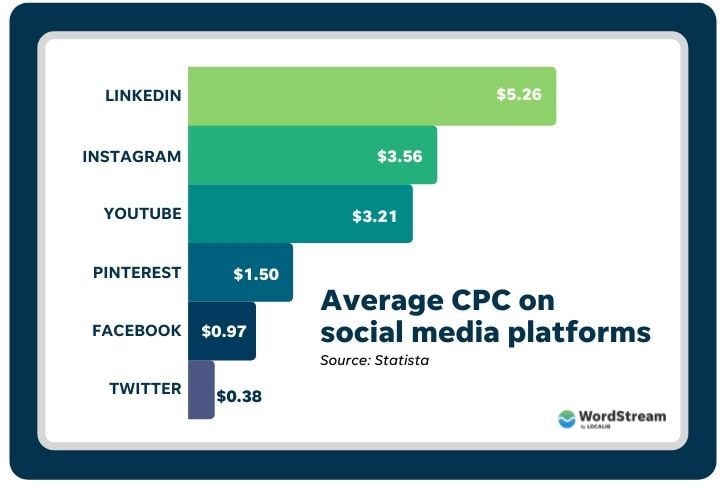
- Facebook ads boast the lowest average cost per click among social media advertising platforms.
Facebook ad account overview
Unlike the straightforward setup of Google Ads, Facebook advertising involves various interconnected elements. If you’re new, it’s easy to feel lost in the maze of accounts.
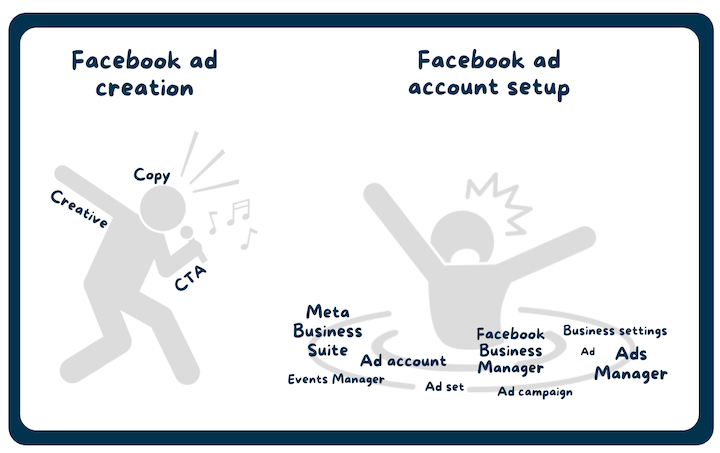 Let’s break it down (don’t worry, we’ll cover setting everything up):
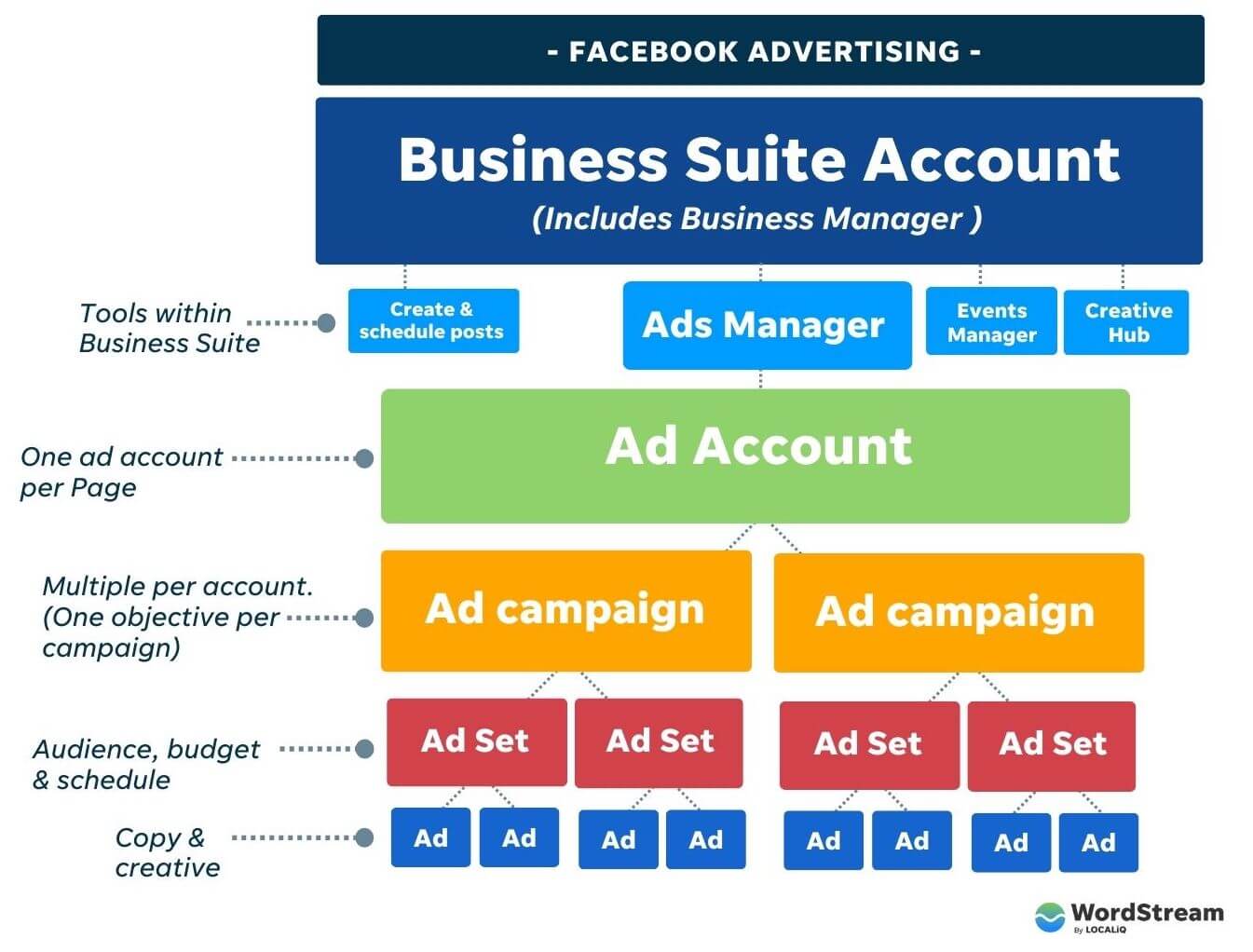
- Meta Business Suite (previously Facebook Business Suite) acts as the central hub, encompassing all aspects. This free account allows managing Facebook and Instagram accounts in one place, enabling post creation and scheduling, message replies, insights access, and more.
- Business Manager is now integrated with Business Suite. Previously, it handled permissions, payments, pixels, and other behind-the-scenes tasks. These functions now reside within Meta Business Suite, though you can still access the old Business Manager interface through the help button.
- Ads Manager houses your ad account(s). Agencies typically manage multiple ad accounts within a single Ads Manager account. If you’re the sole manager, a Meta Business Suite/Business Manager account isn’t mandatory for Ads Manager, but it’s recommended (and free!).
- Ad account is created within Ads Manager. You should have one ad account per business (or Facebook Page).
Time for a quick break. Grab some refreshing orange slices  and water
- Facebook Page is essential for advertising but can exist independently. It’s a cornerstone of organic social media marketing. Create a Page directly from your Facebook profile or through Business Suite.
- Ad campaign defines your objective. Multiple campaign types within an ad account are not only possible but recommended.
- Ad set determines your ad budget/bidding, schedule, and target audience—demographics, interests, age, and more. Multiple ad sets can exist within a campaign.
- Ad is where your actual copy and creative reside. Aim for at least two ads per ad set. We’ll delve into Facebook ad account structure later.
Free guide >> 7 Fundamental Facebook Advertising Tips every advertiser should know.
How to advertise on Facebook
With the visual roadmap in place, let’s embark on this advertising journey. Here are the steps we’ll cover:
- Create a Business Suite account
- Connect or create your Facebook Page
- Create your ad account
- Add the pixel to your website
- Create your Facebook ad campaign
- Create your Facebook ad set
- Create your ad
- Publish
1. Create a Business Suite account
Remember, Business Manager and Business Suite are now unified. Creating a Business Manager account brings you to the Meta Business Suite interface. You can access the legacy Business Manager interface (Help > Switch to Business Suite), but familiarizing yourself with Business Suite is recommended, as it’s here to stay.
To begin, navigate to business.facebook.com and click “Create account” in the top right corner.
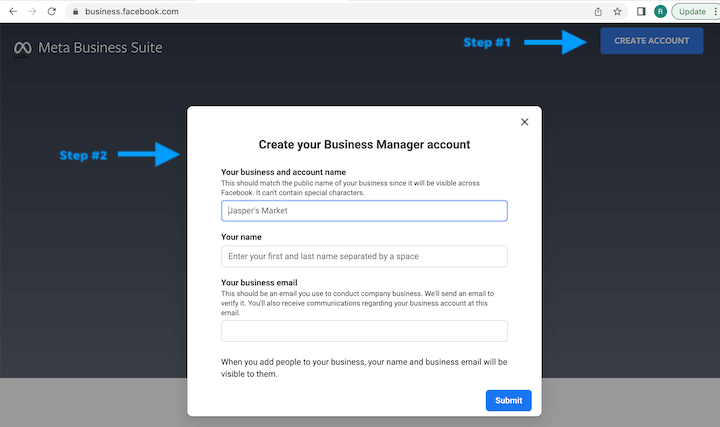 Provide your business name, your name, and business email. Upon confirming your email, your account will be created, leading you to the Meta Business Suite interface.
2. Connect or create your Facebook Page
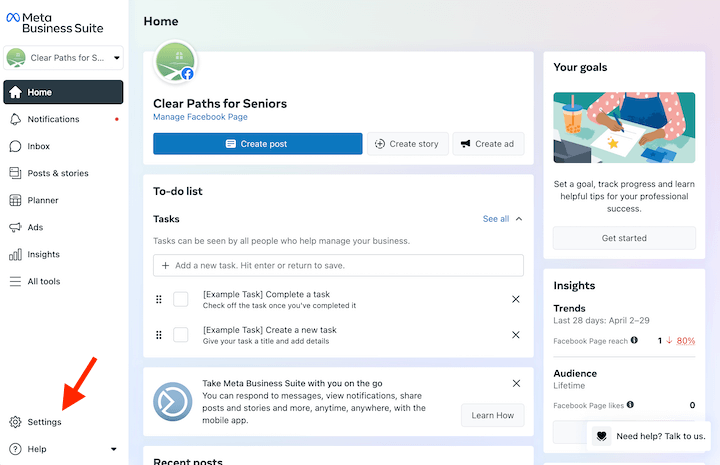
Locate and click Settings at the bottom left.
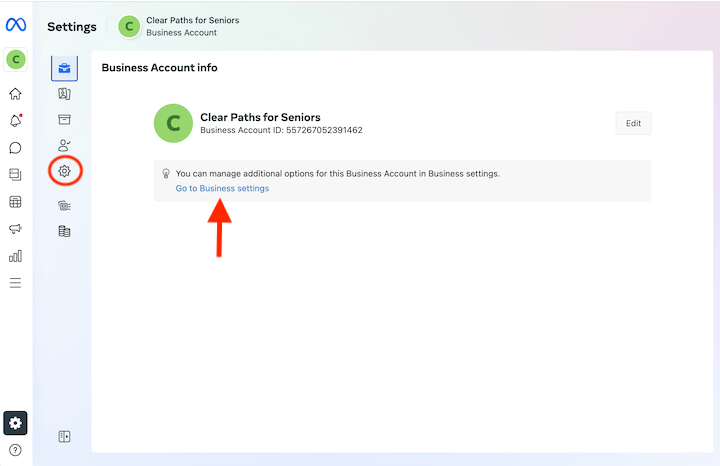
Next, click the second gear icon or a “Go to Business Settings” prompt, both leading to the same destination. Business Settings essentially represents the previous Business Manager.
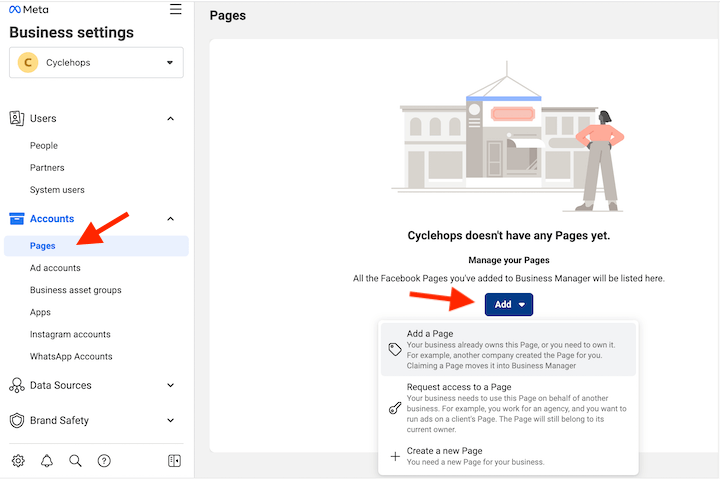
 A Facebook Page is a prerequisite for advertising. In the left pane, select Pages and click Add. You can add an existing Page, create a new one, or request access to manage ads for another business.
 While you can provide minimal information to create your Page, building it out fully before advertising is advisable, as users can access it from your ad. Utilize our guide to create a comprehensive and marketing-optimized Facebook Business Page.
3. Create your ad account
Return to Ad accounts in the left pane. On the right, you’ll find an option to create a new ad account.
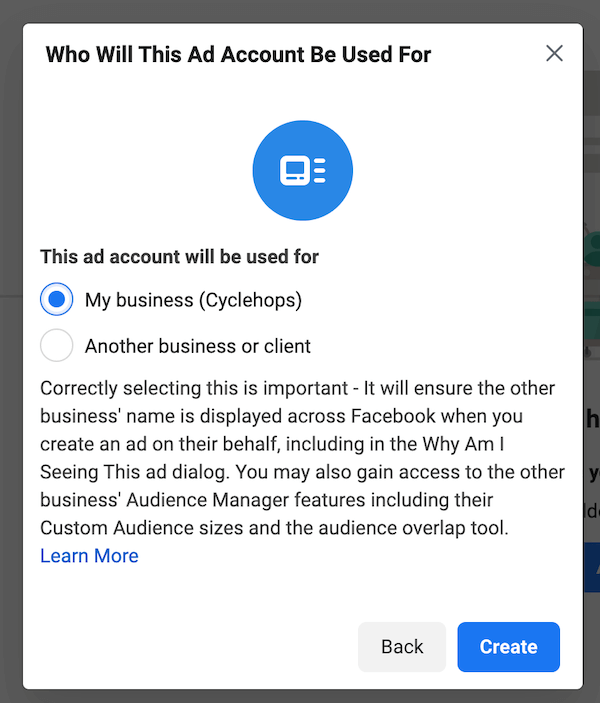
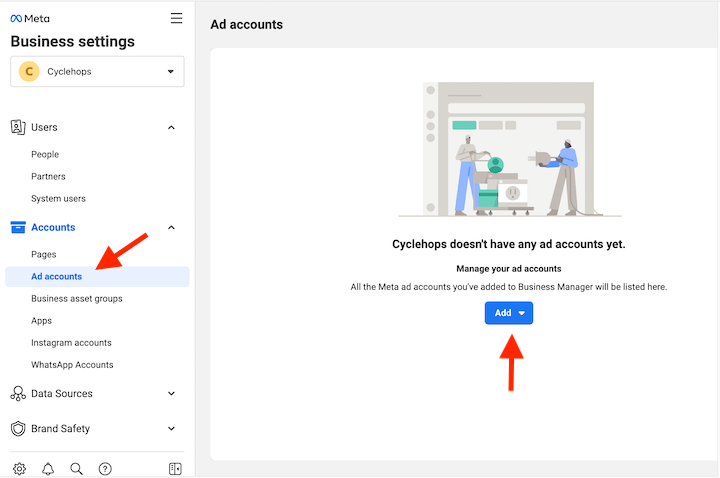 Enter your Ad account name, time zone, and currency, then proceed. Facebook will inquire whether the ad account manages ads for your business account or for another entity.
 Next, add people and assign permissions. Select your name and grant yourself full control over all aspects.
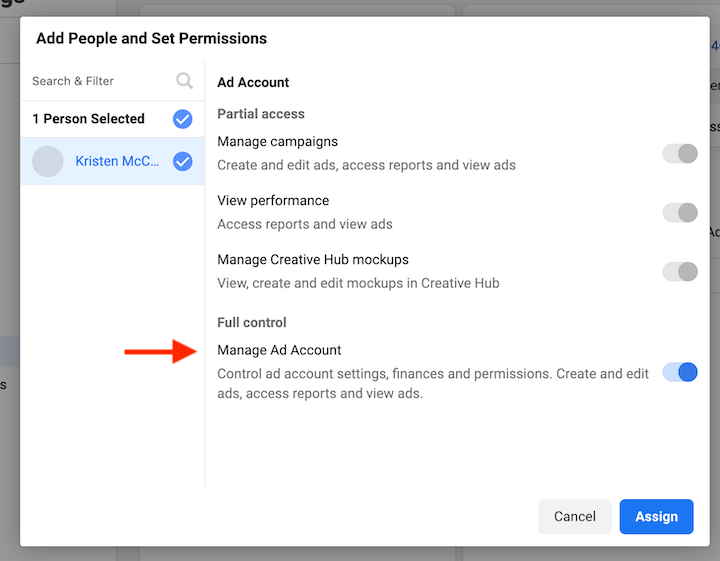 Click Assign and then Add Payment Info. Congratulations, you’ve set up your ad account.
4. Add the pixel to your website
While not mandatory at this stage, eventually you’ll need the Facebook Pixel. This code snippet tracks your ad viewers’ actions upon reaching your website. Pixel insights facilitate ad optimization and the creation of high-performing Facebook retargeting audiences.
Important: Given iOS privacy updates and the phasing out of third-party cookies, setting up the Facebook Conversions API is strongly recommended to gain a comprehensive understanding of your data.
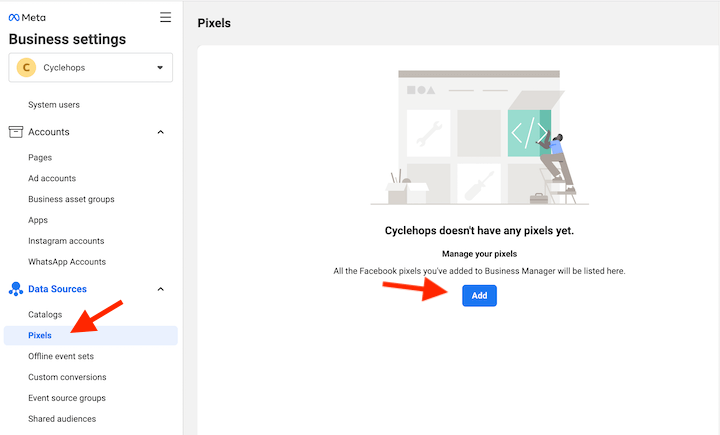
To set up the pixel, go to Data Sources, select Pixels, and click Add on the right.
 Facebook will prompt you to install it manually or through a partner integration.
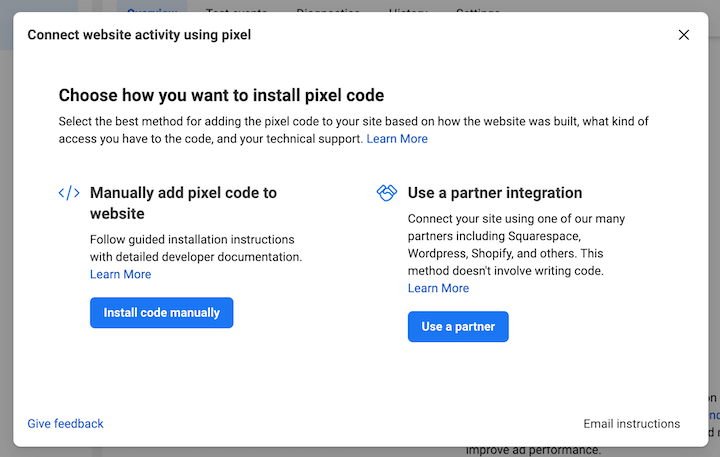 Partner integrations simplify the process without coding. Current partners include:
- WordPress
- WooCommerce
- Tealium
- Shopify
- Makeshop
- Magento
- Google Tag Manager
- Conversions API Gateway
- Cafe24
- Zapier
- Segment
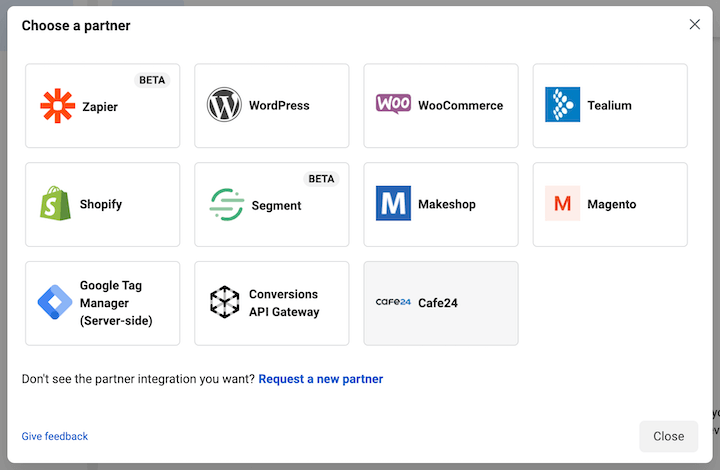 If partner integration isn’t suitable, this video tutorial on setting up the Facebook pixel manually from Ivan Manna can assist you.
Set up your web events
Pixel setup involves verifying your domain and configuring web events (Aggregated Event Measurement). Paid Media Pros provides a helpful easy tutorial video for configuring your web events.
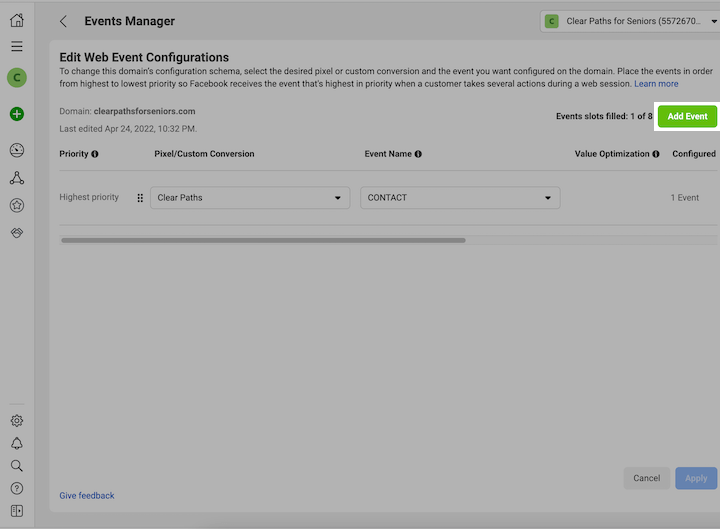 Note that domain verification (Brand Safety > Domains) and event setup (Events Manager) can be revisited later.
For more help with these steps above, check out this post on why your Facebook ads aren’t converting and how you can troubleshoot.
5. Create your Facebook ad campaign
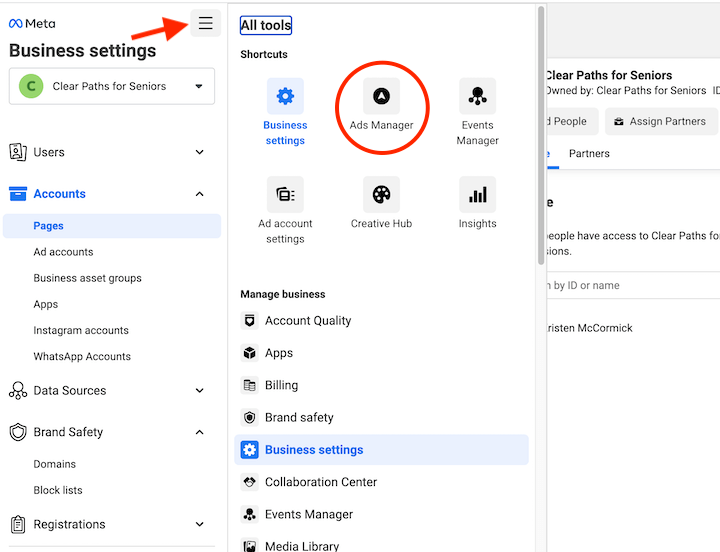
Click the top left hamburger menu (All tools) and select Ads Manager.
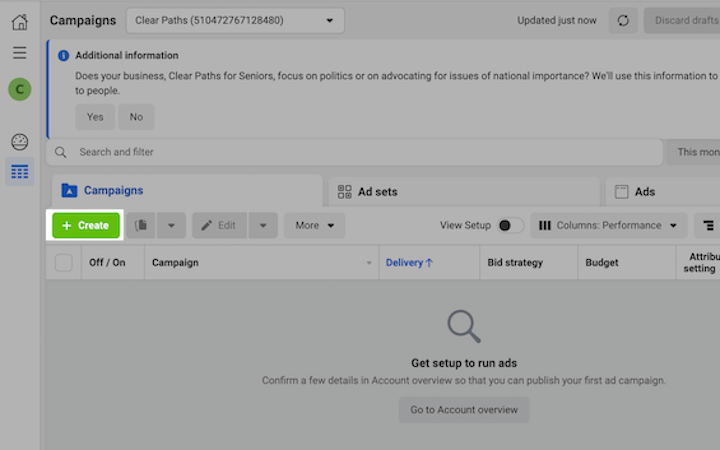
 On the left, choose “Create.”
Choose your campaign objective
Facebook offers three campaign objective categories: Awareness, Consideration, and Conversion.
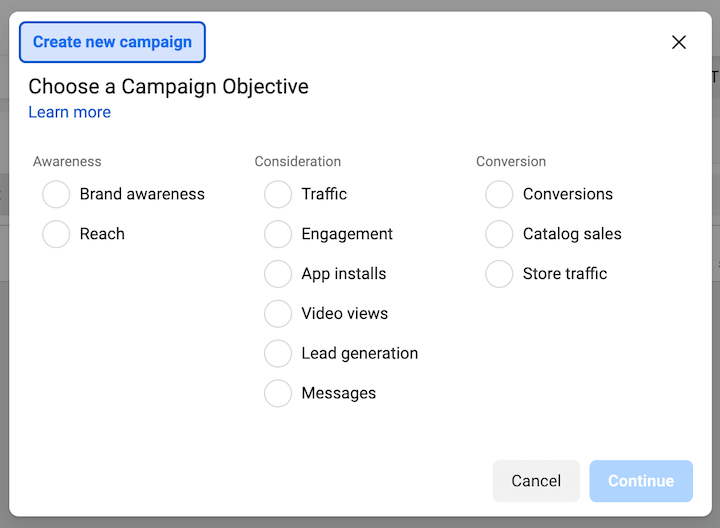
- Awareness
- Brand awareness
- Reach
- Consideration
- Traffic
- Engagement
- App installs
- Video views
- Lead generation
- Messages
- Conversions
- Catalog sales
- Store traffic
The ideal objective depends on your offer and target audience. A comprehensive Facebook ad strategy employs different campaigns for each funnel stage. This chart aids in selecting the appropriate objective for your current campaign:
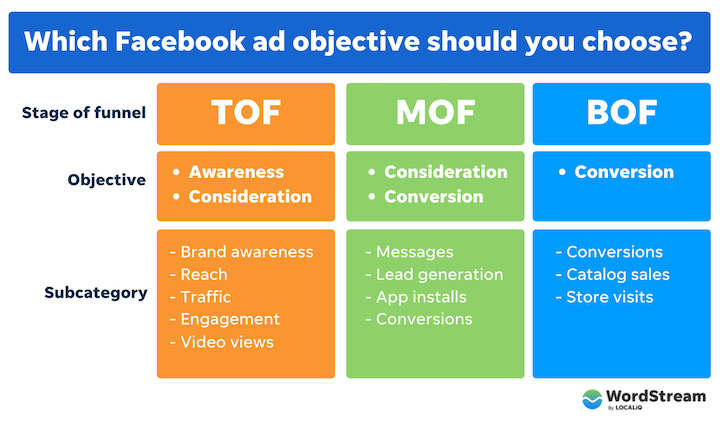 Note that conversions campaigns require a configured pixel and web events.
Campaign settings
After selecting your objective, you’ll see:
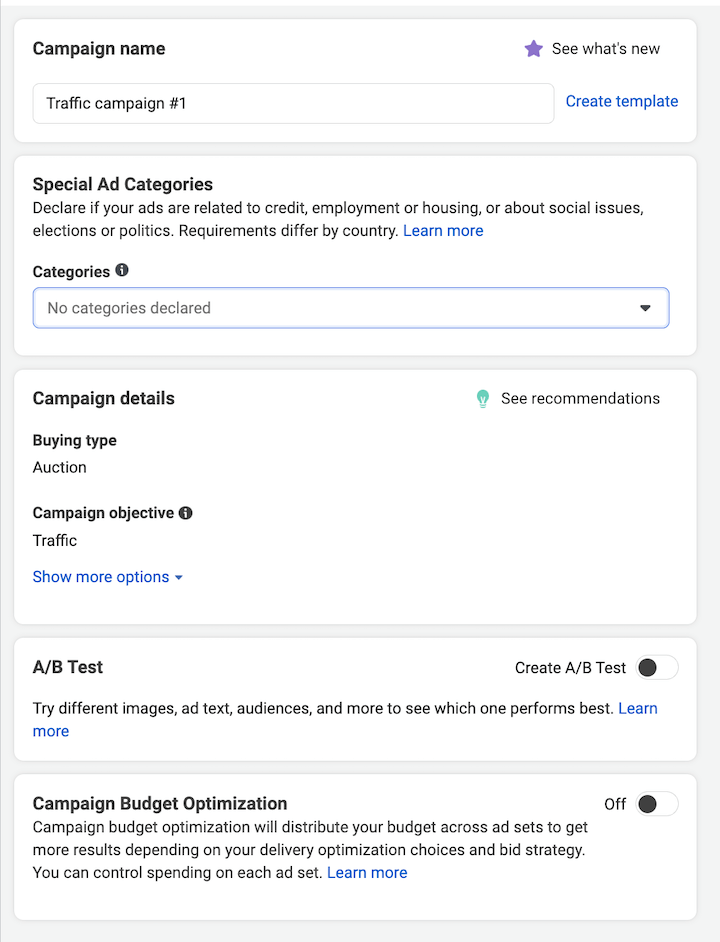
- Campaign name: Choose any name that makes sense to you.
- Special Ad Categories: Declare any applicable special categories to address documentation requirements based on Facebook’s advertising policies.
- Campaign details: Modify your objective if needed and set a campaign spending limit (if using a daily budget).
- A/B test: Explore this later; our guide to Facebook A/B testing offers insights.
- Campaign Budget Optimization: When enabled, Facebook allocates budget percentages to ad sets based on performance, instead of individual ad set budgets. Leave this off for now; our resource discusses CBO pros and cons.
6. Create your Facebook ad set
Let’s move on to ad set creation. While numerous features and settings are available, here’s what matters most.
- Traffic: Specify your traffic destination. This appears because we chose a traffic campaign objective; the window varies for other objectives.
- Dynamic creative. Similar to responsive search ads, you provide assets (images, videos, headlines, descriptions), and Facebook automatically generates different combinations. For simplicity, we’ll skip this setting.
- Optimization & delivery. Define ad set success for algorithmic refinement of ad targeting.
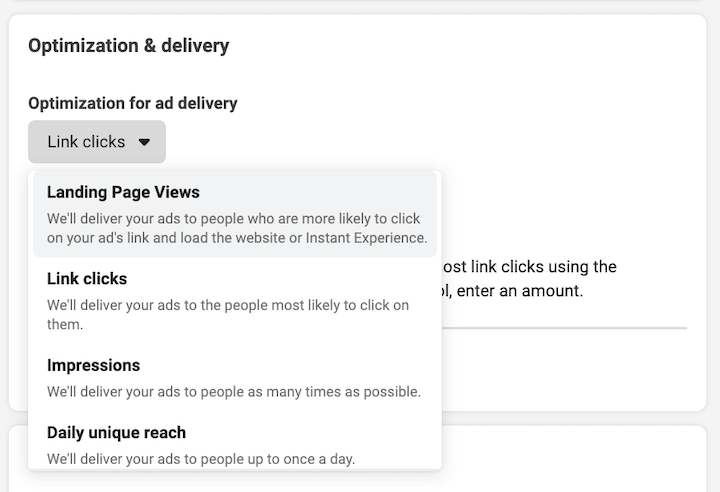 Options here vary by campaign objective. This guide helps you choose:
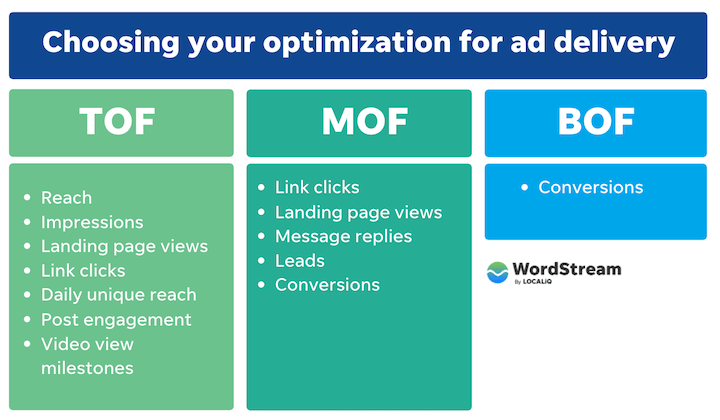
Budget & schedule
Choose between a daily budget or lifetime budget. Our resource delves into this choice; generally: Select daily budgets when:
- Your campaign is evergreen.
- You aim to maximize strong performance.
- You anticipate frequent budget adjustments. Select lifetime budgets when:
- Your ads require a specific schedule.
- Your campaign has a fixed budget and end date.
For daily budgets, start with $5-$10 to ensure ad competitiveness and data collection for optimization. Avoid setting it too low. Refer to our list of Facebook advertising mistakes for more information.
Utilize Facebook’s easy ad scheduling feature to control ad display based on factors like your operating hours or your target audience’s behavior (e.g., breakfast cafe ads running only in the morning).
Audience
Define your target audience based on:
- Location
- Age
- Gender
- Interests and behaviors
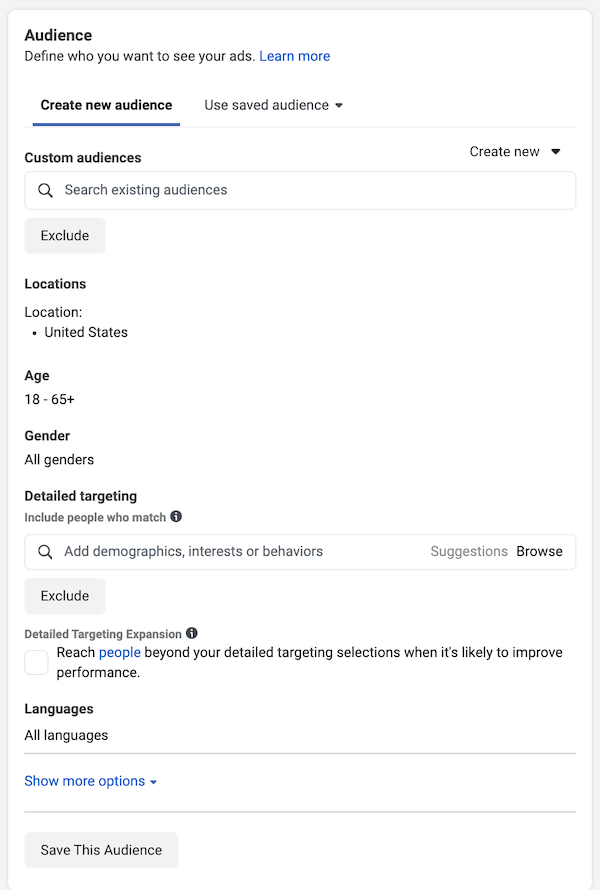 Our comprehensive guide covers Facebook ad targeting in detail. Here’s a quick overview:
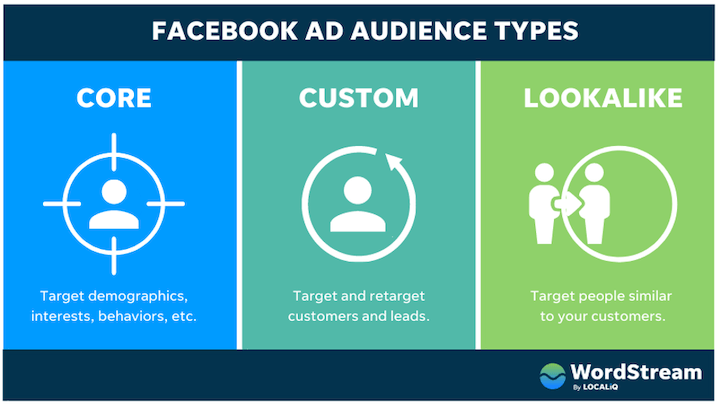
Despite privacy-related impacts, Facebook targeting remains powerful due to the detailed user information available. Three audience types exist:
Our comprehensive guide covers Facebook ad targeting in detail. Here’s a quick overview:
Despite privacy-related impacts, Facebook targeting remains powerful due to the detailed user information available. Three audience types exist:
- Core audiences: Target users based on demographics, interests, and behaviors.
- Custom audiences: Target and retarget customers and leads based on pixel data.
- Lookalike audiences: Target individuals similar to your existing customers and leads.
- Detailed targeting allows creating rules to target users with one OR another or one AND another interest. Stick to one or two interests/demographics per ad set to understand what resonates. Create new ad sets for additional interests.
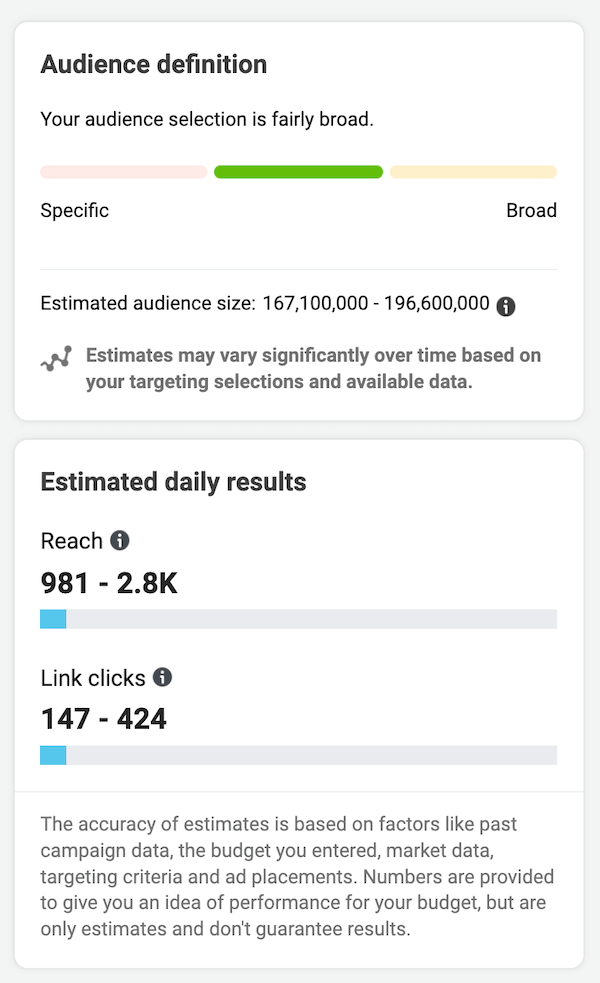
- On the right, Audience definition indicates audience size based on chosen criteria, while Estimated daily results predicts reach based on your daily spend. Remember, these are estimates and might not be entirely accurate.
Choose your placements
Placements determine where your ad appears within the Facebook network, encompassing mobile and desktop, Instagram and Facebook.
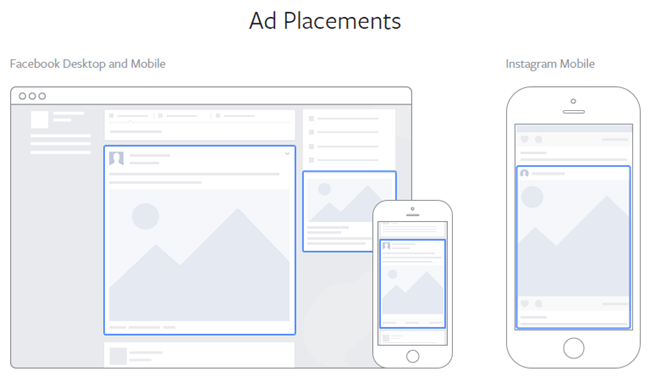 Options include automatic or manual placement selection. While manual selection might seem tempting, starting with automatic and analyzing performance after a week or two is recommended. Then, switch to manual and optimize based on data.
7. Create your ad
Time for the exciting part! If you need inspiration, explore these Facebook ad examples.
Create your ad creative
The visual aspect, your ad creative, should be captivating. Facebook supports three ad formats: single image/video ads, carousel ads, and collection ads. Three creation options exist: use an existing post, a Creative Hub mockup, or upload your own design.
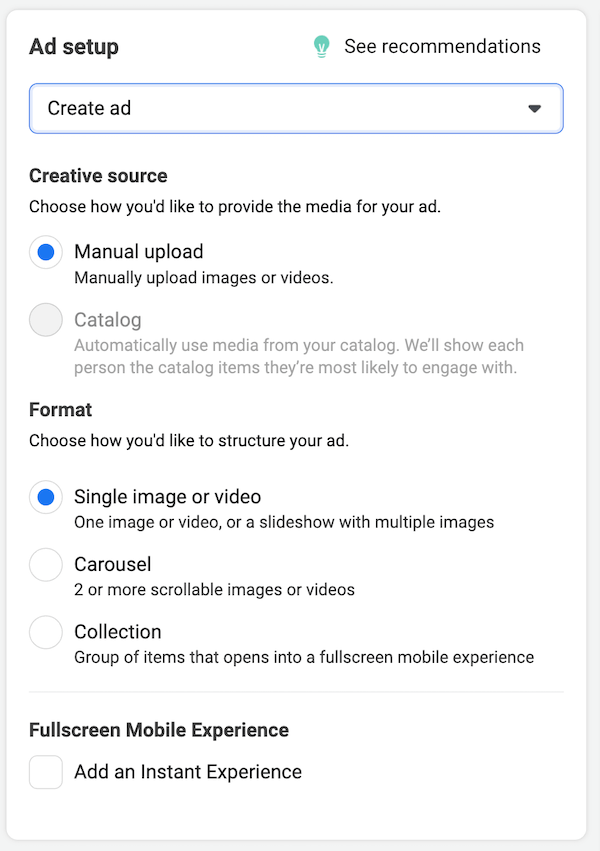 The choice is yours; numerous free tools are available for designing Facebook ads.
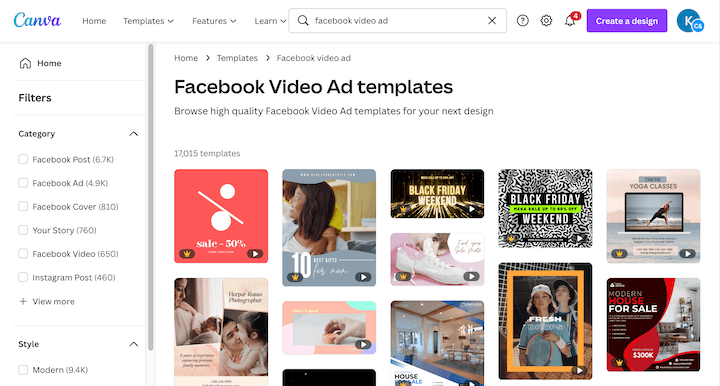 Facebook video ad templates in Canva.
Write your copy
Ad copy consists of:
- Primary text: Above the creative; only the first 125 characters are visible.
- Headline: Below the creative, 40 characters maximum.
- Description: Below the headline, 30 characters maximum.
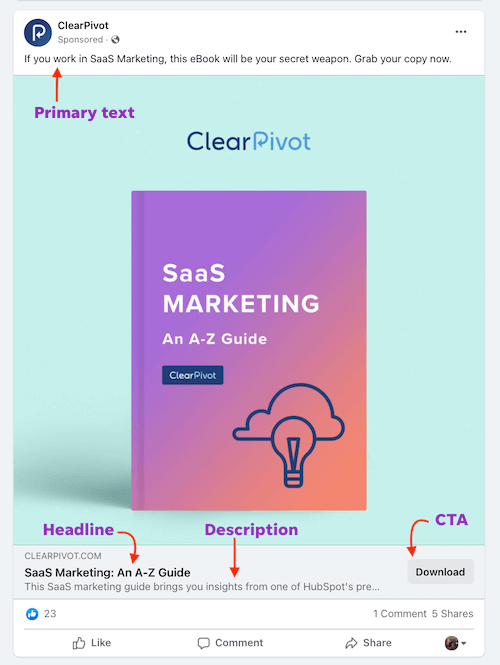 Research by AdEspresso suggests the ideal Facebook ad headline length is five words. Experiment with both positive and negative emotions in your headlines through A/B testing to identify what resonates best with your audience.
Utilize these resources for crafting compelling Facebook ad copy:
- 9 Tips to Write the Best Facebook Ads Ever
- 13 Facebook Ad Copy Examples to Inspire You
- 5 Data-Backed Tips for Writing Great Facebook Ad Headlines
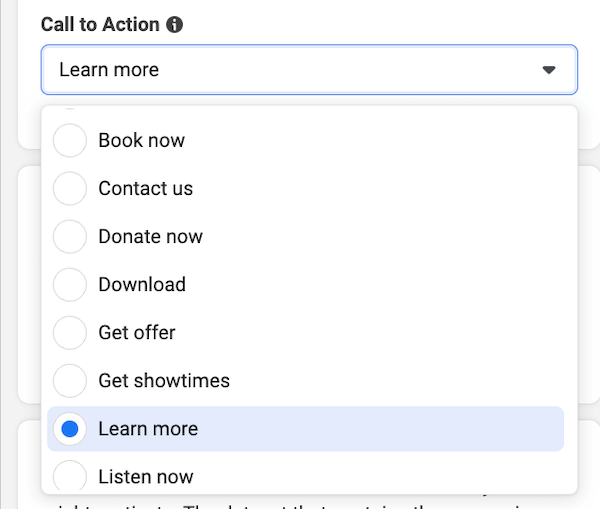
Choose your call to action
After entering your ad copy, provide your website URL and select the most appropriate call to action. Remember, A/B testing is your friend!
Confirm your tracking
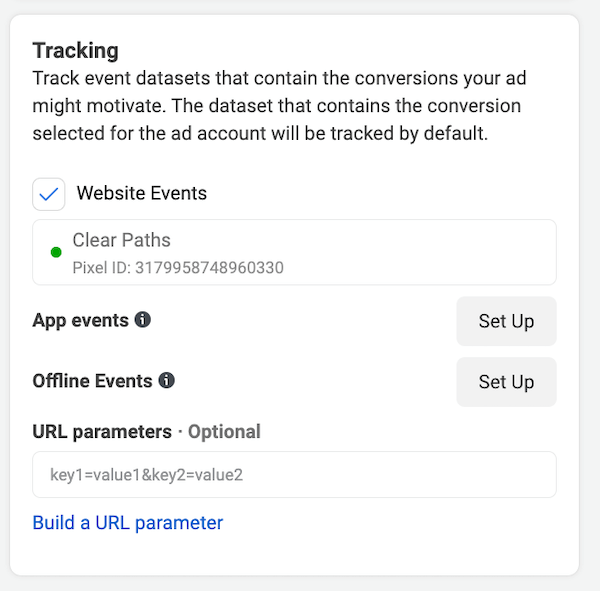
Ensure your website event tracking is set up (if not done earlier). Configure app and offline events if applicable, and set a unique URL parameter to identify website visitors from this specific ad.
8. Publish!
Hit that satisfying green “Publish” button. Your ad undergoes algorithmic (and sometimes manual) review for Facebook Ad disapprovals, which can take up to 24 hours (or more). Once approved, your ad enters a learning phase, allowing Facebook to gather performance data for optimization.
To summarize, here’s how to run Facebook ads:
- Create a Business Suite account.
- Connect or create your Facebook Page.
- Create your ad account.
- Add the pixel to your website.
- Set up your web events.
- Set up the pixel.
- Verify your domain.
- Configure your web events.
- Create your Facebook ad campaign.
- Choose your campaign objective.
- Configure campaign settings.
- Create your Facebook ad set.
- Set your budget & schedule.
- Define your audience.
- Choose your placements.
- Create your ad.
- Design your ad creative.
- Write your copy.
- Hit publish.
How to run Facebook ads: FAQs
Let’s address some frequently asked questions to empower your Facebook advertising endeavors.
 Want help running Facebook ads? Check out our digital marketing solutions!
How does the Facebook ad auction work?
Unlike the Google Ads auction, the Facebook ad auction considers:
- Your bid
- Your ad quality and relevance
- Your estimated action rates
These factors influence your Facebook cost per click, which impacts revenue-related metrics like cost per action and cost per lead.
Maximize ad relevance through meticulous audience targeting, resonant messaging and creative, and periodic ad rotation.
How much do Facebook ads cost?
Average Facebook cost per click varies from $0.25 to $5 based on industry, objective, and other factors. Consult our post on Facebook ad costs for deeper insights. Utilize our free Facebook Ads Grader to optimize your ad spend.
How does Facebook remarketing work?
Facebook remarketing (or retargeting) enables advertising to users who have previously interacted with your business—website, app, Facebook Page, other Facebook ads, or even offline. Upload lead or customer lists for targeting, or leverage the pixel and Conversions API for identification. Layer audiences by combining retargeting with detailed targeting.
However, with less reliable pixel data due to privacy changes, retargeting based on Facebook engagement is recommended.
How should I structure my account?
Effective Facebook advertising requires an account structure mirroring a marketing funnel. Upper-funnel campaigns focus on prospecting, mid-funnel campaigns target lookalike and moderately refined audiences, and lower-funnel campaigns target highly specific retargeting audiences.
High-volume advertisers can incorporate broader lookalike audiences in upper-funnel ad sets. Align campaign objectives with goals, focusing on awareness, clicks, and remarketing audience growth in upper-funnel campaigns, and conversions (purchases, form fills) in mid-and-lower-funnel campaigns. Explore our Facebook ad optimization tips for further guidance.
Why aren’t my Facebook ads working?
Experiencing ineffective Facebook ads is a common hurdle for advertisers. Don’t be discouraged—it happens to everyone. Potential reasons include:
- Misaligned campaign objective and goals.
- Overly broad targeting.
- Low relevance score.
- Lack of message match.
- Uninspiring ad creative.
Use the tips and resources in this article to troubleshoot and reinvigorate your Facebook advertising efforts.