Introduction
You’ve likely heard of the Hadoop Distributed File System (HDFS) if you work with data, especially if you’re moving it between systems. But what makes HDFS better than traditional relational databases?
HDFS offers a scalable, open-source way to store and process huge datasets. Its reliability and efficiency have been proven across many modern data centers.
Cost-effectiveness is another benefit: HDFS uses affordable hardware and open source software to reduce the storage cost per byte.
Unlike relational databases with their ACID requirements (atomicity, consistency, isolation, durability), HDFS is built for analytics. Its replication and fault-tolerance make it ideal for handling data without the overhead of traditional systems.
Plus, using Hadoop for analytics with HDFS avoids licensing costs compared to enterprise databases like Oracle.
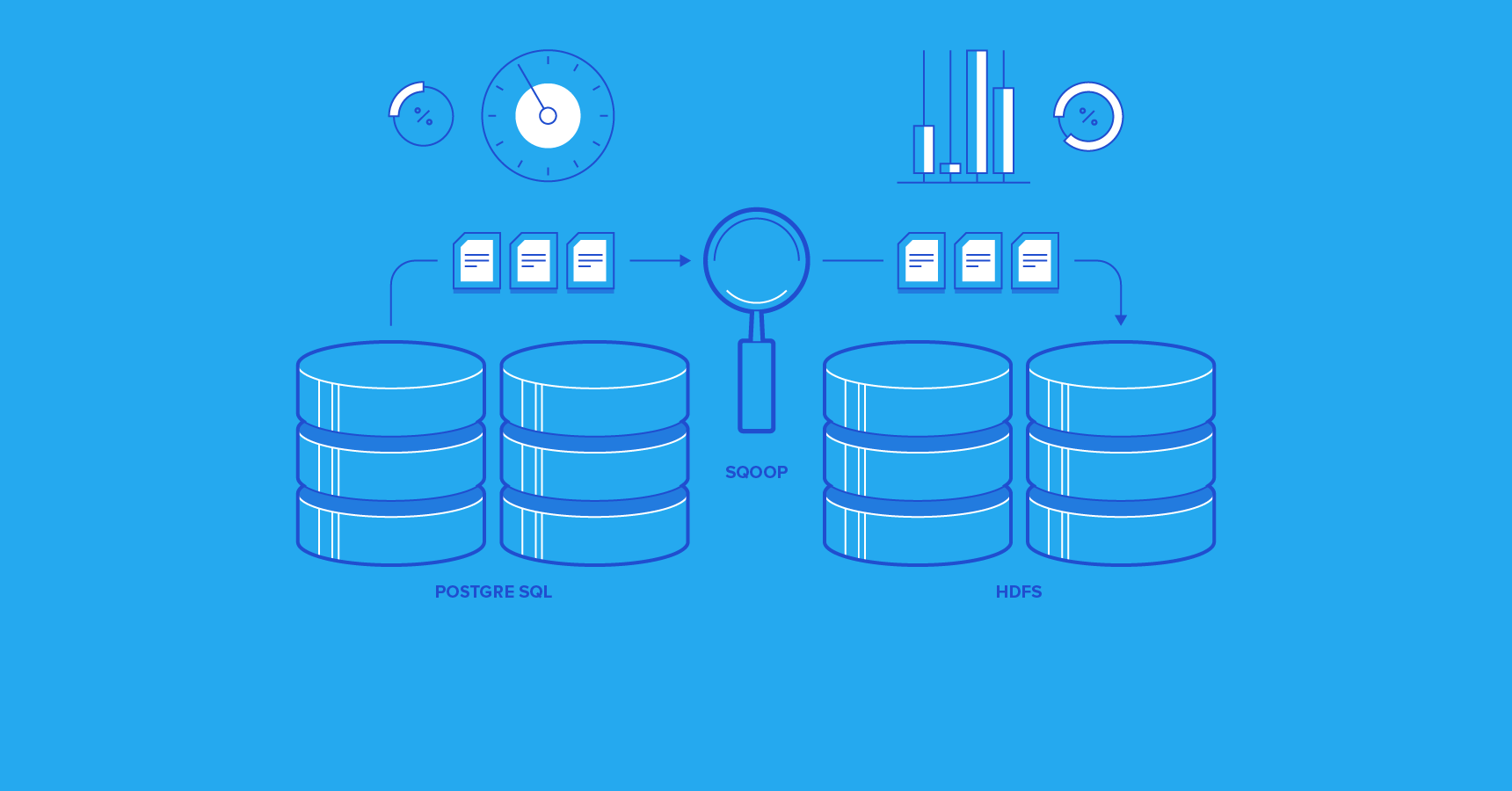
A common question for those new to HDFS is how to get their existing data into it. This article demonstrates importing data from a PostgreSQL database into HDFS. Our tool of choice is Apache Sqoop, the leading open-source solution for efficient data transfer between HDFS and relational databases. Apache Sqoop handles both directions: bulk-loading data from a relational database to HDFS (import) and vice-versa (export).
Speed up analytics by migrating your data into the HDFS.
This tutorial assumes basic SQL knowledge and familiarity with HDFS commands.
Our setup uses PostgreSQL 9.5 for Windows and Cloudera Hadoop 2.5.0-cdh5.2.0 on a CentOS 6.4 Linux virtual machine.
Remember that Apache Sqoop needs JDBC driver JAR files specific to your relational database vendor and version.
To follow along, you’ll need:
- Remote access to the PostgreSQL database
SELECT permissions on the database- Write permissions on the HDFS
- Execute permissions on the Sqoop executable
For this tutorial, we’ve created a PostgreSQL database called Toptal, accessible through port 5432.
PostgreSQL Data Source
Let’s start by creating a test table named sales in our PostgreSQL Toptal database. We assume you already have the OpenSSL certificate and private key files on your PostgreSQL server.
 1
 2
 3
 4
 5
 6
 7
 8
 9
10
11
12
13
14
15
| Server [localhost]:
Database [postgres]: Toptal
Port [5432]:
Username [postgres]:
Password for user postgres:
psql (9.5.3)
Toptal=# create table sales
Toptal-# (
Toptal(# pkSales integer constraint salesKey primary key,
Toptal(# saleDate date,
Toptal(# saleAmount money,
Toptal(# orderID int not null,
Toptal(# itemID int not null
Toptal(# );
CREATE TABLE
|
Next, we’ll insert 20 rows:
 1
 2
 3
 4
 5
 6
 7
 8
 9
10
11
12
13
14
15
16
17
18
19
20
21
22
23
24
25
26
27
28
29
30
31
32
33
34
35
36
37
38
39
40
| Toptal=# insert into sales values (1, '2016-09-27', 1.23, 1, 1);
INSERT 0 1
Toptal=# insert into sales values (2, '2016-09-27', 2.34, 1, 2);
INSERT 0 1
Toptal=# insert into sales values (3, '2016-09-27', 1.23, 2, 1);
INSERT 0 1
Toptal=# insert into sales values (4, '2016-09-27', 2.34, 2, 2);
INSERT 0 1
Toptal=# insert into sales values (5, '2016-09-27', 3.45, 2, 3);
INSERT 0 1
Toptal=# insert into sales values (6, '2016-09-28', 3.45, 3, 3);
INSERT 0 1
Toptal=# insert into sales values (7, '2016-09-28', 4.56, 3, 4);
INSERT 0 1
Toptal=# insert into sales values (8, '2016-09-28', 5.67, 3, 5);
INSERT 0 1
Toptal=# insert into sales values (9, '2016-09-28', 1.23, 4, 1);
INSERT 0 1
Toptal=# insert into sales values (10, '2016-09-28', 1.23, 5, 1);
INSERT 0 1
Toptal=# insert into sales values (11, '2016-09-28', 1.23, 6, 1);
INSERT 0 1
Toptal=# insert into sales values (12, '2016-09-29', 1.23, 7, 1);
INSERT 0 1
Toptal=# insert into sales values (13, '2016-09-29', 2.34, 7, 2);
INSERT 0 1
Toptal=# insert into sales values (14, '2016-09-29', 3.45, 7, 3);
INSERT 0 1
Toptal=# insert into sales values (15, '2016-09-29', 4.56, 7, 4);
INSERT 0 1
Toptal=# insert into sales values (16, '2016-09-29', 5.67, 7, 5);
INSERT 0 1
Toptal=# insert into sales values (17, '2016-09-29', 6.78, 7, 6);
INSERT 0 1
Toptal=# insert into sales values (18, '2016-09-29', 7.89, 7, 7);
INSERT 0 1
Toptal=# insert into sales values (19, '2016-09-29', 7.89, 8, 7);
INSERT 0 1
Toptal=# insert into sales values (20, '2016-09-30', 1.23, 9, 1);
INSERT 0 1
|
Let’s verify the data:
 1
 2
 3
 4
 5
 6
 7
 8
 9
10
11
12
13
14
15
16
17
18
19
20
21
22
23
24
| Toptal=# select * from sales;
pksales | saledate | saleamount | orderid | itemid
---------+------------+------------+---------+--------
1 | 2016-09-27 | $1.23 | 1 | 1
2 | 2016-09-27 | $2.34 | 1 | 2
3 | 2016-09-27 | $1.23 | 2 | 1
4 | 2016-09-27 | $2.34 | 2 | 2
5 | 2016-09-27 | $3.45 | 2 | 3
6 | 2016-09-28 | $3.45 | 3 | 3
7 | 2016-09-28 | $4.56 | 3 | 4
8 | 2016-09-28 | $5.67 | 3 | 5
9 | 2016-09-28 | $1.23 | 4 | 1
10 | 2016-09-28 | $1.23 | 5 | 1
11 | 2016-09-28 | $1.23 | 6 | 1
12 | 2016-09-29 | $1.23 | 7 | 1
13 | 2016-09-29 | $2.34 | 7 | 2
14 | 2016-09-29 | $3.45 | 7 | 3
15 | 2016-09-29 | $4.56 | 7 | 4
16 | 2016-09-29 | $5.67 | 7 | 5
17 | 2016-09-29 | $6.78 | 7 | 6
18 | 2016-09-29 | $7.89 | 7 | 7
19 | 2016-09-29 | $7.89 | 8 | 7
20 | 2016-09-30 | $1.23 | 9 | 1
(20 rows)
|
Looks good! Let’s move on.
Import into the HDFS Using Sqoop
With our data source ready, we can import it into HDFS. The following sqoop command will do the job. We’ll break down each argument below. Note that the command should be on a single line, or use the backslash (the Linux line continuation character) as shown below:
1
2
3
4
5
| sqoop import --connect 'jdbc:postgresql://aaa.bbb.ccc.ddd:5432/Toptal?ssl=true&sslfactory=org.postgresql.ssl.NonValidatingFactory' \
--username 'postgres' -P \
--table 'sales' \
--target-dir 'sales' \
--split-by 'pksales'
|
sqoop import: This tells the sqoop executable to import data from a database table or view into HDFS.--connect: This argument provides the JDBC connection string for PostgreSQL, including the IP address, port number, database name, SSL usage confirmation, and the specific SSLSocketFactory class.--username: This refers to your PostgreSQL login, not your Windows login. Make sure it has permissions to connect to the database and select data from the specified table.-P: This prompts you for the password. Suitable for infrequent Sqoop use; other methods exist for automated password passing.--table: Specifies the PostgreSQL table to import.--target-dir: Indicates the HDFS directory to store the data.--split-by: Provides Sqoop with a unique identifier for workload distribution. We’ll see later how Sqoop uses minimum and maximum values to create split boundaries.
For better management, we recommend putting the command in a script, like so:
1
2
3
4
5
6
7
| [hdfs@localhost:/sqoop]$ cat sqoopCommand.sh
sqoop import --connect 'jdbc:postgresql://aaa.bbb.ccc.ddd:5432/toptal?ssl=true&sslfactory=org.postgresql.ssl.NonValidatingFactory' \
--username 'postgres' -P \
--table 'sales' \
--target-dir 'sales' \
--split-by 'pksales'
[hdfs@localhost:/sqoop]$
|
Now, let’s execute the Sqoop command script. Here’s the output:
 1
 2
 3
 4
 5
 6
 7
 8
 9
10
11
12
13
14
15
16
17
18
19
20
21
22
23
24
25
26
27
28
29
30
31
32
33
34
35
36
37
38
39
40
41
42
43
44
45
46
47
48
49
50
51
52
53
| [hdfs@localhost:/sqoop]$ ./sqoopCommand.sh
16/10/02 18:58:34 INFO sqoop.Sqoop: Running Sqoop version: 1.4.5-cdh5.2.0
Enter password:
16/10/02 18:58:40 INFO manager.SqlManager: Using default fetchSize of 1000
16/10/02 18:58:40 INFO tool.CodeGenTool: Beginning code generation
16/10/02 18:58:41 INFO manager.SqlManager: Executing SQL statement: SELECT t.* FROM "sales" AS t LIMIT 1
16/10/02 18:58:41 INFO orm.CompilationManager: HADOOP_MAPRED_HOME is /usr/lib/hadoop-0.20-mapreduce
Note: /tmp/sqoop-training/compile/77f9452788024792770d52da72ae871f/sales.java uses or overrides a deprecated API.
Note: Recompile with -Xlint:deprecation for details.
16/10/02 18:58:43 INFO orm.CompilationManager: Writing jar file: /tmp/sqoop-training/compile/77f9452788024792770d52da72ae871f/sales.jar
16/10/02 18:58:43 WARN manager.PostgresqlManager: It looks like you are importing from postgresql.
16/10/02 18:58:43 WARN manager.PostgresqlManager: This transfer can be faster! Use the --direct
16/10/02 18:58:43 WARN manager.PostgresqlManager: option to exercise a postgresql-specific fast path.
16/10/02 18:58:43 INFO mapreduce.ImportJobBase: Beginning import of sales
16/10/02 18:58:45 WARN mapred.JobClient: Use GenericOptionsParser for parsing the arguments. Applications should implement Tool for the same.
16/10/02 18:58:46 INFO db.DBInputFormat: Using read commited transaction isolation
16/10/02 18:58:46 INFO db.DataDrivenDBInputFormat: BoundingValsQuery: SELECT MIN("pksales"), MAX("pksales") FROM "sales"
16/10/02 18:58:47 INFO mapred.JobClient: Running job: job_201609280401_0005
16/10/02 18:58:48 INFO mapred.JobClient: map 0% reduce 0%
16/10/02 18:59:04 INFO mapred.JobClient: map 50% reduce 0%
16/10/02 18:59:14 INFO mapred.JobClient: map 75% reduce 0%
16/10/02 18:59:15 INFO mapred.JobClient: map 100% reduce 0%
16/10/02 18:59:18 INFO mapred.JobClient: Job complete: job_201609280401_0005
16/10/02 18:59:18 INFO mapred.JobClient: Counters: 23
16/10/02 18:59:18 INFO mapred.JobClient: File System Counters
16/10/02 18:59:18 INFO mapred.JobClient: FILE: Number of bytes read=0
16/10/02 18:59:18 INFO mapred.JobClient: FILE: Number of bytes written=1190344
16/10/02 18:59:18 INFO mapred.JobClient: FILE: Number of read operations=0
16/10/02 18:59:18 INFO mapred.JobClient: FILE: Number of large read operations=0
16/10/02 18:59:18 INFO mapred.JobClient: FILE: Number of write operations=0
16/10/02 18:59:18 INFO mapred.JobClient: HDFS: Number of bytes read=438
16/10/02 18:59:18 INFO mapred.JobClient: HDFS: Number of bytes written=451
16/10/02 18:59:18 INFO mapred.JobClient: HDFS: Number of read operations=4
16/10/02 18:59:18 INFO mapred.JobClient: HDFS: Number of large read operations=0
16/10/02 18:59:18 INFO mapred.JobClient: HDFS: Number of write operations=4
16/10/02 18:59:18 INFO mapred.JobClient: Job Counters
16/10/02 18:59:18 INFO mapred.JobClient: Launched map tasks=4
16/10/02 18:59:18 INFO mapred.JobClient: Total time spent by all maps in occupied slots (ms)=48877
16/10/02 18:59:18 INFO mapred.JobClient: Total time spent by all reduces in occupied slots (ms)=0
16/10/02 18:59:18 INFO mapred.JobClient: Total time spent by all maps waiting after reserving slots (ms)=0
16/10/02 18:59:18 INFO mapred.JobClient: Total time spent by all reduces waiting after reserving slots (ms)=0
16/10/02 18:59:18 INFO mapred.JobClient: Map-Reduce Framework
16/10/02 18:59:18 INFO mapred.JobClient: Map input records=20
16/10/02 18:59:18 INFO mapred.JobClient: Map output records=20
16/10/02 18:59:18 INFO mapred.JobClient: Input split bytes=438
16/10/02 18:59:18 INFO mapred.JobClient: Spilled Records=0
16/10/02 18:59:18 INFO mapred.JobClient: CPU time spent (ms)=3980
16/10/02 18:59:18 INFO mapred.JobClient: Physical memory (bytes) snapshot=481574912
16/10/02 18:59:18 INFO mapred.JobClient: Virtual memory (bytes) snapshot=2949685248
16/10/02 18:59:18 INFO mapred.JobClient: Total committed heap usage (bytes)=127401984
16/10/02 18:59:18 INFO mapreduce.ImportJobBase: Transferred 451 bytes in 33.7555 seconds (13.3608 bytes/sec)
16/10/02 18:59:18 INFO mapreduce.ImportJobBase: Retrieved 20 records.
[hdfs@localhost:/sqoop]$
|
The last line confirms that 20 records were retrieved, matching our PostgreSQL table.
Let’s check the HDFS directory created by default (named after our table) using hdfs dfs -ls:
1
2
3
4
| [hdfs@localhost:/sqoop]$ hdfs dfs -ls
Found 1 items
drwxrwxrwx - toptal data 0 2016-10-02 18:59 sales
[hdfs@localhost:/sqoop]$
|
We can list the directory’s content using the same command. Notice that the data is partitioned across four files by default:
1
2
3
4
5
6
7
8
9
| [hdfs@localhost:/sqoop]$ hdfs dfs -ls sales
Found 6 items
-rw-rw-rw- 1 toptal data 0 2016-10-02 18:59 sales/_SUCCESS
drwxrwxrwx - toptal data 0 2016-10-02 18:58 sales/_logs
-rw-rw-rw- 1 toptal data 110 2016-10-02 18:59 sales/part-m-00000
-rw-rw-rw- 1 toptal data 111 2016-10-02 18:59 sales/part-m-00001
-rw-rw-rw- 1 toptal data 115 2016-10-02 18:59 sales/part-m-00002
-rw-rw-rw- 1 toptal data 115 2016-10-02 18:59 sales/part-m-00003
[hdfs@localhost:/sqoop]$
|
Use hdfs dfs -cat to display the first partition’s records:
1
2
3
4
5
6
7
| [hdfs@localhost:/sqoop]$ hdfs dfs -cat sales/part-m-00000
1,2016-09-27,1.23,1,1
2,2016-09-27,2.34,1,2
3,2016-09-27,1.23,2,1
4,2016-09-27,2.34,2,2
5,2016-09-27,3.45,2,3
[hdfs@localhost:/sqoop]$
|
Note the default comma delimiter and that each partition holds five rows (evenly distributed from the original 20).
To control the output, pipe the cat command to head, limiting it to the first five rows with -n 5:
(This is unnecessary here, as each partition only has five rows. In practice, however, with larger datasets, this is how you would check the contents of a few rows within your partitions.)
 1
 2
 3
 4
 5
 6
 7
 8
 9
10
11
12
13
14
15
16
17
18
19
| [hdfs@localhost:/sqoop]$ hdfs dfs -cat sales/part-m-00001 |head -n 5
6,2016-09-28,3.45,3,3
7,2016-09-28,4.56,3,4
8,2016-09-28,5.67,3,5
9,2016-09-28,1.23,4,1
10,2016-09-28,1.23,5,1
[hdfs@localhost:/sqoop]$ hdfs dfs -cat sales/part-m-00002 |head -n 5
11,2016-09-28,1.23,6,1
12,2016-09-29,1.23,7,1
13,2016-09-29,2.34,7,2
14,2016-09-29,3.45,7,3
15,2016-09-29,4.56,7,4
[hdfs@localhost:/sqoop]$ hdfs dfs -cat sales/part-m-00003 |head -n 5
16,2016-09-29,5.67,7,5
17,2016-09-29,6.78,7,6
18,2016-09-29,7.89,7,7
19,2016-09-29,7.89,8,7
20,2016-09-30,1.23,9,1
[hdfs@localhost:/sqoop]$
|
To extract data from multiple PostgreSQL tables, use the following command:
1
2
3
4
5
6
7
| [hdfs@localhost:/sqoop]$ cat sqoopCommand.sh
sqoop import --connect 'jdbc:postgresql://aaa.bbb.ccc.ddd:5432/toptal?ssl=true&sslfactory=org.postgresql.ssl.NonValidatingFactory' \
--username 'postgres' -P \
--target-dir 'creditCardOrders' \
--split-by 'pksales' \
--query "select s.pksales, s.saledate, s.saleamount, o.shippingtype, o.methodofpayment from sales s inner join orders o on s.orderid=o.orderid where o.methodofpayment='credit card' and \$CONDITIONS"
[hdfs@localhost:/sqoop]$
|
This command uses similar arguments, but their significance changes:
--target-dir: Specifies the HDFS directory to store the selected data. This is mandatory when using a free-form query with Sqoop.--split-by: Even with the primary key, we still need to provide a unique identifier for Sqoop to distribute the workload.--query: This is where you provide your SQL query within double quotes. Note: no backslash for line continuation within the query. The and \$CONDITIONS at the end is crucial - Sqoop replaces $CONDITIONS with a unique expression automatically.
Issues or No Issues: You Should Consider HDFS
HDFS offers numerous advantages over relational databases. For data analysis, migrating your data to HDFS is a smart move.
With the knowledge gained here, you can easily import data from a relational database to HDFS using a single command. While our examples used a small dataset, the process remains the same for larger volumes.
Feel free to experiment with importing large tables and different delimiters. Apache Sqoop streamlines the process compared to manually exporting, transferring, and loading data.