When discussing cloud applications where each client possesses distinct data, the storage and manipulation of this data become paramount. Despite the prevalence of advanced NoSQL solutions, the reliable relational database remains relevant in certain scenarios. A common approach to data separation involves incorporating an identifier within each table, allowing individual handling. However, this method proves cumbersome when a client requests their database, as retrieving records scattered amongst others becomes inefficient.
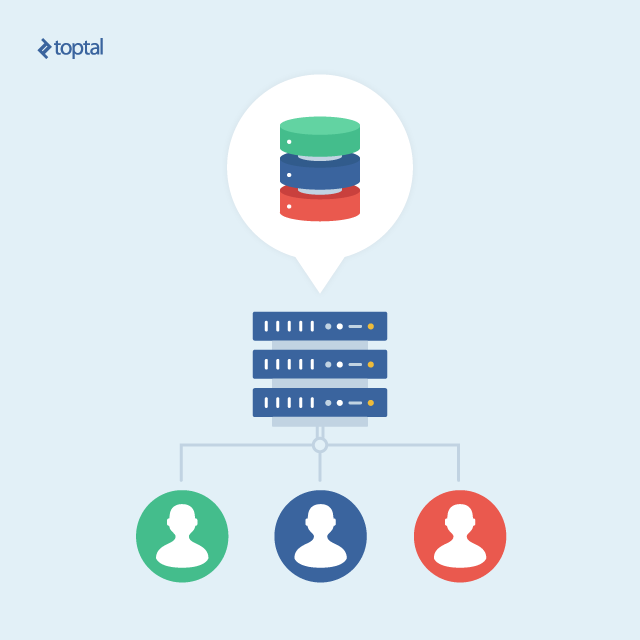
The Hibernate team has addressed this challenge by introducing extension points that empower developers to control data retrieval sources. Their solution offers options for data control via an identifier column, multiple databases, or multiple schemas. This article will delve into the multiple schemas solution.
Let’s begin!
Getting Started
Experienced Java developers familiar with project setup or those with existing Java EE projects may proceed to the next section.
Our first step involves creating a new Java project. While I’ll be utilizing Eclipse and Gradle, feel free to use your preferred IDE and build tools, such as IntelliJ and Maven.
For those opting to use the same tools, follow these project creation steps:
- Install Gradle plugin within Eclipse.
- Navigate to File -> New -> Other…
- Select Gradle (STS) and proceed by clicking Next.
- Provide a project name and choose Java Quickstart as the sample project.
- Finalize the process by clicking Finish.
This should result in the following initial file structure:
| |
Feel free to remove all files within the source folders, as they are merely sample files.
I’ll be employing Wildfly to run the project. Let’s configure it (you are welcome to use your preferred tool):
- Download Wildfly from: http://wildfly.org/downloads/ (I’ll be using version 10)
- Unzip the downloaded file.
- Install the JBoss Tools plugin plugin in Eclipse.
- In the Servers tab, right-click any empty area and choose New -> Server.
- Select Wildfly 10.x (or 9.x if 10 is unavailable, depending on your Eclipse version).
- Click Next, choose Create New Runtime (on the next page), and click Next once more.
- Specify the directory where you unzipped Wildfly as the Home Directory.
- Conclude the configuration by clicking Finish.
Let’s configure Wildfly to recognize our database:
- Access the bin folder within your Wildfly directory.
- Run either add-user.bat or add-user.sh (depending on your OS).
- Follow the prompts to create a user with Manager privileges.
- Return to Eclipse, go to the Servers tab, right-click your created server, and select Start.
- Open your web browser and navigate to http://localhost:9990, the Management Interface.
- Enter the credentials of the Manager user you just created.
- Deploy the database driver JAR:
- Go to the Deployment tab and click Add.
- Click Next, browse and select your driver JAR file.
- Click Next and then Finish.
- Navigate to the Configuration tab.
- Choose Subsystems -> Datasources -> Non-XA.
- Click Add, select your database type, and click Next.
- Provide a descriptive name for your data source and click Next.
- Select the Detect Driver tab and choose the driver you deployed earlier.
- Enter your database connection details and click Next.
- Optionally, click Test Connection to verify the provided information.
- Click Finish to finalize the data source configuration.
- Go back to Eclipse and stop the running server.
- Right-click on the server, select Add and Remove.
- Add your project to the server.
- Click Finish.
With that, we have successfully configured Eclipse and Wildfly to work together!
This completes the external project configuration. Let’s proceed to the project itself.
Bootstrapping Project
Now that Eclipse, Wildfly, and our project are set up, we can configure the project itself.
We’ll start by modifying build.gradle. It should resemble the following:
| |
Note that dependencies are declared using “providedCompile.” This prevents the inclusion of these dependencies in the final WAR file, as Wildfly already provides them. Direct inclusion would lead to conflicts with the application’s dependencies.
At this point, right-click your project and select Gradle (STS) -> Refresh All to import the declared dependencies.
Next, we’ll create and configure the “persistence.xml” file, which houses the information Hibernate requires:
- Within the src/main/resource source folder, create a folder named META-INF.
- Inside META-INF, create a file named persistence.xml.
The file’s content should be similar to the following, replacing jta-data-source with your Wildfly data source name and package com.toptal.andrehil.mt.hibernate with your intended package name (unless you choose to use the same one):
| |
Hibernate Classes
The configurations within persistence.xml reference two custom classes: MultiTenantProvider and SchemaResolver. The former is responsible for furnishing connections configured with the correct schema, while the latter resolves the appropriate schema name to be used.
Below is the implementation of these two classes:
| |
Please note that the syntax used in the statements above is compatible with PostgreSQL and certain other databases. Adjustments will be necessary if your database employs a different syntax for schema switching.
| |
We can now test the application. While our resolver currently points to a hardcoded public schema, it is being invoked. Stop your server if it’s running and restart it. You can run the application in debug mode and set breakpoints within the aforementioned classes to verify their functionality.
Practical Use Of The Resolver
How can we dynamically determine the correct schema name for the resolver?
One approach is to include an identifier in the header of all requests and employ a filter to inject the schema name.
Let’s implement a filter class to illustrate this concept. We can access the resolver through Hibernate’s SessionFactory and inject the appropriate schema name.
| |
With this implementation, whenever a class utilizes an EntityManager to access the database, it will be pre-configured with the correct schema.
For simplicity, we’re retrieving the identifier directly from a string in the header. However, in a production environment, it’s advisable to use an authentication token and store the identifier within it. If you’re interested in exploring this further, I recommend looking into JSON Web Tokens (JWT). JWT is a straightforward library for token manipulation.
How to Use All of This
With everything configured, no further modifications are required in your entities or classes that interact with the EntityManager. All operations performed through an EntityManager will be directed to the schema resolved by our filter.
All that remains is to intercept requests on the client side and inject the identifier/token into the header before sending it to the server.
The link at the end of this article points to the project used for this demonstration. It employs Flyway to create two schemas and includes an entity class named Car and a REST service class called CarService for testing purposes. Instead of building your own project, you can clone and use this one. When running the application, utilize a simple HTTP client (like the Postman extension for Chrome) to send a GET request to http://localhost:8080/javaee-mt/rest/cars with the following headers:
- username:joe; or
- username:fred.
These requests will return different results from distinct schemas named “joe” and “fred,” respectively.
Final Words
While this is just one approach to building multi-tenant applications in Java, it offers a simple and effective solution.
Remember that Hibernate does not generate DDL when using multi-tenant configurations. I suggest exploring Flyway or Liquibase, excellent libraries for managing database creation. These tools are valuable even without multi-tenancy, as the Hibernate team recommends against using their automatic database generation in production.
The source code and environment configuration used for this article can be found at github.com/andrehil/JavaEEMT