Dynamic display ads on Google offer a powerful way to re-engage users who have interacted with your website or app by showcasing products or services they’ve previously viewed.

Setting up dynamic remarketing in Google Ads is fairly straightforward, but there are eligibility requirements based on your industry and intended use. This guide will walk you through the essentials of campaign setup: eligibility criteria for dynamic display ads, setting up a dynamic display campaign, and creating the required dynamic feed. We’ll also delve into limitations, templates, and common feed-related issues to ensure your dynamic display ads succeed. Let’s get started!
Can my Google Ads Account Utilize Dynamic Display Ads?
Before diving in, let’s address a crucial question: can your account use this feature? Certain website and app categories are ineligible for dynamic display, meaning you can’t use dynamic remarketing audiences. These categories include:
- Personal Hardship: Google aims to avoid reminding users of sensitive personal situations.
- Identity and Belief: Anything potentially linked to discrimination, prejudice, or similar classifications.
- Sexual Interests: Due to the private nature of these experiences, all sexually explicit ads are prohibited.
- Access to Opportunities: Since October 19, 2020, ads that appear to target audiences susceptible to societal bias may be rejected.
- Alcohol: Ads depicting or resembling alcoholic beverages are not permitted.
- Gambling: Promoting gambling, whether online or in physical casinos, is not allowed with dynamic remarketing.
- Clinical Trial Recruitment: Ad copy in this category requires a high level of precision.
- Restricted Drug Terms: Ads mentioning drugs may be accepted if they are solely for animal use.
- Users Under 13: Due to potential risks, targeting this age group is restricted.
If your website or app doesn’t fall into these categories, your account is likely eligible for dynamic remarketing. Let’s proceed with the campaign setup in Google Ads.
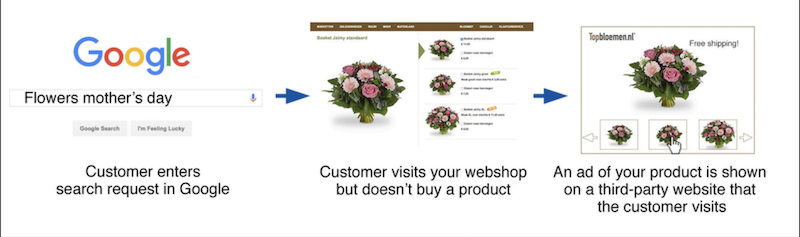
Setting Up a Dynamic Display Ad Campaign
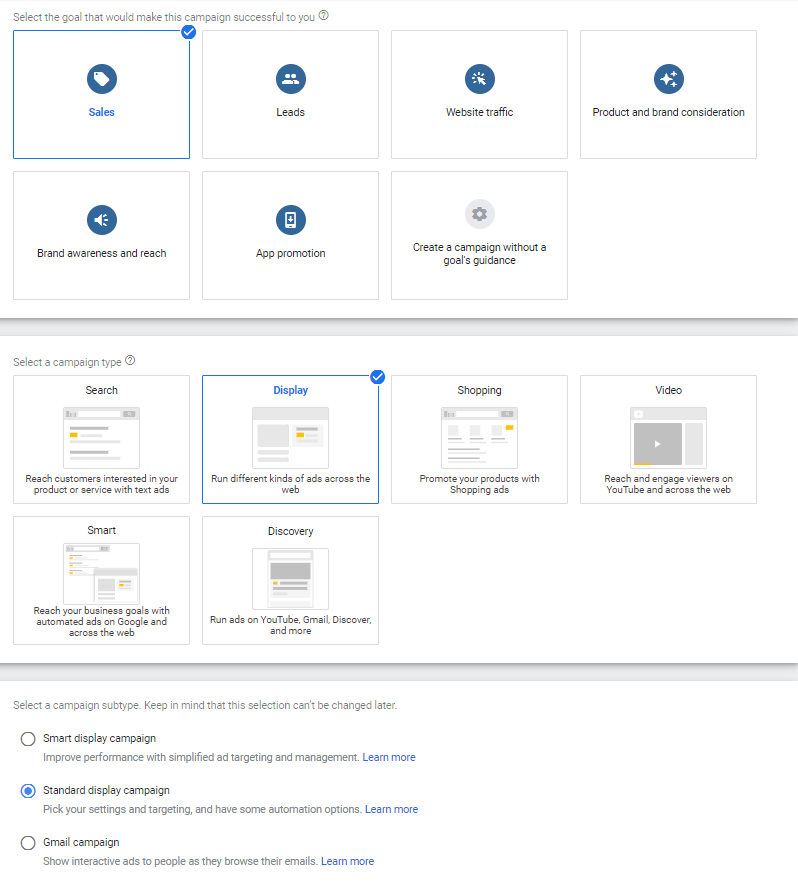
When creating a new campaign, choose “Sales” as your campaign goal objective. Remember, dynamic advertising is exclusive to the Display Network, so select “Display” as your campaign type. For the subtype, the only option supporting dynamic remarketing is “Standard display campaign.”
Configure your account settings as you would for any Display Network campaign. However, you’ll find an additional section in Settings. Locate the “Dynamic ads” section and check the box labeled “Use dynamic ads feed for personalized ads.” A selection box will appear with options such as:
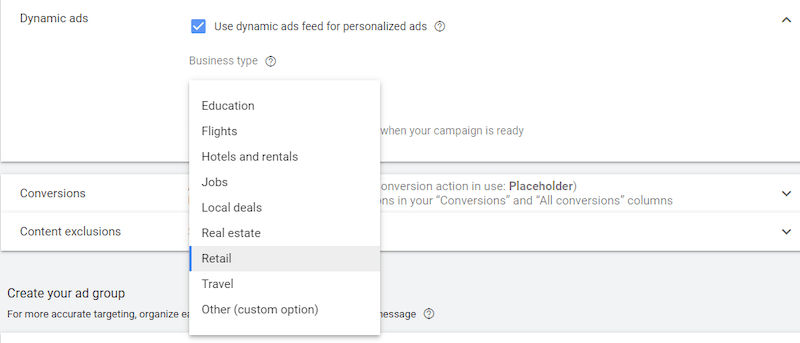
Choose the business type that aligns with your account. If you don’t see a suitable option, select “Other.” If you’re already running Shopping campaigns, you can sync an existing feed linked from Google Merchant Center. Finalize your ad group setup, and then we’ll move on to setting up your feed.
Creating a Feed for Your Dynamic Display Ads
Feeds are crucial for dynamic remarketing in Google Ads. Without a feed, creating dynamic ads is impossible. Retail accounts using Shopping campaigns likely have product feeds in Merchant Center. For other industries, you’ll need to utilize a feed template based on your business type. Before we explore the templates, let’s discuss some limitations.
Feed Limitations
Google Ads policies impose limits on the number and size of feeds:
- Maximum 5 million rows or feed items per account, encompassing dynamic remarketing, extension, and ad customizer feeds.
- Maximum 100 user-generated or business data feeds per ad account.
- Each attribute within your feeds must be 3,000 bytes or less (approximately 750-3,000 characters depending on the characters used).
Feed Templates
The industry you selected during campaign setup determines the appropriate business type feed template. Each template has unique attributes, making template selection crucial. If you chose “Other,” you can create a custom feed. Here are download links for Google Ads business type templates:
- Education
- Flights
- Hotels and rentals
- Jobs
- Local deals
- Real estate
- Retail – Link product feeds via Google Merchant Center
- Travel
- Custom template
Let’s use the Education template with a hypothetical example to illustrate.

Each template includes a default example and extra rows for guidance. Once your feed is complete, we’ll upload it to Google Ads.
Uploading Your Data Feeds
In Google Ads, go to “Tools & Settings” and click “Business data” under Setup.
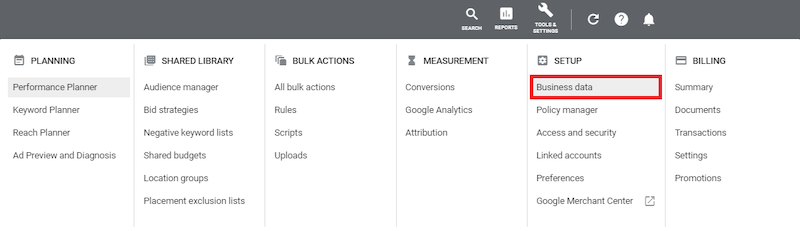
Click the blue plus (+) button to initiate the upload process. Select “Dynamic ad feed” and choose the business type category of your created feed.
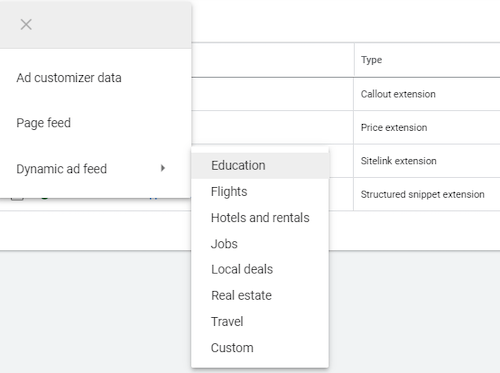
Select the .csv file, name your feed, and upload. Your feed should appear in the Data feeds list after refreshing. Let’s see how this feed might look in an ad.
RELATED: Learn how to set up dynamic remarketing for retail here.
Troubleshooting Data Feed Issues
Several reasons can lead to feed disapproval. Here are common culprits to check:
- Incorrect formatting or exceeding byte limits.
- Missing information in required attribute columns.
- Improper field formatting (refer to the example in the feed template for guidance).
- Invalid URLs (ensure all Final URLs and image URLs are functional).
While other factors can cause feed errors, these are some frequent issues. Errors may appear a few hours after submission. You can edit the feed directly in Google Ads or update and re-upload the original feed.
Incorporating Data Feeds in Dynamic Ads
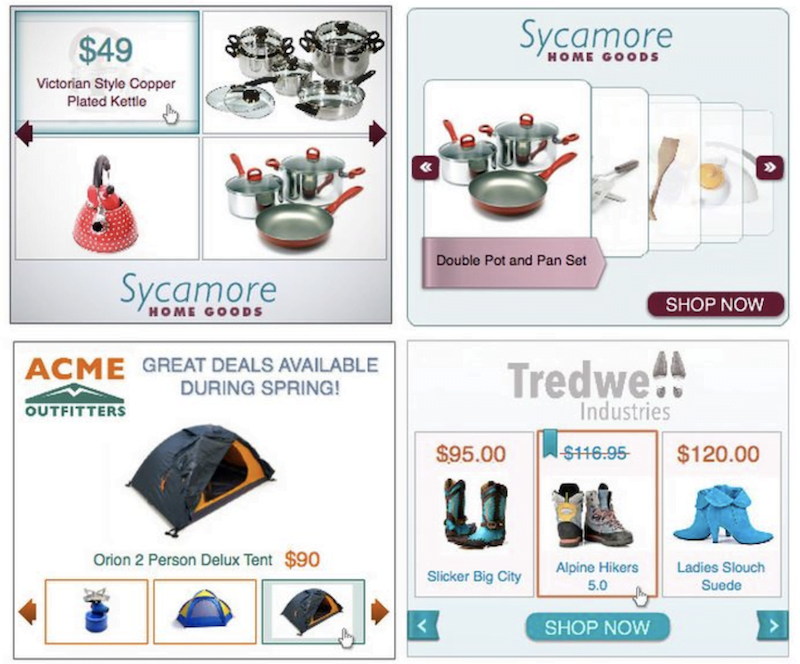
Dynamic ads leverage responsive display ad structure, with your data feed acting as an added layer.

With the data feed applied to the ad group, no modifications to the ad itself are needed. Create your responsive display ad as usual, including marketing and logo images, short and long headlines, descriptions, and optional YouTube videos for engagement.
Maximizing Success with Dynamic Display Ads
Dynamic ads empower advertisers across various industries to tailor their messaging. Using dynamic feeds for products or services can effectively re-engage users by showcasing familiar items or pages. Even if your industry lacks a designated business type, explore custom feed formats to create a perfect fit. By layering an audience-specific ad message with a familiar product or service feed, you can boost your Display campaigns’ engagement and conversion rates.