There has been significant anxiety surrounding the Apple Watch SDK since its announcement at WWDC last June, and its recent release has only heightened these feelings.
It’s important to remember that this is just the initial release, offering limited functionality. While Apple Watch v2 is on the horizon, its arrival won’t be immediate. Developers eager to work with the platform should be prepared for a waiting period of several months.
The developer community’s response has been mixed. A segment of iOS developers have expressed disappointment with the constraints imposed by the Apple Watch SDK and its capabilities. Conversely, many are enthusiastic about its potential, while others remain neutral. Despite these varying viewpoints, there’s a collective eagerness to explore this new technology.
One striking aspect is the terminology used to describe Apple Watch users. They aren’t referred to as “users,” “mobile users,” “watch users,” or even the somewhat inventive “watchers.” Instead, they are simply “wearers.” This choice seems peculiar because it suggests a passive role. While a user actively engages with a device, a wearer merely wears it. This distinction feels odd considering the Apple Watch’s far-from-passive nature. It merges traditional watch functionalities with advanced features enabled by modern technology, particularly when paired with an iPhone. This evolution mirrors the trajectory of phones, which have transcended their basic communication purpose.
Despite this initial oddity, the term “wearer” proves pragmatic. When crafting user stories, for instance, there’s no need to write “As an Apple Watch user I want to …”. Instead, the concise “As a wearer, I want to …” suffices, eliminating ambiguity.
Device and UI
Setting aside Apple Watch features unrelated to development, the most significant challenge confronting designers and developers is screen size. Two distinct Apple Watch models exist:
- 38mm screen with a 272x340 px resolution
- 42mm screen with a 312x390 px resolution
Both models boast a retina display.
Naturally, ensuring applications render seamlessly across both versions falls under the purview of iOS developers.
Apple Watch Connectivity
The Apple Watch establishes communication with its companion iPhone using Bluetooth 4.0 and also supports NFC. Notably, it lacks independent WiFi connectivity. However, it can leverage the iPhone’s connection to utilize both WiFi and cellular data. Interestingly, a press info from Apple explicitly mentions the inclusion of Wi-Fi 802.11b/g capabilities.
User Interaction
User interaction (or wearer interaction, if you prefer) unfolds through four distinct methods:
- Simple touch: Exemplified by a typical button tap.
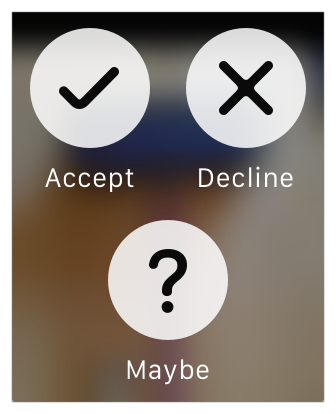
- Force touch: Activated by applying increased pressure while tapping and holding the screen. Similar to a right mouse click on a PC, it reveals a contextual menu (accommodating up to four items).
- Gesture: Vertical swipes for scrolling, horizontal swipes for page navigation, and left-edge swipes to go back.
- Digital crown: A hardware input mechanism employed for precise scrolling.
User interaction, particularly gestures, comes with certain limitations:
- They are predefined, precluding the use of custom gestures.
- Multi-touch is unsupported, eliminating gestures like pinch-to-zoom that necessitate multiple fingers.
The Apple WatchKit Guide provides this illustrative example of a contextual menu.
User Interface
Turning our attention to the Apple Watch UI, several limitations stem from the compact screen size, design decisions, and inherent hardware constraints. Future SDK releases are expected to bring improvements, though predicting the specifics remains impossible.
The first constraint pertains to user interface implementation: it relies solely on storyboards.
Apple Watch Navigation
WatchKit provides two mutually exclusive navigation models for traversing an Apple Watch app’s views:
- Hierarchical navigation: Mirroring the familiar iOS approach, views stack as users navigate.
- Flat page-based model: Users swipe left and right to move between pages.
Regrettably, combining these navigation models within a single app is not feasible. Developers must commit to one for the entire application.
However, any interface controller can present a modal interface controller, which can be a single entity or multiple interface controllers organized using the page navigation model.
UI Elements
Eleven distinct interface components are at developers’ disposal:
- Button
- Slider
- Image
- Label
- Separator
- Slider
- Switch
- Table
- Date: Automatically displays the current date or time.
- Timer: Shows a continuously updating countdown timer.
- Group: Acts as a container for one or more child components.
- Map: Displays a non-interactive map, optionally with up to five annotations.
Layouts
The group component enables the arrangement of Apple Watch UI elements in either vertical or horizontal layouts. Elements are automatically positioned based on their dimensions. Some flexibility is afforded by the ability to nest groups.
Unfortunately, auto layout is absent. However, given the relative simplicity of the user interface compared to its iOS counterpart, this might not be a significant drawback.
For lists, the table component generates and manages content in a single-column format, akin to UITableView. However, it deviates by not using the delegation pattern. Instead, the data source is directly provided to the table by specifying the row count and then populating each row’s content within a loop. On a positive note, utilizing custom table rows (or cells, in iOS terminology) remains possible.
Glances
Glances are read-only, non-scrollable views limited to a single page. They serve to present a concise snapshot of timely and relevant app-specific data. User interaction is restricted to a tap event, which launches the app, optionally providing context to guide the display to a specific interface controller.
For instance, a weather app on the Apple Watch can use Glance to show the current temperature and location. Tapping it opens the full app, revealing more detailed information.
The official Apple WatchKit Guide provides this example of a Glance.

Apple Watch Notifications
Two notification types are available: short look and long look.
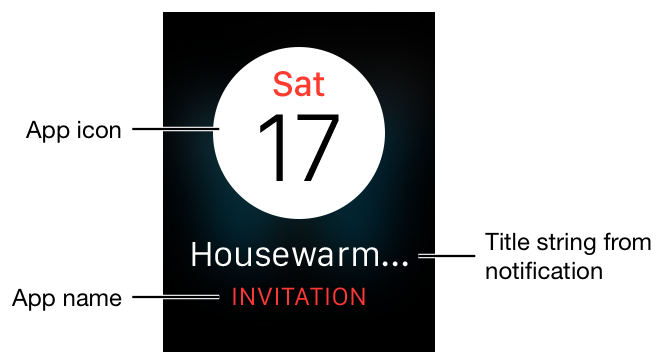
Short look notifications serve as brief alerts, automatically disappearing when the wearer lowers their wrist. They adhere to a simple layout comprising the app icon, app name, and notification title.
Maintaining a raised wrist for a short period or tapping the short look notification expands it into a long look notification. This type offers greater detail and supports user interaction through customizable buttons, which can, in turn, send notifications back to the application. Unlike their shorter counterparts, long look notifications require explicit dismissal by tapping a dedicated button at the bottom of the view.
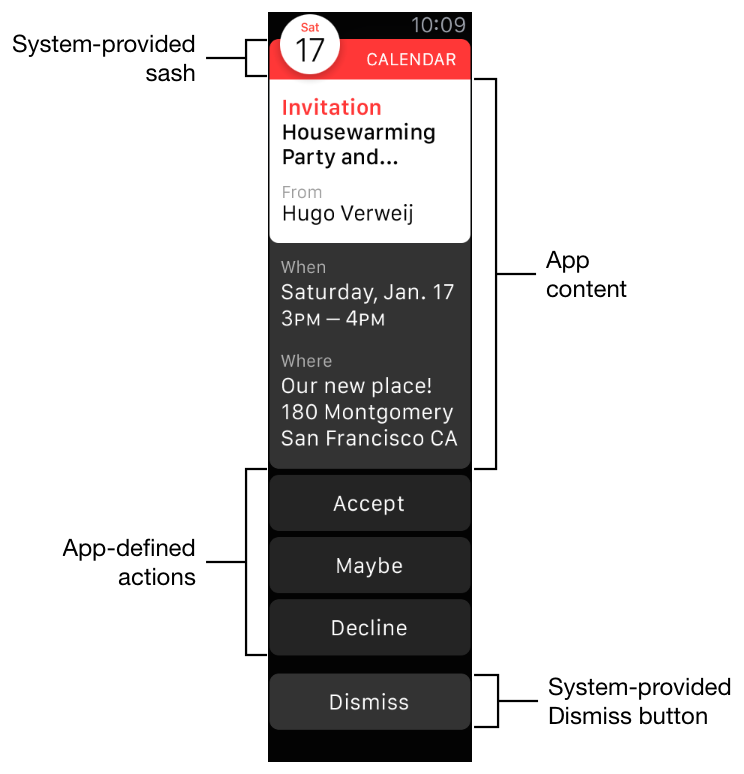
Further information regarding Apple Watch Notifications can be found here.
Development
Architecture
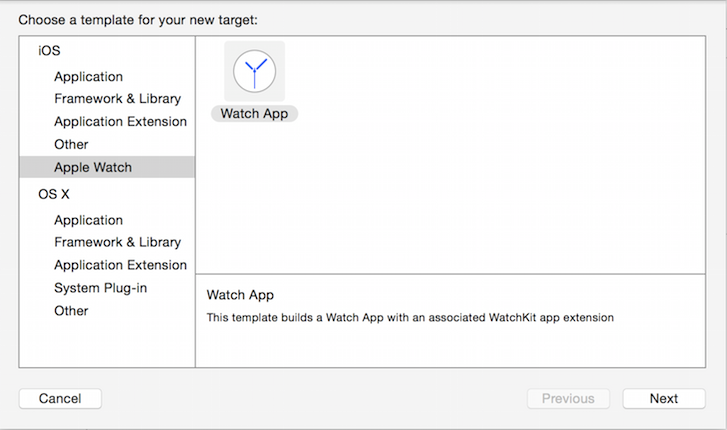
Upon downloading an Xcode version compatible with WatchKit (currently the 6.2 beta) and attempting to initiate a WatchKit project without prior consultation of documentation, a developer might be perplexed by the absence of a dedicated WatchKit template.
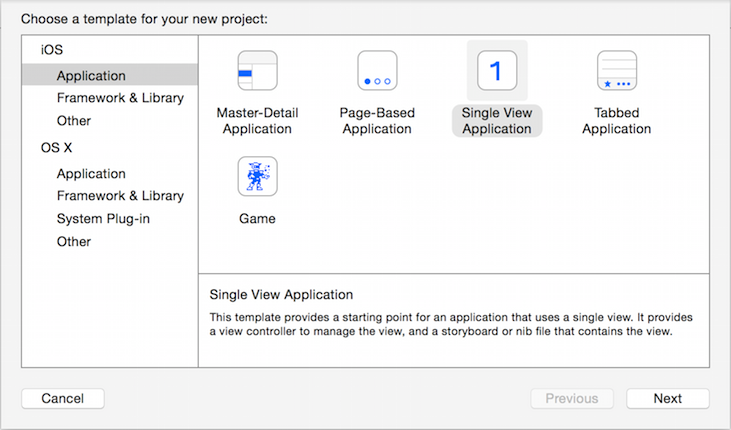
Standalone watch applications are not possible; a Watch App can only exist as an extension, added as a new target to an existing iOS application.
This peculiarity stems from the underlying architecture and the nature of interaction between the watch app and its associated iOS counterpart.
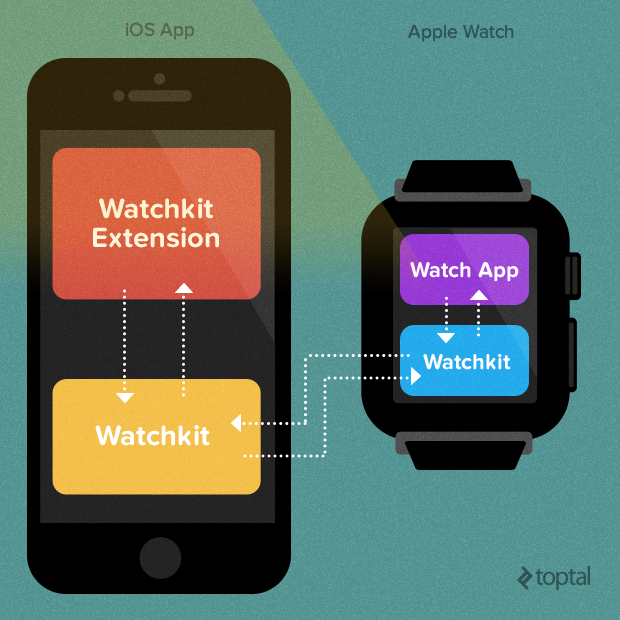
Launching the app on the watch triggers the automatic launch of the companion iOS extension. They operate in tandem, with the watch app responsible for content presentation and interaction handling, while the iOS extension manages all background processing. In essence, no application code is executed directly on the watch; everything is delegated to the iOS extension.
This model closely resembles the browser-web application paradigm, where the server handles the domain logic, and the client side focuses on rendering content and responding to user actions.
The Watch App installed on the device comprises the storyboard and associated static resources bundled together. This bundle’s static nature implies that modifying or adding resources, views, images, etc., at runtime is not possible.
This static client-server model introduces limitations for iOS developers venturing into Watch app development. It’s likely a primary contributor to the less-than-enthusiastic reception from some developers. Another frequently cited concern revolves around animations: they are simply not supported. Emulating animation requires incorporating individual frames into the watch app and then simulating movement by sequentially displaying these images. The silver lining is that sequentially naming frames allows for direct animation from the Interface Builder. The same can be achieved programmatically with a single call to an image control method.
However, Apple has officially announced that a new version, slated for release sometime next year, will introduce support for native applications. Details remain scarce at this point.
The Apple Watch Framework: A Brief Overview
WatchKit doesn’t utilize, inherit from, or specialize UIKit. A new framework, meticulously designed and optimized for the watch’s diminutive display and limited hardware, has been created. This framework consists of a mere 15 classes, 12 of which are UI components (e.g., label, button).
The most significant class exposed by the framework is WKInterfaceController, the WatchKit equivalent of UIViewController. Thus, what’s termed a view controller in the iOS and OSX world translates to an interface controller in the Apple Watch realm.
Without delving too deep, the most notable improvement over UIKit from an Apple developer’s perspective is the establishment of a pattern for passing data between interface controllers. A glance at the initializer:
Swift init(context: AnyObject?) // context from pushing controller or nil
reveals the possibility of supplying an arbitrary object (referred to as the context across all APIs) to an instance of an interface controller, streamlining and standardizing data transfer between interface controllers. The caveat is that the object lacks a generic type and is instead an opaque AnyObject, necessitating downcasting to the expected type within the initializer of the receiving interface controller. This is likely a trade-off made to maintain compatibility with Objective-C.
The interface controller life cycle is streamlined compared to its view controller counterpart, consisting of only three transitions:
init: Triggered during object instantiation.willActivate: Called immediately before content is displayed.didDeactivate: Invoked immediately after the interface is hidden.
Beyond content presentation, the interface controller also handles:
- User interaction management.
- Contextual menu management.
- Handoff activity coordination.
- Notification response.
Is Apple WatchKit Ready?
Given its limitations, the WatchKit might come across as a work in progress, and rightfully so. It lacks native watch application support, not to mention the absence of an actual watch device in the market, leaving developers unable to test their apps comprehensively and experience firsthand how they perform.
While a simulator exists, it’s not an independent entity but rather an extension of the iOS simulator (accessible via Hardware -> External Displays). However, simulators can never fully replace real devices. They are valuable tools for development and debugging but ultimately insufficient for a complete understanding of an app’s behavior.
The WatchKit, in its current form, represents a preview, a beta version, a taste of what’s to come. It’s expected to mature with each iteration. This initial release provides iOS developers with a starting point—an opportunity to experiment and maximize its potential.