When discussing Google advertising, people often focus on lead generation or ecommerce, overlooking mobile apps. However, with millions of mobile apps on Android and iOS, advertising effectively across Google Ads is crucial for success.
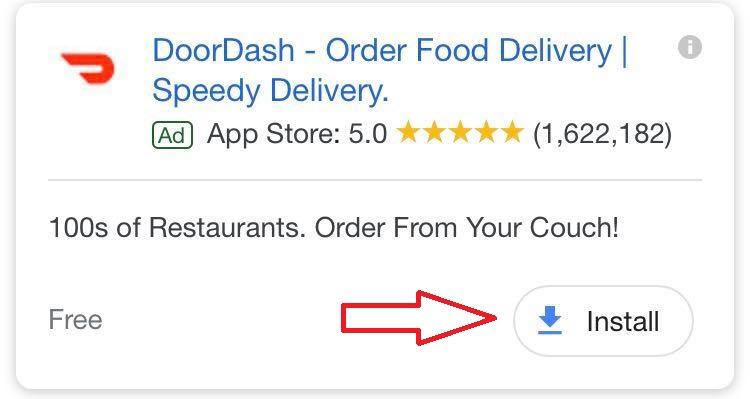
This is where app campaigns, introduced in 2015 as universal app campaigns, come in.
Understanding Google Ads app campaigns
A Google Ads app campaign is an automated campaign type designed to increase both app installations and in-app conversion actions. These campaigns reach users across various Google platforms like Search, Display, YouTube, and Google Play. Essentially, you provide ad copy, visuals, campaign objective, budget, and bid, and Google Ads automatically creates and optimizes your ads for different networks. Over time, Google Ads identifies and prioritizes the most effective copy and visual combinations.
App campaign goals
When choosing an objective for your app campaign, which guides Google Ads in bidding and audience targeting, you have two choices:
- Cost per install (CPI): This instructs Google Ads to maximize installs within your budget. Your bid represents the amount you’re willing to pay per install.
- Cost per action (CPA): This directs Google Ads to generate installs from users most likely to perform valuable in-app actions, again within your budget constraints. Your bid represents the amount you’re willing to pay per in-app conversion. This objective requires setting up conversion tracking for Google Ads to analyze data on users completing specific in-app actions.
Tracking conversions for app campaigns
To maximize installs from high-value prospects, Google Ads needs data on the conversion patterns of your existing revenue-generating users. Tracking various actions within your app creates a comprehensive database that Google Ads utilizes for optimization based on your in-app action objectives. Google Analytics for Firebase is a valuable free tool that analyzes app usage data and monitors user engagement. It provides comprehensive reports on numerous in-app conversion events and enables segmenting your user base by behavior, facilitating targeted advertising.
Conversion window represents the timeframe within which a prospect completes a conversion action after clicking your ad. If the desired action occurs within this window, it’s attributed to the clicked ad. You can customize the conversion window, with the default set at 30 days.
Creating your first Google Ads app campaign
To begin your first campaign, log into Google Ads and choose Campaigns from the left-hand menu. Click the + button, select App on the right, and follow these steps.
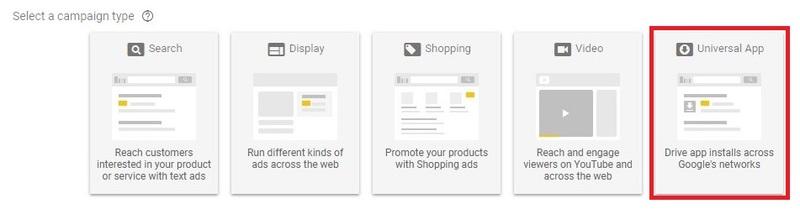
Choose your app’s platform (Android or iOS), input the app’s name, and select it from the generated list. After naming your campaign, provide your ad copy: four independent lines of text, 25 characters or less, with at least one line being 20 characters or less for smaller screens.
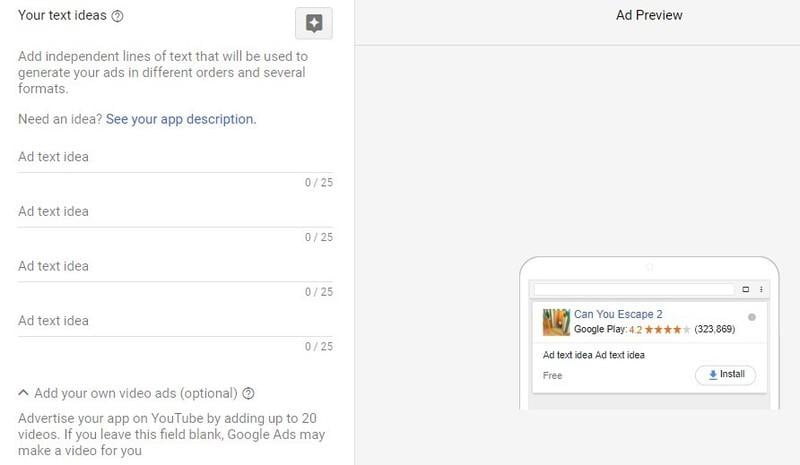
Next, upload up to 20 visual assets. Google Ads will experiment with different asset and copy combinations to identify top performers. You can upload:
- Images (.jpg, .png, gif)
- YouTube videos
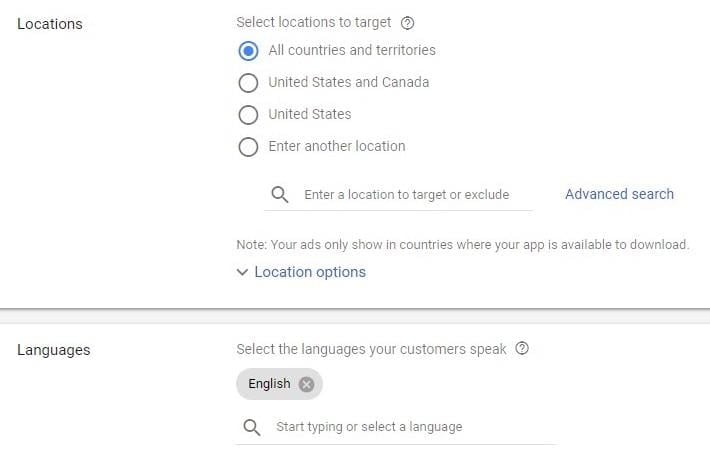
- HTML5 files If you lack assets, Google Ads can extract some from your app. Specify your target languages and geographic regions. Although mobile apps are less geographically restricted than physical businesses, your app’s appeal might vary across cultures, so consider location targeting carefully.
Finally, optimize your campaign for either Install Volume or In-App Actions, with the latter requiring in-app conversion tracking. Set your target bid, click Save & Continue, and launch your campaign.