Working with existing WordPress sites for updates or fixes can be challenging for developers, especially if best practices haven’t been followed. This article offers advice to streamline this process, making it easier for developers and saving time and money.
The Importance of Proper WordPress Maintenance
Websites, especially those using WordPress, need regular edits, updates, and bug fixes. While some site owners work with the same developer long-term, others engage different developers over time. This can cause issues if previous developers haven’t adhered to best practices.
This article highlights key considerations for future WordPress maintenance, ultimately simplifying future work and making your site more developer-friendly. This efficiency can also translate into cost savings.
1. Backups are Essential
While obvious, backing up your WordPress site regularly is crucial, even without active changes. This can be done manually by saving site files and database dumps securely or by using a WordPress backup plugin. Numerous free and paid backup plugins are available in the WordPress repository. Server-level backups are also often provided by hosting providers.
Regular backups offer peace of mind, ensuring your site can be restored after issues. They also assist developers in troubleshooting, especially if problems arose during past maintenance. Backups can help pinpoint and address problems that may have originated months or even years ago.
2. Utilize a Local WordPress Installation
Working directly on the remote server should be avoided, despite it being a common practice. Instead, encourage developers to install the site locally unless sensitive data is a concern. The constant back-and-forth between local machines and the server for edits is inefficient.
Every edit, even minor text changes, requires navigating to specific files via FTP, waiting for uploads, and hoping for a stable connection. Large websites exacerbate this problem due to the volume of data. After uploading, the browser needs refreshing, adding to the delay. While seemingly minor, these seconds accumulate into hours of wasted effort.
Local installations speed up the process significantly. Developers can make changes, refresh, and see results instantly. Even without internet access, they can work offline and upload changes later.
If sensitive data or legal constraints prevent sharing the entire site, consider creating dummy data specifically for development and maintenance purposes.
3. Embrace Git
The introduction of online version control has been revolutionary in software development. Despite this, many sites still rely on outdated cPanel/FTP methods, either unaware of or hesitant to adopt version control. The setup is surprisingly simple and offers significant advantages.
Version control excels in file management, enabling change tracking by different authors, easy edit reversals, and separate branches for independent tasks to prevent conflicts.
Setting up Git requires an external server, typically pre-installed by hosting providers. Initial repository setup and workflow configuration might require server expertise, which falls outside this article’s scope.
Remember, utilizing branches is key to harnessing Git’s power. Maintain at least two branches: development and production. Developers work on the development branch, test, and then push to the live production branch only when satisfied, ensuring a smooth transition.
4. Eliminate Clutter: Files, Code, and Plugins
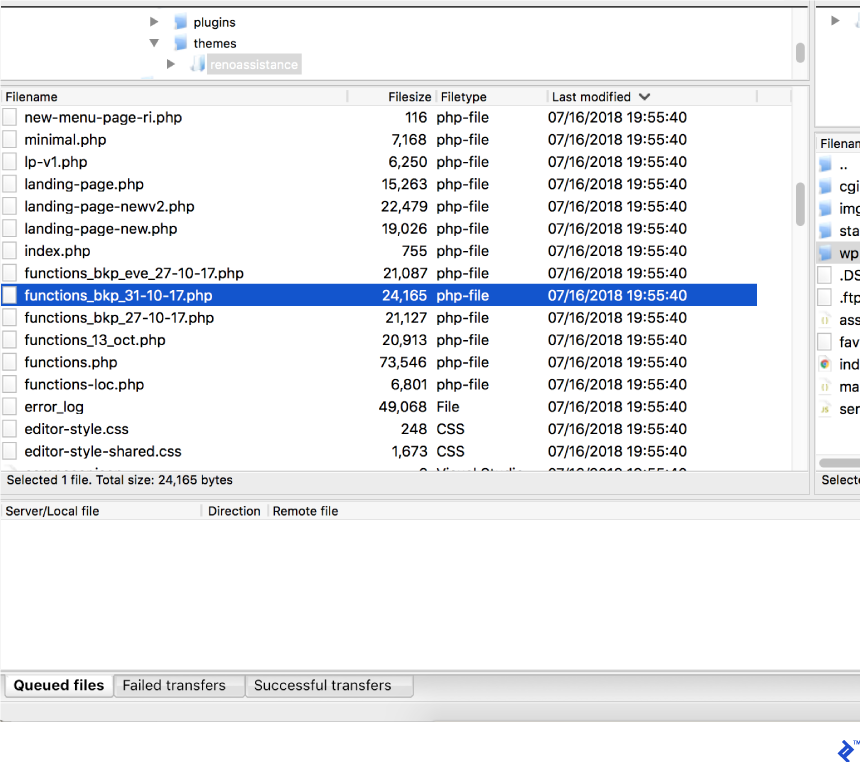
Over time, websites accumulate unnecessary files and plugins. This creates difficulties, especially if these elements haven’t been properly removed. Tracing their origin and purpose becomes challenging, leading to uncertainty about their current use. Removing them requires thorough retesting to ensure nothing breaks.
Encourage developers to remove unwanted files and plugins immediately after they’re no longer needed.
Media files also contribute to clutter within the wp-content folder, potentially causing issues with media-related functionality. Plugins like Media Cleaner can help manage this. It temporarily moves files to an internal trash bin, allowing confirmation before permanent deletion. Remember to back up before cleaning up files.
5. The Power of Comments
A humorous programming meme highlights the importance of code comments: initially, the author, coworkers, and God understand the code; later, only the author and God do; eventually, only God knows what it does – unless comments were added.
While some developers neglect commenting, it’s essential for a productive development environment. Comments save time for new developers, and even the original developer, when revisiting code.
Add comments when a function, class, or code block isn’t self-explanatory. For instance:
| |
This function’s name is self-descriptive, and its purpose is clear. Comments are unnecessary in this case.
However, a function with multiple parameters that returns a filtered post list would benefit from comments explaining each parameter and its type, as well as clarifying code blocks within the function.
For reference, examine WordPress core files to see how WordPress experts utilize comments. The official guide provides comprehensive information on WordPress coding standards.
6. Implement Linting
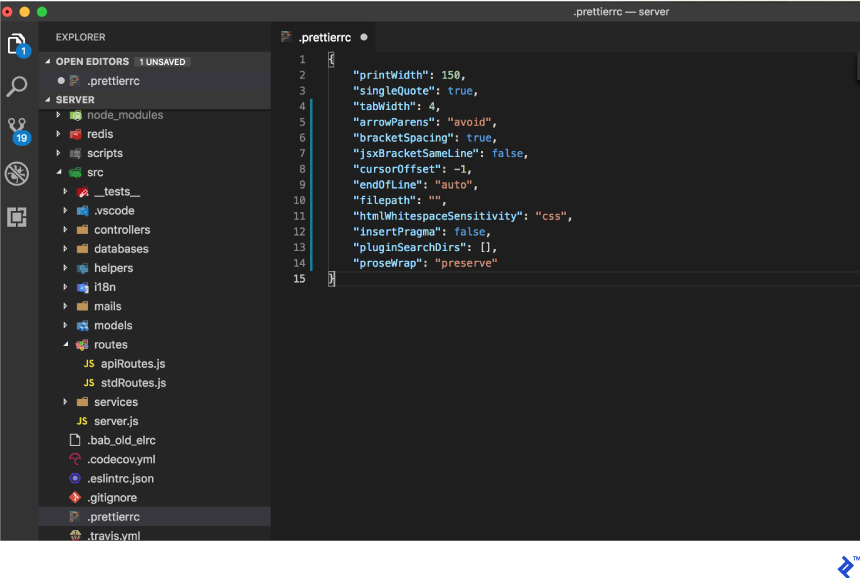
Linting is a valuable tool that enforces coding style rules and can even automatically format code. Most modern IDEs have built-in linting options, which can be customized further.
For instance, Visual Studio Code uses the official PHP linter (php -l) for PHP language diagnostics. Rules and restrictions can be configured for each language (PHP, JavaScript, CSS). Refer to WordPress Coding Standards for more details.
- https://make.wordpress.org/core/handbook/best-practices/coding-standards/php/
- https://make.wordpress.org/core/handbook/best-practices/coding-standards/javascript/
Once a linting configuration is established, ensure all current and future developers integrate it into their IDEs for consistency.
7. Standardize Variable and File Naming
A consistent naming convention for functions, classes, variables, files, and even media/image names is essential, especially within templates, as it clarifies their purpose.
Key considerations include:
- Use clear and descriptive names.
- Keep names concise.
- Appending file type to the name can be helpful. Examples include
BlackArrowIcon.png,FrontYellowBG.jpg, orHelperClass.phpinstead ofHelper.php.
For more information, consult the Naming Conventions section in the WordPress best practices guide.
8. Efficient WordPress Debugging
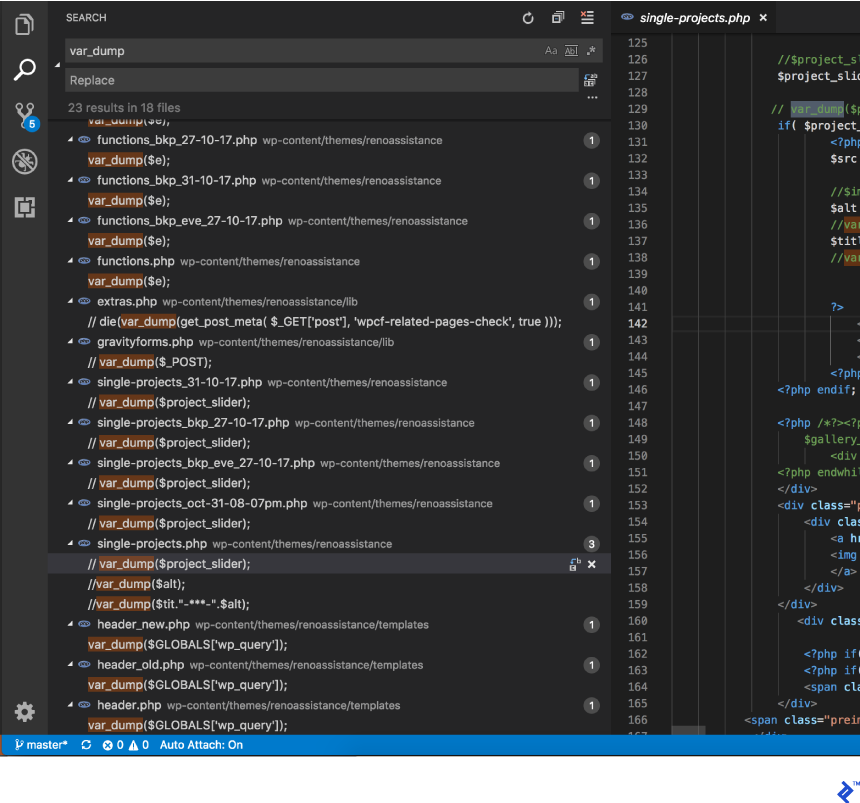
Debugging can consume a significant portion of development time, especially during edits or bug fixing. Therefore, efficient debugging practices are essential.
While manually using var_dump is common, it’s not the most effective approach and can clutter the codebase if not cleaned up properly.
Several debugging plugins for WordPress simplify this process. Some popular options include:
9. Prioritize Well-Structured CSS
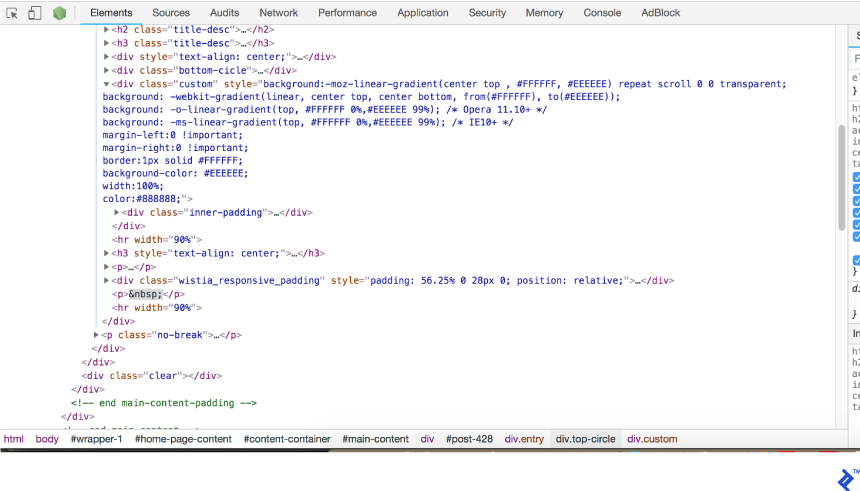
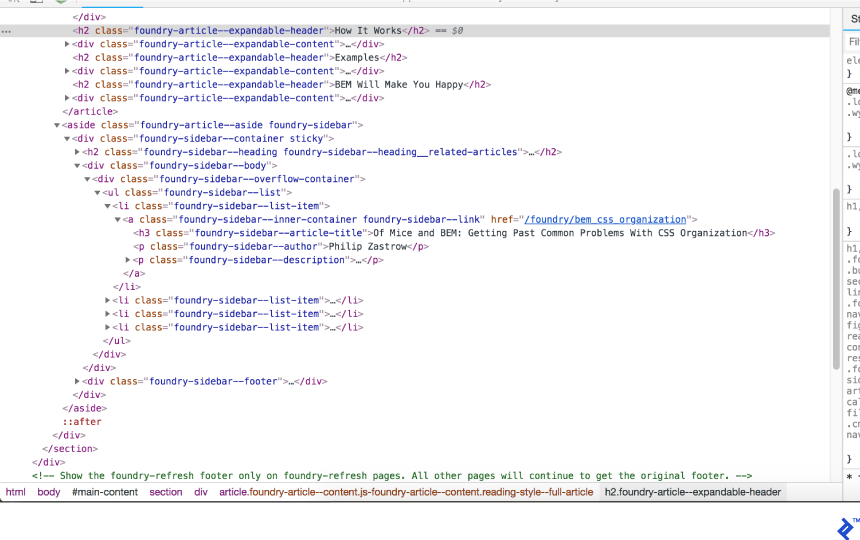
CSS styling is often overlooked in web development but can cause significant problems if not well-structured, especially when making future additions or edits.
Searching for “why CSS is annoying” or reading about the 5 Most Annoying Things with CSS can provide insights into the challenges of poorly written CSS.
Here are some brief tips:
- Enforce a consistent naming convention like BEM (Block Element Modifier).
- Avoid inline styles; use external stylesheets.
- Create reusable patterns instead of adding redundant code.
- Organize styles into multiple files based on features or website sections. If concerned about performance, a caching plugin can consolidate these files.
- Use CSS preprocessors like SASS or LESS.
10. Seek Feedback From Developers
Lastly, involve your developers by seeking their feedback on challenges faced while working on your site. Their hands-on experience can provide valuable insights. They can identify problem areas and highlight poorly written code from previous developers.