While Google Ads is often presented as an accessible platform for all small business owners, it can feel quite daunting to navigate. Furthermore, it demands ongoing attention and optimization to ensure peak performance, which is unlike a simple “set-it-and-forget-it” solution. For dedicated campaign managers like myself, the time commitment is manageable. However, for those juggling it alongside other responsibilities, the time required to manage Google Ads can pose a significant challenge.
That’s why I’m here to share some valuable tips to help you streamline your Google Ads management, allowing you to dedicate more time to other crucial aspects of your business.
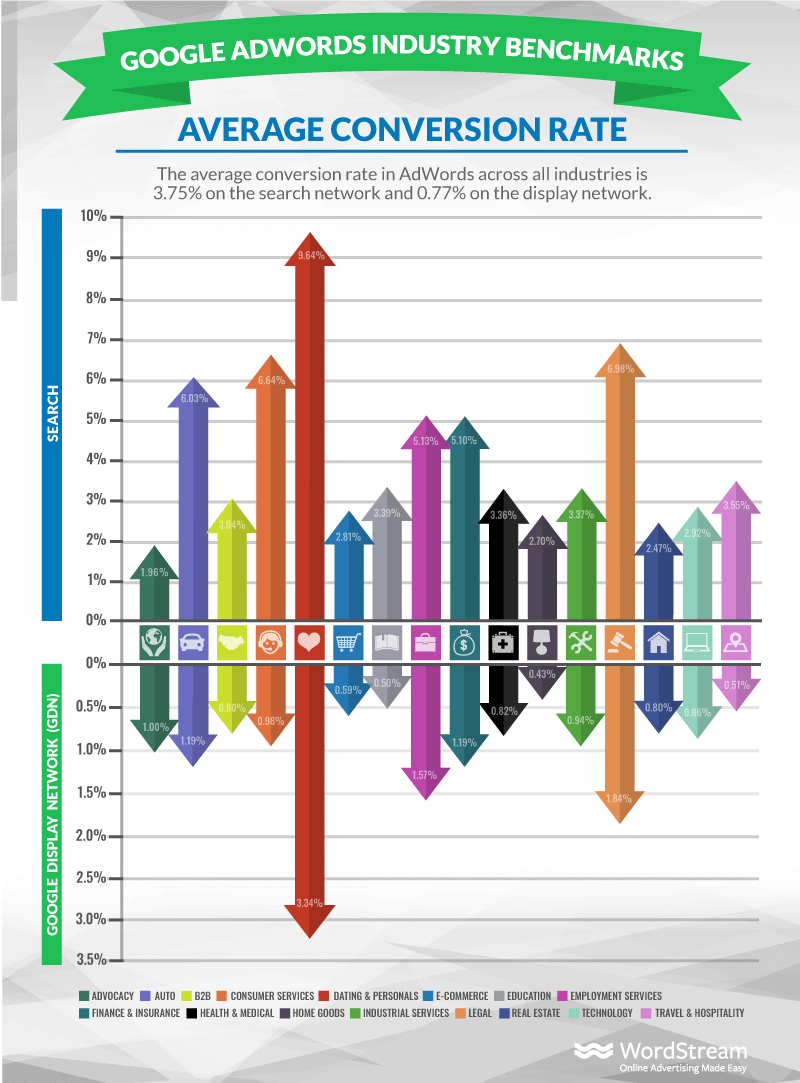
For instance, researching industry standards and crafting a tailored strategy for your account!
Let’s explore ten strategies you can implement today to minimize your time spent on Google Ads:
- Implement automated rules
- Utilize scripts
- Employ bidding strategies
- Experiment with automated ad copy
- Develop negative keyword lists
- Create placement exclusion lists
- Save frequently used columns
- Save common filters
- Schedule automated reports
- Construct dashboards
Investing Time for Long-Term Savings
You’ve likely heard the saying, “It takes money to make money.” In this context, time is equally valuable. Therefore, let’s rephrase that to: “It takes time to save time.”
While the initial setup of many strategies outlined below may require an upfront time investment, potentially even longer than the task itself, the long-term time savings they offer are substantial.
With that in mind, let’s dive in!
The Power of Automation
One of the most effective ways to save time in Google Ads is by delegating tasks to automation. The following strategies revolve around this concept. However, remember that the effectiveness of your automation relies heavily on the quality of input provided. As with any machine, garbage in equals garbage out.
1. Implement Automated Rules
Automated rules have been a mainstay in Google Ads for as long as I can recall. They provide a powerful tool for setting up highly specific alerts or changes within your account.
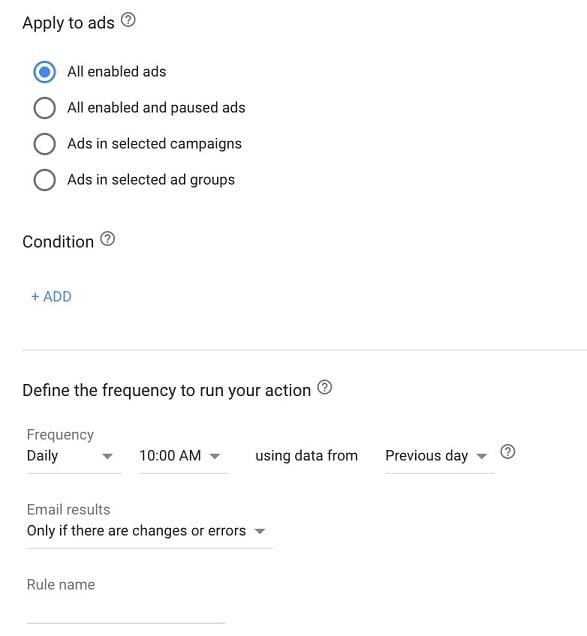
In essence, automated rules operate on an if/then logic based on the performance or status of your campaigns.
Here are some common applications for automated rules:
- Scheduling temporary campaign pauses
- Adjusting keyword bids
- Pausing low-performing keywords
- Receiving alerts for performance fluctuations
The versatility of automated rules is vast. To explore their potential, navigate to your Ad Manager, click on “Tools,” then “Automation,” and finally “Rules.”
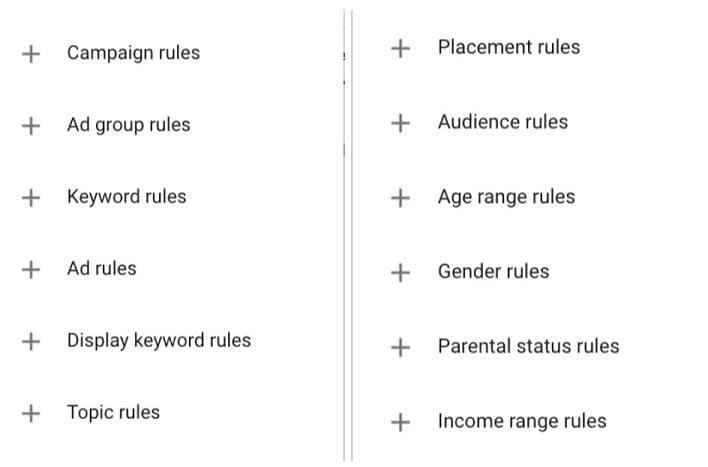
However, a word of caution: automated rules can have unintended consequences if not implemented with best practices in mind. Ensure you’re optimizing for success rather than creating complications.
2. Utilize Scripts
Scripts offer significant time-saving potential but come with a steeper learning curve compared to other strategies discussed. Essentially, scripts empower you to create highly customized operations within Google Ads (and Microsoft Ads), surpassing the capabilities of automated rules.
Here are a few ways scripts can enhance your workflow:
- Dayparting adjustments
- Keyword-level bid management
- Campaign budget control
- Search query mapping
- A/B testing
- Audience management
As you can see, scripts offer remarkable flexibility.
Fortunately, you don’t need to be a coding expert to harness their power. Numerous publicly available scripts, accompanied by comprehensive documentation, are readily accessible for you to copy, paste, and tailor to your specific needs.
3. Employ Bidding Strategies
Bid adjustments are among the most frequent changes made by advertisers. The good news is that this task is also one of the easiest to automate. At its most basic, you can employ automated rules to schedule regular bid changes based on recent performance data.
For a more robust, albeit less customizable, approach, consider leveraging Google’s automated bidding strategies. These strategies offer options to maximize clicks, conversions, return on ad spend (ROAS), impression share, and more.
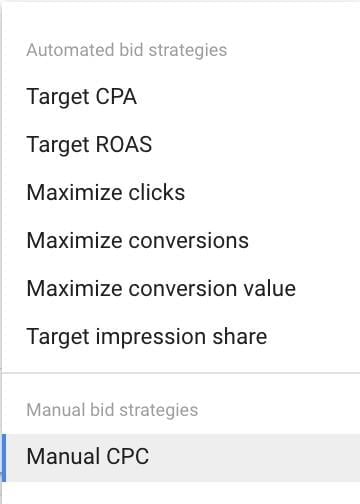
Choose the bidding strategy that aligns best with the goals of your individual campaigns, ranging from the less automated Manual CPC with Enhanced CPC enabled to fully automated options where the algorithm determines all bids.
To explore the mechanics of each bid strategy and identify the most suitable option for your needs, refer to this comprehensive post.
4. Experiment with Automated Ad Copy
Ad copywriting requires a creative touch, transforming data into compelling messages that entice users to click and ultimately convert.
Whether you’re a creative wordsmith or prefer to stick with numbers, there will be times when a little extra creative assistance is appreciated. Since 2018, Google has been developing suggested ad copy within accounts, and in certain instances, has begun implementing these suggestions automatically. The ability to easily disable this feature makes it more appealing.
Even with automatic implementation turned off, Google will continue to provide ad copy suggestions within the platform, drawing on the existing content of your account. You can find these suggestions within the “Recommendations” tab in Google Ads under the heading “Create new versions of your ads.”
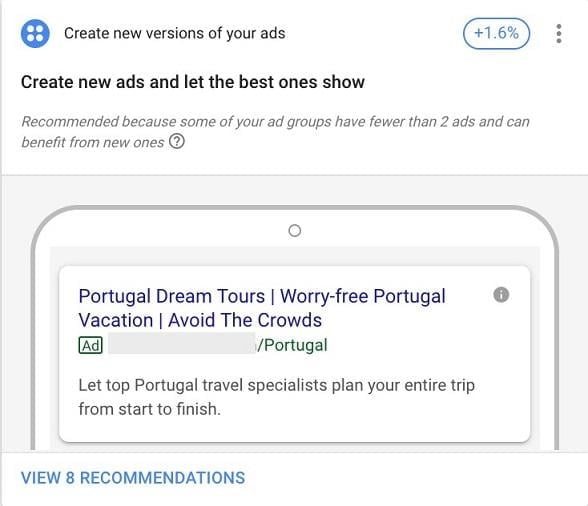
Take the time to review these variants. Some might be useful as is, while others, even if not perfect, might spark creative ideas for your own writing. Anything that saves even a bit of time in the ad writing process is a win in my book.
Full transparency: While this is one of my least favorite time-saving methods, it can be a lifesaver in a pinch.
Shared Functionality: Maximizing Efficiency
Another effective way to optimize your time in Google Ads is by utilizing shared functionality - accomplishing a task once and applying it across future efforts. Negative keyword lists and placement exclusion lists exemplify this strategy. Let’s explore their application.
5. Develop Negative Keyword Lists
Search query analysis is an ongoing endeavor for advertisers, particularly with the evolving landscape of match types in recent years. One way to amplify the impact of this effort is to utilize negative keyword lists across campaigns, preventing them from being triggered by irrelevant queries, regardless of whether they originated from a specific campaign.
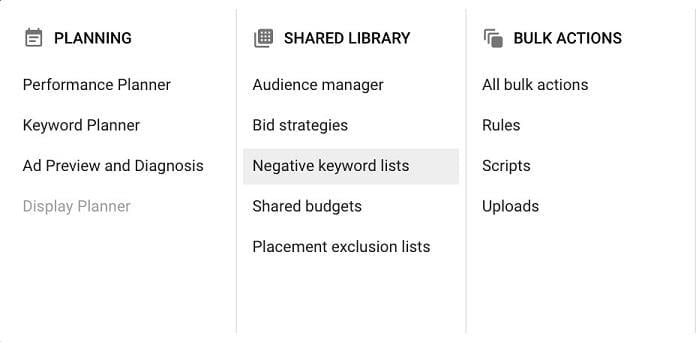
Negative keyword lists allow you to compile irrelevant keywords into a single list, which can then be applied to some or all campaigns within your account. This eliminates the need to add negative keywords individually to each campaign, ensuring comprehensive coverage.
You can manage your negative keyword lists within the Shared Library, making adjustments there or directly within campaigns.
6. Create Placement Exclusion Lists
Placement exclusion lists function similarly to negative keyword lists, but instead of keywords, they target display placements. These lists prevent your display ads from appearing on specific URLs or YouTube channels.
Like negative keyword lists, placement exclusion lists are housed within the Shared Library and can be added to or directly implemented within the “Placements” tab of your campaigns.
Taking advantage of pre-existing placement exclusion lists created by industry peers can save you significant time and money, sparing you from having to learn the hard way which placements are ineffective or brand-unsafe.
Here are a few resources worth checking out:
Data Visualization: Know What You Want to See
Lastly, let’s focus on extracting insights from the wealth of data available within the Google Ads platform. While the platform offers a plethora of crucial data points, quickly digesting it for informed decision-making can be challenging. Data visualization, when tailored to your specific needs, can be instrumental in saving time within Google Ads.
7. Save Frequently Used Columns
When customizing columns in Google Ads, you’ll encounter a seemingly endless list of options, which can feel overwhelming even for seasoned professionals.
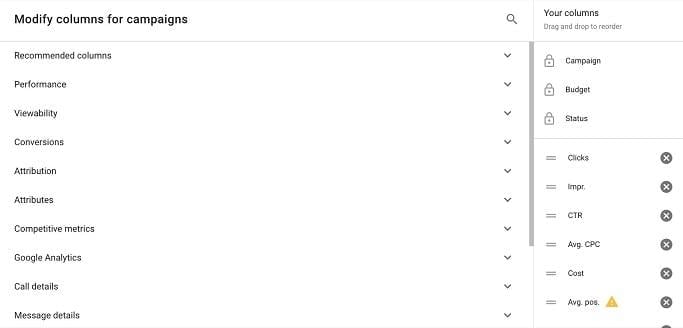
While each column serves a purpose and can be valuable in certain contexts, identify the columns you consistently use to analyze campaign performance and save them as your default view.
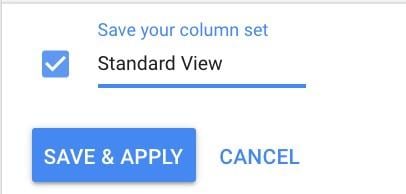
This saved view will then appear in a list when you click on “Columns” in the future.
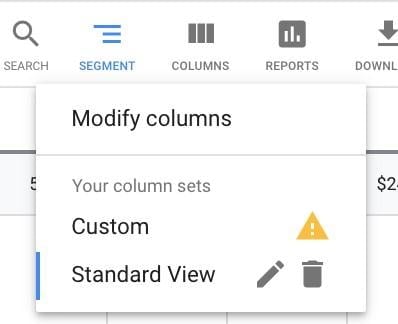
You can then create additional views based on different objectives, such as video views, revenue metrics, impression share, or any other key performance indicator (KPI) relevant to your goals. This allows for seamless toggling between views without the need for repeated customization.
8. Save Common Filters
Similar to columns, saving filters for your campaigns enables you to instantly isolate areas of your account that meet specific criteria. Consider these common filter examples:
- High-cost, non-converting keywords
- Branded keywords with an impression share below 80%
- Keywords with conversions below your cost-per-acquisition (CPA) target and an average position lower than 4
While these examples may not apply to every account, they serve as a starting point and might trigger ideas for filters you frequently use. These insights can then be saved as pre-set views.

Simply create your desired filter and save it with a descriptive name.
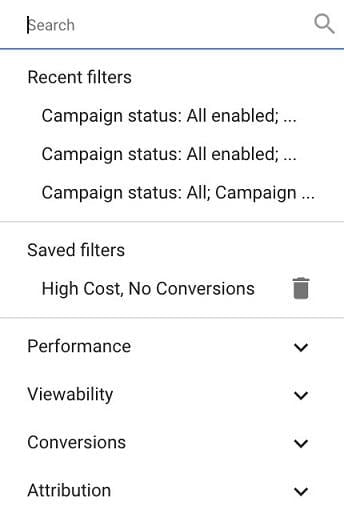
Like saved columns, your saved filters will appear in the list of options for future use.
9. Set Up Automated Reports
Google Ads provides robust reporting functionality within its interface, allowing you to create reports combining virtually any data points available in your account. You can customize these reports into various formats, from standard data tables to a range of charts.
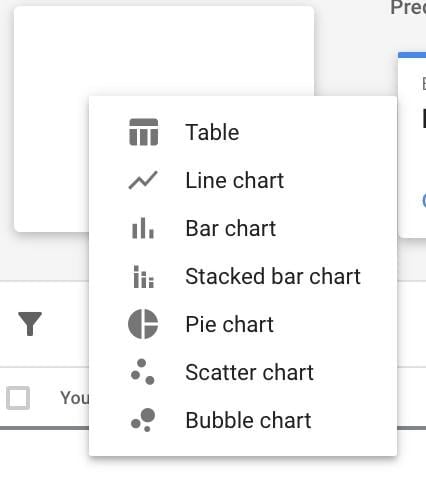
Leverage this feature to build pre-set reports for those you need regularly. Take it a step further by scheduling these reports to be emailed to you at your preferred frequency directly from the Reports editor.
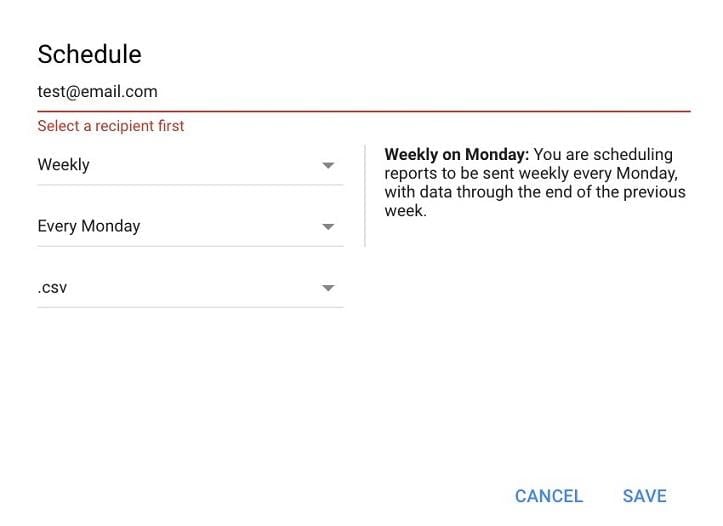
Your reports will arrive in your inbox without requiring you to log into the platform.
10. Construct Dashboards
Lastly, harness the power of data visualization directly within your Google Ads account. The “Overview” tab, now available in all accounts, provides a visual representation of recent performance data.
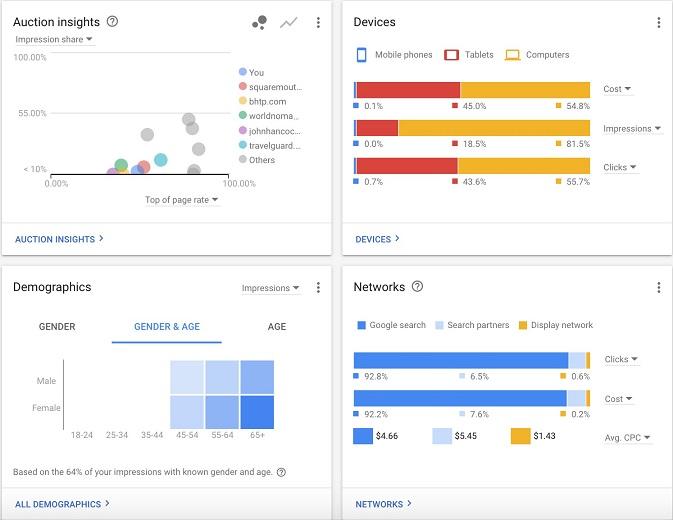
While each widget comes pre-set, you can customize them to display the metrics most relevant to your goals and optimization strategies.
Personalize your dashboard to showcase the most critical data points that require regular monitoring, allowing you to pinpoint areas for improvement quickly.
Embrace Efficiency and Accomplish More
While effectively managing Google Ads requires a dedicated time investment, numerous strategies can help you streamline your workflow and save valuable time.
Now, I’d love to hear from you! What time-saving techniques do you employ within Google Ads? Share your insights in the comments below!